
Deploying System Center Operations Manager vNext
Recently Microsoft released the preview version of their next release of Windows Server, Hyper-V and System Center as did Savision with Live Maps for System Center.
Note: This blog post was first published here : http://www.savision.com/resources/blog/installing-system-center-opsmgr-vnext-and-savision-live-maps-part-i-mvp-alessandro
You can download System Center vNext Preview here and Savision Live Maps from here.
To start, make sure of the following:
- You installed the SQL Server 2014 as the database server for the System Center vNext preview edition. To note, I run into SQL connectivity issues when I tried to use an SQL 2012 version, with a message stating that I did not have a compatible version of SQL installed. Whereas the documentation says that SQL 2012 is supported for vNext preview it is not the case.
- If the SQL Server is installed on a dedicated machine (recommended), that the host firewall is configured to allow inbound connections on port 1433 (SQL) , 80(http) and 443 (https)
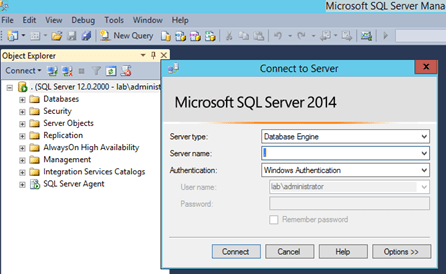
- You installed Reporting Services (SSRS), Analysis Services and Full Text Search as it is required by Operations Manager.
- You created an account to install System Center and it is member of local administrators. For this post, I created an account named “sc-admin”.
- Logon on the machine you plan to install System Center with the “sc-admin”
-
The “sc-admin” account has permissions to create a database in the installed SQL server. You can achieve this by either adding the account to the SQL server administrators when install SQL Server, of by adding the account using SQL Server Management Studio, by expanding Security->Logins and then creating a new login, adding the “sc-admin” account and selecting “sysadmin” as permission under Server Roles (preferable). You can also, if security is a concern, create a OperationsManager database and give the account DB Owner (dbo) permission.
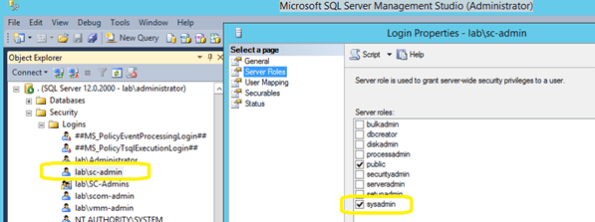
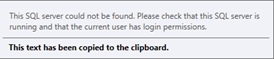
If the credentials you are using to install do not have permission to create the database you will receive the following message:
-
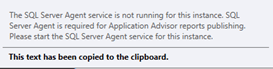
The SQL Server Agent is started and set to automatic:
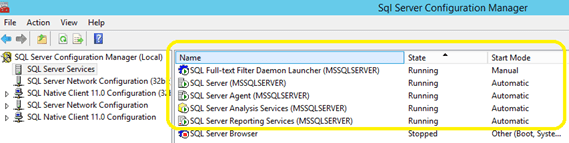
Or else the following error will appear when the Reporting Services configuration times come in the Operations Manager installation wizard.
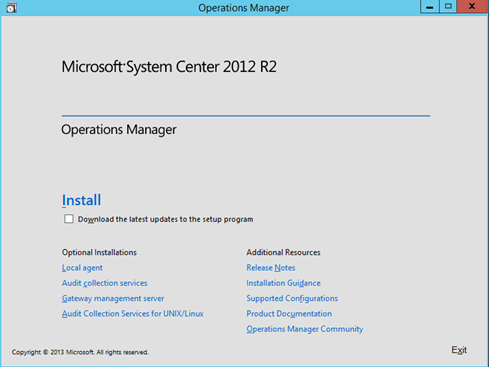
Quick Note: You will notice that although you are installing System Center Operations Manager vNext, the initial screen will show 2012R2 🙂
-
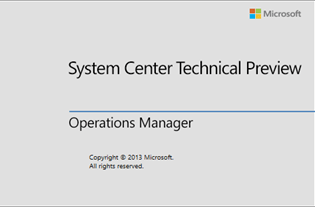
To initiate the installation, click on Install and the Preview logo will appear
I also recommend selecting the Download the latest updates to the setup program checkbox.
-
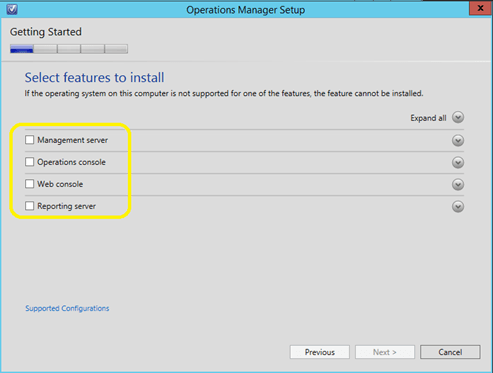
Select the System Center features you want to install. For this post, I am selecting: Management Server, Operations Console and Reporting Server. Click Next to continue.
-
In the Select Installation location, provide the path for Operations Manager installation and click on Next.
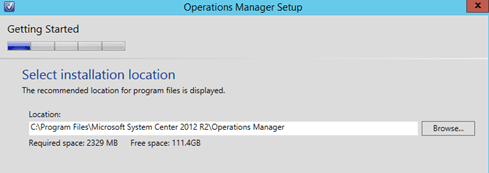
-
Your system will now be checked for hardware and software against System Center requirements. If some requirements are missing it will appear on the screen for your resolution.
The below example, Report Viewer is missing. To fix the issue, click on the
 to expand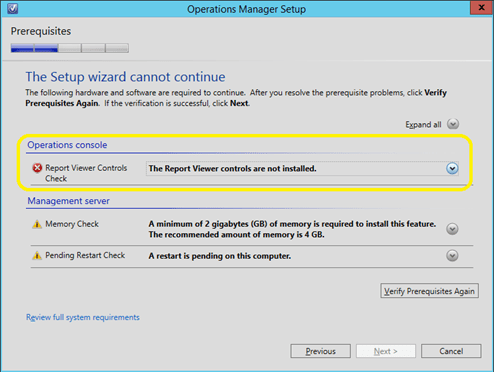
Note that in the above example there are two warnings: the first one about the system not having the recommended 4GB of memory and the second one about a pending restart. As I am installing this for a demo purpose, I can safely ignore the 1st warning, but I will have to click on Cancel and restart the machine in order to proceed the installation.
Click on the link to download and install Report Viewer
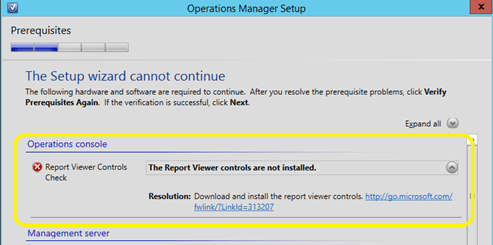
- If no error is reported, click on Next to continue.
-
In the Specify the installation option, select Create the first Management server in a new management group and provide the name. For this post I am using the name “lab” for the management group name.
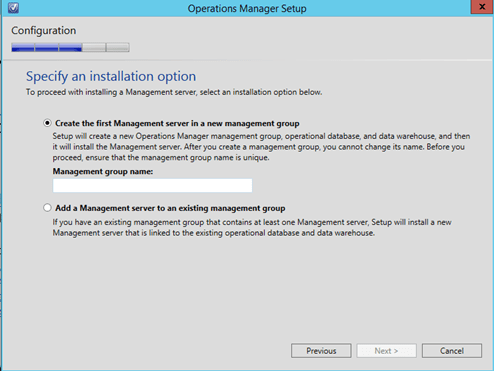
-
Click on Next to continue and accept the License terms and click on Next to proceed.
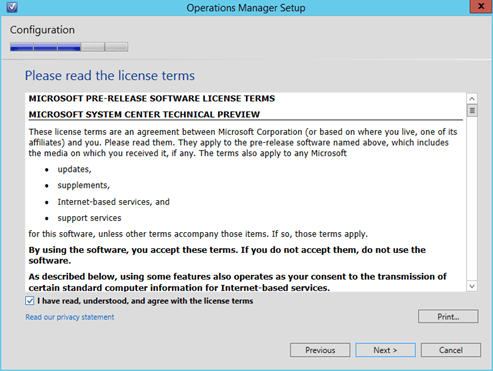
-
In the configure operational database, type the SQL server name and port (if different for the default 1433)
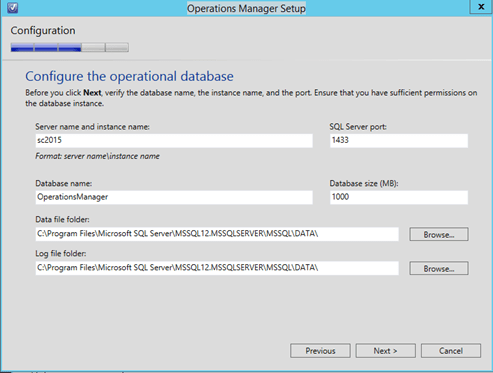
-
Click on Next to progress and to the next step where you will need to provide the Data Warehouse database configuration
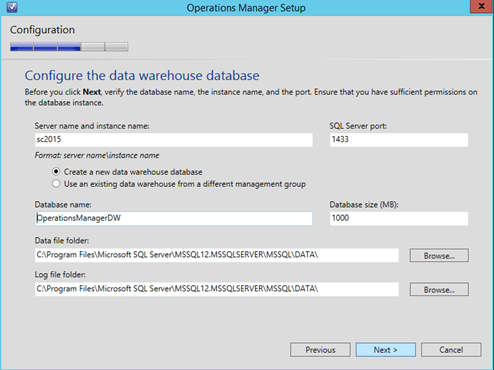
- Click on Next to continue and in the next step confirm the SQL Server instance that is running the SQL Reporting Services and then click on Next to proceed.
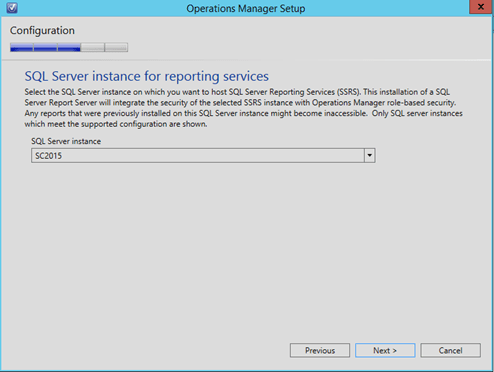
-
In the Configure Operations Manager accounts, provide the accounts details and click on Next to proceed.
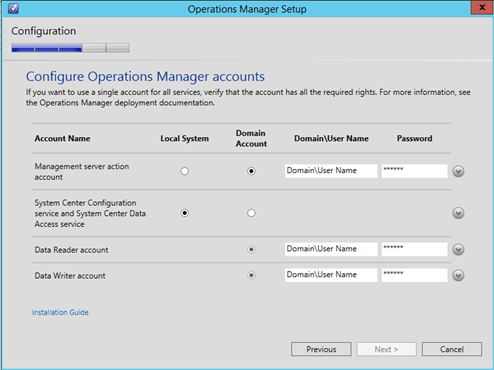
-
In the Help improve Operations manager, select the desired options and click on Next to proceed.
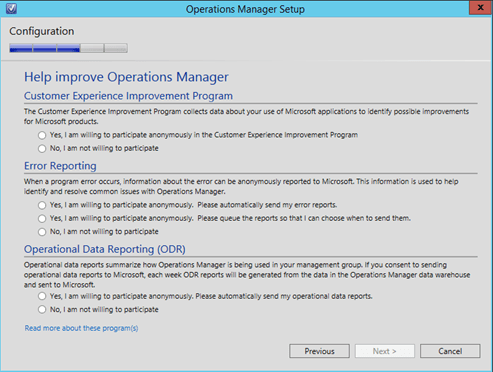
-
In the Update screen select the desired option (On is recommended) and click on Next to proceed.
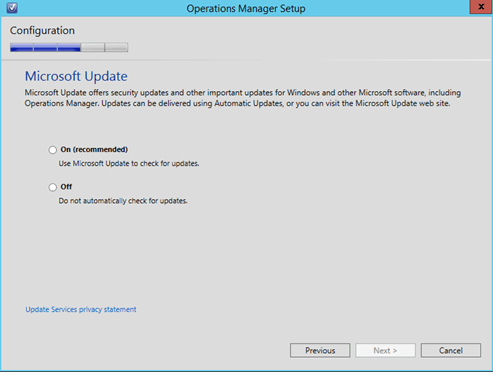
-
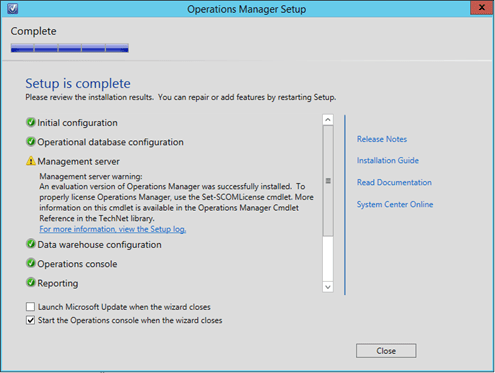
On the Installation Summary, click on Install and wait for the installation to complete.
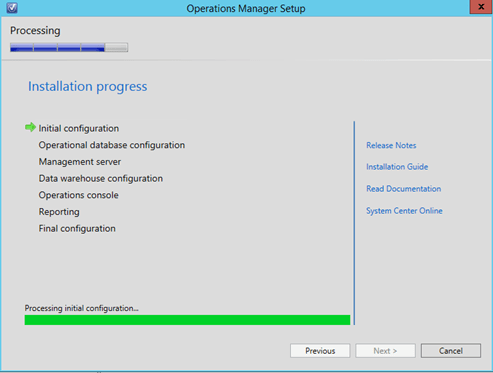
Now we have System Center Operations Manager successfully installed.
Cloud and Identity Access
Identity and Access
Controlling who can access which resources is key for Cloud projects. Recently I was talking with a customer that has external users (partners) and internal users and the ability to centralize and manage the access for those users is essential.
Azure provides ways for customers to federate user identities to Azure Active Directory as well as enabling Multi-Factor Authentication and the new Role Based Access Control (RBAC) features can be used to restrict access and permissions for specific cloud resources.
Monitoring
To help detect suspicious access, Azure Active Directory offers reports that alert you to anomalous activity, such as a user logging in from an unknown device. In addition, operational logging and alerting capabilities can notify customers if someone stops a website or if a virtual machine is deleted. It is possible also to use an on premise System Center Operations Manager to monitor the availability and performance of resources that are running on Windows Azure.
The reports provides up to 30 days of data representing key changes in the directory, providing the action, timestamp, the user/application that performed the action, and the user/application on which the action was performed.
Network
With new VNET-to-VNET connectivity, multiple virtual networks can be directly and securely linked to one another. In addition, ExpressRoute is now generally available, enabling customers to establish a private connection to Azure datacenters, keeping their traffic off the Internet. Building on those enhancements, Microsoft also introduced Network Security Groups for easier subnet isolation in multi-tier topologies.
Security
Azure uses industry-leading capabilities, including recent enhancements to TLS/SSL cipher suites and Perfect Forward Secrecy, to encrypt content flowing over the internet between the customer and the Azure service
Microsoft is committed to advancing cloud security with a goal to not only meet, but exceed the level of protection most enterprises have in place on-premises or in their own datacenters. For the latest information on security features and best practices, visit the Microsoft Azure Trust Center.
Azure RemoteApp will be generally available on December 11, 2014
Azure RemoteApp delivers Windows Server session-based applications from Azure.
Azure RemoteApp, enable users to access corporate applications from anywhere and on a variety of devices, scale up or down to meet the dynamic business needs without large capital expense or management complexity, and centralize and protect corporate applications with the security features and reliability of Azure.
Azure RemoteApp will be generally available on December 11, 2014. Azure RemoteApp instances created during the current public preview period will continue to function as they do today. These instances will automatically transition to a 30-day free trial on December 11, 2014. The limit of two app collections and 10 users per instance will continue to be enforced during the free trial period. To remove these limitations, you can exit the free trial at any point and be charged the rates detailed on the Azure RemoteApp Pricing Details webpage.
For more information, please visit the Azure RemoteApp webpage. For a comprehensive look at pricing, please visit the Azure RemoteApp Pricing Details webpage.
What’s new in #Hyper-V webinar with Symon Perriman
Join Microsoft’s Symon Perriman to see an overview of the new capabilities coming in the next version of Hyper-V for Windows Server. The new feature will enhance management of virtualized servers, storage, networks, and workloads. Learn about upgrading the fabric and virtual machines, Linux support, quality of service, backup, and dynamically adding new resources.
Register now for these exclusive webinars by Microsoft’s Symon Perriman. The webinars will be co-hosted by Savision’s VP of R&D, Steven Dwyer. The webinars will be held on two different dates:
VSS Backups failing after KB3000853
I have been contacted by some people asking about backup issues they are experiencing on Windows Server 2012 . The issue is related with the Microsoft November update release KB3000853.
My recommendation is to remove the update until Microsoft fix the issue as it affected Microsoft and third party backup products.
As per Taylor Brown’s (Hyper-V Program Manager) blog,
“We are getting reports that some customers are seeing backup jobs fail after installing the latest Windows Updates including the November rollup (http://support.microsoft.com/kb/3000853).
We believe there is an issue with the KB3000853 update and are working to fix it as quickly as possible, in the interim downloading and applying http://support.microsoft.com/kb/2996928/ should address the problem”
http://blogs.msdn.com/b/taylorb/archive/2014/11/19/backup-jobs-failing-post-nov-rollup-install.aspx
What’s New in Hyper-V vNext ? Check out at the Infrastructure Saturday event in Brisbane
Saturday 22nd November
Infrastructure Saturday is a day long event for south east Queensland based IT Professional that work with Microsoft products. This event is an educational, informative & lively day filled with sessions about Microsoft technologies.
Location: Microsoft office, Brisbane, QLD. http://www.infrastructuresaturday.com/
Topics covered in my Session: What’s New in Hyper-V vNext?
- New Virtual Machine Upgrade Process
- New Integration Components installation method
- Secure Boot for Linux
- Distributed Storage Quality of Service (QoS)
- Hyper-V Backup
- Hyper-V Virtual Machine Configuration
- Cluster OS Rolling Upgrade

Join me at the PASS Summit 2014, Nov. 4-7 in Seattle, WA #summit14
Hi
As you look to get the most from your database environment and career, I wanted to extend a special invitation for you to join me and 5,000 fellow professionals from around the world at PASS Summit 2014, Nov. 4-7 in Seattle, WA.
COME ALONG and meet me at the Birds of a Feather Luncheon (BoF) and interact with MVPs, SQLCAT architects, speakers, peers and members of the PASS Board and HQ team in this closing-day lunch focused on bringing people with the same passions together. We will discuss, debate and share ideas from your experiences and past week with others at this interactive sit-down. I will be covering topics like virtualization, cloud, security, Professional Development.
PASS Summit – the world’s largest SQL Server conference – is an amazing opportunity to connect, share, and learn with other SQL Server and BI pros like you and me.
With over 200 sessions across 5 topic tracks and 70+ hours of networking opportunities, PASS Summit is packed with the most intensive SQL Server and BI training available anywhere. Summit’s practical sessions are designed to help you increase your knowledge, keep your skills up-to-date, and gain strategic insights from the world’s leading experts that you can put into action immediately when you get back to the office. Plus, you can bring your pressing questions to the Microsoft SQLCAT team, meet me and other MVPS and community experts in the Community Zone, talk with your local PASS Chapter leader, and more – every day at Summit is a chance to make lifelong friends, like I have.
I hope to see you at Summit – here’s where you can register – and please let me know if you’re attending so that we can connect!
Cheers,
Alessandro
TechEd Australia 2014 Melbourne and Sydney editions
This year TechEd Australia will be held in Melbourne (Oct, 7th – Oct 8th) and in Sydney (Oct, 27th – Oct 28th)
I will be speaking about Azure Remote App on both editions and if you come along and tweet about my session you will enter into a draw to win a copy of my book along with Savision Polo.
It is an interactive demo. I will be using Hyper-V to show how to build a custom RemoteApp image as well as demo the RemoteApp client on different devices.
Bring scale, agility and global access to your business applications. Azure RemoteApp helps employees stay productive anywhere, and on a variety of devices – Windows, Mac OS X, iOS, or Android. Integrate Azure RemoteApp with your company’s existing on-premise infrastructure and bring your own Remote Desktop Session Host, or deploy Azure RemoteApp using our pre-built app collections for a stand-alone cloud service. Quickly ramp up and provide seasonal workers, vendors, or large groups of new employees access to company applications without paying for new servers and expensive on-premise infrastructure.
Melbourne Edition
Date: Tuesday, October 7
- Time:9:40 AM – 10:40 AM
- Room: Datacentre and Infrastructure Management
- Session Type: Breakout
- Session Code:DCI301
- Session Levels:300
Sydney Edition
Date:Monday, October 27
- Time:10:10 AM – 11:10 AM
- Room:Datacentre & Infrastructure Management
- Session Type:Breakout
- Session Code:DCI301
- Session Levels:300
It’s time for a new Windows. Announcing Windows 10 : One Product with a tailored experience for each device
Windows 10 represents the first step of a whole new generation of Windows. Windows 10 unlocks new experiences for customers to work, play and connect. Windows 10 embodies what our customers (both consumers and enterprises) demand and what we will deliver
Microsoft promise that Windows 10 will deliver the right experience on the right device at the right time. It will be our most comprehensive platform ever
more details about what Windows 10 will have for these customers, check out this blog post on the Windows for your Business blog.

Check out the Windows 10 Video here: http://www.youtube.com/watch?feature=player_embedded&v=84NI5fjTfpQ
And form Windows Server and System Center perspective:
Infrastructure upgrades: Rolling upgrades for Hyper-V clusters to the next version of Windows Server without downtime for your applications and workloads. This includes support for mixed versions as you transition your infrastructure.
Networking: New components for our software-defined networking stack that enable greater flexibility and control, including a network controller role to manage virtual and physical networks.
Storage: New synchronous storage replication that enhances availability for key applications and workloads plus storage Quality of Service to deliver minimum and maximum IOPS in environments with workloads with diverse storage requirements.
Remote Desktop: Enhanced application compatibility with OpenGL and OpenCL support.
Identity and Access Management: New scenarios to reduce the risk profile of administrators with elevated rights, including time-based access with fine-grained privileges, and new application publishing capabilities.
The DOWNLOAD it is not yet available but if you want to download the bits or try them on Azure, it will be published here http://go.microsoft.com/fwlink/?LinkID=404281
DATA as a power enablement
Cloud Management improving business agility
If you’re building a cloud solution you understand that getting expert advice rapidly better enables you to build solutions that address your business’ or customer’s needs.
I have been working with System Center and Cloud implementations for quite a while now as well as writing books about System Center. Deploying cloud management solutions like System Center requires an approach that takes advantage of the opportunities and features offered by the virtualization layer.
Beyond IT productivity, cloud management can dramatically improve business agility. However, an evolving cloud architecture can also lead to waste and inefficiency. Has the efficiency of your cloud architecture been reviewed overtime? Are you optimally defining the placement of workloads?
One of the concerns I always raise when speaking with decision makers and cloud adopters is ongoing management, especially with respect to increasing virtual machine density, preventing resource exhaustion, and tuning your environment to build a tailored virtualized infrastructure for your organization that will stand the test of time.
As an automated solution for infrastructure reviews, I definitely recommend Savision Cloud Advisor which provides an impact analysis for each problem it discovers and identifies savings for your business.
At TechEd NZ 2014 keynote speaker James Whittaker, talked about DATA as a power enablement. That’s exactly what this tool is about. It analyses the information VMM stores in the SQL database, using statistical techniques with the goal of discovering useful information, providing tips for your Private Cloud implementation.
Get tips for your Private Cloud implementation
A big plus for the tool is that it does not impose any load on the hosts or virtual machines. All information used in tip generation is retrieved from the System Center Virtual Machine Manager (VMM) database.
To install Savision Cloud Advisor on VMM 2012 R2 follow the following steps:
- Download Cloud Advisor (http://www.savision.com/free-tuning-and-optimization-recommendations) as a zip file (don’t extract it).
- Save it to a location on the VMM Console machine (i.e. c:\Savision)
Note: the add-in should be installed on each machine running the VMM console. - Create an empty .txt file under ‘%PROGRAM FILES%\Microsoft System Center 2012\Virtual Machine Manager\bin\AddInPipeline\AddInViews’ folder
Note: All required files are distributed with the add-in, but a bug in VMM causes it to not always recognize this fact, that’s why you need to create the empty .txt file
4. On the VMM 2012 R2 Console, logon as VMM Admin, click on Settings and then click on Import Console Add-In.
5. Click on Browse and select the file Savision_Cloud_advisior.zip
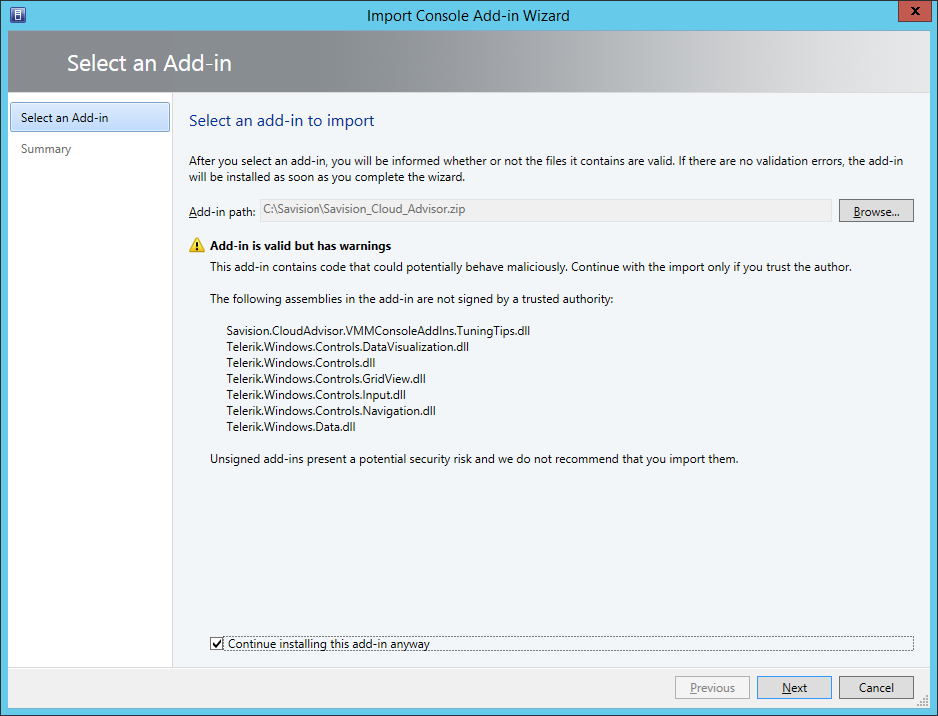
6. Click on Continue after receiving the message “Add-in is valid but has warnings.”
7. Make sure Continue installing this add-in anyway is checked.
8. Click on Next and then click on Finish.
9. Close the VMM Console and then re-open it.
10. The Cloud Advisor add-in will appear on the VMM ribbon bar when a host, cluster, or cloud is selected.
Note: The first time you run the add-in, it will prompt you for credentials to the SQL Server database in which VMM stores performance data.
This performance data is used to assist in generating tuning tips. Provide the credentials of a user that has read access to the SQL database and click Connect.

For more information, read more about Savision’s Cloud Advisor FREE tool for free tuning and optimization recommendations for System Center VMM or visit Savision’s training center.
Note:
Post originally published on http://www.savision.com/resources/blog/data-power-enablement-mvp-alessandro-Cardoso
Recommended Books


System Center 2012 R2 Virtual Machine

System Center Virtual Machine Manager 2012 Cookbook


 Cloudtidings.com