
Archive
Cloud domain controller as a services with @Azure AD Domain Services @microsoftenterprise
That’s right Cloud AD as a services. A fully managed domain by Microsoft : Azure AD Domain Services to manage Azure IaaS workloads.

Azure AD Domain Services It’s a cloud based service which gives you a fully Windows Server Active Directory compatible set of API’s and protocols, delivered as a managed Azure service.
You don’t need to provision a Virtual Machine running Domain Controller on Azure as a IaaS anymore and have those domain controllers synchronize to their on-premises Active Directory servers using a VPN/Expressroute connection.
You can now turn on support for all the critical directory capabilities your application and server VM’s need, including Kerberos, NTLM, GROUP POLICY and LDAP.
For scenarios like Disaster Recovery and hybrid cloud deployments, it is just perfect. It means a full value of Windows Server AD in the cloud domain, without having to deploy, manage, monitor and patch domain controllers.
There are many scenarios that can be explored with this new feature.
You can enable Azure AD Domain Services for any existing Azure AD tenant – the same tenant you use with Office 365 or other SaaS applications. Azure AD Domain Services are available now.
For pricing, please check : http://azure.microsoft.com/pricing/details/active-directory-ds/
To start:
- You already deployed Azure AD Connect (to sync identity information from the on-premises Active Directory to your Azure AD tenant. This includes user accounts, their credential hashes for authentication (password sync) and group memberships)
- Create the ‘AAD DC Administrators’ group and then add all users who need to be administrators on the managed domain to it. These administrators will be able to join machines to the domain and to configure group policy for the domain.
- Configure the Network. Select or create the Azure virtual network you’d like to make domain services available in. Ensure the following:
- The virtual network belongs to a region supported by Azure AD Domain Services. See the region page for details.
- Ensure the virtual network is a regional virtual network and doesn’t use the legacy affinity groups mechanism.
- Ensure your workloads deployed in Azure Infrastructure services are connected to this virtual network
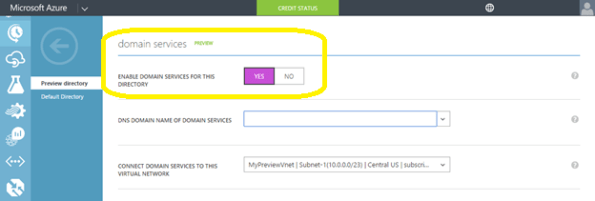
- Enable Azure AD Domain Services for your Azure AD tenant, by going to the Configure tab of your Directory, selecting Yes on ‘Enable Domain Services for This Domain’, specifying the domain name and selecting the Azure Virtual Network. Click on Save to confirm.
- Update DNS settings for the Azure virtual network to point to the new IP address of the Azure AD Domain Services you just enabled.
- Enable synchronization of legacy credential hashes to Azure AD Domain Services. This is a required step. By default, Azure AD does not store the credential hashes required for NTLM/Kerberos authentication. You need to populate these credential hashes in Azure AD so users can use them to authenticate against the domain.
A few salient aspects of the managed domain that is provisioned by Azure AD Domain Services are as follows:
- This is a stand-alone managed domain. It is NOT an extension of your on-premises domain.
- You won’t need to manage, patch or monitor this this managed domain.
- There is no need to manage AD replication to this domain. User accounts, group memberships and credentials from your on-premises directory are already synchronized to Azure AD via Azure AD Connect.
- Since the domain is managed by Azure AD Domain Services, there is no Domain Administrator or Enterprise Administrator privileges on this domain.
High availability and disaster recovery
High availability and disaster recovery are key components of an Enterprise’s IT environment. While more and more companies are adopting Hyper-V on Server 2012 R2 for their private cloud solution, Savision’s newest whitepaper, written by Microsoft MVP Peter de Tender, will explain how:
-You can leverage on the power of Microsoft Azure for building a Hyper-V based datacenter disaster recovery plan.
-You can migrate your in-house VM’s to Microsoft Azure, guaranteeing uptime and availability of the machine and the applications to your end-users.
Not using Hyper-V yet? No worries, Azure Site Recovery can also act as failover for your VMware or physical host platform.
Learn from Peter De Tender, independent technical speaker, valued Microsoft Infrastructure Architect, Microsoft Certified Trainer and Windows IT Pro MVP, about the core features of Azure Site Recovery, extended with insights on how Savision can assist you in monitoring the ASR topology by showing real-time feedback

Modern Infrastructure: Provisioning private clouds and virtualized data centers. September 8th @Microsoft Brisbane
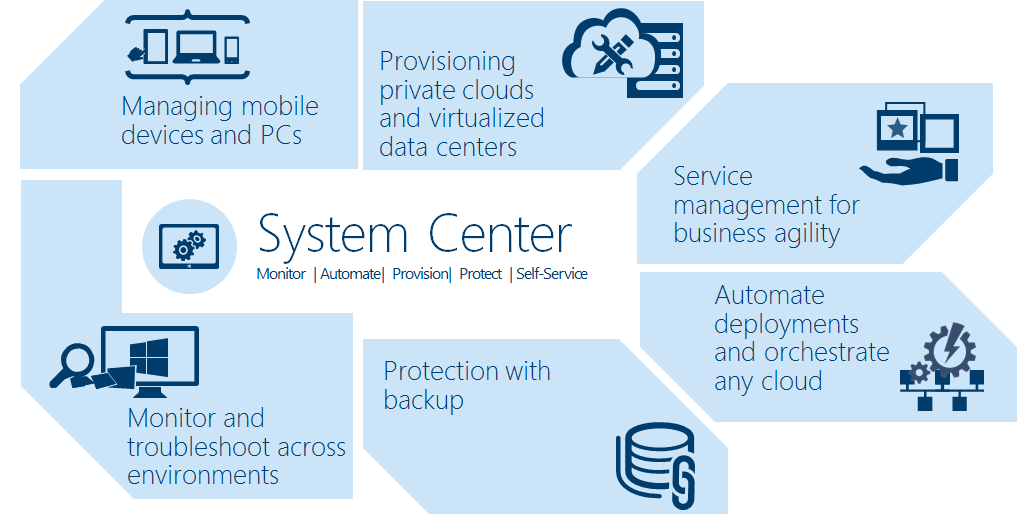
What’s New in System Center VMM 2016?
System Center 2016 will continue to speed time to value with new provisioning, monitoring and automation capabilities designed for your software-defined datacenter. Optimized for both traditional management and private cloud environments.
Tuesday 8 September I will be presenting an event at Microsoft Brisbane about the new features in System Center VMM and the rich enhancements provided with Microsoft Azure Operational Insights and Automation. Learn best practices for using VMM to manage your datacenter fabric. Come and see how other customers are using System Center.
We will also have a sneak peek of Containers and management of Windows Server Containers using PowerShell.
- When
- Tuesday, 8 September 2015 from 6:00 PM to 8:00 PM (AEST)
- Where
- Microsoft Brisbane – Level 28. 400 George st. Brisbane 4000 AU – View Map
Challenges of Cloud Adoption
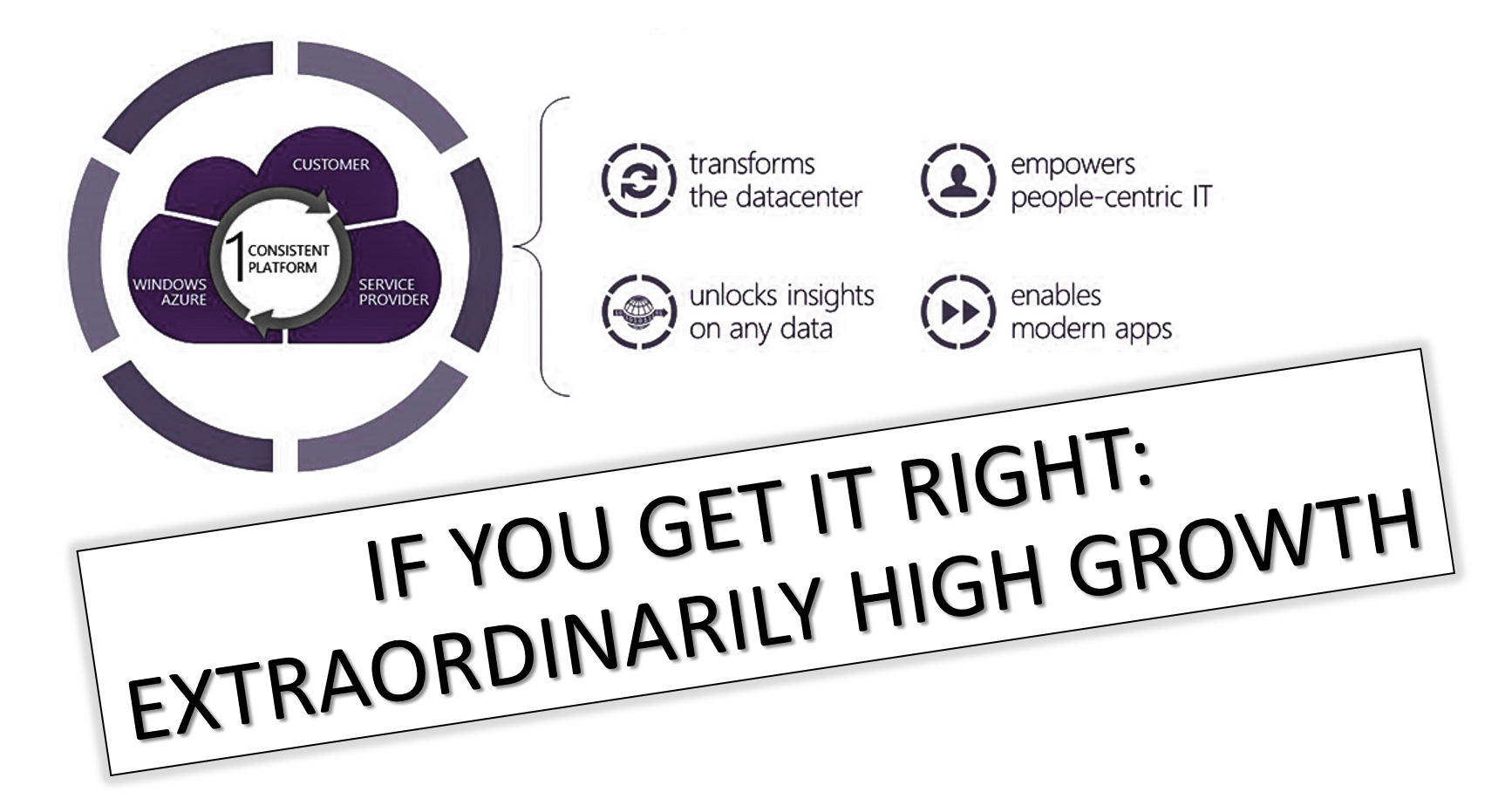
The Cloud approach addresses elastic scale, agility, costs and time to market, by allowing organizations not only to deploy a solution quickly but also to scale up/down based on demand. Cloud adoption is sky rocketing, there’s no doubt about it. However, when it comes to investments in the Cloud, how are you planning and assessing business and IT requirements?
- Is your current IT infrastructure and resources meeting the required business SLA’s?
- How you foreseeing capacity issues?
- Are you connecting IT resources to business outcomes and unifying IT processes with business cycles?
- How does your business maintain the system availability and resilience?
- How are you maximizing the utilization of the resources within your IT infrastructure?
With this whitepaper, we will help you find the answer to those questions, covering the challenges in deployment, management and automation phases with some tips and considerations.
Download the whitepaper
You can also register for Savision’s complimentary webinar, presented by MVP Alessandro Cardoso on Adopting the Cloud. The webinar will be presented by MVP Alessandro Cardoso, and will be co-hosted by Savision’s co-founder and VP of Product Management, Dennis Rietvink.
Register for the webinar:
Is System Center Operations Manager still relevant in the Cloud?
EXCLUSIVE Whitepaper: Is OpsMgr still relevant in the Cloud by MVP Cameron Fuller

|
The addition of the Cloud has truly changed how we monitor in Microsoft solutions. In this whitepaper, Microsoft MVP Cameron Fuller tackles the elephant in the room and answers the question of the relevance of Operations Manager. Find out whether Operations Manager is still relevant in the world of the Cloud
|
Installing Hyper-V role on Windows 2016 Server TP2 MinShell version
As you probably are aware of, Windows 2016 Server TP2, comes with 2 installation options. You also probably have noticed as well that the graphical user interface (GUI) is no longer an option in a default install on the Technical Preview 2.NOt even Start Menu.

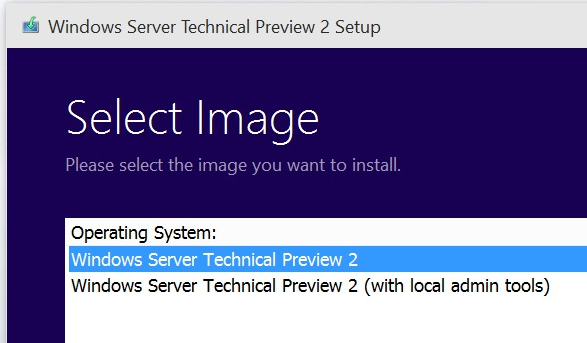
- Windows Server Technical Preview 2 option, will install the server with MinShell (Minimal Shell no GUI). Assuming that you will manage the host remotely you won’t need graphical interface at all and from a security point of view, it is the better option.

- Windows Server Technical Preview 2 (with local admin tools) option, will install the server again with MinShell, but includes Server Manager and the other GUI administration tools, although no desktop experience (traditional desktop), nor start menu.
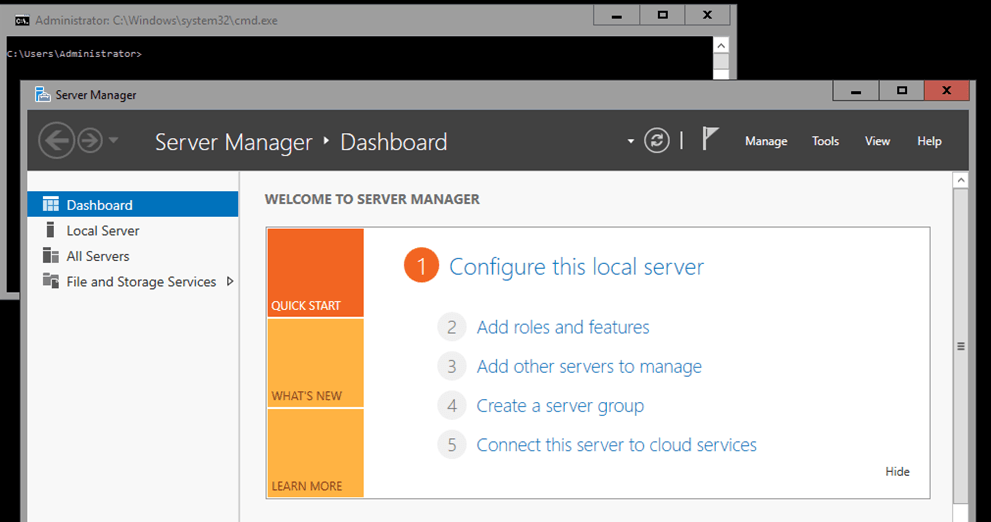
To install Hyper-V role in the Windows Server Technical Preview 2 (with local admin tools) option, in the Server Manager console, click on Add roles and features and select Hyper-V.
To install Hyper-V role in the Windows Server Technical Preview 2 option :
in the command prompt, type:
PowerShell
PS: > Install–WindowsFeature Hyper-V
Note: If the installation fails due to “The source files could not be found” error, assuming the Windows Server Technical Preview 2 ISO image connected to the DVD drive (D:), type:
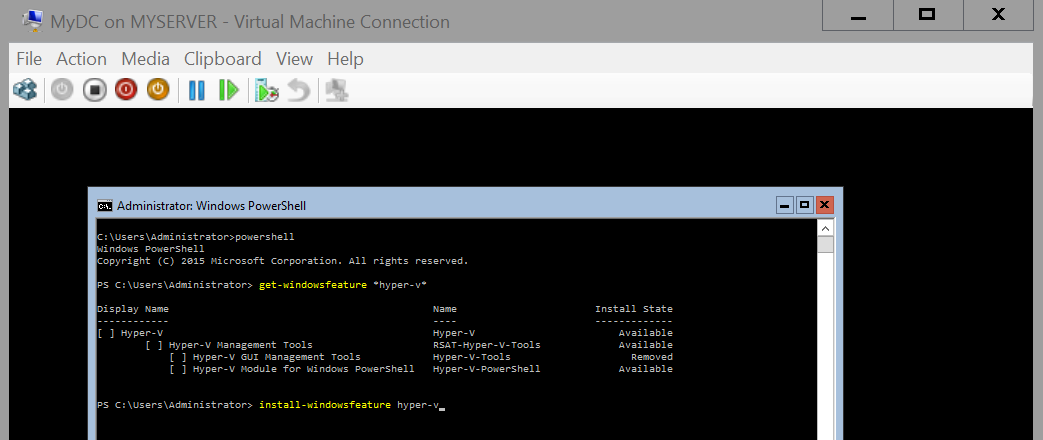
Simple as that!
Solved: Wireless not connecting after installing Windows Server TP2
Issue:
Wireless network does not connect on Windows Server TP2 after enabling Wireless Services and installing Wireless Drivers
Solution:
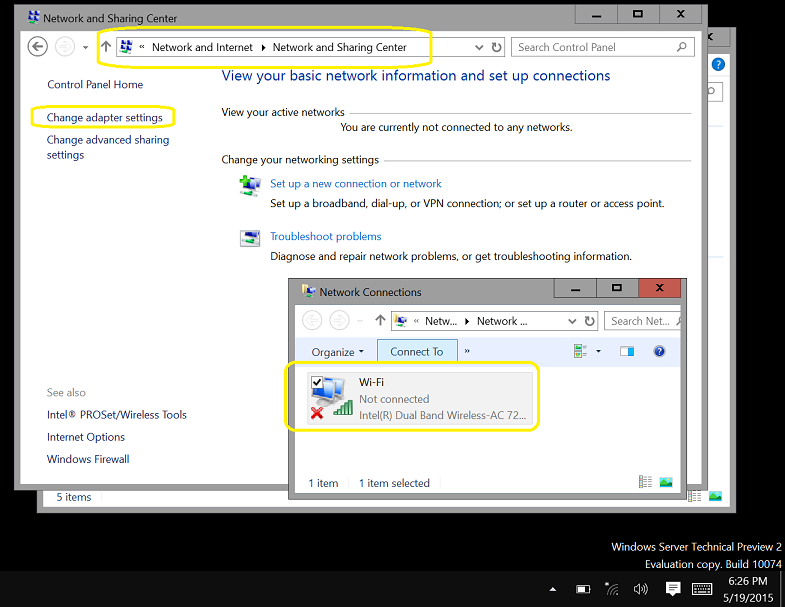
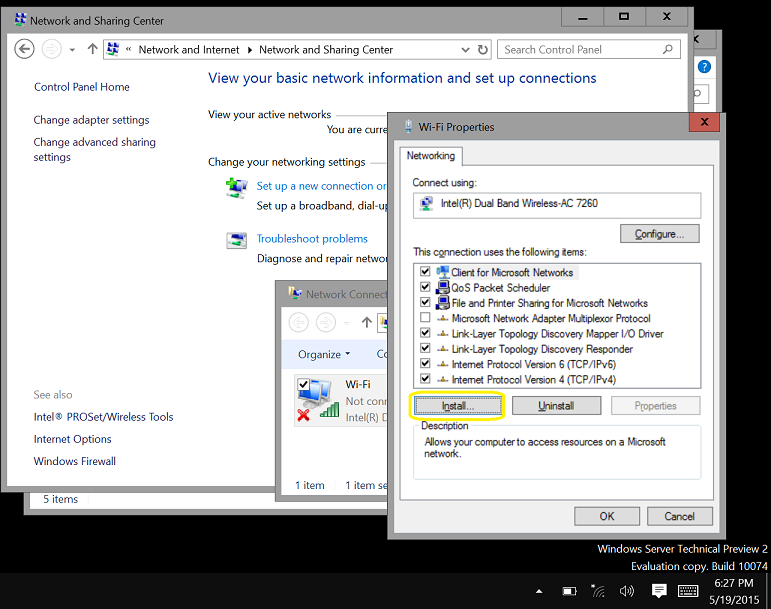
Add the Native WiFi Filter SERVICE in the properties of the wireless adapter
To be more specific:
- In the Network and Sharing Center, click on Change Adapter Settings and then on the network connections, select the Wireless Network, right click and select Properties.
2. In the Properties on the Wireless Adapter, click on Install
3. Select Service and click on Add
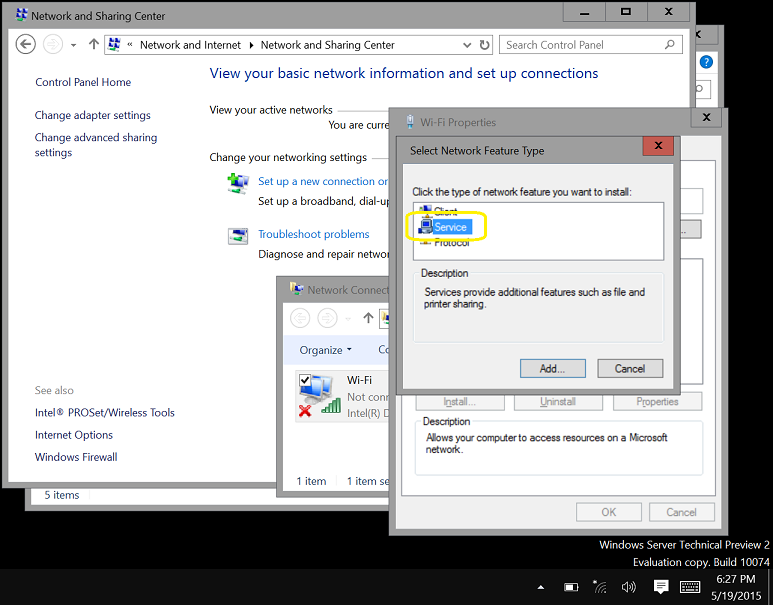
4. Select Native WiFi Filter and click on OK 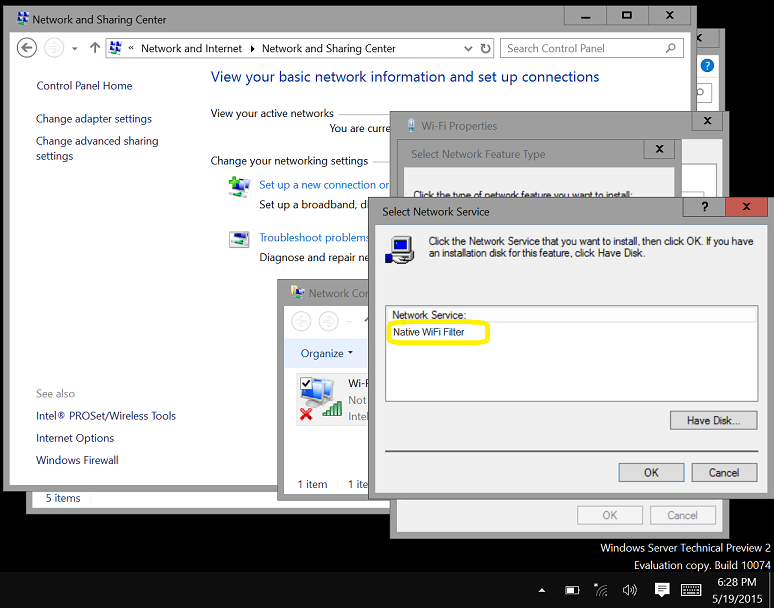
5. Done. You will be able to connect to a WiFi connection now.
Make your voice heard and improve Windows Server 2016
The public download for Windows Server 2016 Technical Preview 2 (TP2) is here: http://www.microsoft.com/en-us/evalcenter/evaluate-windows-server-technical-preview
Now it is your time to give your feedback to the Microsoft Product team and help them improve Windows Server 2016
- Virtualization: http://windowsserver.uservoice.com/forums/295050-virtualization
- Clustering: http://windowsserver.uservoice.com/forums/295074-clustering
- Storage: http://windowsserver.uservoice.com/forums/295056-storage
- Networking: http://windowsserver.uservoice.com/forums/295059-networking
- Nano Server: http://windowsserver.uservoice.com/forums/295068-nano-server
- Linux Support: http://windowsserver.uservoice.com/forums/295062-linux-support
- Windows Server in general: http://windowsserver.uservoice.com/forums/295047-general-feedback
What’s new in Windows Server 2016 Technical Preview 2: (Please note that this is pre-released software; features and functionality may differ in the final release, that’s why YOUR FEEDBACK IS VERY IMPORTANT)
Compute and Virtualization: Simplified upgrades, new installment options, and increased resilience, helping you ensure the stability of the infrastructure without limiting agility.
Networking: Continued investment to make networking as flexible and cost-effective as possible while ensuring high performance.
Storage: Expanding capabilities in software-defined storage with an emphasis on resilience, reduced cost, and increased control.
Security and Assurance: Protecting against today’s threats with a “zero-trust” approach to security that is rooted in the hardware.
Management: Ongoing advances to simplify server management and increase consistency in approach.
- PowerShell Desired State Configuration (DSC) for easier, consistent and faster deployment and updates.
- PowerShell Package Manager for unified package management and deployment
- Windows Management Framework 5.0 April Preview and DSC Resource Kit (available online simultaneously with TP2)
VMM 2012 R2: Unified (almost) on premise and Azure management through the VMM console
Although it is only simple actions (i.e such as restart, refresh, and view) you can use Virtual machine Manager 2012R2 to manage both on premises and Azure Virtual Machines, by adding Azure subscription to VMM.
Let’s hope the VMM team extend those tasks beyond that.
To Download: KB3050317 – Update Rollup 6 for System Center 2012 R2 Virtual Machine Manager (https://support.microsoft.com/en-us/kb/3050317/)
for more information on new features on VMM 2012 R2 UR6 check http://blogs.technet.com/b/scvmm/archive/2015/04/29/an-overview-of-the-new-features-in-vmm-2012-r2-update-rollup-6.aspx
Unified management through the VMM console
With VMM 2012 R2 UR6, Virtual Machine Manager offers a very simple way for a VMM Fabric administrator to add a Microsoft Azure subscription to VMM. After users have added the Microsoft Azure subscription to VMM, they can get a view of their Azure instances directly from the VMM console, and they can perform some simple actions on these instances.
Although in the long term Microsoft vision is to establish WAP as the console of choice for on-premises and Azure workload management, we still see this feature as a value-add to a large set of users who don’t yet use WAP or who don’t want to incur the overhead of WAP. This option of performing simple VM management tasks such as restart, refresh, and view on Azure VMs through VMM consoles gives Fabric administrators the flexibility to manage both on-premises and Azure public cloud VMs from within a single VMM management console
Azure BootCamp in Brisbane: We’re heading for the big day! Join us.
We’re heading for the big day. Come and join us. This will be a one day deep dive Azure sessions held on Saturday, 2nd May.
A conference for learning about Microsoft Azure right here in Brisbane. Saturday, 2nd May 2015 – 9:00am – 5:00pm
The location will be at Microsoft, 400 George Street, Level 28.
Event Organizers: Alessandro Cardoso, Daniel Toomey and Damien Berry
Our sponsors: Microsoft, Mexia and Readify will ensure that we have resources to bring in high profile speakers
Notes:
- Given the requirement to set up tables, we must limit the attendance to 50* persons. Therefore, if you RSVP and then find you are unable to attend, please change your RSVP so that another party will have the opportunity.
– Because this event is on a Saturday, lifts will be locked. Please arrive within the 30 minute window prior to start time so we can activate the lift for you. Latecomers will not be able to gain access.
Event Website: http://tinyurl.com/BrisbaneAzureBootcamp2015
Recommended Books


System Center 2012 R2 Virtual Machine

System Center Virtual Machine Manager 2012 Cookbook


 Cloudtidings.com