
Archive
How to get a comprehensive view of the software installed on client computers including App-V apps
Asset Inventory Service (AIS) provides a comprehensive view of the software installed on client computers in your enterprise. It helps reduce the total cost of managing software by providing a categorized software inventory and by translating the inventory data into useful, actionable information.
AIS is a core component of the Microsoft Desktop Optimization Pack for Software Assurance, a suite of advanced technologies to improve desktop manageability and security, and decrease total cost of ownership (TCO).
You can now get detailed hardware information on the computers in your inventory. AIS 2.0 will show you the amount of physical memory, processor speed, logical disk size and free space, network adapter information, and more.
Support for tracking of Microsoft Application Virtualization (App-V) applications. If you use App-V on your computers, AIS 2.0 can read into the application virtualization cache and add this software to your inventory
Software reports now aggregate the products by major and minor versions in order to make reports easier to read and still giving you the accuracy you need.
Links to AIS information:
Short list of Microsoft Desktop Virtualisation solutions
And how you can use them in your organization:
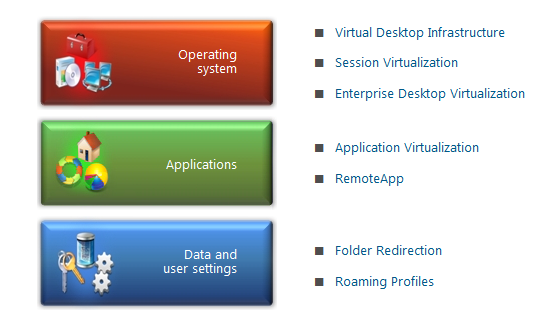
VDI: Enables users to access their personalized Windows desktops hosted on servers. For many organizations, virtualizing desktops within the datacenter is seen as an excellent means to provide a centrally-managed Windows desktop to connected users. http://www.microsoft.com/downloads/details.aspx?displaylang=en&FamilyID=8d454921-72d6-45b4-b6ba-ac1c26d337bd
Session Virtualization: Makes it possible for you to run an application or an entire desktop in one location, but have it be controlled in another. Session virtualization allows you to install and manage session-based desktops and applications, or virtual-machine based desktops on centralized servers in the datacenter; deliver images to users, and send keystrokes and mouse movements from user client machines, in turn, back to the server. From a user perspective, applications are integrated seamlessly—looking, feeling, and behaving like local applications. http://technet.microsoft.com/library/cc742806.aspx
MED-V: Provides you with the ability to deploy and manage virtual Windows desktops to help enterprises upgrade to the latest version of Windows, without having to worry about application compatibility. MED-V provides organizations the ability to run two operating systems on one device, adding virtual image delivery, policy-based provisioning, and centralized management. http://technet.microsoft.com/library/ff433588.aspx
App-V: Helps you make business applications available to end users on any authorized PC. App-V decouples applications from the OS and helps to eliminate application-to-application incompatibility, as applications are no longer installed on the local client machine. In addition, application streaming expedites the application delivery process so that your IT department no longer needs to install applications locally on every machine. http://technet.microsoft.com/library/ee958103.aspx
RemoteApp: Enables programs that are accessed remotely through Terminal Services to appear as if they are running on the end user’s local computer. Users can run RemoteApp programs side by side with their local programs. A user can minimize, maximize, and resize the program window, and can easily start multiple programs at the same time. If a user is running more than one RemoteApp program on the same terminal server, the RemoteApp programs will share the same Terminal Services session. http://technet.microsoft.com/library/cc755055.aspx
Data and User Settings: Utilizes folder redirection and roaming profiles to enable you to make the user’s personal profile and data available dynamically on any authorized PC, and to back up personal profiles and data to the datacenter. http://technet.microsoft.com/library/cc732275.aspx
To find more about, visit : http://technet.microsoft.com/en-us/windows/gg276319.aspx?ITPID=insider
TechNet Radio: TechNet on: Virtualization Best Practices
About this Video : http://technet.microsoft.com/en-us/edge/technet-radio-technet-on-virtualization-best-practices.aspx
Join Keith Combs and Matt Hester as they discuss virtualization best practices with Microsoft Director, Edwin Yuen. Edwin was part of the System Center Virtual Machine Manager (SCVMM) team for several years and has talked with thousands of customers about their virtualization problems and solutions. Expect a lively discussion on Hyper-V, SCVMM, SANS, Clustering and other technologies used to create world class virtualization solutions.
Hyper-V : Virus scanning recommendations : exclusions
To protect your Hyper-V Host, we recommend that you install the antivirus software within the Host and also within virtual machine.
It also, may be necessary to configure the real-time scanning component within the antivirus software to exclude files and entire folders :
Configure the real-time scanning component within your antivirus software to exclude the following directories and files:
- Default virtual machine configuration directory (C:\ProgramData\Microsoft\Windows\Hyper-V)
- Custom virtual machine configuration directories Default virtual hard disk drive directory (C:\Users\Public\Documents\Hyper-V\Virtual Hard Disks)
- Custom virtual hard disk drive directories Snapshot directories Vmms.exe
- (Note: May need to be configured as process exclusions within the antivirus software)
- Vmwp.exe (Note: May need to be configured as process exclusions within the antivirus software)
Additionally, when you use Live Migration together with Cluster Shared Volumes on Windows Server 2008 R2, exclude the CSV path “C:\Clusterstorage” and all its subdirectories
Also exclude the root directory that contain your Virtual machines and configuration files
Also exclude the following files extensions :
VHD, VSV, ISO, AVHD, VFD, and XML,
Virtual Machine Servicing Tool 3.0 released
Virtual Machine Servicing Tool 3.0 helps you reduce IT costs by making it easier to update your offline virtual machines, templates, and virtual hard disks with the latest operating system and application patches—without introducing vulnerabilities into your IT infrastructure.
This Solution Accelerator provides automated tools and guidance that IT professionals can use to update offline virtual machines, templates, and virtual hard disks efficiently and without exposing them to security risks.
Click here to download : http://www.microsoft.com/downloads/en/confirmation.aspx?FamilyId=8408ECF5-7AFE-47EC-A697-EB433027DF73
To install the .msi package (VMServicing_X86.msi or VMServicing_X64.msi):
- Navigate to where you extracted the .zip file content on your hard drive.
- Double-click the .msi file you want to install.
- Accept the Microsoft Software License Terms.
- Follow the steps in the installation process to complete the installation.
- Find the installed files in C:\Program Files on your computer in the folder Microsoft Virtual Machine Servicing Tool.
Everyone should read this : Reducing the cost of virtualization using Microsoft Hyper-V and System Center
One of the first things you should do when thinking about virtualization is to understand the client environment : Asessment phase. During this phase you should list, understand and write down all workloads .
It’s that only? No, that are so many other variables. I found a good article at Microsoft Virtualization Blog Team that talk about this. Take a look at http://blogs.technet.com/b/virtualization/archive/2010/09/22/reducing-the-cost-of-virtualization-using-microsoft-hyper-v-and-system-center.aspx
Free eBook:Understanding Microsoft Virtualization Solutions — From the Desktop to the Datacenter
Learn about the benefits of the latest virtualization technologies and how to plan, implement, and manage virtual infrastructure solutions based on these technologies.
Free eBook:Understanding Microsoft Virtualization Solutions — From the Desktop to the Datacenter
Virtualization: Top 10 Virtualization Best Practices
Source:TechNet Magazine , by Wes Miller *
Virtualization has gone from being a test lab technology to a mainstream component in datacenters and virtual desktop infrastructures. Along the way, virtualization has occasionally received a “get out of jail free” card, and has not had the same degree of efficient IT practices applied to virtual deployments as would be expected of actual physical machines. This is a mistake.
If you had an unlimited budget, would you let everyone in your organization order a new system or two and hook it up to the network? Probably not. When virtualization first appeared on the scene, unlimited and unmanaged proliferation was kept in check by the fact that there was actually a cost associated with hypervisor applications. This provided some line of defense against rogue virtual machines in your infrastructure. That is no longer the case.
There are several free hypervisor technologies available, for both Type 1 and Type 2 hypervisors. Anyone in your organization with Windows installation media and a little free time can put up a new system on your network. When virtual machines are deployed without the right team members knowing about it, that means a new system can become an unwelcome honeypot for new zero-day vulnerabilities, ready to take down other systems on your network that are business critical.
Virtual systems should never be underappreciated or taken for granted. Virtual infrastructures need to have the same best practices applied as actual physical systems. Here, we will discuss 10 key best practices that should always be on your mind when working with virtual systems.
To read to full article go to http://technet.microsoft.com/en-au/magazine/gg131921.aspx
*Wes Miller is the director of Product Management at CoreTrace (CoreTrace.com) in Austin, Texas. Previously, he worked at Winternals Software and as a program manager at Microsoft. Miller can be reached at wm@getwired.com.
New version of the Linux Integration Services for Hyper-V
A new version (2.1) of the Linux Integration Services for Hyper-V have just been made available.
This new version has some significant improvements:
-
Driver support for synthetic devices: Linux Integration Services supports the synthetic network controller and the synthetic storage controller that were developed specifically for Hyper-V.
-
Fastpath Boot Support for Hyper-V: Boot devices take advantage of the block Virtualization Service Client (VSC) to provide enhanced performance.
-
Timesync: The clock inside the virtual machine will remain synchronized with the clock on the host.
-
Integrated Shutdown: Virtual machines running Linux can be gracefully shut down from either Hyper-V Manager or System Center Virtual Machine Manager.
-
Symmetric Multi-Processing (SMP) Support: Supported Linux distributions can use up to 4 virtual processors (VP) per virtual machine.
-
Heartbeat: Allows the host to detect whether the guest is running and responsive.
-
Pluggable Time Source: A pluggable clock source module is included to provide a more accurate time source to the guest.
This version of the integration services for Hyper-V supports Novell SUSE Linux Enterprise Server 10 SP3, SUSE Linux Enterprise Server 11, and Red Hat Enterprise Linux 5.2 / 5.3 / 5.4 / 5.5.
SPRINGBOARD SERIES TOUR NEAR TO YOU!
Microsoft Windows, Office and MDOP Deployment Workshops

Amsterdam – 25 Oct | Stockholm – 27 Oct | Helsinki – 29 Oct | Reading – 1 Nov | Rome – 3 Nov | Vienna – 4 Nov
The Microsoft Get On the Bus Tour is taking a winter hiatus to bring you a new tour – the Springboard Series Tour: Microsoft Windows, Office and MDOP Deployment Workshops! Amsterdam marks our first stop on a 6-city European tour, en route to TechEd Europe, in Berlin, Germany. Are you looking to plan, pilot or deploy Windows and Office? Our workshops will cover the Office 2010, key deployment strategies for Windows 7, the Microsoft Desktop Optimization Pack, as well as show you the value of getting trained and certified in these key products.
Learn why Windows 7 has received rave reviews from IT organizations and is setting records as the fastest selling operating system in history, and find out why so many IT Pros are ready to deploy Office 2010. Give us five hours, and you will have a clear understanding of the tools, tips and tricks you need now to jumpstart the successful deployment and management of your Windows desktop environment today. Come join members of the Windows and Office US Product Teams, as well as local Microsoft Technology Evangelists for technical training, professional networking, and real world guidance. Don’t miss your chance to attend a workshop in the 2010 Springboard Series Tour, register today at www.springboardseriestour.com.
Get your Tour updates first! Follow us on Twitter, @MSSpringboard
Recommended Books


System Center 2012 R2 Virtual Machine

System Center Virtual Machine Manager 2012 Cookbook


 Cloudtidings.com