
Archive
What’s New in Hyper-V vNext ? Check out at the Infrastructure Saturday event in Brisbane
Saturday 22nd November
Infrastructure Saturday is a day long event for south east Queensland based IT Professional that work with Microsoft products. This event is an educational, informative & lively day filled with sessions about Microsoft technologies.
Location: Microsoft office, Brisbane, QLD. http://www.infrastructuresaturday.com/
Topics covered in my Session: What’s New in Hyper-V vNext?
- New Virtual Machine Upgrade Process
- New Integration Components installation method
- Secure Boot for Linux
- Distributed Storage Quality of Service (QoS)
- Hyper-V Backup
- Hyper-V Virtual Machine Configuration
- Cluster OS Rolling Upgrade

It’s time for a new Windows. Announcing Windows 10 : One Product with a tailored experience for each device
Windows 10 represents the first step of a whole new generation of Windows. Windows 10 unlocks new experiences for customers to work, play and connect. Windows 10 embodies what our customers (both consumers and enterprises) demand and what we will deliver
Microsoft promise that Windows 10 will deliver the right experience on the right device at the right time. It will be our most comprehensive platform ever
more details about what Windows 10 will have for these customers, check out this blog post on the Windows for your Business blog.

Check out the Windows 10 Video here: http://www.youtube.com/watch?feature=player_embedded&v=84NI5fjTfpQ
And form Windows Server and System Center perspective:
Infrastructure upgrades: Rolling upgrades for Hyper-V clusters to the next version of Windows Server without downtime for your applications and workloads. This includes support for mixed versions as you transition your infrastructure.
Networking: New components for our software-defined networking stack that enable greater flexibility and control, including a network controller role to manage virtual and physical networks.
Storage: New synchronous storage replication that enhances availability for key applications and workloads plus storage Quality of Service to deliver minimum and maximum IOPS in environments with workloads with diverse storage requirements.
Remote Desktop: Enhanced application compatibility with OpenGL and OpenCL support.
Identity and Access Management: New scenarios to reduce the risk profile of administrators with elevated rights, including time-based access with fine-grained privileges, and new application publishing capabilities.
The DOWNLOAD it is not yet available but if you want to download the bits or try them on Azure, it will be published here http://go.microsoft.com/fwlink/?LinkID=404281
TechEd New Zealand : my sessions
This year I have just about 2 sessions at TechEd New Zealand.
DCIM315 – Implementing Enterprise-Scale Disaster Recovery with Azure Site Recovery, Network Virtualization, and Microsoft System Center 2012 R2
In this session we cover different aspects of Hyper-V Recovery Manager, an enterprise-scale Disaster Recovery solution to provide a single click failover in case of disaster (e.g., automation of overall DR workflow using with sequencing, manual actions, etc. to provide both application and site level DR). Learn how to enable Azure as a Disaster Recovery point in a secure manner and seamless management of failover, failback type activities using Azure IaaS VM. Network connection—back to datacenter and to the clients—is one of the top challenges in setup of your DR infrastructure and we cover how to simplify networking for disaster recovery setup. The session also covers enhancements to the solution for the private datacenter to the private datacenter scenario.
PCIT313 – Azure RemoteApp
Bring scale, agility and global access to your business applications. Azure RemoteApp helps employees stay productive anywhere, and on a variety of devices – Windows, Mac OS X, iOS, or Android. Integrate Azure RemoteApp with your company’s existing on-premise infrastructure and bring your own Remote Desktop Session Host, or deploy Azure RemoteApp using our pre-built app collections for a stand-alone cloud service. Quickly ramp up and provide seasonal workers, vendors, or large groups of new employees access to company applications without paying for new servers and expensive on-premise infrastructure.
My Microsoft Teched Australia 2013 speaking sessions
This year I will be presenting 4 ILL sessions at TechEd Australia, but you can also find me at the Microsoft Showcase : Datacenter and at the Insight booth in the Exhibition Centre.
Take time to visit Insight booth and learn about what we can do to help your business and to enter on a draw to win a Microsoft Surface or a signed copy of my book: System Center 2012 VMM.
My Sessions:
| AZR-I201
Wednesday 11:15 – 12:45 |
Getting to Know Windows Azure IaaS, Part 1
Whether you build apps or support the infrastructure that runs the apps, the cloud can be a really big place. For some, it’s a natural evolution for their application and infrastructure to embrace the power and scale of the cloud. For others, it’s a journey that has to begin with a single step. Windows Azure provides that first step with a scalable, flexible platform for deploying your applications your way. With our Infrastructure as a Service platform (IaaS) called Windows Azure Virtual Machines, you get the flexibility to choose between Windows and Linux with full control over the operating system configuration and installed software, matched with the portability of Hyper-V disk images. Windows Azure Virtual Machines provide the perfect environment for meeting all of your Infrastructure-as-a-Service needs. To learn more about our Infrastructure as a Service platform, we invite all developers and IT professionals to join Matt Hester as he introduces you to the Microsoft Cloud Platform, dives deep into Windows Azure Virtual Machines, and helps walk you through a hands-on demonstration of the power of IaaS on the Windows Azure platform. This is part 1 of 2. Please plan on attending both WAD-IL201 and WAD-IL202 to complete the lab. The lab requires you to connect to the Windows Azure Portal, where you will provision three separate virtual machines in the cloud and configure them each via a Remote Desktop client connection. All participants need to have access for Windows Azure prior to the lab. You can register for a FREE 90-day trial of the Windows Azure prior to the lab. You can sign up for your FREE trial here: http://aka.ms/IaasBootCamp. |
| AZR-I202
Wednesday |
Getting to Know Windows Azure IaaS, Part 2
Whether you build apps or support the infrastructure that runs the apps, the cloud can be a really big place. For some, it’s a natural evolution for their application and infrastructure to embrace the power and scale of the cloud. For others, it’s a journey that has to begin with a single step. Windows Azure provides that first step with a scalable, flexible platform for deploying your applications your way. With our Infrastructure as a Service platform (IaaS) called Windows Azure Virtual Machines, you get the flexibility to choose between Windows and Linux with full control over the operating system configuration and installed software, matched with the portability of Hyper-V disk images. Windows Azure Virtual Machines provide the perfect environment for meeting all of your Infrastructure-as-a-Service needs. To learn more about our Infrastructure as a Service platform, we invite all developers and IT professionals to join Matt Hester as he introduces you to the Microsoft Cloud Platform, dives deep into Windows Azure Virtual Machines, and helps walk you through a hands-on demonstration of the power of IaaS on the Windows Azure platform. This is part 2 of 2. In order to attend this session you need to attend WAD-IL201 first. The lab requires you to connect to the Windows Azure Portal, where you will provision three separate virtual machines in the cloud and configure them each via a Remote Desktop client connection. All participants need to have access for Windows Azure prior to the lab. You can register for a FREE 90-day trial of the Windows Azure prior to the lab. You can sign up for your FREE trial here: http://aka.ms/IaasBootCamp. |
| MDC-I315
Friday |
Microsoft System Center 2012 – Orchestrator: Overview and Automation of IT Process
This lab guides you through several process automation examples, providing hands-on experience with the concepts explained in the course manual and provides real-world context. In this exercise, you are introduced to the interfaces available with Orchestrator. Create a Runbook to perform actions such as working with File Management Objects, monitor a folder for the accumulation of more than 5 log files, move the files to an archive folder and log an event for each file archive operation, using the Runbook Tester Console to Validate Runbooks. This lab also covers the creation of a Runbook to perform the actions, such as automate recovery of a Windows Service based on alert detection from a unit monitor in System Center Operations Manager to address the intermittent Windows service failures. It also highlights advanced concepts and techniques that can be employed when creating runbooks in Orchestrator. |
| MDC-I321
Thursday |
Microsoft System Center 2012: Network Virtualization
This lab provides a step-by-step description for how to build, configure and implement Hyper-V Network Virtualization using Windows Server 2012 and System Center 2012 SP1. You create a multi-tenant virtual network on shared physical network including multiple subnets and virtual routes using the NVGRE configuration. |
Solutions for Private, Public, and Hybrid Clouds and Introducing Windows Server 2012 : Free e-books
Introducing Windows Server 2012
If you are looking for an early, high-level view of Windows Server 2012, this guide introduces its new features and capabilities, with scenario-based insights demonstrating how the platform can meet the needs of your business. Click here to download.
Solutions for Private, Public, and Hybrid Clouds
Make sure to read chapter one for information on why cloud computing is the most efficient and cost-effective way to deliver computing resources to users according to your business needs:
Chapter 1: Microsoft Solutions for Private, Public and Hybrid Clouds. Click here.
Chapter 2: From Virtualization to the Private Cloud – Click here
Chapter 3: Public and Hybrid Clouds. Click here
Windows 8 : Windows Explorer gets new interface : now with ribbon ( office 2010 like )
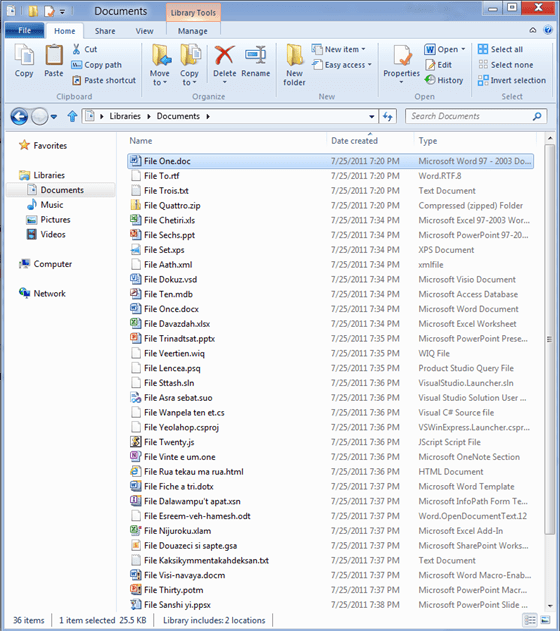
Windows 8 is comming with lot of good surpises. I just heard about the new ribbon:
The new ribbon
The Home tab is focused on the core file management tasks, and we’ve put all the major file management commands there in prominent locations: Copy, Paste, Delete, Rename, Cut, and Properties. We’ve also given new prominence to two popular heritage features, Move to and Copy to, along with exposing a hidden gem, Copy path, which is really useful when you need to paste a file path into a file dialog, or when you want to email someone a link to a file on a server.
The Home tab is the heart of our new, much more streamlined Explorer experience. The commands that make up 84% of what customers do in Explorer are now all available on this one tab:

Overlay showing Command usage % by button on the new Home tab
The Share tab is for sharing files by typical methods like zipping them up and emailing them to a friend, or burning them to optical media. Or you can quickly share files with other people in your home group or your network domain. It also provides one-click access to the ACLs for the currently highlighted file.
Source : http://blogs.msdn.com/b/b8/archive/2011/08/29/improvements-in-windows-explorer.aspx
Simplify your cloud migration planning with MAP 6.0
The latest release from the Microsoft Assessment and Planning (MAP) team provides organizations with tools to simplify public and private cloud migration planning.
Download the MAP Toolkit 6.0:http://www.microsoft.com/map
New features and benefits from MAP 6.0 release help you:
· Analyze your portfolio of applications for a move to the Windows Azure Platform
· Accelerate private cloud planning with Hyper-V Cloud Fast Track onboarding
· Identify migration opportunities with enhanced heterogeneous server environment inventory
· Assess your client environment for Office 365 readiness
· Determine readiness for migration to Windows Internet Explorer 9
· Discover Oracle database schemas for migration to SQL Server
Hyper-V : Network Design, Configuration and Prioritization : Guidance
There is a lot of posts regarding Hyper-V and network, but I found a lot people still don’t get it.
1. Network Design. How many nic’s we need for production environment for High Availiability:
- 1 for Management. Microsoft recommends a dedicated network adapter for Hyper-V server management.
- 2 ( Teamed ) for Virtual machines.Virtual network configurations of the external type require a minimum of one network adapter.
- 2 ( MPIO ) for SCSI.Microsoft recommends that IP storage communication have a dedicated network, so one adapter is required and two or more are necessary to support multipathing.
- 1 for Failover cluster.Windows® failover cluster requires a private network.
- 1 for Live migration.This new Hyper-V R2 feature supports the migration of running virtual machines between Hyper-V servers. Microsoft recommends configuring a dedicated physical network adapter for live migration traffic. This network should be separate from the network for private communication between the cluster nodes, from the network for the virtual machine, and from the network for storage
- 1 for CSV. Microsoft recommends a dedicated network to support the communications traffic created by this new Hyper-V R2 feature. In the network adapter properties, Client for Microsoft Networks and File and Printer Sharing for Microsoft Networks must be enabled to support SMB
But how about production environments when the blades have only 4 Physical NIC’s?
Option 1. If your vendor does support NPAR technology(Broadcom, QLogic), you will be able to create up to 4 “Virtual Logical NIC’s” per physical NIC ( VLAN/QoS ). Although this solution is not supported by MS, it’s the best solution in terms of performance and it is supported by the vendors. This solution will provide you 100% HA as you can have up to 16 Logical NIC’s.
Option 2. Supported by MS. Allocate 2(two) NIC’sfor the iSCSI using MPIO and then :
| Host configuration | Virtual machine access | Management | Cluster and Cluster Shared Volumes | Live migration | Comments |
| 2 network adapters with 10 Gbps | Virtual network adapter 1 | Virtual network adapter 1 with bandwidth capped at 1% | Network adapter 2 | Network adapter 2 with bandwidth capped at 50% | Supported |
Note that the QoS configuration is based on “per port” and Windows only allows you to cap specify caps – not reserves. This solution, although supported by MS, dos not give you 100% HA.
2. Network Configuration. What need to be enabled/disabled?
| Usage | Number of Network Cards | Comments |
| Management Network(Parent Partition) | 1 Network Card |
|
| Storage ISCSI | 2 Network Cards – Not Teamed |
|
| VM Network (Parent Partition) |
2 Network cards : 1 for Dynamic IP’s 1 for Reserved IP’s |
|
| Cluster Heartbeat | 1 Network Card |
|
| Cluster Shared Volume (CSV) | 1 Network Card |
|
| Live Migration | 1 Network Card |
|
2. Network Prioritization. What need to be enabled/disabled?
By default, all internal cluster network have a metric value starting at 1000 and incrementing by 100. The first internal network which the cluster sees when it first comes online has a metric of 1000, the second has a metric of 1100, etc.
When you create CSV’s, the failover cluster automatically chooses the network that appears to be the best for CSV communication. The lowest Metric value designates the network for Cluster and CSV traffic. The second lowest value designates the network for live migration. Additional networks with a metric below 10000 will be used as backup networks if the “Cluster & CSV Traffic” or “Live Migration Traffic” networks fail. The lowest network with a value of at least 10000 will be used for “Public Traffic”. Consider giving the highest possible values to the networks which you do not want any cluster or public traffic to go through, such as for “ISCSI Traffic”, so that they are never used, or only used when no other networks at all are available.
To view the networks, their metric values, and if they were automatically or manually configured, run the clustering PowerShell cmdlet:
PS > Get-ClusterNetwork | ft Name, Metric, AutoMetric
To change the value of a network metric, run:
PS >Get-ClusterNetwork “Live Migration” ).Metric =800
If you want the cluster to start automatically assigning the Metric setting again for the network named “Live Migration”:
PS > Get-ClusterNetwork “Live Migration” ).AutoMetric = $true
How to override Network Prioritization Behavior?
Option 1. Change the network’s properties. If you select “Do not allow cluster network communication on this network”, then it will not be possible to send any “Cluster & CSV Traffic” or “Live Migration Traffic” through this network, even if the network has the lowest metric values. The cluster will honor this override and find the network with the next lowest value to send this type of traffic :
- In the Failover Cluster Manager snap-in, if the cluster that you want to configure is not displayed, in the console tree, right-click Failover Cluster Manager, click Manage a Cluster, and then select or specify the cluster that you want.
- Select Properties
- Change the radio buttons or checkboxes.
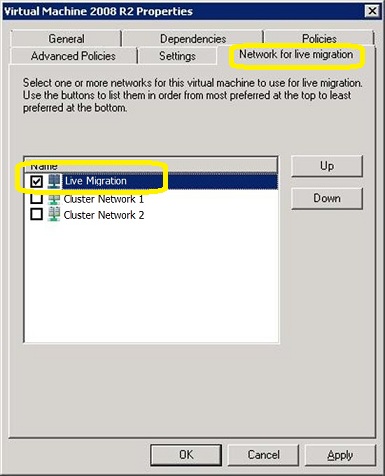
Option 2 (exclusively for “Live Migration Traffic”) :
To configure a cluster network for live migration:
- In the Failover Cluster Manager snap-in, if the cluster that you want to configure is not displayed, in the console tree, right-click Failover Cluster Manager, click Manage a Cluster, and then select or specify the cluster that you want.
- Expand Services and applications.
- In the console tree (on the left), select the clustered virtual machine for which you want to configure the network for live migration.
- Right-click the virtual machine resource displayed in the center pane (not on the left), and then click Properties.

- Click the Network for live migration tab, and select one or more cluster networks to use for live migration. Use the buttons on the right to move the cluster networks up or down to ensure that a private cluster network is the most preferred. The default preference order is as follows: networks that have no default gateway should be located first; networks that are used by cluster shared volumes and cluster traffic should be located last.Live migration will be attempted in the order of the networks specified in the list of cluster networks. If the connection to the destination node using the first network is not successful, the next network in the list is used until the complete list is exhausted, or there is a successful connection to the destination node using one of the networks.
Note : You don’t need to perform this action as per VM basis. When you configure a network for live migration for a specific virtual machine, the setting is global and therefore applies to all virtual machines.
Some other interesting articles:
http://technet.microsoft.com/en-us/library/dd446679(WS.10).aspx
http://blogs.technet.com/b/vishwa/archive/2011/02/01/tuning-scvmm-for-vdi-deployments.aspx
http://blogs.msdn.com/b/clustering/archive/2011/06/17/10176338.aspx
Validate SCSI Device Vital Product Data (VPD) test fails after you install W2008 R2 SP1
If you found this error :” Failed to get SCSI page 83h VPD descriptors for cluster disk
<number> from <node name> status 2″ after applying SP1 to your W2008R2 cluster, Microsoft has released a fix for it.
The List Potential Cluster Disks storage validation test may display a warning message that resembles the following: “Disk with identifier <value> has a Persistent Reservation on it. The disk might be part of some other cluster. Removing the disk from validation set”
The hotfix resolves an issue in which the storage test incorrectly runs on disks that are online and not in the Available Storage group.
More details:
You configure a failover cluster that has three or more nodes that are running Windows Server 2008 R2 Service Pack 1 (SP1).
You have cluster disks that are configured in groups other than the Available Storage group or that are used for Cluster Shared Volumes (CSV).
These disks are online when you run the Validate SCSI Device Vital Product Data (VPD) test or the List Potential Cluster Disks storage validation test
More info : http://support.microsoft.com/kb/2531907
Window 7 as Guest OS for VDI : Max Virtual Processors Supported
Looking to implement a VDI scenario with Windows 7 as the guest with a 12:1 (VP:LP) ratio ? With the launch of the SP1 for W2008R2, Microsof increased the maximum number of running virtual processors (VP) per logical processor (LP) from 8:1 to 12:1 when running Windows 7 as the guest operating system for VDI deployments
Formula : (Number of processors) * (Number of cores) * (Number of threads per core) * 12
Virtual Processor to Logical Processor2 Ratio & Totals
|
Physical |
Cores per |
Threads per |
Max Virtual Processors |
|
2 |
2 |
2 |
96 |
|
2 |
4 |
2 |
192 |
|
2 |
6 |
2 |
288 |
|
2 |
8 |
2 |
384 |
|
4 |
2 |
2 |
192 |
|
4 |
4 |
2 |
384 |
|
4 |
6 |
2 |
512 |
|
4 |
8 |
2 |
512 |
1Remember that Hyper-V R2 supports up to a maximum of up to 512 virtual processors per server so while the math exceeds 512, they hit the maximum of 512 running virtual processors per server.
2A logical processor can be a core or thread depending on the physical processor.
- If a core provides a single thread (a 1:1 relationship), then a logical processor = core.
- If a core provides two threads per core (a 2:1 relationship), then each thread is a logical
processor.
More info :
http://technet.microsoft.com/en-us/library/ee405267%28WS.10%29.aspx
http://blogs.technet.com/b/virtualization/archive/2011/04/25/hyper-v-vm-density-vp-lp-ratio-cores-and-threads.aspx
Recommended Books


System Center 2012 R2 Virtual Machine

System Center Virtual Machine Manager 2012 Cookbook


 Cloudtidings.com