
Archive
Windows 2012 : Hyper-V Network design scenarios and setup – Part 1
I am starting a series of blogs to talk about Network in Windows 2012 Hyper-V
I will be covering the following scenarios, but of course there are many more possibilities :
- Scenario 1 : 4 (or more) 10GB Nic’s + 2 ISCSI/FC connectivity
- Scenario 2 : 2 (or more) 10GB Nic’s (converged network)
- Scenario 3 : 6 (or more) Nic’s 1GB Nic’s
Let’s start with scenario 1. We will create 2 teams : one for management/csv/live migration (MGMT-LM-CSV-TEAM) and other for vm external traffic (VM-TEAM).
1. First of all, I recommend you to rename the physical nic’s. We will create the teams as per bellow:
a) 2 nic’s, teamed to be used for management + csv + live migration utilisation= MGMT-LM-CSV-TEAM
b) 2 (or more) nic’s teamed to be used for VM traffic only ( external traffic ) = VM-TEAM
c) 2 ISCSI or Fiber Channel connectivity. You will need to install the MPIO feature ( DO NOT TEAM)
As for the team VM-TEAM we can use the GUI to create the virtual switch:
- Click on Server Manager, then click on Local Server
- Click on Nic Teaming. Click on Task and then click on NEW TEAM
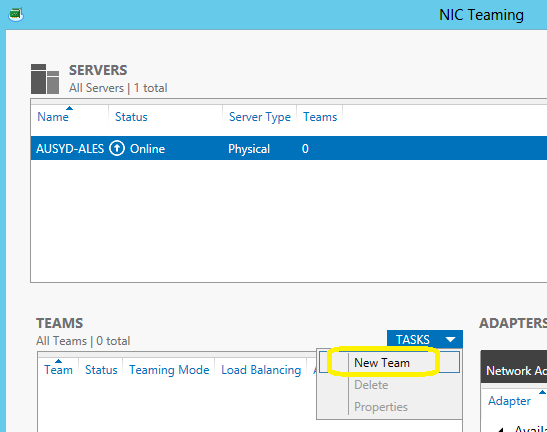
Select the NIC’s that will be part of the team. Make sure you select NIC’s from different Physical interfaces. Done
But for the MGMT-LM-CSV-TEAM, we need to use the Powershell as the GUI does not allow us to create multiples Virtual Switches for the same team and then we will also, configure the QoS.
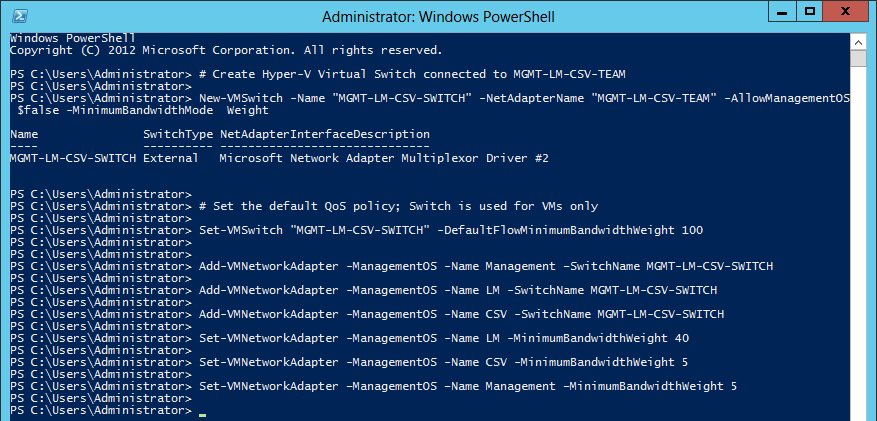
Here is the PowerShell command
# Create Hyper-V Virtual Switch connected to VM-TEAM
New-VMSwitch -Name “External” -NetAdapterName “VM-TEAM” -AllowManagementOS $false
# Create Hyper-V Virtual Switch connected to MGMT-LM-CSV-TEAM
New-VMSwitch -Name “MGMT-LM-CSV-SWITCH” -NetAdapterName “MGMT-LM-CSV-TEAM” -AllowManagementOS 0 -MinimumBandwidthMode Weight
# Set the default QoS policy; Switch is used for VMs only
Set-VMSwitch “MGMT-LM-CSV-SWITCH” -DefaultFlowMinimumBandwidthWeight 100
Add-VMNetworkAdapter -ManagementOS -Name Management –SwitchName MGMT-LM-CSV-SWITCH
Add-VMNetworkAdapter -ManagementOS -Name LM -SwitchName MGMT-LM-CSV-SWITCH
Add-VMNetworkAdapter -ManagementOS -Name CSV -SwitchName MGMT-LM-CSV-SWITCH
Set-VMNetworkAdapter -ManagementOS -Name LM -MinimumBandwidthWeight 40
Set-VMNetworkAdapter -ManagementOS -Name CSV -MinimumBandwidthWeight 5
Set-VMNetworkAdapter –ManagementOS –Name Management –MinimumBandwidthWeight 5
Now let’s have a look back on the GUI (NIC Team):

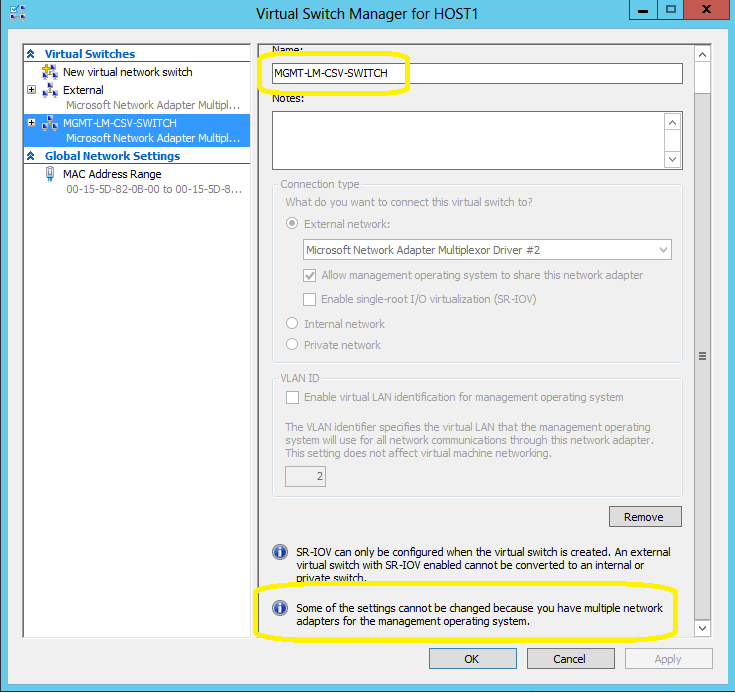
And let’s have a look in the Hyper-V Manager Console, on the properties of the Virtual Switch’s:
Management, Live Migration and CSV switch: MGMT-LM-CSV-SWITCH.
Note that you won’t be able to change any setting using the GU
I as we created 3 virtual network adapters (mgmt,lm,csv).
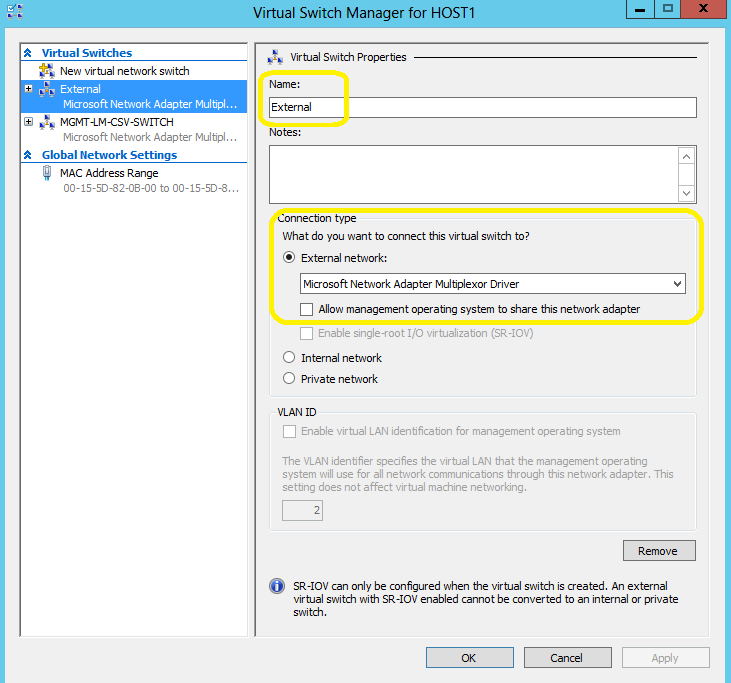
VM external traffic switch: External
to be continue….
Windows and System Center Road Show
Windows and System Center Road Show : Sydney, Melbourne, Perth and Brisbane
Sponsored by Microsoft, Dell, Veeam, STEP and GITCA.
Join the industry experts at a Windows and System Center Roadshow that will keep you up to date and ahead of the pack!
The event will showcase 6 sessions, on a range of Windows 8, Windows Server 2012, Hyper-V and System Center 2012 Virtual Machine Manager 2012 SP1 and System Center Operations Manager 2012 SP1 topics.
Topics will include:
- Windows 8 for Enterprise (New Interface, Direct Access, Client Hyper-V, Branch Cache, Advanced Diagnostics, Bit Locker)
- Windows 2012 Enhancements (Active Directory, Direct Access, Networking, SMB File Server )
- Server Virtualization: Hyper-V Enhancements, Mobility and Flexibility, Disaster Recovery
- Windows Server 2012 – High Availability & Virtualisation
- System Center Virtual Machine Manager 2012 SP1
- System Center Operations Manager 2012 SP1
- Data Protection and Monitoring in a Virtualized Datacentre with Veeam, Hyper-V, and Microsoft System Center 2012*
Do you need your applications and systems to be online all the time. Well listen closely. We will be covering the enhancements to Windows Server 2012 that will help keep your applications and systems online all the time. We will be covering a range of High Availability enhancements in Windows Server 2012. We will discuss, Hyper-V Replicas, Live Storage Migration, Disk De-Duplication and Network Teaming just to name a few.
You will not leave disappointed from this session. With so much to cover, you will not want this presentation to end.
Cost Details
FREE.
Target Audience
The primary audience for this event is IT Professionals, Managers, Sales Engineers and partners who are excited about the upcoming release of the Windows Server 2012 technology.
Dates and Registration:
MELBOURNE – Friday 25 January – 9am – 5pm- Microsoft Level 5, 4 Freshwater Place Southbank VIC 3006 REGISTER NOW
SYDNEY – Friday 8 February – 9am – 5pm – Microsoft 1 Epping Road North Ryde NSW 2113 REGISTER NOW
PERTH – Monday 11 February – 9am – 5pm – Microsoft Level 3, 100 St Georges Terrace Perth WA 6000 REGISTER NOW
BRISBANE – Tuesday 12 February – 9am – 5pm – Microsoft Level 28, 400 George Street Brisbane QLD 4000 REGISTER NOW
_________________________________________________________________________________
Veeam Software is a Microsoft Gold ISV partner and has recently won the 2012 Microsoft Management and Virtualization Partner of the Year award. Veeam Backup & Replication provides fast, flexible and reliable recovery of virtualized applications and data. It unifies backup and replication in a single solution, increases the value of backup and reinvents data protection for Microsoft Hyper-V. Veeam also offers customers Veeam ONE, which provides 24×7 real-time monitoring, performance analysis, resource optimization and management reporting for virtualized environments. Veeam also extends deep into virtualization monitoring in Microsoft System Centre 2012 with Veeam Management Pack™ (MP). Veeam MP helps businesses manage physical and virtual infrastructures, applications and dependencies from a single console.
Comparing Windows Server Networking features : W2012 x W2008.
Windows 2012 : Feature rich, extensible, all there in the box, no compromises
| Networking feature | Windows Server 2008 | Windows Server 2008 R2 | Windows Server 2012 |
| NIC Teaming | Yes, via partners | Yes, via partners | Windows NIC Teaming in box. |
| VLAN Tagging | Yes | Yes | Yes |
| MAC Spoofing Protection | No | Yes, with R2 SP1 | Yes |
| ARP Spoofing Protection | No | Yes, with R2 SP1 | Yes |
| SR-IOV Networking | No | No | Yes |
| Network QoS | No | No | Yes |
| Network Metering | No | No | Yes |
| Network Monitor Modes | No | No | Yes |
| IPsec Task Offload | No | No | Yes |
| VM Trunk Mode | No | No | Yes |
Windows Server 2012 Roadshow : Virtualisation in Perth. December 18th
Join us for the ‘Windows Server 2012 Roadshow : Virtualisation’. Unique opportunity to get knowledge from the best and understand how to build your own Private Cloud, as the Microsoft Most Valuable Professional show you his tips with the latest release.
Registration REQUIRED : https://ws2012rocks.msregistration.com/abstract.aspx?id=7d701162-706c-474e-a801-3ad70ab0658f&Eventid=230
Get a chance to talk about the challenges to build your Private Cloud and the new features included in Windows 2012 and SCVMM 2012 SP1 that will help your business get into the Private Cloud.
Topics will include:
- Scenarios for Server Virtualization
- Hyper-V Enhancements, Mobility and Flexibility, System Center VMM 2012 SP1,
- Veeam Backup and Replication for Hyper-V and integration with SC 2012*
plus:
- Windows Server 2012 – Networking
Connect from anywhere, more working and less waiting, better network management via cost-aware networking. Sound interesting? This session provides a general overview, including many of the improvements to DirectAccess, BranchCache, and general networking improvements in Server 2012.
- Windows Server 2012 – High Availability & Virtualisation
Do you need your applications and systems to be online all the time. Well listen closely. We will be covering the enhancements to Windows Server 2012 that will help keep your applications and systems online all the time. We will be covering a range of High Availability enhancements in Windows Server 2012. We will discuss, Hyper-V Replicas, Live Storage Migration, Disk De-Duplication and Network Teaming just to name a few.
You will not leave disappointed from this session. With so much to cover, you will not want this presentation to end.
Target audience
Decision makers, IT Professionals, IT Managers.
Cost Details
FREE
Registration REQUIRED : https://ws2012rocks.msregistration.com/abstract.aspx?id=7d701162-706c-474e-a801-3ad70ab0658f&Eventid=230
* Veeam Software is a Microsoft Gold ISV partner and has recently won the 2012 Microsoft Management and Virtualization Partner of the Year award. Veeam Backup & Replication provides fast, flexible and reliable recovery of virtualized applications and data. It unifies backup and replication in a single solution, increases the value of backup and reinvents data protection for Microsoft Hyper-V. Veeam also offers customers Veeam ONE, which provides 24×7 real-time monitoring, performance analysis, resource optimization and management reporting for virtualized environments. Veeam also extends deep into virtualization monitoring in Microsoft System Centre 2012 with Veeam Management Pack™ (MP). Veeam MP helps businesses manage physical and virtual infrastructures, applications and dependencies from a single console.
Windows 2012 : switching from Server Core to Server with a GUI
I already blogged about this, but due the numbers of requests and confusion people are making, here we go again:
The Server Core does not have GUI and have a minimal footprint which helps to secure the server running Hyper-V role, for example. The benefit of using Core version, which is now the default version, is to reduced attack surface, reduced maintenance, consume fewer hardware resources than traditional FULL GUI Server and offer increased stability due to lesser running application.
But there is a trick : while you can switch between Core and Full and vice versa, if you installed Server Core version and then decide to go with a Server with a GUI, the payload that has the interface is not installed and you will need to provide the source path.
A server in Minimal Server Interface mode is about 300 MB smaller than the same server in Server with a GUI mode. A server in Server Core mode is about 4 GB smaller than the same server in Server with a GUI mode
Note: The recommendation/Best Practise is to install the Server Core installation unless you have a particular need for the additional user interface elements and graphical management tools that are included in the “Server with a GUI” option
When you install Windows 2012 Server Core and you want to switch it to Windows 2012 Full GUI version,
For servers with server core as the base installation:
To convert a server core installation to a full operating system installation (GUI version)
1. Create an folder called C:\w2012\image
mkdir C:\w2012\image
2. Insert the Windows 2012 media into the optical drive and copy install.wim from
copy D:\sources\install.wim C:\w2012\image
3. Run the following command to retrieve the name or index number of the image:
Dism /Get-ImageInfo /ImageFile:C:\w2012\image\install.wim
4. Create an folder called C:\w2012\MountPoint
mkdir C:\w2012\MountPoint
5. Run the following command to mount the offline Windows image (Note: index:2 = Standard Edition index:4 = Datacenter Edition) :
Dism /Mount-Image /ImageFile:C:\w2012\image\install.wim /index:4 /MountDir:C:\w2012\MountPoint /ReadOnly
6. Upgrade the operating system by running the command:
c:\>Dism /online /enable-feature /featurename:Server-Gui-Mgmt /featurename:Server-Gui-Shell /featurename:ServerCore-FullServer /source:c:\w2012\MountPoint\windows\winsxs
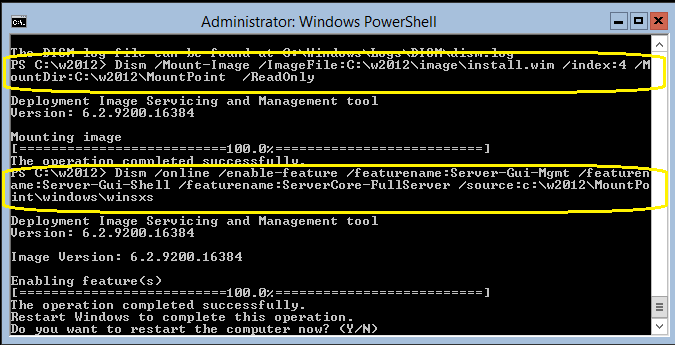
or by using Powershell:
PS c:\>Import-Module DISM
PS c:\>Install-WindowsFeature Server-Gui-Mgmt-Infra,Server-Gui-Shell –Restart –Source c:\w2012\MountPoint\windows\winsxs
To convert a full operating system installation (GUI version) back to a server core installation
c:\>Dism /online /disable-feature /featurename:ServerCore-FullServer
Windows Server 2012 Roadshow : Virtualisation in Canberra. November 12th
Join us for the ‘Windows Server 2012 Roadshow : Virtualisation’. Unique opportunity to get knowledge from the best and understand how to build your own Private Cloud, as the Microsoft Most Valuable Professional show you his tips with the latest release.
Registration REQUIRED : https://ws2012rocks.msregistration.com/abstract.aspx?id=7d701162-706c-474e-a801-3ad70ab0658f&Eventid=197
Get a chance to talk about the challenges to build your Private Cloud and the new features included in Windows 2012 and SCVMM 2012 SP1 that will help your business get into the Private Cloud.
Topics will include:
- Scenarios for Server Virtualization
- Hyper-V Enhancements, Mobility and Flexibility, System Center VMM 2012 SP1,
- Veeam Backup and Replication for Hyper-V and integration with SC 2012*
plus:
- Windows Server 2012 – Networking
Connect from anywhere, more working and less waiting, better network management via cost-aware networking. Sound interesting? This session provides a general overview, including many of the improvements to DirectAccess, BranchCache, and general networking improvements in Server 2012.
- Windows Server 2012 – High Availability & Virtualisation
Do you need your applications and systems to be online all the time. Well listen closely. We will be covering the enhancements to Windows Server 2012 that will help keep your applications and systems online all the time. We will be covering a range of High Availability enhancements in Windows Server 2012. We will discuss, Hyper-V Replicas, Live Storage Migration, Disk De-Duplication and Network Teaming just to name a few.
You will not leave disappointed from this session. With so much to cover, you will not want this presentation to end.
Target audience
Decision makers, IT Professionals, IT Managers.
Cost Details
FREE
Registration REQUIRED : https://ws2012rocks.msregistration.com/abstract.aspx?id=7d701162-706c-474e-a801-3ad70ab0658f&Eventid=197
* Veeam Software is a Microsoft Gold ISV partner and has recently won the 2012 Microsoft Management and Virtualization Partner of the Year award. Veeam Backup & Replication provides fast, flexible and reliable recovery of virtualized applications and data. It unifies backup and replication in a single solution, increases the value of backup and reinvents data protection for Microsoft Hyper-V. Veeam also offers customers Veeam ONE, which provides 24×7 real-time monitoring, performance analysis, resource optimization and management reporting for virtualized environments. Veeam also extends deep into virtualization monitoring in Microsoft System Centre 2012 with Veeam Management Pack™ (MP). Veeam MP helps businesses manage physical and virtual infrastructures, applications and dependencies from a single console.
Windows Server 2012 Hyper-V Cookbook
Windows Server 2012 Hyper-V Cookbook
I had a pleasure to be one of the tech reviewers of this book. I am sure you will enjoy reading it as much as I enjoyed reviewing it.

Overview
Take advantage of numerous Hyper-V best practices for administrators
Get to grips with migrating virtual machines between servers and old Hyper-V versions, automating tasks with PowerShell, providing a High Availability and Disaster Recovery environment, and much more
A practical Cookbook bursting with essential recipes
What you will learn from this book
Learn to deploy, migrate and upgrade Hyper-V and virtual machines
Configure disks, network, memory, security and auditing settings for virtual machines
Take a deep dive into high availability and disaster recovery
Save time and money by getting to grips with PowerShell automation
Understand the new features around network virtualization, Shared Nothing Live Migration, Hyper-V Replica and much more
Gain a full view of your virtual machines and host servers with monitoring, reporting and troubleshooting tips
Take advantage of bonus appendice explaining Hyper-V architecture and the difference between versions
Click here to pre-order : http://www.packtpub.com/windows-server-2012-hypervisor-based-cookbook/book
APP-V 5.0 Improvements
App-V 5.0, currently in beta, is coming with lots of improvements:
- No more Q: – Primary Virtual Application Directory (AKA Install to Location)
- Stream Optimizing Packages :
- On-demand streaming delivery (Default): A package created and skipping the stream optimization step will be streamed on-demand to the machine via stream faults.
- Stream optimized: A package that goes through stream optimization process contains a primary feature block and this entire block is streamed before launching. This can be performed in the Stream Optimization step in the Sequencer, just like 4.6 SP1 release.
- Fully downloaded : The package will be fully downloaded before it can be launched. There is a checkbox that allows you to specify all applications in the package to be fully downloaded.
- Application Installers that require a reboot
- Creating add-on/middleware Packages
- Shortcut/File Type Association (FTA) Editing. A shortcut was supported in App-V 4, however the command-line in the shortcut always referenced sfttray.exe and then invoking your virtual application. Now, there is a direct reference.
- Package Formats. The App-V 5.0 file format is very different from the previous formats. A quick look at what the Sequencer now produces:
- q.appv package. This contains the sequenced application files, registry, stream map, and manifest.
- qDeployment configuration and user configuration template files. These template files are used to customize package functionalities on the client during run-time.
- qReport.xml file. This is a saved report of the Sequencing warnings and errors that occurred during the sequencing.
- qMSI file. This is the MSI that allows administrators to deploy sequenced packages via MSI.
The App-V 5.0 Sequencer comes with a PowerShell module called the Package Converter (allow conversion from 4.5).
- Modifying an Existing Package
- No OSD tab. The new file format does not use OSD files. Metadata about application shortcuts are stored in the manifest and custom scripts are stored in new Dynamic Configuration files. Future blog posts will cover Dynamic Configuration in more detail.
- The Virtual File System (VFS) tab has been replaced with a Package Files tab. It is now possible to manipulate all files in the package, not just those in the VFS.
- The deployment tab has fewer options: Compression is always enabled, MSI packages are always output, security descriptors cannot be overridden (they follow the ones in the files and registry), and packages no longer need streaming protocol information.
- Do not requires of a unique 8.3-compliant name anymore. Now, all packages are executed under their unique (very long) GUID
In addition, to:
In addition to this we’ve also included:
- Reporting: App-V 5.0 now allows you to report on virtual application inventory and utilization, helping IT departments track software assets throughout the enterprise.
- Integration with the System Center Configuration Manager 2012: With the upcoming release of Service Pack 1 for System Center Configuration Manager 2012, you will be able to manage App-V 5.0 virtual applications throughout their lifecycle.
- End-to-end programmability: App-V 5.0 adds PowerShell automation to the management server and the sequencer. For those IT Pros who prefer to get under the hood you now have complete programmability and automation for virtual application management and packaging.
For more information about App-V and our other desktop virtualization tools please click here.
Australia : Windows 2012 Road Show. Built from the Cloud up!
Windows Server 2012 Roadshow!
You are invited! But hurry! Limited seats available.

Join us for the ‘Windows Server 2012 Roadshow’. Unique opportunity to get knowledge from the best and understand how to build your own Private Cloud, as the Microsoft Most Valuable Professional show you his tips with the latest release.
Get a chance to talk about the challenges to build your Private Cloud and the new features included in Windows 2012 and SCVMM 2012 SP1 that will help your business get into the Private Cloud.
This series of events will run for 4 hours in each city and showcase 4 sessions of about 50 minutes, on a range of Windows Server 2012, Hyper-V and System Center 2012 topics. All topics will be presented by Alessandro Cardoso : Microsoft MVP and Dell Senior Technical Consultant.
Topics will include:
- Scenarios for Server Virtualization
- Hyper-V Enhancements, Mobility and Flexibility, System Center VMM 2012 SP1, plus:
- Windows Server 2012 – Networking
Connect from anywhere, more working and less waiting, better network management via cost-aware networking. Sound interesting? This session provides a general overview, including many of the improvements to DirectAccess, BranchCache, and general networking improvements in Server 2012.
- Windows Server 2012 – High Availability & Virtualisation
Do you need your applications and systems to be online all the time. Well listen closely. We will be covering the enhancements to Windows Server 2012 that will help keep your applications and systems online all the time. We will be covering a range of High Availability enhancements in Windows Server 2012. We will discuss, Hyper-V Replicas, Live Storage Migration, Disk De-Duplication and Network Teaming just to name a few.
You will not leave disappointed from this session. With so much to cover, you will not want this presentation to end.
Target audience
Decision makers, IT Professionals, IT Managers.
Cost Details
FREE. Event supported by Microsoft and Dell
Registration and venue details
Sydney
- October 18th 2012 – Dell Australia,
14 Aquatic Drive, Frenchs Forest. Capacity : 50 seats
Registration Link : https://ws2012rocks.msregistration.com/abstract.aspx?id=7d701162-706c-474e-a801-3ad70ab0658f&Eventid=196
- November 7th 2012 – Dell Australia,
14 Aquatic Drive, Frenchs Forest. Capacity : 50 seats
Registration Link : https://ws2012rocks.msregistration.com/abstract.aspx?id=7d701162-706c-474e-a801-3ad70ab0658f&Eventid=200
Canberra, Brisbane and Melbourne : dates to be defined.
Recommended Books


System Center 2012 R2 Virtual Machine

System Center Virtual Machine Manager 2012 Cookbook


 Cloudtidings.com