
Archive
Can’t access a resource on a failover cluster : Logon Failure: The target account name is incorrect
If you a running a Windows 2012 failover cluster and you tried to access the resource by using a resource name from a Windows XP-based or Windows Server 2003 computer, you will receive the following error message:find the following issue:
is not accessible. You might not have permission to use this network resource. Contact the administrator of this server to find out if you have access permissions. Logon Failure: The target account name is incorrect
This issue occurs because the rc4-hmac keys on the Domain Controller and the cluster side for the virtual computer object (VCO) are different. The ticket decryption fails when the ticket is encrypted by using the rc4-hmac encryption. Additionally, the cluster becomes unavailable for any computer that uses the rc4-hmac keys.
Note: This applies to Windows 8 and Windows 2012 Fail over cluster and as per Microsoft advise it can impact Hyper-V deployments where the CNO password gets out of sync and you can no longer do Live Migrations.
So this should be proactively deployed
The hotfix is available here: http://support.microsoft.com/hotfix/KBHotfix.aspx?kbnum=2838043&kbln=en-us
Looking for MS Recommended hotfixes and updates for Server 2012 Failover Clusters?
Microsoft published an article that documents the hotfixes that are currently available for Windows Server 2012-based Failover Clusters.
Failover Clustering allows multiple servers to provide high availability of server roles. Failover Clustering is often used for File Services, Virtual Machines, Database Applications, and Mail Applications.
The recommended hotfixes and updates for Windows Server 2012-based Failover Clusters : http://support.microsoft.com/kb/2784261
Update to improve cloud service provider resiliency in Windows Server 2012
Microsoft released an update to improve the cloud service provider in Windows 2012
Note : The KB2870270 roll-up hotfix replaces KB2848344. This hotfix contains the fix for Trim as well as ODX. It is no longer necessary to disable Trim or ODX with this fix applied
The following issues are also resolved with this update:
– An Windows 2012 Hyper-V Cluster that uses CSV is moved or is toggled between directed access and redirected access when the performance monitor is running. In this situation, the performance counters no longer function.
– An Windows 2012 Hyper-V Cluster and the Virtual Machines VHD files are stored on a scale-out file share and the server is under a heavy load. In this scenario, the server may crash, and you may receive a Stop error message that resembles: STOP: 0x000000C2 (parameter1, parameter2, parameter3, parameter4) – Notes: The parameters in the Stop error message vary, depending on the configuration of the computer and not all “Stop 0x000000C2” errors are caused by this issue.
– When you use the Windows thin provisioning feature on a Windows Server 2012-based computer, you experience the same I/O delays or I/O stalls that occur during the volume-unmounting process in NTF volumes.
Plus the issues that are described in the following Microsoft Knowledge Base (KB) articles are resolved:
Resource outage when moving physical disc when using DPM to backup an HyperV Cluster.
Microsoft just released a critical fix for hyper cluster that have been backed up by System Center DPM
“Physical Disk resource move during the backup of a Cluster Shared Volume (CSV) may cause resource outage”.
If you have configured a Windows Server 2012-based Hyper-V failover cluster CSV and your backup software perform the backup by using snapshots and the Physical Disk resource is moved to another node in the cluster, the Physical Disk resource may fail to come online if the backup of the CSV is in progress. As a result, virtual machines that rely on the CSV may crash.
A supported hotfix is available from Microsoft. However, this hotfix is intended to correct only the problem that is described in this article. Apply this hotfix only to systems that are experiencing this specific problem.
More info :http://support.microsoft.com/kb/2869923
- Windows Server 2012 Datacenter
- Windows Server 2012 Essentials
- Windows Server 2012 Foundation
- Windows Server 2012 Standard
Hyper-V Windows Server 2012 R2: New Generation Of Virtual Machines and Enhanced VM Interaction
New in Hyper-V Windows Server 2012 R2:
A new generation of Virtual Machine (Generation 2), which will provides the following new features
- Legacy free : IDE drives and legacy network adapter support has been removed
- UEFI based
- Many emulated devices removed
- Boots from virtual SCSI or synthetic network adapters (virtual hard drive,virtual DVD drive).
- UEFI Secure Boot (enabled by default). Secure Boot is a feature that helps prevent unauthorized firmware, operating systems, or UEFI drivers (also known as Option ROMs) from running at boot time. Generation 2 virtual machines can take advantage of Secure Boot
- PXE boot using a standard network adapter. In previous versions of Hyper-V if you wanted to perform a remote installation of the guest operating system via PXE boot, you were required to install a legacy network adapter for PXE boot in addition to the standard network adapter that you would use after the operating system was installed
- UEFI firmware support
- Supported guest operating systems:
- 64-bit versions of Windows 8 and Windows Server 2012
- 64-bit versions of Windows 8.1 and Windows Server 2012 R2
Important : Once a virtual machine has been created, you cannot change its generation. You can host VM’s of different generations type, side by side. For operating systems that are not supported by generation 2 virtual machines, they will need to be installed in a generation 1 virtual machine.
Virtual machine operating system boot time can be up to 20% faster with generation 2 virtual machines.
Installing the guest operating system can be up to 50% faster with generation 2 virtual machines
- Full remote desktop capabilities
- Shared clipboard
- Audio redirection
- Enhanced login
- Enabled even when the network is down
-
Integrated into Hyper-V Management experience
Windows Server 2012 R2. What’s new in this new version….
Windows Server 2012 R2 offers exciting new features and enhancements across virtualization, storage, networking, virtual desktop infrastructure, access and information protection, and more.
With Windows Azure VM and System Center 2012 R2, it unlocks improved application portability between on-premises environments and public and service provider clouds, increasing flexibility and elasticity of your IT services.
Windows Server 2012 R2 provides a scalable, highly available platform for mission-critical applications.
Windows Server 2012 R2 makes it easier to deploy a virtual desktop infrastructure, and can lower storage costs significantly by supporting a broad range of storage options and with a new feature VHD de-duplication.
Virtual Desktop Infrastructure in Windows Server 2012 R2 makes it possible for users to access IT from virtually anywhere, providing them a rich Windows experience while ensuring enhanced data security and compliance.
For more info and evaluation:
http://technet.microsoft.com/en-US/evalcenter/dn205292.aspx?CR_CC=200142594 (yet to be available)
A Modern Approach to IT Infrastructure for Forward Thinking Businesses
| 3 June – A Modern Approach to IT Infrastructure for Forward Thinking Businesses You may not know it, but tech savvy, forward thinking organisations like yours can benefit from the same enterprise-grade IT infrastructure large organisations use – the kind that can grow as your business does, yet retain the flexibility to move with market shifts. |
||||||
| This session will explore the ways you can simplify your IT management with limited IT budget and staff, and establish a solid platform for growth. We’ll outline Microsoft’s modern approach to IT infrastructure – including server consolidation and virtualisation, storage management, disaster recovery, cloud-ready IT and simplified administration. | ||||||
| Speakers: Mike Heald – Windows Server Product Manager, Microsoft Australia Alessandro Cardoso – Insight Practice Manager, Microsoft MVP, Microsoft APAC |
||||||
| About our Webinars Hosted by a Microsoft expert, each fortnightly bite-sized session unpicks the current challenges and proposes ways in which Microsoft solutions can improve productivity, profitability and competitive advantage. |
||||||
| Each session includes a live chat feature so you can get answers to your tough questions. And it’s a great way to kick-start the conversation in your organisation.
Please ensure Silverlight is installed on your device to attend the Webinars on their live dates. Download here. |
||||||
Register NOW
|
||||||
Private Cloud & Virtualisation Strategy Event – MELB/BRIS/SYD – All you need to know
VIP Event. Few seats available.
NEW CONTENT Added : What’s new in Windows 2012R2. Come and see what is coming!
Help your business gain maximum competitive advantage with minimal risk.

You are invited to an exclusive event, as well the exclusive book launch of Alessandro Cardoso’s book System Center Virtual Machine Manager 2012 Cookbook.
Private Could and Virtualisation strategy with Insight, Microsoft and Veeam.
Mobile. Social. Big data. The cloud. These trends are all impacting how businesses engage with their customers, partners, and employees in order to better compete. We also know that for many modern CIOs and technology leaders, the cloud presents an opportunity to redefine the role IT plays in implementing business strategy.
Why attend?
Envisioning Your Private Cloud: Participate in a scenario based discussion.
- Make more of your existing investments. Learn how to:
- Take existing resources and skills to the private and public cloud
- Use a single toolset to manage traditional and cloud environments
- Use a common identity infrastructure to mitigate risk
- Use a common platform to maximise IT and developer efficiency
Embrace the right IT for your business
- Get maximum control with the private cloud
- Obtain maximum agility and scalability with the public cloud
- Get the best of both by extending private to public
Register now at: http://au.insight.com/events/private-cloud-virtualisation-event/
Dates and Locations
Melbourne: Wednesday 29th May – 2:00 – 5:00pm
Microsoft – Level 5, 4 Freshwater place, Southbank, VIC, 3006
Brisbane: Thursday 30th May- 8:30 – 11:30am
Microsoft – The North Stradbroke Island Room Level 28, 400 George Street, Brisbane, QLD, 4000
Sydney: Thursday 13th June – 8:30 – 11:30am
Microsoft – 1 Epping Road, North Ryde NSW 2113,
Sharing roles with Hyper-V on the same physical host
Please DON’T !
I see so many questions around that, which means that some folks still do not understand:
Simple as that DO NOT ADD OTHER ROLES IF ADDING HYPER-V ROLE.
When the Hyper-V role is installed, the host OS becomes the Parent Partition, and the Hypervisor partition is placed between the parent partition and the hardware.
When you have the Hyper-V role installed keep it as a dedicated Hyper-V host server. Other roles and features not directly related to supporting the Hyper-V role are not supported on the parent partition and that includes DOMAIN CONTROLLER.
The only Roles and Features supported to be installed on the physical host (hyper-V) are:
- File and Storage Services (installed and part of Hyper-V support)
- Failover Cluster Manager (if host will become part of a cluster)
- Multipath I/O (if host will be connecting to an iSCSI SAN, Spaces and/or Fibre Channel)
- Remote Desktop Services (if VDI will be used on the host)
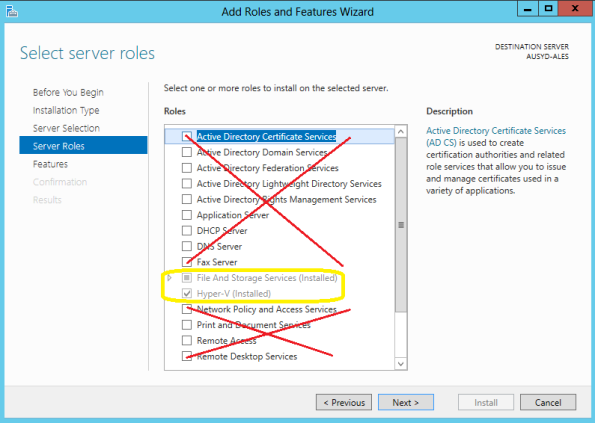
Plus:
Also, when possible, choose the Server Core installation to reduce OS overhead, reduce potential attack surface, and to minimize reboots (due to fewer software updates).
Ensure hosts are up-to-date with recommended Microsoft updates, to ensure critical patches and updates – addressing security concerns or fixes to the core OS – are applied.
Host should be domain joined, unless security standards dictate otherwise. Doing so makes it possible to centralize the management of policies for identity, security, and auditing. Additionally, hosts must be domain joined before you can create a Hyper-V High-Availability Cluster.
Anti-virus software should exclude Hyper-V specific files using the Hyper-V: Antivirus Exclusions for Hyper-V Hosts article
Windows 2012 Hyper-V pass-through disks and Live Migration support
Since Windows Server 2008 R2 and now with Windows Server 2012, the performance improvements of Fixed and Dynamic disks are impressive. One of the main reasons that some IT folks were still deploying pass-through was due to the disk size limitation to 2TB. But in Windows 2012, with the VHDX format the size limit increased to a huge 64TB and you have features that prevent corruption; plus, by using pass-through disks you lose benefits such as portability, snap-shotting and thin provisioning.
In saying that, as pointed by Jeff Woolsey, Microsoft Windows Server & Cloud:
Pass-through disks are supported during Hyper-V Live Migration ONLY if the Virtual Machine being migrated and the pass-through disk are manage by the same Hyper-V cluster :
Pass through disks are still supported with Windows Server 2012 Hyper-V Live Migration (just like they were with Windows Server 2008 R2 Hyper-V) as long as the migration of a clustered VM and the pass through disk is managed by the cluster.
Pass through disks are not supported for migrations outside of a cluster, such as:
- Shared Nothing Live Migration or
- Using standalone hosts with file on a SMB share (without clustering enabled)
…pass through disks aren’t supported because the pass through disk doesn’t have a way to move between hosts.
Again my recommendation : STAY AWAY FROM PASS-THOUGH DISKS.
You will find similar recommendation from the fellow MVP’s Aidan Finn, Didier Van Hoye or Hans Vredevoort
Recommended Books


System Center 2012 R2 Virtual Machine

System Center Virtual Machine Manager 2012 Cookbook


 Cloudtidings.com