Archive
Hyper-V : Supported Server Guest Operating Systems. Updated May 2011
The following tables list the Server guest operating systems that are supported for use on a virtual machine as a guest operating system.
| Server guest operating system | Editions | Virtual processors |
|---|---|---|
| Windows Server 2008 R2 with Service Pack 1 | Standard, Enterprise, Datacenter, and Web editions | 1, 2, or 4 |
| Windows Server 2008 R2 | Standard, Enterprise, Datacenter, and Windows Web Server 2008 R2 | 1, 2, or 4 |
| Windows Server 2008 | Standard, Standard without Hyper-V, Enterprise, Enterprise without Hyper-V, Datacenter, Datacenter without Hyper-V, Windows Web Server 2008, and HPC Edition | 1, 2, or 4 |
| Windows Server 2003 R2 with Service Pack 2 | Standard, Enterprise, Datacenter, and Web | 1 or 2 |
| Windows Home Server 2011 | Standard | 1 |
| Windows Storage Server 2008 R2 | Essentials | 1 |
| Windows Small Business Server 2011 | Essentials | 1 or 2 |
| Windows Small Business Server 2011 | Standard | 1, 2, or 4 |
| Windows Server 2003 R2 x64 Edition with Service Pack 2 | Standard, Enterprise, and Datacenter | 1 or 2 |
| Windows Server 2003 with Service Pack 2 | Standard, Enterprise, Datacenter, and Web | 1 or 2 |
| Windows Server 2003 x64 Edition with Service Pack 2 | Standard, Enterprise, and Datacenter | 1 or 2 |
| CentOS 5.2 through 5.6 (NEW) | x86 edition and x64 edition | 1, 2, or 4 |
| Red Hat Enterprise Linux 5.6 | x86 edition and x64 edition | 1, 2, or 4 |
| Red Hat Enterprise Linux 5.5 | x86 edition and x64 edition | 1, 2, or 4 |
| Red Hat Enterprise Linux 5.4 | x86 edition and x64 edition | 1, 2, or 4 |
| Red Hat Enterprise Linux 5.3 | x86 edition and x64 edition | 1, 2, or 4 |
| Red Hat Enterprise Linux 5.2 | x86 edition and x64 edition | 1, 2, or 4 |
| SUSE Linux Enterprise Server 11 with Service Pack 1 | x86 edition and x64 edition | 1, 2, or 4 |
| SUSE Linux Enterprise Server 10 with Service Pack 4 | x86 edition and x64 edition | 1, 2, or 4 |
Note: Support for Windows 2000 Server and Windows XP with Service Pack 2 (x86) ended on July 13, 2010
Source : http://technet.microsoft.com/en-us/library/cc794868(WS.10).aspx
MS Virtualization for VMware Pros : Jump Start
Exclusive Jump Start virtual training event – “Microsoft Virtualization for VMware Professionals” FREE – on TechNet Edge
Where do I go for this great training?
The HD-quality video recordings of this course are on TechNet Edge. If you’re interested in one specific topic, I’ve included links to each module as well.
· Entire course on TechNet Edge: “Microsoft Virtualization for VMware Professionals” Jump Start
o Virtualization Jump Start (01): Virtualization Overview
o Virtualization Jump Start (02): Differentiating Microsoft & VMware
o Virtualization Jump Start (03a): Hyper-V Deployment Options & Architecture | Part 1
o Virtualization Jump Start (03b): Hyper-V Deployment Options & Architecture | Part 2
o Virtualization Jump Start (04): High-Availability & Clustering
o Virtualization Jump Start (05): System Center Suite Overview with focus on DPM
o Virtualization Jump Start (06): Automation with Opalis, Service Manager & PowerShell
o Virtualization Jump Start (07): System Center Virtual Machine Manager 2012
o Virtualization Jump Start (08): Private Cloud Solutions, Architecture & VMM Self-Service Portal 2.0
o Virtualization Jump Start (09): Virtual Desktop Infrastructure (VDI) Architecture | Part 1
o Virtualization Jump Start (10): Virtual Desktop Infrastructure (VDI) Architecture | Part 2
o Virtualization Jump Start (11): v-Alliance Solution Overview
o Virtualization Jump Start (12): Application Delivery for VDI
· Links to course materials on Born to Learn
Hyper-V R2 and right numbers of physical NIC’s
When it comes to network configuration, be sure to provide the right number of physical network adapters on Hyper-V servers. Failure to configure enough network connections can make it appear as though you have a storage problem, particularly when using iSCSI.
Recommendation for network configuration ( number of dedicated Physical Nic’s ):
- 1 for Management. Microsoft recommends a dedicated network adapter for Hyper-V server management.
- At least 1 for Virtual machines. Virtual network configurations of the external type require a minimum of one network adapter.
- 2 for SCSI. Microsoft recommends that IP storage communication have a dedicated network, so one adapter is required and two or more are necessary to support multipathing.
- At least 1 for Failover cluster. Windows® failover cluster requires a private network.
- 1 for Live migration. This new Hyper-V R2 feature supports the migration of running virtual machines between Hyper-V servers. Microsoft recommends configuring a dedicated physical network adapter for live migration traffic. This network should be separate from the network for private communication between the cluster nodes, from the network for the virtual machine, and from the network for storage
- 1 for Cluster shared volumes. Microsoft recommends a dedicated network to support the communications traffic created by this new Hyper-V R2 feature. In the network adapter properties, Client for Microsoft Networks and File and Printer Sharing for Microsoft Networks must be enabled to support SMB
Some interesting notes when comparing FC with iSCSI:
- iSCSI and FC delivered comparable throughput performance irrespective of the load on the system.
- iSCSI used approximately 3-5 percentage points more Hyper-V R2 CPU resources than FC to achieve comparable performance.
For information about the network traffic that can occur on a network used for Cluster Shared Volumes, see “Understanding redirected I/O mode in CSV communciation” in Requirements for Using Cluster Shared Volumes in a Failover Cluster in Windows Server 2008 R2 (http://go.microsoft.com/fwlink/?LinkId=182153).
For more information on the network used for CSV communication, see Managing the network used for Cluster Shared Volumes.
It’s not recommend that you do use the same network adapter for virtual machine access and management.
If you are limited by the number of network adapters, you should configure a virtual local area network (VLAN) to isolate traffic. VLAN recommendations include 802.1q and 802.p.
TechNet Live Meetings are back featuring IE9 all through April!
Session 1
Title: TechNet Live! Australia – Internet Explorer 9 – New Features
Abstract: In this session we discuss how IE9 is fast, clean and the most trusted browser on the market today. We’ll take you through the changes since IE8 and the speed improvements we’ve made and how we now take advantage of the GPU in your computer instead of just the CPU! We’ll then take you through the changes to the interface including the integration with Windows 7. Finally we’ll discuss security feature changes in IE9. There will be demo’s throughout this session showing each of the major new feature changes.
- Date: Friday April 8th 2011
- Time: 11:00am – 12:30PM AEST
- Registration: Click here to Register
Session 2
Title: TechNet Live! Australia – Security in Internet Explorer 9
Abstract: Security when browsing the web is more important today than it ever has been. In this session we’ll talk about the core security changes in Internet Explorer 9 and how they just keep you browsing even if there is a problem with the site. We’ll discuss how we have built upon the security advancements we made with Internet Explorer 8 and what’s new and what’s been enhanced. We’ll also demonstrate the UI features that enhance security. Finally we’ll discuss and show the group policy settings for IE9 security.
- Date: Friday April 15th 2011
- Time: 11:00am – 12:30PM AEST
- Registration: Click here to Join Lync Meeting
Session 3
Title: TechNet Live! Australia – Deploying Internet Explorer 9
Abstract: Installing Internet Explorer 9 on 1 or 2 machines is easy but what if you need to deploy it to hundreds or even thousands of machines? In this session we’ll discuss some of the options available for deploying Internet Explorer 9 in the enterprise. We’ll discuss deploying Internet Explorer 9 into a Windows image via slipstreaming, customizing the Internet Explorer 9 installation using the IEAK and managing the settings for Internet explorer 9 through Group Policy. In each section we’ll go through the concepts and tools you need and then show you how it works.
- Date: Friday April 29th 2011
- Time: 11:00am – 12:30pm AEST
- Registration: Click here to join Lync Meeting
Session 4
Title: Application Compatibility with Internet Explorer 9
Abstract: As part of any deployment project whether it’s OS upgrade or a new browser such as Internet Explorer 9, you need to think about how your existing applications are going to work. In this session we’ll give you an overview of Internet Explorer compatibility and what has changed since earlier versions of Internet Explorer. Then we discuss and show you some of the compatibility tools that are available to help you get there and finally we’ll discuss and show you some of the ways to virtualize Internet Explorer.
- Date: Friday May 6th 2011
- Time: 11:00am – 12:30pm AEST
- Registration: Click here to join Lync Meeting
I hope you can take the time to attend these events as I think you will be glad you did.
Microsoft is back for another Springboard Series Tour!
Microsoft is back in the US for another Springboard Series Tour!

May 2 – Toronto | May 4 – Detroit | May 6 – Chicago | May 9 – Indianapolis | May 11 – Dallas | May 13 – Columbus
The Springboard Series Tour is back! This 6 city tour brings the top product teams from Microsoft to you. We understand the questions and issues that IT pros deal with every day. How do I manage end users bringing consumer devices into the office? Should we look to the cloud for key solutions? Should I virtualize? What are the best tools to manage application compatibility and deployment? The Springboard Series Tour brings the experts and the answers.
Join us for a full day’s deep dive into the tools, solutions and options to help you do more with less. We will cover managing the flexible workspace, a first look at Windows Intune and Office 365. We’ll also show you some of the new Windows Slates and give you details around Microsoft’s strategy for Slate devices. We will preview the new tools in the MDOP 2011 suite, a deep dive into managing and deploying Office 2010 and great tips and tricks to help you deploy Windows 7 and move your users from Windows XP with speed and ease.
REGISTER NOW and save your seat for this free day of technical demos, Q&A sessions, and real-world guidance from Microsoft experts. We’ll see you on the road!
Hyper-V : Virtual Hard Disks. Benefits of Fixed disks
When creating a Virtual Machine, you can select to use either virtual hard disks or physical disks that are directly attached to a virtual machine.

My personal advise and what I have seen from Microsoft folks is to always use FIXED DISK for production environment, even with the release of Windows Server 2008 R2, which one of the enhancements was the improved performance of dynamic VHD files.
The explanation and benetifts for that is simple:
1. Almost the same performance as passthroug disks
2. Portability : you can move/copy the VHD
3. Backup : you can backup at the VHD level and better, using DPM you can restore at ITEM level ( how cools is that! )
4.You can have Snapshots
5. The fixed sized VHD performance has been on-par with the physical disk since Windows Server 2008/Hyper-V
If you use pass-through disks you lose all of the benefits of VHD files such as portability, snap-shotting and thin provisioning. Considering these trade-offs, using pass-through disks should really only be considered if you require a disk that is greater than 2 TB in size or if your application is I/O bound and you really could benefit from another .1 ms shaved off your average response time.
Disks Summary table:
| Storage Container | Pros | Cons |
| Pass-through DisK |
|
|
| Fixed sized VHD |
|
|
| Dynamically expanding or
Differencing VHD
|
|
|
Virtualization Certification Promotion : Free TechNet Subscription.
Pass any virtualization exam and receive a complimentary TechNet Subscription*!
*NOTE: First 1,000 people only. Registration is required.
REQUIREMENTS:
1. Register for this offer – http://www.prometric.com/microsoft/virtualization
a. Select an exam voucher or exam voucher pack (single exam or up to 3 exams)
i. Valid on virtualization exams only
b. Provide your details (name, address, email, etc.)
2. Use your voucher code to register for your first exam
3. Take and pass any virtualization exam between March 1 and June 30th – 70-652, 70-659, 70-669, or 70-693
4. Receive your TechNet subscription not later than July 15th ( FIRST 1,000 ONLY)
MORE INFORMATION ON VIRTUALIZATION BENEFITS:
http://go.microsoft.com/?linkid=9762765&ocid=eml-f-us-jtc-DPR-TECHNETPLUS
This offer is available worldwide.
Source: http://www.microsoftvirtualacademy.com/Promotions/Promotion.aspx?id=1
SCVMM 2008 R2 SP1 : available for download. Support for DM and Remote FX
With support for new features of Windows Server 2008 R2 SP1
- Dynamic Memory: Windows Server 2008 R2 SP1 Hyper-V supports Dynamic Memory enabling customers to better utilize the memory resources of a Hyper-V host. VMM 2008 R2 SP1 allows administrators to create and deploy Virtual Machines onto Windows Server 2008 R2 SP1 Hyper-V hosts and will report on the memory currently in use for these VMs where Dynamic Memory is enabled. Using Dynamic Memory for supported VMs allows for more efficient utilization of memory, with consistent performance, and higher consolidation ratios.
- Microsoft RemoteFX: Windows Server 2008 R2 SP1 introduces a new set of end user experience enhancements with Microsoft RemoteFX. VMM 2008 R2 SP1 allows administrators to create and deploy Virtual Machines with RemoteFX enabled to qualified Windows Server 2008 R2 SP1 Hyper-V hosts. This enables a rich, local-like desktop environment over the network.
SCVMM 2012: Private Cloud Management. Got it!?
It’s great pleasure to see how far Microsoft SCVMM went with the SCVMM 2012.
Belevie me, it’s a whole new product.
So, if you are seriuos about Private Cloud Management, that’s the product you will look into.
•Fabric Management
◦Hyper-V and Cluster Lifecycle Management – Deploy Hyper-V to bare metal server, create Hyper-V clusters, orchestrate patching of a Hyper-V Cluster
◦Third Party Virtualization Platforms – Add and Manage Citrix XenServer and VMware ESX Hosts and Clusters
◦Network Management – Manage IP Address Pools, MAC Address Pools and Load Balancers
◦Storage Management – Classify storage, Manage Storage Pools and LUNs
•Resource Optimization
◦Dynamic Optimization – proactively balance the load of VMs across a cluster
◦Power Optimization – schedule power savings to use the right number of hosts to run your workloads – power the rest off until they are needed.
◦PRO – integrate with System Center Operations Manager to respond to application-level performance monitors.
•Cloud Management
◦Abstract server, network and storage resources into private clouds
◦Delegate access to private clouds with control of capacity, capabilities and user quotas
◦Enable self-service usage for application administrator to author, deploy, manage and decommission applications in the private cloud
•Service Lifecycle Management
◦Define service templates to create sets of connected virtual machines, os images and application packages
◦Compose operating system images and applications during service deployment
◦Scale out the number of virtual machines in a service
◦Service performance and health monitoring integrated with System Center Operations Manager
◦Decouple OS image and application updates through image-based servicing.
◦Leverage powerful application virtualization technologies such as Server App-V
Note: The SCVMM 2012 Beta is NOT Supported in production environments.
Download SCVMM 2012 Beta Now
Virtual Machines that are misaligned
For existing child VMs that are misaligned, in order to correct the partition offset, a new physical disk must be created and formatted, and the data has to be migrated from the original disk to the new one.
Important note: Both Windows 7 and Windows 2008/2008R2 create aligned partition
This problem occurs when the partitioning scheme used by the host OS doesn’t match the block boundaries inside the LUN.If the guest file system is not aligned, it may become necessary to read or write twice as many blocks of storage than the guest actually requested since any guest file system block actually occupies at least two partial storage blocks.
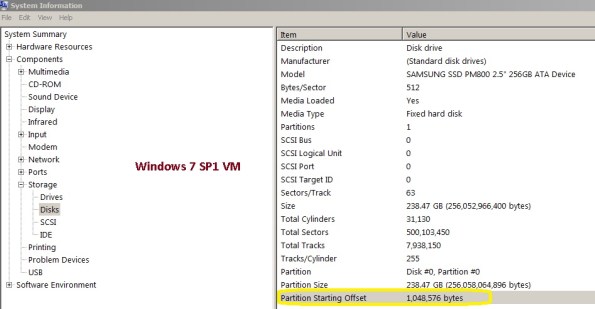
All VHD types can be formatted with the correct offset at the time of creation by booting the child VM before installing an OS and manually setting the partition offset. . The recommended starting offset value for Windows OSs is 32768. The default starting offset value typically observed is 32256.
How to verify the Offset value:
1. Run msinfo32 on the guest VM by selecting
Start > All Programs > Accessories > System Tools > System Information.
or type Start > Run and enter the following command : MSINFO32
2. Navigate to Components > Storage > Disks and check the value for partition starting offset.
If the misaligned virtual disk is the boot partition, follow these steps:
1. Back up the VM system image.
2. Shut down the VM.
3. Attach the misaligned system image virtual disk to a different VM.
4. Attach a new aligned virtual disk to this VM.
5. Copy the contents of the system image (for example, C: in Windows) virtual disk to the new aligned virtual disk.
There are various tools that can be used to copy the contents from the misaligned virtual disk to the new aligned virtual disk:
− Windows xcopy
− Norton/Symantec™ Ghost: Norton/Symantec Ghost can be used to back up a full system image on the misaligned virtual disk and then be restored to a previously created, aligned virtual disk file system.
For Microsoft Hyper-V LUNs mapped to the Hyper-V parent partition using the incorrect LUN protocol type but with
aligned VHDs, create a new LUN using the correct LUN protocol type and copy the
contents (VMs and VHDs) from the misaligned LUN to this new LUN.
For Microsoft Hyper-V LUNs mapped to the Hyper-V parent partition using the incorrect LUN protocol type but with misaligned VHDs, create a new LUN using the correct LUN protocol type and copy the contents (VMs and VHDs) from the misaligned LUN to this new LUN.!01
Next, To set up the starting offset, follow these steps:
1. Boot the child VM with the Windows Preinstall Environment boot CD.
2. Select
Start > Run and enter the following command:
diskpart
3. Type the following into the prompt:
select disk 0
4. Type the following into the prompt:
create partition primary align=32
5. Reboot the child VM with the Windows Preinstall Environment boot CD.
6. Install the operating system as normal.
Virtual disks to be used as data disks can be formatted with the correct offset at the time of creation by using Diskpart in the VM. To align the virtual disk, follow these steps:
1. Boot the child VM with the Windows Preinstall Environment boot CD.
2. Select Start > Run and enter the following command:
diskpart
3. Determine the appropriate disk to use by typing the following into the prompt:
list disk
4. Select the correct disk by typing the following into the prompt:
select disk [#]
5. Type the following into the prompt:
create partition primary align=32
6. To exit, type the following in the prompt:
exit
7. Format the data disk as you would normally
For pass-through disks and LUNs directly mapped to the child OS, create a new LUN using the correct LUN protocol type, map the LUN to the VM, and copy the contents from the misaligned LUN to this new aligned LUN.
Recommended Books


System Center 2012 R2 Virtual Machine

System Center Virtual Machine Manager 2012 Cookbook


 Cloudtidings.com