
Archive
Upgrading to Windows 2016 Hyper-V. What about the Virtual Machine Configuration?
Well, at some point we will all upgrade to Windows 2016 Server. Server aside, what happens with the virtual machines itself?
One of the good advantages of the upgrade process is that it will not automatically upgrade the Virtual Machine configuration file. The virtual machine configuration version represents what version of Hyper-V the virtual machine’s configuration, saved state, and snapshot files it is compatible with.
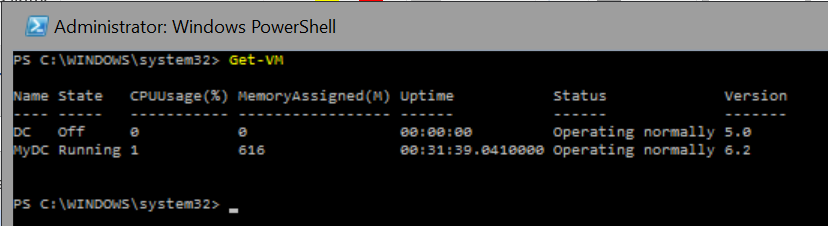
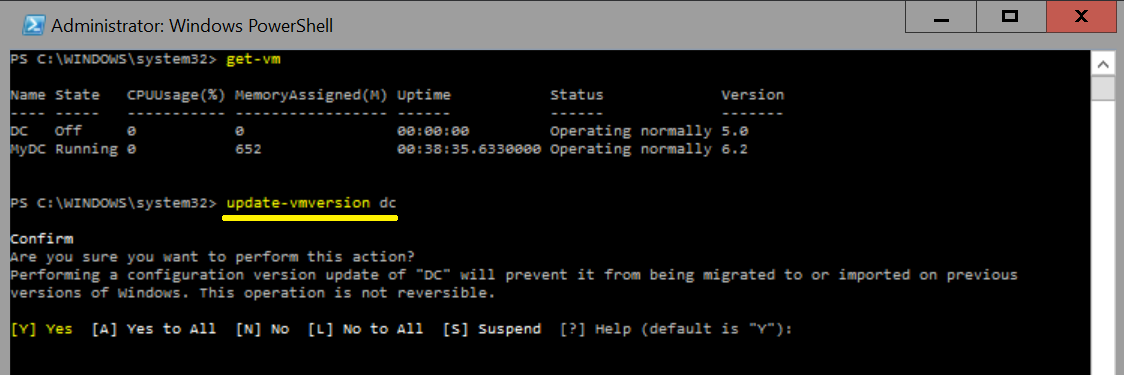
After installing Windows Server 2016 and then importing or migrating (moving) a Virtual Machine from Windows Server 2012R2 the configuration version will remain the same: in Windows Server 2012R2 the VM configuration version is 5 and my advice for you is that you keep it as version 5 it the workload is important for you and you don’t want any risk. It is not clear yet if it will be possible to upgrade the virtual machine from Technical Preview to RTM.
On the positive side, by not upgrading the VM configuration version, the VM can be moved back to a server running Windows Server 2012 R2, if required. On the negative side, you will not have access to new VM features until you manually upgrade the virtual machine configuration version.
- Version 5 VM’s can run on both Windows Server 2012 R2 and Windows Server 2016.
- Version 6 VM’s can run ONLY on Windows Server 2016.
Also, in Windows 2016 Server the configuration changed from file (XML) and BIN + VSV extensions to VMCX (Virtual Machine Configuration) and VMRS (Virtual Machine Runtime State). The new format are also more resistant to storage corruption and more effective in r/w changes to VM configuration.
Summary of the VM configuration version
- Server 2012 R2 has VM configurations version 5
- Server 2016 TP1 – version 6.0
- Server 2016 TP2 – version 6.2
My first 2 days at WPC.
WPC started on Sunday for me.
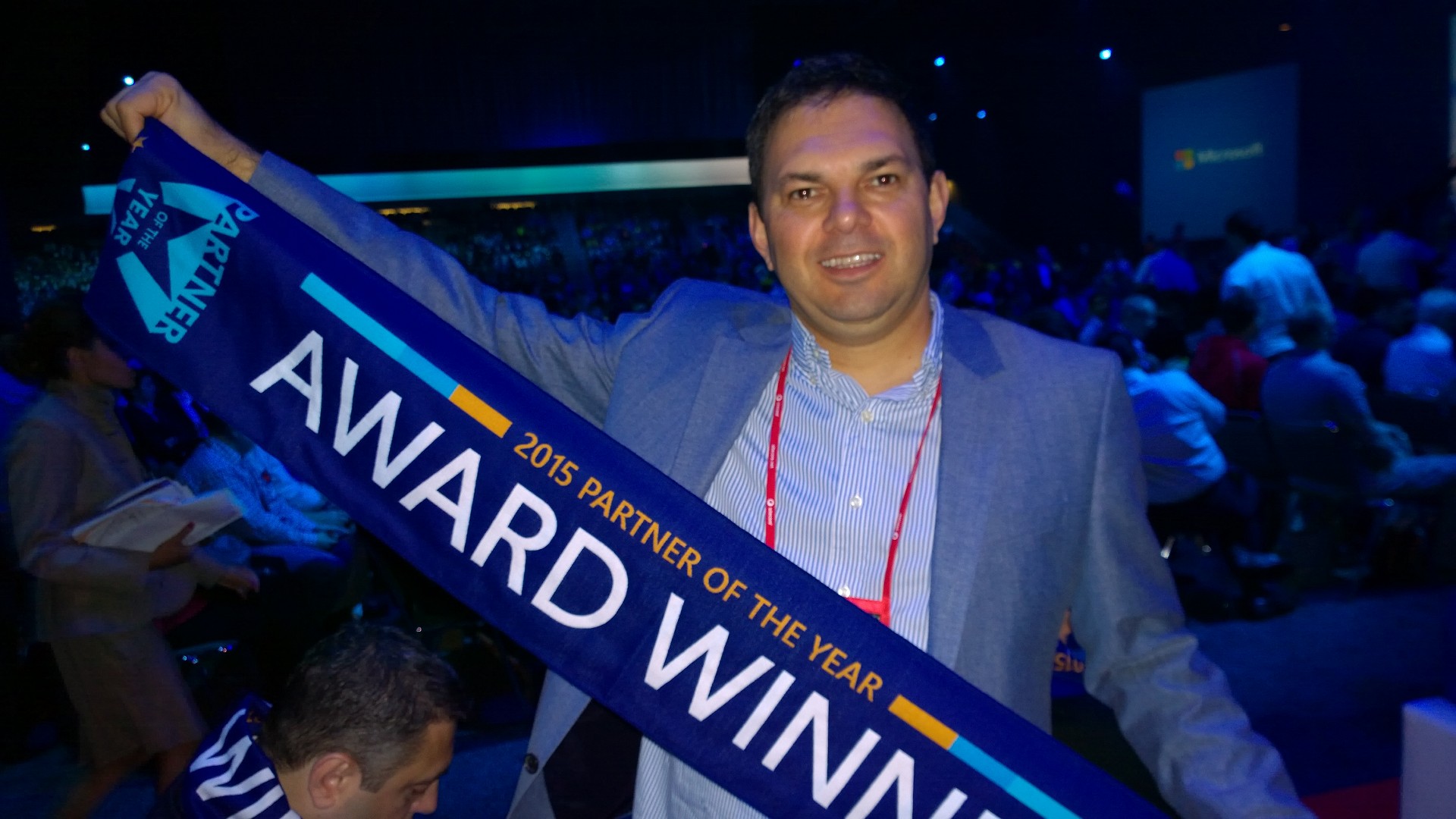
I enjoyed a pre-WPC meeting with the ALM Cloud leaders. We had great discussions with Microsoft and other worldwide partners, learning from each other experiences and sharing ideas to improve on services and revenue.
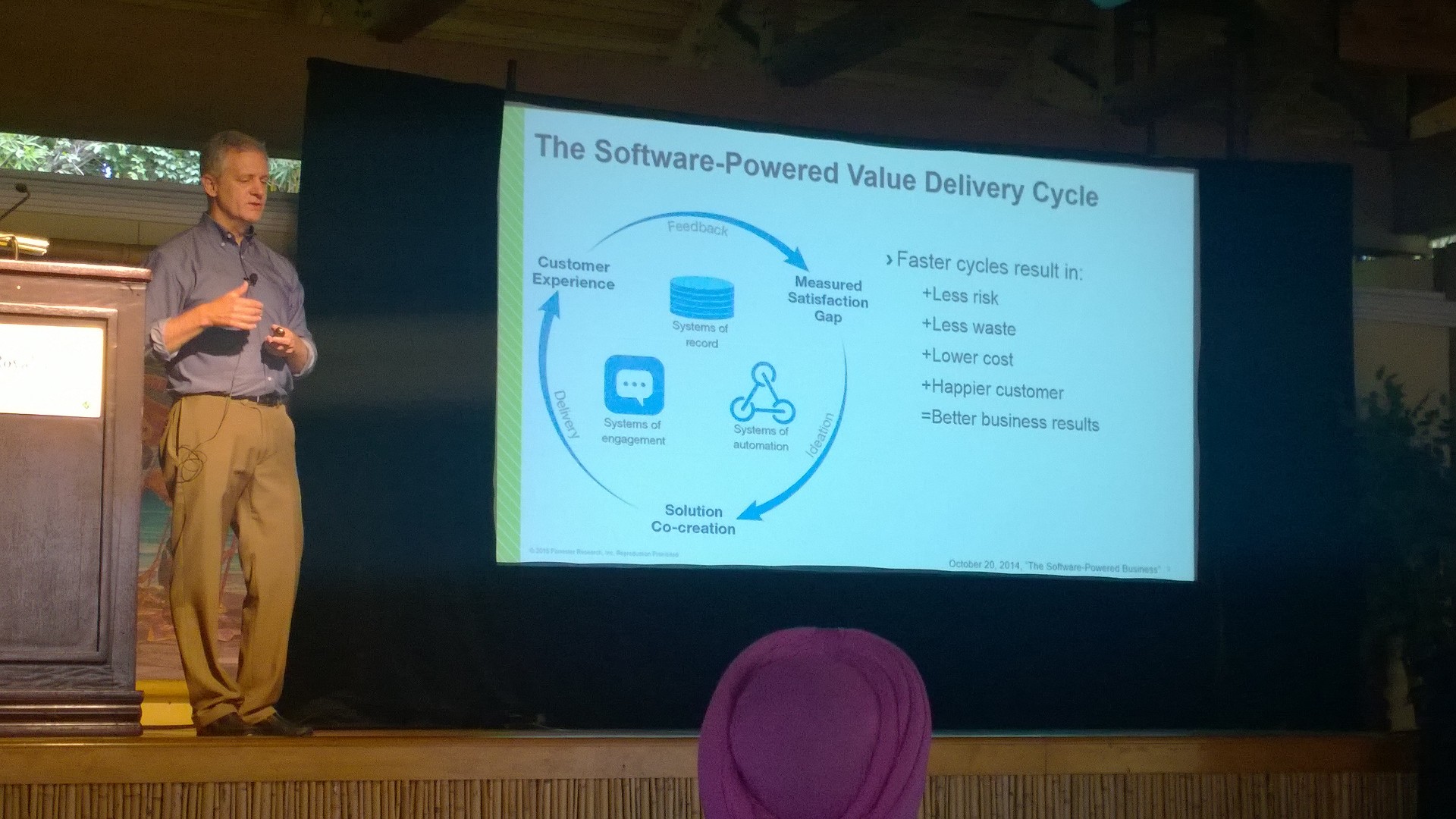
We also had a session with DevOps session with Kurt from Forester. Great start!
Monday started with great keynote sessions. I loved the real world application with HoloLens, Delve Org Analytics, Cortana Analytics but particularly GigJam. What was that! (if have not yet heard about it, check it out at http://gigjam.com) great opportunity to create solutions to integrate with customer apps and provide some real experience to empower business.
WPC is also an opportunity to meet partner from other countries and learn from their experiences and to build partnership, which I am looking forward to.
 .
.


Is System Center Operations Manager still relevant in the Cloud?
EXCLUSIVE Whitepaper: Is OpsMgr still relevant in the Cloud by MVP Cameron Fuller

|
The addition of the Cloud has truly changed how we monitor in Microsoft solutions. In this whitepaper, Microsoft MVP Cameron Fuller tackles the elephant in the room and answers the question of the relevance of Operations Manager. Find out whether Operations Manager is still relevant in the world of the Cloud
|
Installing Hyper-V role on Windows 2016 Server TP2 MinShell version
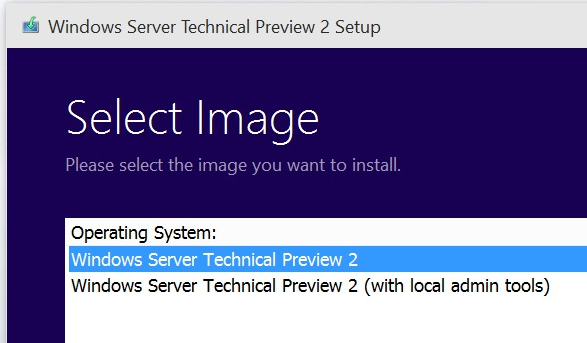
As you probably are aware of, Windows 2016 Server TP2, comes with 2 installation options. You also probably have noticed as well that the graphical user interface (GUI) is no longer an option in a default install on the Technical Preview 2.NOt even Start Menu.

- Windows Server Technical Preview 2 option, will install the server with MinShell (Minimal Shell no GUI). Assuming that you will manage the host remotely you won’t need graphical interface at all and from a security point of view, it is the better option.

- Windows Server Technical Preview 2 (with local admin tools) option, will install the server again with MinShell, but includes Server Manager and the other GUI administration tools, although no desktop experience (traditional desktop), nor start menu.
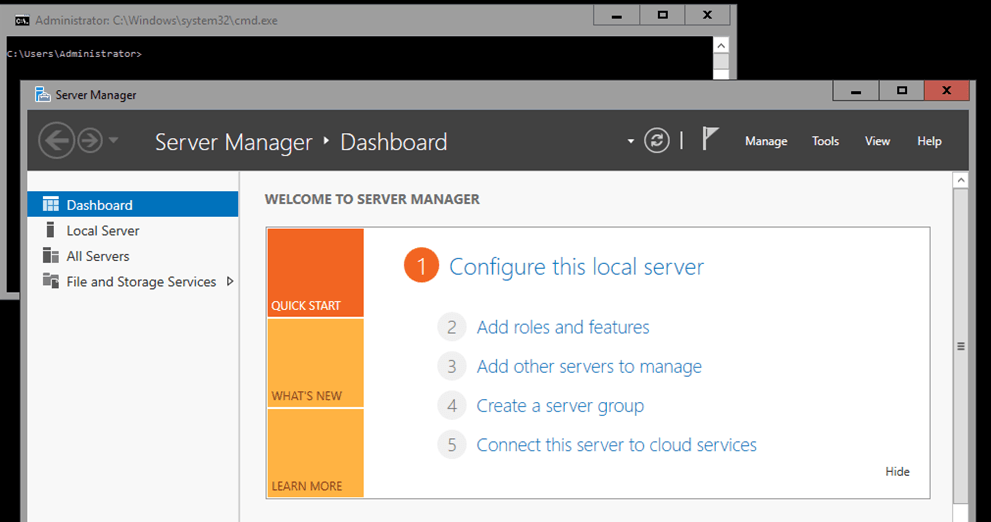
To install Hyper-V role in the Windows Server Technical Preview 2 (with local admin tools) option, in the Server Manager console, click on Add roles and features and select Hyper-V.
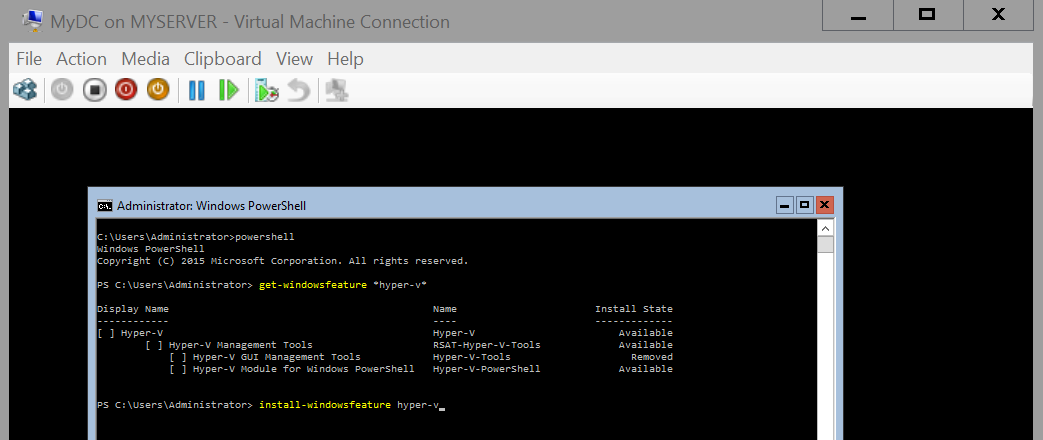
To install Hyper-V role in the Windows Server Technical Preview 2 option :
in the command prompt, type:
PowerShell
PS: > Install–WindowsFeature Hyper-V
Note: If the installation fails due to “The source files could not be found” error, assuming the Windows Server Technical Preview 2 ISO image connected to the DVD drive (D:), type:
Simple as that!
Solved: Wireless not connecting after installing Windows Server TP2
Issue:
Wireless network does not connect on Windows Server TP2 after enabling Wireless Services and installing Wireless Drivers
Solution:
Add the Native WiFi Filter SERVICE in the properties of the wireless adapter
To be more specific:
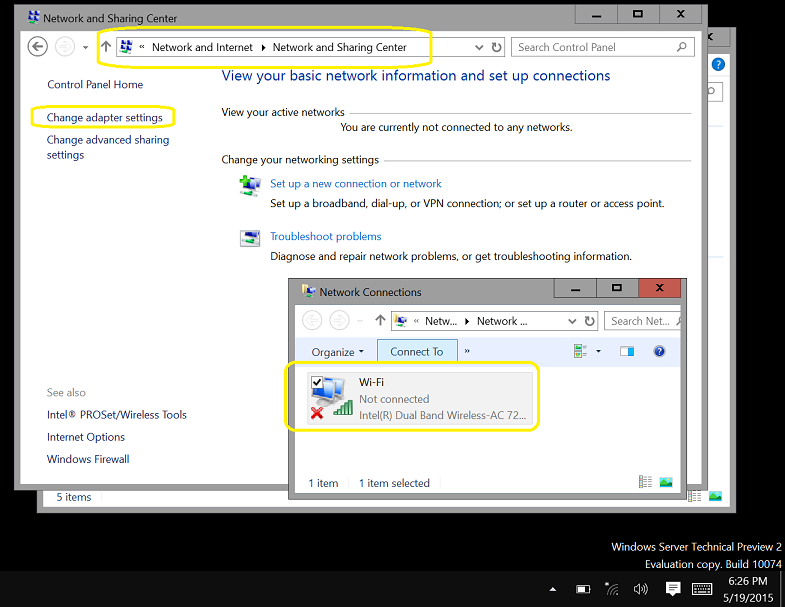
- In the Network and Sharing Center, click on Change Adapter Settings and then on the network connections, select the Wireless Network, right click and select Properties.
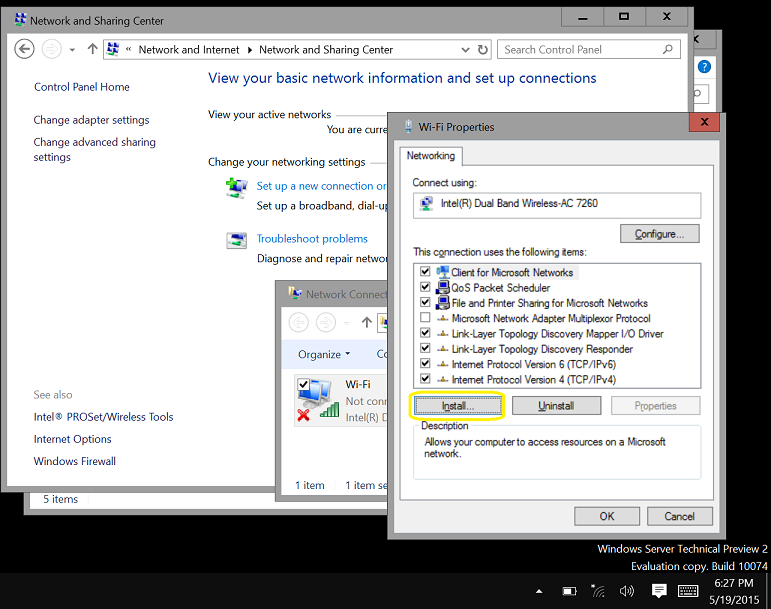
2. In the Properties on the Wireless Adapter, click on Install
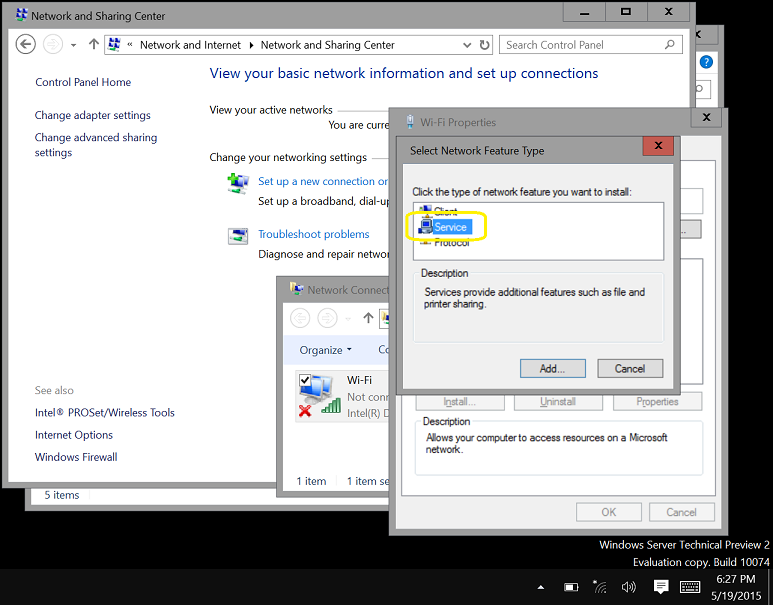
3. Select Service and click on Add
4. Select Native WiFi Filter and click on OK 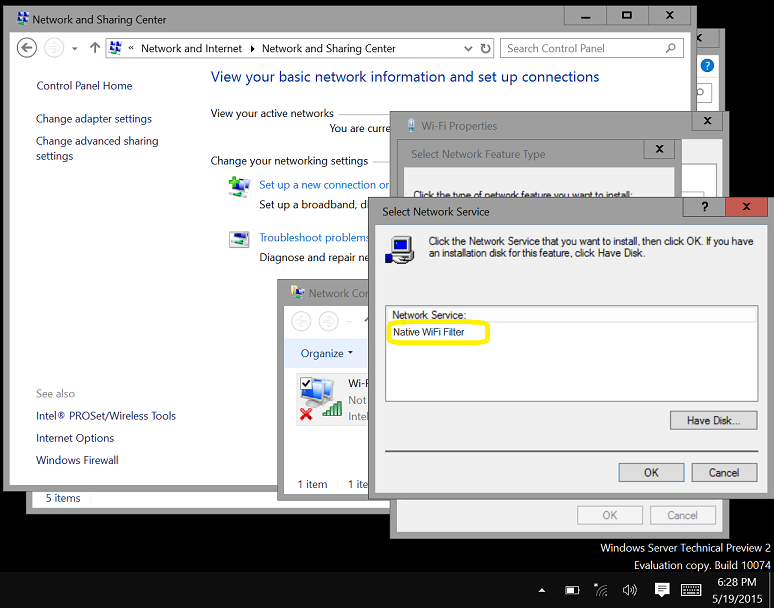
5. Done. You will be able to connect to a WiFi connection now.
Make your voice heard and improve Windows Server 2016
The public download for Windows Server 2016 Technical Preview 2 (TP2) is here: http://www.microsoft.com/en-us/evalcenter/evaluate-windows-server-technical-preview
Now it is your time to give your feedback to the Microsoft Product team and help them improve Windows Server 2016
- Virtualization: http://windowsserver.uservoice.com/forums/295050-virtualization
- Clustering: http://windowsserver.uservoice.com/forums/295074-clustering
- Storage: http://windowsserver.uservoice.com/forums/295056-storage
- Networking: http://windowsserver.uservoice.com/forums/295059-networking
- Nano Server: http://windowsserver.uservoice.com/forums/295068-nano-server
- Linux Support: http://windowsserver.uservoice.com/forums/295062-linux-support
- Windows Server in general: http://windowsserver.uservoice.com/forums/295047-general-feedback
What’s new in Windows Server 2016 Technical Preview 2: (Please note that this is pre-released software; features and functionality may differ in the final release, that’s why YOUR FEEDBACK IS VERY IMPORTANT)
Compute and Virtualization: Simplified upgrades, new installment options, and increased resilience, helping you ensure the stability of the infrastructure without limiting agility.
Networking: Continued investment to make networking as flexible and cost-effective as possible while ensuring high performance.
Storage: Expanding capabilities in software-defined storage with an emphasis on resilience, reduced cost, and increased control.
Security and Assurance: Protecting against today’s threats with a “zero-trust” approach to security that is rooted in the hardware.
Management: Ongoing advances to simplify server management and increase consistency in approach.
- PowerShell Desired State Configuration (DSC) for easier, consistent and faster deployment and updates.
- PowerShell Package Manager for unified package management and deployment
- Windows Management Framework 5.0 April Preview and DSC Resource Kit (available online simultaneously with TP2)
VMM 2012 R2: Unified (almost) on premise and Azure management through the VMM console
Although it is only simple actions (i.e such as restart, refresh, and view) you can use Virtual machine Manager 2012R2 to manage both on premises and Azure Virtual Machines, by adding Azure subscription to VMM.
Let’s hope the VMM team extend those tasks beyond that.
To Download: KB3050317 – Update Rollup 6 for System Center 2012 R2 Virtual Machine Manager (https://support.microsoft.com/en-us/kb/3050317/)
for more information on new features on VMM 2012 R2 UR6 check http://blogs.technet.com/b/scvmm/archive/2015/04/29/an-overview-of-the-new-features-in-vmm-2012-r2-update-rollup-6.aspx
Unified management through the VMM console
With VMM 2012 R2 UR6, Virtual Machine Manager offers a very simple way for a VMM Fabric administrator to add a Microsoft Azure subscription to VMM. After users have added the Microsoft Azure subscription to VMM, they can get a view of their Azure instances directly from the VMM console, and they can perform some simple actions on these instances.
Although in the long term Microsoft vision is to establish WAP as the console of choice for on-premises and Azure workload management, we still see this feature as a value-add to a large set of users who don’t yet use WAP or who don’t want to incur the overhead of WAP. This option of performing simple VM management tasks such as restart, refresh, and view on Azure VMs through VMM consoles gives Fabric administrators the flexibility to manage both on-premises and Azure public cloud VMs from within a single VMM management console
Virtual Machine Manager 2012R2 UR6 : pack more VMs per replica, beyond 100% capacity
With Update Rollup 6 for System Center 2012 R2 Virtual Machine Manager, you can now overcommit clouds and host groups in your VMM environment.
This brings significant savings for the cloud and host group resources and helps you manage your datacenter in a more economical way.
After applying Update Rollup 6, to enable overcommit of replica VMs to a cloud or host group you simply need to configure the following registry key on the VMM Server:
HKEY_LOCAL_MACHINE\SOFTWARE\Microsoft\Microsoft System Center Virtual Machine Manager Server\Settings\Placement
Name: IgnoreMemoryForStoppedReplicaVM
Type: DWORD
Value: 1
Note: If the Placement key doesn’t exist you will need to create it.
Later, if you need to disable overcommit simply change the Registry Value for IgnoreMemoryForStoppedReplicaVM to 0

VMM Replica Overcommit
You can read more here: http://blogs.technet.com/b/scvmm/archive/2015/04/29/vmm-2012-r2-ur6-now-offers-the-option-to-overcommit-cloud-and-host-group-capacity-for-replica-vms.aspx
Hyper-V quick Survey. Give your feedback to the hyper-v team
The Hyper-V team is conducting a survey and they want to hear from you!
https://www.instant.ly/s/G5bPn?s=bb
In this survey they:
- Ask for some basic information about how you are using virtualization
- Ask for feedback on Hyper-V in Windows Server 2012 R2
- Give you the option to participate in future Hyper-V surveys
Azure BootCamp in Brisbane: We’re heading for the big day! Join us.
We’re heading for the big day. Come and join us. This will be a one day deep dive Azure sessions held on Saturday, 2nd May.
A conference for learning about Microsoft Azure right here in Brisbane. Saturday, 2nd May 2015 – 9:00am – 5:00pm
The location will be at Microsoft, 400 George Street, Level 28.
Event Organizers: Alessandro Cardoso, Daniel Toomey and Damien Berry
Our sponsors: Microsoft, Mexia and Readify will ensure that we have resources to bring in high profile speakers
Notes:
- Given the requirement to set up tables, we must limit the attendance to 50* persons. Therefore, if you RSVP and then find you are unable to attend, please change your RSVP so that another party will have the opportunity.
– Because this event is on a Saturday, lifts will be locked. Please arrive within the 30 minute window prior to start time so we can activate the lift for you. Latecomers will not be able to gain access.
Event Website: http://tinyurl.com/BrisbaneAzureBootcamp2015
Recommended Books


System Center 2012 R2 Virtual Machine

System Center Virtual Machine Manager 2012 Cookbook


 Cloudtidings.com