
Archive
Everyone should read this : Reducing the cost of virtualization using Microsoft Hyper-V and System Center
One of the first things you should do when thinking about virtualization is to understand the client environment : Asessment phase. During this phase you should list, understand and write down all workloads .
It’s that only? No, that are so many other variables. I found a good article at Microsoft Virtualization Blog Team that talk about this. Take a look at http://blogs.technet.com/b/virtualization/archive/2010/09/22/reducing-the-cost-of-virtualization-using-microsoft-hyper-v-and-system-center.aspx
Free eBook:Understanding Microsoft Virtualization Solutions — From the Desktop to the Datacenter
Learn about the benefits of the latest virtualization technologies and how to plan, implement, and manage virtual infrastructure solutions based on these technologies.
Free eBook:Understanding Microsoft Virtualization Solutions — From the Desktop to the Datacenter
Virtualization: Top 10 Virtualization Best Practices
Source:TechNet Magazine , by Wes Miller *
Virtualization has gone from being a test lab technology to a mainstream component in datacenters and virtual desktop infrastructures. Along the way, virtualization has occasionally received a “get out of jail free” card, and has not had the same degree of efficient IT practices applied to virtual deployments as would be expected of actual physical machines. This is a mistake.
If you had an unlimited budget, would you let everyone in your organization order a new system or two and hook it up to the network? Probably not. When virtualization first appeared on the scene, unlimited and unmanaged proliferation was kept in check by the fact that there was actually a cost associated with hypervisor applications. This provided some line of defense against rogue virtual machines in your infrastructure. That is no longer the case.
There are several free hypervisor technologies available, for both Type 1 and Type 2 hypervisors. Anyone in your organization with Windows installation media and a little free time can put up a new system on your network. When virtual machines are deployed without the right team members knowing about it, that means a new system can become an unwelcome honeypot for new zero-day vulnerabilities, ready to take down other systems on your network that are business critical.
Virtual systems should never be underappreciated or taken for granted. Virtual infrastructures need to have the same best practices applied as actual physical systems. Here, we will discuss 10 key best practices that should always be on your mind when working with virtual systems.
To read to full article go to http://technet.microsoft.com/en-au/magazine/gg131921.aspx
*Wes Miller is the director of Product Management at CoreTrace (CoreTrace.com) in Austin, Texas. Previously, he worked at Winternals Software and as a program manager at Microsoft. Miller can be reached at wm@getwired.com.
New version of the Linux Integration Services for Hyper-V
A new version (2.1) of the Linux Integration Services for Hyper-V have just been made available.
This new version has some significant improvements:
-
Driver support for synthetic devices: Linux Integration Services supports the synthetic network controller and the synthetic storage controller that were developed specifically for Hyper-V.
-
Fastpath Boot Support for Hyper-V: Boot devices take advantage of the block Virtualization Service Client (VSC) to provide enhanced performance.
-
Timesync: The clock inside the virtual machine will remain synchronized with the clock on the host.
-
Integrated Shutdown: Virtual machines running Linux can be gracefully shut down from either Hyper-V Manager or System Center Virtual Machine Manager.
-
Symmetric Multi-Processing (SMP) Support: Supported Linux distributions can use up to 4 virtual processors (VP) per virtual machine.
-
Heartbeat: Allows the host to detect whether the guest is running and responsive.
-
Pluggable Time Source: A pluggable clock source module is included to provide a more accurate time source to the guest.
This version of the integration services for Hyper-V supports Novell SUSE Linux Enterprise Server 10 SP3, SUSE Linux Enterprise Server 11, and Red Hat Enterprise Linux 5.2 / 5.3 / 5.4 / 5.5.
SPRINGBOARD SERIES TOUR NEAR TO YOU!
Microsoft Windows, Office and MDOP Deployment Workshops

Amsterdam – 25 Oct | Stockholm – 27 Oct | Helsinki – 29 Oct | Reading – 1 Nov | Rome – 3 Nov | Vienna – 4 Nov
The Microsoft Get On the Bus Tour is taking a winter hiatus to bring you a new tour – the Springboard Series Tour: Microsoft Windows, Office and MDOP Deployment Workshops! Amsterdam marks our first stop on a 6-city European tour, en route to TechEd Europe, in Berlin, Germany. Are you looking to plan, pilot or deploy Windows and Office? Our workshops will cover the Office 2010, key deployment strategies for Windows 7, the Microsoft Desktop Optimization Pack, as well as show you the value of getting trained and certified in these key products.
Learn why Windows 7 has received rave reviews from IT organizations and is setting records as the fastest selling operating system in history, and find out why so many IT Pros are ready to deploy Office 2010. Give us five hours, and you will have a clear understanding of the tools, tips and tricks you need now to jumpstart the successful deployment and management of your Windows desktop environment today. Come join members of the Windows and Office US Product Teams, as well as local Microsoft Technology Evangelists for technical training, professional networking, and real world guidance. Don’t miss your chance to attend a workshop in the 2010 Springboard Series Tour, register today at www.springboardseriestour.com.
Get your Tour updates first! Follow us on Twitter, @MSSpringboard
Windows 7 XP Mode : hotfix if your computer does not have hardware-assisted virtualization
If you receive the message “This computer is configured with hardware-assisted virtualization,” download and install Windows Virtual PC and Windows XP Mode.
Does my DELL support hardware virtualization, and is the BIOS setting turned on?
-
Press the F12 key when boot menu text appears at startup
-
Select BIOS setup and press the Enter key
-
Using the mouse, expand the Virtualization Support menu item by clicking on the plus to the left of Virtualisation Support and
-
Select Virtualisation
-
Check the Enable Intel Virtualisation Technology checkbox
-
Click Apply
-
Click Exit
-
Fully shut down (power off), wait a few seconds, and restart your computer ( IMPORTANT!!!!)
Duplicate virtual machines (VMs) may appear in the SCVMM Administrator Console window after a Hyper-V VM in a cluster fails over to another cluster node. HotFix KB2308590
-
Click Start, and then select Control Panel.
-
In Control Panel, double-click Windows Update.
-
In the Windows Update window, click Check Online for updates from Microsoft Update.
-
Click important updates are available.
-
Select Update for System Center Virtual Machine Manager 2008 R2 (KB2308590), and then click OK.
-
Click Install updates.
To update the SCVMM agent on multiple hosts, follow these steps:
-
Open the SCVMM Administrator Console window.
-
Click Administration, and then click Managed Computers.
-
Select the hosts, and then click Update Agent.
-
Enter your user account credentials, and then click OK.
-
Extract the VmmServer64Update-RETAIL.cab file to a temporary directory.
-
Open an elevated command prompt, type the following command, and then press ENTER to install the update:
msiexec /update vmmServer64Update-RETAIL.msp BOOTSTRAPPED=1Note The name of the package varies, depending on the version that was downloaded. -
After the hotfix rollup package is installed on the SCVMM server, update the SCVMM agent on the Hyper-V and Virtual Server hosts.
You must have SCVMM 2008 R2 installed.
Hyper-V R2 : Storage/Network Design for High Availability
By converting your physical servers to virtual ones, you immediately get extra capabilities that make them less likely to go down and easier to bring back up when they do:
- · Snapshots enable you to go back in time when a software update or configuration change blows up an otherwise healthy server.
- · Virtual hard disks consolidate the thousands of files that comprise a Windows server into a single file for backups, which significantly improves the reliability of those backups.
- · Volume Shadow Copy Service (VSS) support, which is natively available in Hyper-V, means that applications return from a restore with zero loss of data and immediately ready for operation.
- · Migration capabilities improve planned downtime activities by providing a mechanism for relocating the processing of virtual machines to new hosts with little to no disruption in service.
- · Failover clustering means that the loss of a virtual host automatically moves virtual machines to new locations where they can continue doing their job.
What’s become much more critical is that the servers/application/services to keep on working.
To Provide High Availability, we need to design properly our environment. With the right combinations of technology, you can inexpensively increase the availability of your environment.
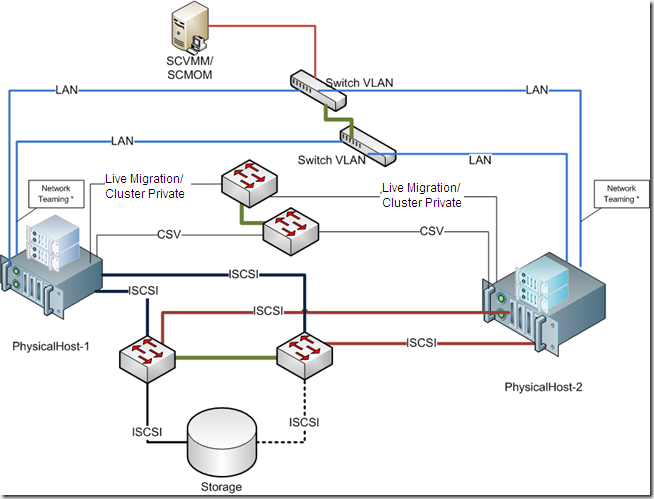
The best practices are based on the following design principles:
- · Redundant hardware to eliminate a single point of failure
- · Load balancing and failover for iSCSI and network traffic
- · Redundant paths for the cluster, Cluster Shared Volume (CSV), and live migration traffic
- · Separation of each traffic type for security and availability
- · Ease of use and implementation
Remember: Windows Server 2008 R2 Enterprise or Windows Server 2008 R2 Datacenter must be used for the physical computers. These servers must run the same version of Windows Server 2008 R2, including the same type of installation. That is, both servers must be either a full installation or a Server Core installation
Also, Hyper-V requires an x64-based processor, hardware-assisted virtualization, and hardware-enforced Data Execution Prevention (DEP). Specifically, you must enable the Intel XD bit (execute disable bit) or AMD NX bit (no execute bit).
Servers
Server-class equipment. The use of equipment that is not listed in the Windows catalog can impact supportability and may not best meet the needs of your virtual machines. Moving to tested and supported server-class equipment will ensure full support in the case of a problem. ). The Windows Server catalog is available at the Microsoft Web site http://go.microsoft.com/fwlink/?LinkId=111228
iSCSI Storage
I would recommend Dell Equalogic, Compellent, IBM NetApp, EMC, but you should evaluate others vendors.
iSCSI Software
If you need to use software-based iSCSI, look carefully at the features available. Microsoft clustering requires iSCSI to support SCSI Primary Commands-3, specifically the support of Persistent Reservations. Most for-cost iSCSI software currently supports this capability, but there is very little support for it in most open source software packages.
One inexpensive and easy-to-use software package is the StarWind iSCSI Target from StarWind Software. There is a free version of StarWind iSCSI target allowing multiple connections. You cannot get it filling automatic form on their site. You have to ask support@starwindsoftware.com for free NFR unlock key manuallyNetwork
How about the network configuration? Here is my proposal and this is what I am using in terms of NICs/Ports:1 management2 private: 1 for cluster private/CSV primary, 1 for live migration primary2 for network (in teaming)2 for iSCSI2 Dedicated (NIC/Ports) for the Network traffic configured as teaming.The failover cluster should be disabled from managing this network.
Provided by establishing the Hyper-V virtual switch on a network team. The team can provide load balancing, link aggregation, and failover capabilities to the virtual network
NIC teaming is the process of grouping together several physical NICs into one single logical NIC, which can be used for network fault tolerance and transmit load balance. The process of grouping NICs is called teaming. Teaming has two purposes:• Fault Tolerance: By teaming more than one physical NIC to a logical NIC, high availability is maximized. Even if one NIC fails, the network connection does not cease and continues to operate on other NICs.• Load Balancing: Balancing the network traffic load on a server can enhance the functionality of the server and the network. Load balancing within network interconnect controller (NIC) teams enables distributing traffic amongst the members of a NIC team so that traffic is routed among all available paths.2 Dedicated (NIC/Ports) for the CSV. (Minimum 1Gb). I personally recommend 10Gb. One a 2 nodes you can use cross-over, but if you plan to use more, than you need a switch. If you choose 10GB it means that your switch needs to be 10GB.
A feature of failover clusters called Cluster Shared Volumes is specifically designed to enhance the availability and manageability of virtual machines. Cluster Shared Volumes are volumes in a failover cluster that multiple nodes can read from and write to at the same time. This feature enables multiple nodes to concurrently access a single shared volume.CSV will provide many benefits, including easier storage management, greater resiliency to failures, the ability to store many VMs on a single LUN and have them fail over individually, and most notably, CSV provides the infrastructure to support and enhance live migration of Hyper-V virtual machines.Cluster private traffic will flow over the private network with the lowest cluster metric (typically has value of 1000). To view the cluster network metrics that have been assigned, run the following PowerShell command:
To view the cluster network metric settings, run the following Power Shell commands:Import-Module FailoverClusters
Get-ClusterNetwork | ft Name, Metric, AutoMetricIf the automatically assigned metrics are not the desired values, then the following Power Shell commands can be executed to manually set the metric values:Get-ClusterNetwork | ft Name, Metric, AutoMetricNote the name of the networks that you want to set the values on (used for next command)$cn = Get-ClusterNetwork “<cluster network name>”
$cn.Metric = <value>Cluster private/CSV should have a value of 1000
Live migration should have a value of 11002 Dedicated (NIC/Ports) for the iSCSI traffic.( Minimum 1Gb). I personally recommend 10Gb ( the difference in price will be about 10% more).Btw, remember: If you choose 10GB it means that your switch needs to be 10GB, also the Storage.
The mass-storage device controllers that are dedicated to the cluster storage should be identical. They should also use the same firmware version.Isolating iSCSI traffic to its own network path isolates that traffic to its own network segment, ensuring its full availability as network conditions change.A multipath I/O software needs to be installed on the Hyper-V hosts to manage the disks properly. This is done by first enabling Hyper-V-based MPIO support which is not installed by default.Also, Enable Jumbo frames on the two interfaces identified for iSCSI1 (NIC/Port) for the Management. External management applications (SCVMM, DMC, Backup/Restore, etc) communicate with the cluster through this network.Resuming :
Recommended Books


System Center 2012 R2 Virtual Machine

System Center Virtual Machine Manager 2012 Cookbook


 Cloudtidings.com