
Archive
Workaround for Pluggable Time Source support for RHEL 5.x 64-bit Hyper-V guests
When installed in a supported Linux virtual machine running on Hyper-V, the Linux Integration Components provide:
• Driver support for synthetic devices: The Linux integration components include support for both the synthetic network controller and synthetic storage controller that have been developed specifically for Hyper-V. These components take advantage of the new high-speed bus, VMBus, which was developed for Hyper-V.
• Fastpath Boot Support: Boot devices now take advantage of the storage VSC to provide enhanced performance.
• Timesync: The clock inside the virtual machine will remain synchronized with the clock on the host.
• Integrated Shutdown: Virtual machines running Linux can be shut down from either Hyper-V Manager or System Center Virtual Machine Manager, using the “Shut Down” command.
• Symmetric Multi-Processing (SMP) Support: Supported Linux distributions can use up to 4 virtual processors (VP) per virtual machine.
• Heartbeat: Allows the host to detect whether the guest is running and responsive.
• Pluggable Time Source: A pluggable clock source module is included to provide a more accurate time source to the guest.
Although this version of the integration services for Hyper-V supports Novell SUSE Linux Enterprise Server 10 SP3, SUSE Linux Enterprise Server 11, and Red Hat Enterprise Linux 5.2 / 5.3 / 5.4 / 5.5, Red Hat Enterprise Linux 5 x64 editions do not support using the Pluggable Time Source component.

However, you can use the existing timesync component with the adjtimex RPM package, to compensate for time drift:
If using the x64 version of Red Hat Enterprise Linux, follow these additional instructions:
1. Attach the Red Hat Enterprise Linux ISO that was used for installation in the virtual machine, and mount it using the following commands at a shell prompt:
# mkdir /mnt/cdrom
# mount /dev/cdrom /mnt/cdrom
2. Install the adjtimex RPM for more accurate time keeping in the virtual machine:
# rpm –ivh /mnt/cdrom/Server/adjtimex-1.20-2.1.x86_64.rpm
To install the Linux IC.
After the ISO is “available”.
Firstly, install the Required Components via Command Line
Red Hat updates
# yum install kernel-devel
# yum groupinstall “development tools”
# yum update
Restart the VM and then, insert the LinuxIC iso into the DVD drive and copy the contents to /opt/linuxic directory.
Run the commands below, to install the IC:
# mount /dev/cdrom /mnt
# mkdir /opt/linux_is
# cp –r /mnt/* /opt/linux_is
# cd /opt/linux_is
# make
# make install
To verify that the Linux ICs are working.
# /sbin/lsmod | grep vsc
# modinfo vmbus

To verify the Synthetic Ethernet adapter is working
# ifconfig seth0

Note:  Article also published by myself at http://social.technet.microsoft.com/wiki/contents/articles/workaround-for-pluggable-time-source-support-for-rhel-5-x-64-bit-hyper-v-guests.aspx
My thanks to Sumesh P - MSFT, who helped with the tip.
Windows 7 SP1: RemoteFX. Steps to provide the same user experience as though they were running on a physical computer
The RemoteFX feature allows Windows 7 SP1 and applications running in virtual machines to provide the same user experience as though they were running on a physical computer.
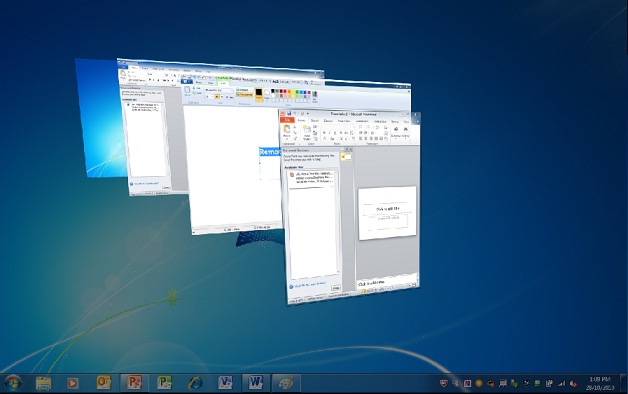
The RemoteFX feature also allows remote users to redirect local USB devices to their Remote Desktop sessions.( I will talk about this in my next article )
The following steps will help you understand how RemoteFX improves the user experience when running Windows 7 and applications in a virtualized environment :
1. Install Windows Server 2008 R2 SP1
- Verify that the appropriate device drivers have been installed for the 3D accelerated video display adapter.Unless the appropriate device drivers are installed for the 3D accelerated video display adapter, you cannot start the Windows 7 virtual machine with the RemoteFX 3D Video Adapter Support enabled
- Install the Hyper-V server role.
- Install the Remote Desktop Services server role with the following role services:
Remote Desktop Virtualization Host
Core Services
RemoteFX

2.Install Windows 7 SP1.
- Enable Remote Desktop connections
- Shutdown the Windows 7 virtual machine.
3. Enable RemoteFX 3D Video Adapter Support on Windows 7 Virtual Machine.
The RemoteFX 3D Video Adapter Support must be added to the Windows 7 virtual machine by performing the following steps on the computer running Windows Server 2008 R2 SP1:
- Start Hyper-V Manager.
- In Hyper-V Manager, select the Windows 7 virtual machine and in the Actions pane click Settings.
- In the navigation pane, under the Hardware section, click Add Hardware.
- Add the adapter; start the virtual machine; verify that the adapter is installed and then restart the machine.
- In the properties pane, click RemoteFX 3D Video Adapter, and then click Add.
- The RemoteFX 3D Video Adapter appears in the list of hardware in the Hardware section as show in the following figure.
- Start the virtual machine; verify that you can login and that you have loaded the driver. The VM will ask to be restarted at this point, perform the restart.

4. To checkout that RemoteFX is properly installed and configured :
-
Start the virtual machine running Windows 7 SP1.
-
Establish a Remote Desktop session with Windows 7 SP1 by using the Remote Desktop Connection client in Windows Server 2008 R2 SP1
- On the Local Resources tab(Remote Desktop Connection client), in Apply Windows key combinations, select one of the following:
- Only when using full screen. Select this option if you are going to run the Remote Desktop session in full screen.
- On the remote computer. Select this option if you are going to run the Remote Desktop session in a window.
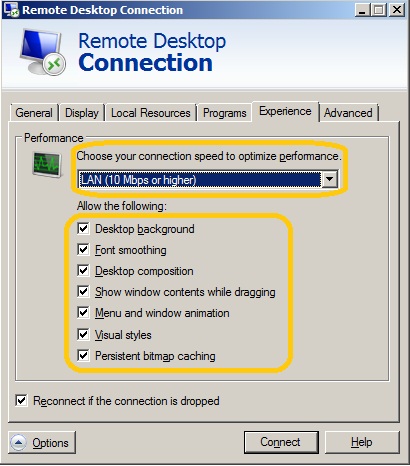
- On the Experience tab, in Performance section, select LAN (10Mbps or higher) and verify that all the check boxes are selected.
- Log on Windows 7 SP1.
- Change the theme for the Windows 7 to use an Aero theme. The desktop theme should appear with all the Aero features, such as transparency.

As you can see the RemoteFX feature allows Windows 7 SP1 and applications running in virtual machines to provide the same user experience as though they were running on a physical computer.
Other improvements in Windows 7 SP1 :
· Additional support for communication with third-party federation services – Additional support has been added to allow Windows 7 clients to effectively communicate with third-party identity federation services (those supporting the WS-Federation passive profile protocol).
· Improved HDMI audio device performance – Updates have been incorporated into SP1 to ensure that connections between Windows 7 computers and HDMI audio devices are consistently maintained.
· Corrected behavior when printing mixed-orientation XPS documents – Prior to the release of SP1, some customers have reported difficulty when printing mixed-orientation XPS documents (documents containing pages in both portrait and landscape orientation) using the XPS Viewer, resulting in all pages being printed entirely in either portrait or landscape mode. This issue has been addressed in SP1, allowing users to correctly print mixed-orientation documents using the XPS Viewer.
Hyper-V 2008R2 SP1: Guest Requirements for Dynamic Memory
The following Windows server operating systems support Dynamic Memory when installed as the guest operating system on a virtual machine:
- Windows Server 2008 R2 Standard Edition SP1*
- Windows Server 2008 R2 Enterprise Edition SP1
- Windows Server 2008 R2 Datacenter Edition SP1
- Windows Server 2008 R2 Web Edition SP1*
- Windows Server 2008 Standard Edition SP2*
- Windows Server 2008 Enterprise Edition SP2
- Windows Server 2008 Datacenter Edition SP2
- Windows Server 2008 Web Edition SP2*
- Windows Server 2003 R2 Standard Edition SP2 or higher*
- Windows Server 2003 R2 Enterprise Edition SP2 or higher
- Windows Server 2003 R2 Datacenter Edition SP2 or higher
- Windows Server 2003 R2 Web Edition SP2 or higher*
- Windows Server 2003 Standard Edition SP2 or higher*
- Windows Server 2003 Enterprise Edition SP2 or higher
- Windows Server 2003 Datacenter Edition SP2 or higher
- Windows Server 2003 Web Edition SP2 or higher*
Note: The Beta release of Service Pack 1 does not support Dynamic Memory for the operating systems marked with an asterisk (*) above. However, support for Dynamic Memory for these operating systems will be added in a future release of SP1.
Note: Dynamic Memory is supported for both the x86 and x64 architectures of Windows Server 2003, Windows Server 2003 R2 and Windows Server 2008.
The following Windows client operating systems for both x86 and x64 architecture also support Dynamic Memory when installed as the guest operating system on a virtual machine:
- Windows® 7 Enterprise Edition
- Windows 7 Ultimate Edition
- Windows Vista® Enterprise Edition SP2
- Windows Vista Ultimate Edition SP2
How Hyper-V responds to disk failure
Ben Armstrong ( Virtual PC Guy ), Virtualization Program Manager at Microsoft, wrote a good article about this.
Take a look here : http://blogs.msdn.com/b/virtual_pc_guy/archive/2010/10/07/how-hyper-v-responds-to-disk-failure.aspx
Virtualisation planning process : memory configuration maximums.
Today’s challenge for a virtualization admins it’s to provision memory requirements within the guest for unique workloads, paying attention to the host environment.
Although today, memory is relatively cheap, it may not be the case in the future and we also need to take in consideration the host maximums, as this will impact what OS would be available for a guest virtual machine as well as the aggregated impact on the host. It is notorios that system/applications that are replacing older servers running W2K/W2K3 to now require more resources(RAM, CPU, Disk, Network ) than the previous systems/apps.
It is important to pay special attention to the memory limits, requirements and aggregate memory capacity with insight to future needs.
Limits on memory and address space vary by platform, operating system, and by whether the IMAGE_FILE_LARGE_ADDRESS_AWARE value of the LOADED_IMAGE structure and 4-gigabyte tuning (4GT) are in use. IMAGE_FILE_LARGE_ADDRESS_AWARE is set or cleared by using the /LARGEADDRESSAWARE linker option.
Limits on physical memory for 32-bit platforms also depend on the Physical Address Extension (PAE), which allows 32-bit Windows systems to use more than 4 GB of physical memory.
Memory and Address Space Limits
The following table specifies the limits on memory and address space for supported releases of Windows. Unless otherwise noted, the limits in this table apply to all supported releases.
| Memory type | Limit in 32-bit Windows | Limit in 64-bit Windows |
| User-mode virtual address space for each 32-bit process | 2 GBUp to 3 GB with IMAGE_FILE_LARGE_ADDRESS_AWARE and 4GT | 2 GB with IMAGE_FILE_LARGE_ADDRESS_AWARE cleared (default)4 GB with IMAGE_FILE_LARGE_ADDRESS_AWARE set |
| User-mode virtual address space for each 64-bit process | Not applicable | With IMAGE_FILE_LARGE_ADDRESS_AWARE set (default):x64: 8 TBIntel IPF: 7 TB2 GB with IMAGE_FILE_LARGE_ADDRESS_AWARE cleared |
| Kernel-mode virtual address space | 2 GBFrom 1 GB to a maximum of 2 GB with 4GT | 8 TB |
| Paged pool | Limited by available kernel-mode virtual address space or the PagedPoolLimit registry key value.Windows Vista: Limited only by kernel mode virtual address space. Starting with Windows Vista with Service Pack 1 (SP1), the paged pool can also be limited by the PagedPoolLimit registry key value.Windows Home Server and Windows Server 2003: 530 MBWindows XP: 490 MBWindows 2000: 350 MB | 128 GBWindows Server 2003 and Windows XP: Up to 128 GB depending on configuration and RAM.Windows 2000: Not applicable |
| Nonpaged pool | Limited by available kernel-mode virtual address space, the NonPagedPoolLimit registry key value, or physical memory.Windows Vista: Limited only by kernel mode virtual address space and physical memory. Starting with Windows Vista with SP1, the nonpaged pool can also be limited by the NonPagedPoolLimit registry key value.Windows Home Server, Windows Server 2003, and Windows XP/2000: 256 MB, or 128 MB with 4GT. | 75% of RAM up to a maximum of 128 GBWindows Vista: 40% of RAM up to a maximum of 128 GB.Windows Server 2003 and Windows XP: Up to 128 GB depending on configuration and RAM.Windows 2000: Not applicable |
| System cache virtual address space (physical size limited only by physical memory) | Limited by available kernel-mode virtual address space or the SystemCacheLimit registry key value.Windows Vista: Limited only by kernel mode virtual address space. Starting with Windows Vista with SP1, system cache virtual address space can also be limited by the SystemCacheLimit registry key value.Windows Home Server, Windows Server 2003, and Windows XP/2000: 860 MB with LargeSystemCache registry key set and without 4GT; up to 448 MB with 4GT. | Always 1 TB regardless of physical RAMWindows Server 2003 and Windows XP: Up to 1 TB depending on configuration and RAM.Windows 2000: Not applicable |
—
Physical Memory Limits: Windows Server 2008 R2
The following table specifies the limits on physical memory for Windows Server 2008 R2. Windows Server 2008 R2 is available only in 64-bit editions.
| Version | Limit in 64-bit Windows |
|---|---|
| Windows Server 2008 R2 Datacenter | 2 TB |
| Windows Server 2008 R2 Enterprise | 2 TB |
| Windows Server 2008 R2 for Itanium-Based Systems | 2 TB |
| Windows Server 2008 R2 Foundation | 8 GB |
| Windows Server 2008 R2 Standard | 32 GB |
| Windows HPC Server 2008 R2 | 128 GB |
| Windows Web Server 2008 R2 | 32 GB |
—-
Physical Memory Limits: Windows Server 2008
The following table specifies the limits on physical memory for Windows Server 2008. Limits greater than 4 GB for 32-bit Windows assume that PAE is enabled.
| Version | Limit in 32-bit Windows | Limit in 64-bit Windows |
|---|---|---|
| Windows Server 2008 Datacenter | 64 GB | 1 TB |
| Windows Server 2008 Enterprise | 64 GB | 1 TB |
| Windows Server 2008 HPC Edition | Not applicable | 128 GB |
| Windows Server 2008 Standard | 4 GB | 32 GB |
| Windows Server 2008 for Itanium-Based Systems | Not applicable | 2 TB |
| Windows Small Business Server 2008 | 4 GB | 32 GB |
| Windows Web Server 2008 | 4 GB | 32 GB |
—–
Physical Memory Limits: Windows Server 2003
The following table specifies the limits on physical memory for Windows Server 2003. Limits over 4 GB for 32-bit Windows assume that PAE is enabled.
| Version | Limit in 32-bit Windows | Limit in 64-bit Windows |
|---|---|---|
| Windows Server 2003 with Service Pack 2 (SP2), Datacenter Edition | 128 GB64 GB with 4GT | IA64 2 TBX64 1 TB |
| Windows Server 2003 with Service Pack 2 (SP2), Enterprise Edition | 64 GB | IA64 2 TBX64 1 TB |
| Windows Storage Server 2003, Enterprise Edition | 8 GB | Not applicable |
| Windows Storage Server 2003 | 4 GB | Not applicable |
| Windows Server 2003 R2 Datacenter EditionWindows Server 2003 with Service Pack 1 (SP1), Datacenter Edition | 128 GB16 GB with 4GT | 1 TB |
| Windows Server 2003 R2 Enterprise EditionWindows Server 2003 with Service Pack 1 (SP1), Enterprise Edition | 64 GB16 GB with 4GT | 1 TB |
| Windows Server 2003 R2 Standard EditionWindows Server 2003, Standard Edition SP1Windows Server 2003, Standard Edition SP2 | 4 GB | 32 GB |
| Windows Server 2003, Datacenter Edition | 128 GB16 GB with 4GT | 512 GB |
| Windows Server 2003, Enterprise Edition | 32 GB16 GB with 4GT | 64 GB |
| Windows Server 2003, Standard Edition | 4 GB | 16 GB |
| Windows Server 2003, Web Edition | 2 GB | Not applicable |
| Windows Small Business Server 2003 | 4 GB | Not applicable |
| Windows Compute Cluster Server 2003 | Not applicable | 32 GB |
Short list of Microsoft Desktop Virtualisation solutions
And how you can use them in your organization:
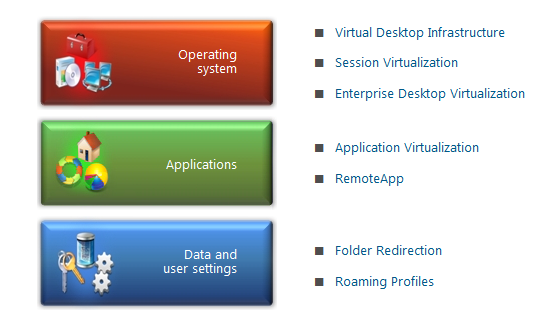
VDI: Enables users to access their personalized Windows desktops hosted on servers. For many organizations, virtualizing desktops within the datacenter is seen as an excellent means to provide a centrally-managed Windows desktop to connected users. http://www.microsoft.com/downloads/details.aspx?displaylang=en&FamilyID=8d454921-72d6-45b4-b6ba-ac1c26d337bd
Session Virtualization: Makes it possible for you to run an application or an entire desktop in one location, but have it be controlled in another. Session virtualization allows you to install and manage session-based desktops and applications, or virtual-machine based desktops on centralized servers in the datacenter; deliver images to users, and send keystrokes and mouse movements from user client machines, in turn, back to the server. From a user perspective, applications are integrated seamlessly—looking, feeling, and behaving like local applications. http://technet.microsoft.com/library/cc742806.aspx
MED-V: Provides you with the ability to deploy and manage virtual Windows desktops to help enterprises upgrade to the latest version of Windows, without having to worry about application compatibility. MED-V provides organizations the ability to run two operating systems on one device, adding virtual image delivery, policy-based provisioning, and centralized management. http://technet.microsoft.com/library/ff433588.aspx
App-V: Helps you make business applications available to end users on any authorized PC. App-V decouples applications from the OS and helps to eliminate application-to-application incompatibility, as applications are no longer installed on the local client machine. In addition, application streaming expedites the application delivery process so that your IT department no longer needs to install applications locally on every machine. http://technet.microsoft.com/library/ee958103.aspx
RemoteApp: Enables programs that are accessed remotely through Terminal Services to appear as if they are running on the end user’s local computer. Users can run RemoteApp programs side by side with their local programs. A user can minimize, maximize, and resize the program window, and can easily start multiple programs at the same time. If a user is running more than one RemoteApp program on the same terminal server, the RemoteApp programs will share the same Terminal Services session. http://technet.microsoft.com/library/cc755055.aspx
Data and User Settings: Utilizes folder redirection and roaming profiles to enable you to make the user’s personal profile and data available dynamically on any authorized PC, and to back up personal profiles and data to the datacenter. http://technet.microsoft.com/library/cc732275.aspx
To find more about, visit : http://technet.microsoft.com/en-us/windows/gg276319.aspx?ITPID=insider
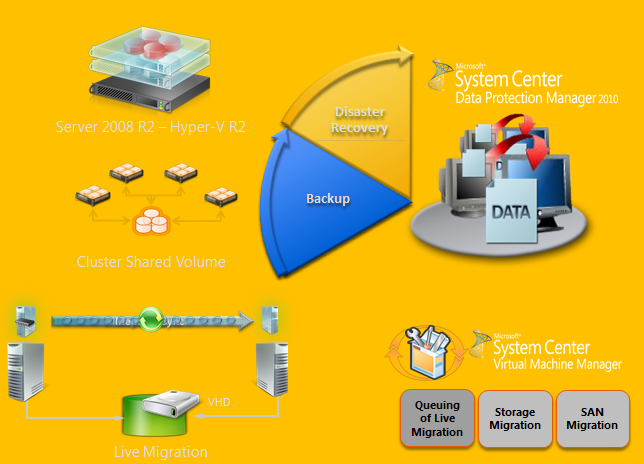
Hyper-V CSV protection with DPM 2010
DPM design for Hyper-V :
- Incremental Backups Only – full only once
- No More Backup Window – online backups
- Application consistency via VSS
- Protect Live Migration VMs in CSV clusters
- Protect whole VM, recover individual items
- Auto Protection of new VMs
- Routine backups – nightly or more frequently
Strategy to Deply DPM 2010 in Hyper-V/CSV environment :
1. Plan:
- Identify Project Requirements and scope
- Simulate using Hyper-V Calculator
- Review Hyper-V design guidelines & Best Practices
- Acquire VSS Hardware Provider & check environment with SDPM SAN Testing Tool:
- Verify that the SAN supports hardware snapshots & is certified for DPM.
- http://blogs.technet.com/dpm/archive/2010/02/05/tested-hardware-vss-provider-table.aspx
- Install the VSS hardware provider
- Self Certifying your SAN. If your SAN is not in the certified list & you have a SAN, run the SCDPM SAN Testing Tool : StartCSVTests.cmd /run ( to be realeased yet )
- Validate a Pilot Environment
- Ready for Deployment
- Integration components should be updated on both VMs.
- Ensure that Live Migration is functional
2. Deploy : Protected CSV server
- Install all recommended prerequisites:
| General Prerequisite | Install the integration components on the guests. For more information, see Install a Guest Operating System (http://go.microsoft.com/fwlink/?LinkId=165041). |
| Microsoft Windows Server 2008 SP2 | Install Microsoft Windows Server 2008 SP2 OR Install the Microsoft Hyper-V prerequisites (http://go.microsoft.com/fwlink/?LinkID=133781). |
| Microsoft Windows Server 2008 R2 | Install the following on the host computer:KB975354 (http://support.microsoft.com/kb/975354)KB975921 (http://support.microsoft.com/kb/975921) |
- Failover Cluster Validation
- Enable Automount : Enable Auto mount on the host for successful child partition backups : MOUNTVOL /E
- Install Hardware Provider:Ensure that VSS hardware providers are installed : vssadmin list providers
- Validate Hardware snapshots
- Use DSConfig Tool to serialize backups (for software snapshots providers only) :
· Problem:With software snapshots, simultaneous triggering of VM backups (especially scale deployments) will cause backup jobs to time out and fail.
· Enable Per CSV LUN Serialization:This serialization limits the number of virtual machine backups happening on a single CSV LUN.Create a DataSourceGroups.xml file by running the DSConfig.ps1 script on any one node of a cluster containing CSV.Place the file in the DPM server at %PROGRAMFILES%\Microsoft DPM\DPM\Config.Repeat step 1 for every cluster that is protected by a DPM server.The DataSourceGroups.xml file needs to be updated only when virtual machines are added, deleted, or modified in the cluster and protection is configured for them.
3. Deploy : DPM 2010 server
- Enable Hyper-V Role on DPM Server :DPM supports item-level recovery (ILR), which allows you to do granular recovery of files, folders, volumes, and virtual hard disks (VHDs) from a host-level backup of Hyper-V virtual machines to a network share or a volume on a DPM protected server. You must have the Hyper-V role enabled on the DPM server to perform item-level recoveries. During item-level recovery, DPM has to mount the VHDs of the protected virtual machines
- Install DPM server pre-requisites
- Install DPM 2010
- Turn off “TCP Chimney offload”For better throughput, TCP Chimney Offload should be turned off.
- Allocate Storage Pool & Deploy Agents
- Datasourcegroups.xml file:
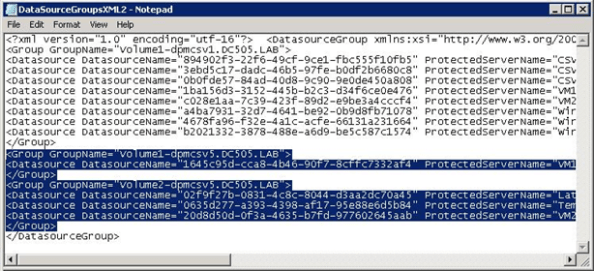
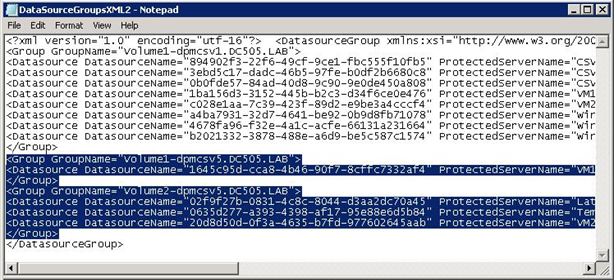
- Merge the DatasourceGroups.XML file for all CSVs protected by DPM server. This is applicable when software providers are used on the CSV cluster.
- Copy the <Group> tags from all the DataSourceGroup.xml files generated and add the text between the <DataSourceGroup> tags. The DataSourceGroups.xml file will now contain one <header> tag, one <DataSourceGroup> tag, and <Group> tags from all CSV clusters.
- Configure Protection Groups
- DPM2010 provides Datasource caching for faster enquiry.
- Remember to clear cache if new VMs have been added
- Enable AutoProtection:
Script to Auto-add VMs : http://blogs.technet.com/dpm/archive/2009/12/03/hyper-v-protection-with-dpm-2010-beta-how-to-automatically-protect-new-virtual-machines.aspx
TechNet Radio: TechNet on: Virtualization Best Practices
About this Video : http://technet.microsoft.com/en-us/edge/technet-radio-technet-on-virtualization-best-practices.aspx
Join Keith Combs and Matt Hester as they discuss virtualization best practices with Microsoft Director, Edwin Yuen. Edwin was part of the System Center Virtual Machine Manager (SCVMM) team for several years and has talked with thousands of customers about their virtualization problems and solutions. Expect a lively discussion on Hyper-V, SCVMM, SANS, Clustering and other technologies used to create world class virtualization solutions.
Hyper-V : Virus scanning recommendations : exclusions
To protect your Hyper-V Host, we recommend that you install the antivirus software within the Host and also within virtual machine.
It also, may be necessary to configure the real-time scanning component within the antivirus software to exclude files and entire folders :
Configure the real-time scanning component within your antivirus software to exclude the following directories and files:
- Default virtual machine configuration directory (C:\ProgramData\Microsoft\Windows\Hyper-V)
- Custom virtual machine configuration directories Default virtual hard disk drive directory (C:\Users\Public\Documents\Hyper-V\Virtual Hard Disks)
- Custom virtual hard disk drive directories Snapshot directories Vmms.exe
- (Note: May need to be configured as process exclusions within the antivirus software)
- Vmwp.exe (Note: May need to be configured as process exclusions within the antivirus software)
Additionally, when you use Live Migration together with Cluster Shared Volumes on Windows Server 2008 R2, exclude the CSV path “C:\Clusterstorage” and all its subdirectories
Also exclude the root directory that contain your Virtual machines and configuration files
Also exclude the following files extensions :
VHD, VSV, ISO, AVHD, VFD, and XML,
Virtual Machine Servicing Tool 3.0 released
Virtual Machine Servicing Tool 3.0 helps you reduce IT costs by making it easier to update your offline virtual machines, templates, and virtual hard disks with the latest operating system and application patches—without introducing vulnerabilities into your IT infrastructure.
This Solution Accelerator provides automated tools and guidance that IT professionals can use to update offline virtual machines, templates, and virtual hard disks efficiently and without exposing them to security risks.
Click here to download : http://www.microsoft.com/downloads/en/confirmation.aspx?FamilyId=8408ECF5-7AFE-47EC-A697-EB433027DF73
To install the .msi package (VMServicing_X86.msi or VMServicing_X64.msi):
- Navigate to where you extracted the .zip file content on your hard drive.
- Double-click the .msi file you want to install.
- Accept the Microsoft Software License Terms.
- Follow the steps in the installation process to complete the installation.
- Find the installed files in C:\Program Files on your computer in the folder Microsoft Virtual Machine Servicing Tool.
Recommended Books


System Center 2012 R2 Virtual Machine

System Center Virtual Machine Manager 2012 Cookbook


 Cloudtidings.com
