Archive
Everything you wanted to know about Time Synchronization in Hyper-V, but were afraid to ask
keeping time inside of virtual machines, how Hyper-V tackles these ?
Check out here in Ben Armstrong, Microsoft Virtualization Program Manager : http://blogs.msdn.com/b/virtual_pc_guy/archive/2010/11/19/time-synchronization-in-hyper-v.aspx
How to fix the ‘Unspecified error’ (0x80004005) : Could not find a usable certificate. Windows 2008/R2
Hi
Thanks to Dan Boldo (MSFT) and Ben Armstrong (MS Virtualisation PM), here are an explanation and the fix for the error.
Notes:
- This error only affects VMConnect and does not affect remote desktop connections.
- Though this error may occur, the Hyper-V service will continue to operate. Neither the Hyper-V host nor the running virtual machines will go offline.
- Microsoft Virtualization Team also confirmed that this issue also affects Windows 2008 R2 Hyper-V.
- For Configuring Certificates for Virtual Machine Connection, please read http://technet.microsoft.com/en-us/library/ff935311(WS.10).aspx
The Error
Hyper-V Manager[Main Instruction]
An error occurred while attempting to change the state of virtual machine ‘VMxxx’.[Content]
‘VMxxx’ failed to initialize.Could not initialize machine remoting system. Error: ‘Unspecified error’ (0x80004005).
Could not find a usable certificate. Error: ‘Unspecified error’ (0x80004005).
[Expanded Information]
‘VMxxx’ failed to initialize. (Virtual machine XXXXXX-XXXX-XXXX-XXXX-XXXXXXXXXX )‘VMxxx’ could not initialize machine remoting system. Error: ‘Unspecified error'(0x80004005).(Virtual machine XXXXXX-XXXX-XXXX-XXXX-XXXXXXXXXX )
‘VMxxx’ could not find a usable certificate. Error: ‘Unspecified error’ (0x80004005). (Virtual machine XXXXXX-XXXX-XXXX-XXXX-XXXXXXXXXX )
The Explanation
This error is basicaly cause when the certificate expired, users couldn’t connect or start a VM and then VMMS raise an error. If you try connecting again, this will generate the same message because the certificate was still in an expired state.
The Solutions
Initial one
For Windows 2008, Microsoft introduced a fix (http://support.microsoft.com/kb/KB967902) which auto-generated a new certificate and sent the VMMS to grab it.
The idea was to have certificates that lasted for one year and then auto-renew.
But, this fix let to another issue : “After a new Hyper-V VMMS certificate is generated, there are mouse and screen resolution issues when managing a virtual machine using the Hyper-V Manager Console”, described in this KB http://support.microsoft.com/kb/2413735 :
- When in one year, self-signed certificate expirees, the VMMS grabs a new one but the certificate refresh process is flawed.
- During the refresh the user loses control of their mouse and their connection resolution drops back to default.
This problem is due the certificate refresh triggers a reset in the VMConnect RDPEncoder. It then initializes a method which puts the mouse in PS2 mode and it change the display settings to RdpEncoderDefaultxxx.
Workaround for this second issue:
-
-
Place the virtual machines in a saved state and then resume the virtual machines.
-
Restart the virtual machines.
-
Important Notes :
- This will restart the VMMS and affect all running VMs on that host.
- Save as ps1
- Make sure you have MakeCert on the host
- For more information on how to obtain Makecert.exe, please visit the following Microsoft web site: http://msdn.microsoft.com/en-us/library/aa386968(VS.85).aspx
The Script :
#######################################################################
# Dan Boldo (MSFT)
#
#
#define exception behavior
trap
{
trap { continue }
write-host -ForegroundColor Red “Unexpected Exception!`n`r”
write-host -ForegroundColor White ($_.invocationinfo.positionmessage -replace “`n”)
0..100 | foreach { write-host -ForegroundColor White ((gv -ErrorAction SilentlyContinue -scope $_ myinvocation).value.positionmessage -replace “`n”) }
write-host -ForegroundColor Red “$($_.Exception)”
exit 1
}
$hostname = “$((gwmi win32_computersystem).dnshostname).$((gwmi win32_computersystem).domain)”
write-host “Host name found:” $hostname
function CreateCert()
{
write-host “Creating a new certificate using makecert.exe”
.\makecert.exe -r -pe -n “CN=$hostname” -b 01/01/2005 -e 01/01/2050 -sr LocalMachine -ss My -a sha1 -sky exchange -eku 1.3.6.1.5.5.7.3.1
}
function FindCert()
{
$t = new-object System.DateTime(2049,1,1,1,10,10)
$certs = @(dir cert:\LocalMachine\My -recurse | ?{$_.subject -eq “CN=$hostname”} | ? { $_.NotAfter.CompareTo($t) -eq 1 })
if($certs[0] -eq $null)
{
return $null;
}
if($certs.Length -ne 1)
{
write-warning “More than one certificate is found in store. Please don’t run makecert.exe multiple times.”
}
$certs[0];
}
#Find the certificate of interest
$cert = FindCert
if($cert -eq $null)
{
CreateCert
$cert = FindCert;
if($cert -eq $null)
{
throw “Certificate Not Found error. Check if makecert.exe is successful or not”
}
}
write-host “Found certificate of interest:”
write-host $cert | select NotBefore, NotAfter
#tweak system settings to let VMMS use the certificate of interest.
$thumbprint = $cert.Thumbprint
$location = $cert.PrivateKey.CspKeyContainerInfo.UniqueKeyContainerName
$folderlocation = gc env:ALLUSERSPROFILE
$folderlocation = $folderlocation + “\Microsoft\Crypto\RSA\MachineKeys\”
$filelocation = $folderlocation + $location
icacls $filelocation /grant “*S-1-5-83-0:(R)”
$thumbprint = $cert.Thumbprint
reg add “HKLM\Software\Microsoft\Windows NT\CurrentVersion\Virtualization” /v “AuthCertificateHash” /f /t REG_BINARY /d $thumbprint
#fix loopback case.
$store = new-object System.Security.Cryptography.X509Certificates.X509Store(“Root”,”LocalMachine”)
$store.open(“MaxAllowed”)
$store.add($cert)
$store.close()
#restart vmms
net stop vmms
net start vmms
# Wait for job completion
function WaitForResult($ret)
{
if($ret.ReturnValue -eq 0) { return; }
if($ret.ReturnValue -ne 4096)
{
Throw “Error was returned from WMI call: $($ret.ReturnValue)”;
}
$timeout = 300; # 5 minute timeout
while($true)
{
$job = [wmi]$ret.job
if($job.JobState -eq 7) { return; }
if($job.JobState -gt 7) { throw “Error while processing WMI job! $($job | fl * | out-string)” }
if($timeout -le 0) { throw “Timeout while processing WMI job! $($job | fl * | out-string)” }
$timeout -= 5;
Sleep 5
}
}
# get all VMs in Running state.
$vms = gwmi -n root\virtualization msvm_computersystem
$vms = $vms | where {$_.Name -ne $env:computername}
$vms = $vms | where {$_.EnabledState -eq 2}
#Save/Restore for all running VMs
foreach($vm in $vms)
{
if($vm -ne $null)
{
Write-Host “Doing Save/Restore for VM:” $vm.ElementName
WaitForResult $vm.RequestStateChange(32769)
WaitForResult $vm.RequestStateChange(2)
}
}
# end of the script
Microsoft Exchange Server 2010 with Service Pack : Solution Accelerator
Exchange Server 2010 supports a variety of infrastructure topologies that enable IT departments to deploy the messaging architecture that best suits their business needs. This guide will help organizations make informed decisions about the design of fault tolerance and scalability so that their overall requirements are met.
The guide covers these key steps in the Exchange Server 2010 infrastructure design process:
· Defining the project scope by identifying your individual business and IT requirements for a messaging infrastructure.
· Mapping features and functionality based on the defined scope to develop the appropriate Exchange Server 2010 design.
· Designing the infrastructure and role requirements for the proposed Exchange Server 2010 architecture.
· Determining the sizing, fault tolerance, and physical placement of Exchange Server 2010 roles.
The IPD Guide for Microsoft Exchange Server 2010 with Service Pack 1 can help you reduce planning time and costs, and ensure a successful rollout of Exchange Server 2010-helping your organization to more quickly benefit from this flexible and reliable platform.
Download the beta guide here.
Microsoft System Center Service Manager 2010 : Solution Accelerator
The Infrastructure Planning and Design (IPD) Guide for Microsoft System Center Service Manager 2010 takes the IT architect through an easy-to-follow process for successfully designing the servers and components for a System Center Service Manager implementation, resulting in a design that is sized, configured, and appropriately placed to deliver the stated business benefits, while also considering the performance, capacity, and fault tolerance of the system.
The guide covers these key steps in the System Center Service Manager infrastructure design process:
- Defining the project scope by identifying the necessary Service Manager features, the requirements of the process management packs, and the targeted population of the organization.
- Mapping the selected features and scope to determine the required server roles.
- Designing the fault tolerance, configuration, and placement of the management servers, portals, and supporting SQL Server databases.
The IPD Guide for Microsoft System Center Service Manager 2010 can help you reduce planning time and costs, and ensure a successful rollout of System Center Service Manager—helping your organization to more quickly benefit from this platform for automating and adapting IT Service Management best practices such as those found in Microsoft Operations Framework (MOF) and the IT Infrastructure Library (ITIL).
Join the IPD Beta for Microsoft System Center Service Manager 2010.

Dell and Microsoft have partnered to deliver cloud solutions
At Microsoft’s TechEd conference in Berlin, November/2010, Germany, Dell announced the availability of several “turnkey” Hyper-V based private cloud solutions comprised of pre-tested, pre-assembled and fully-supported hardware, software and services enabling customers to easily deploy and manage their cloud infrastructures with confidence.
Dell’s new Business-Ready Configurations (BRC) consist of PowerEdge servers, EqualLogic storage arrays, PowerConnect network switches and management capabilities through Microsoft Systems Center. Through the Hyper-V Cloud Fast Track program, Dell and Microsoft are offering private cloud solutions that deliver a variety of benefits including:
- Faster speed to deploy private cloud infrastructures
- Reduced risk – validated configurations
- Choice and Flexibility – broad offering of hardware and services
To learn more, take a look here : http://en.community.dell.com/dell-blogs/enterprise/b/inside-enterprise-it/archive/2010/11/06/dell-and-microsoft-partner-to-deliver-open-turn-key-cloud-solutions.aspx
Debian on Hyper-V with 4 vCPU support and syntetic network.
When Microsoft says that does not support all linux distributions, does not mean that a particular distribution will not work on Hyper-V.
It’s easy to get a DEBIAN running on Hyper-V. It took me more time to install Debian than to add the Hyper-V integration services components, thanks to Yusuf Ozturk , who created the kernel updates, ready to deploy on Debian.

Here are the steps:
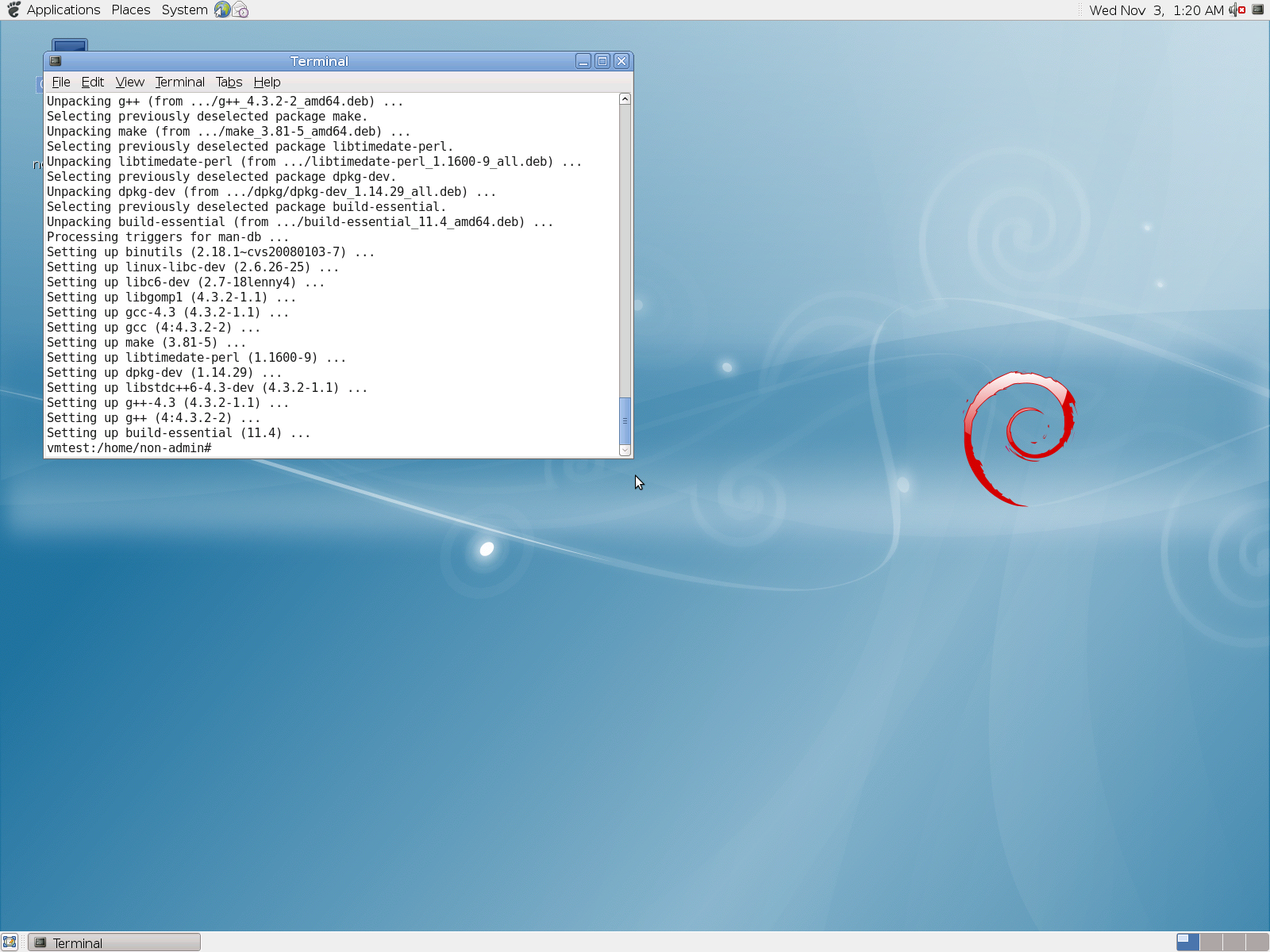
1. Download Debian 5.06 (lenny) from http://www.debian.org/releases/lenny/debian-installer/ (full CD/DVD sets – CD 1 )
2. Create a VM with 1 Legacy Network ( we will add the synthetic one, later ) and 4 processors
3. Install Debian using the ISO.
4. After installation finished, logon
5. Using a Terminal session, typed the following commands
# apt-get update
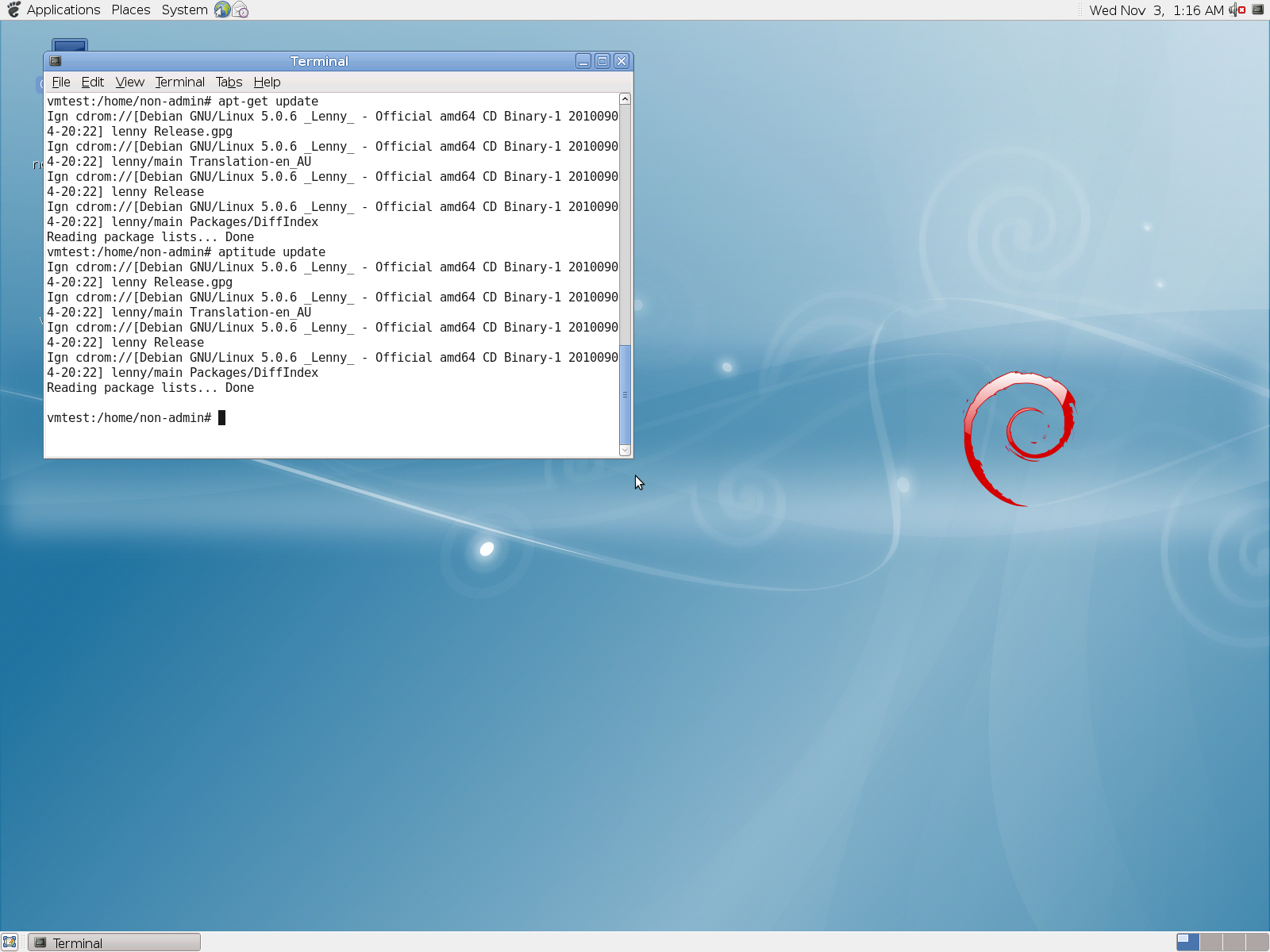
# aptitude update
# wget -c http://www.yusufozturk.info/linux/linux-headers-2.6.36-hyperv-debian.x86_64.deb
# wget -c http://www.yusufozturk.info/linux/linux-image-2.6.36-hyperv-debian.x86_64.deb
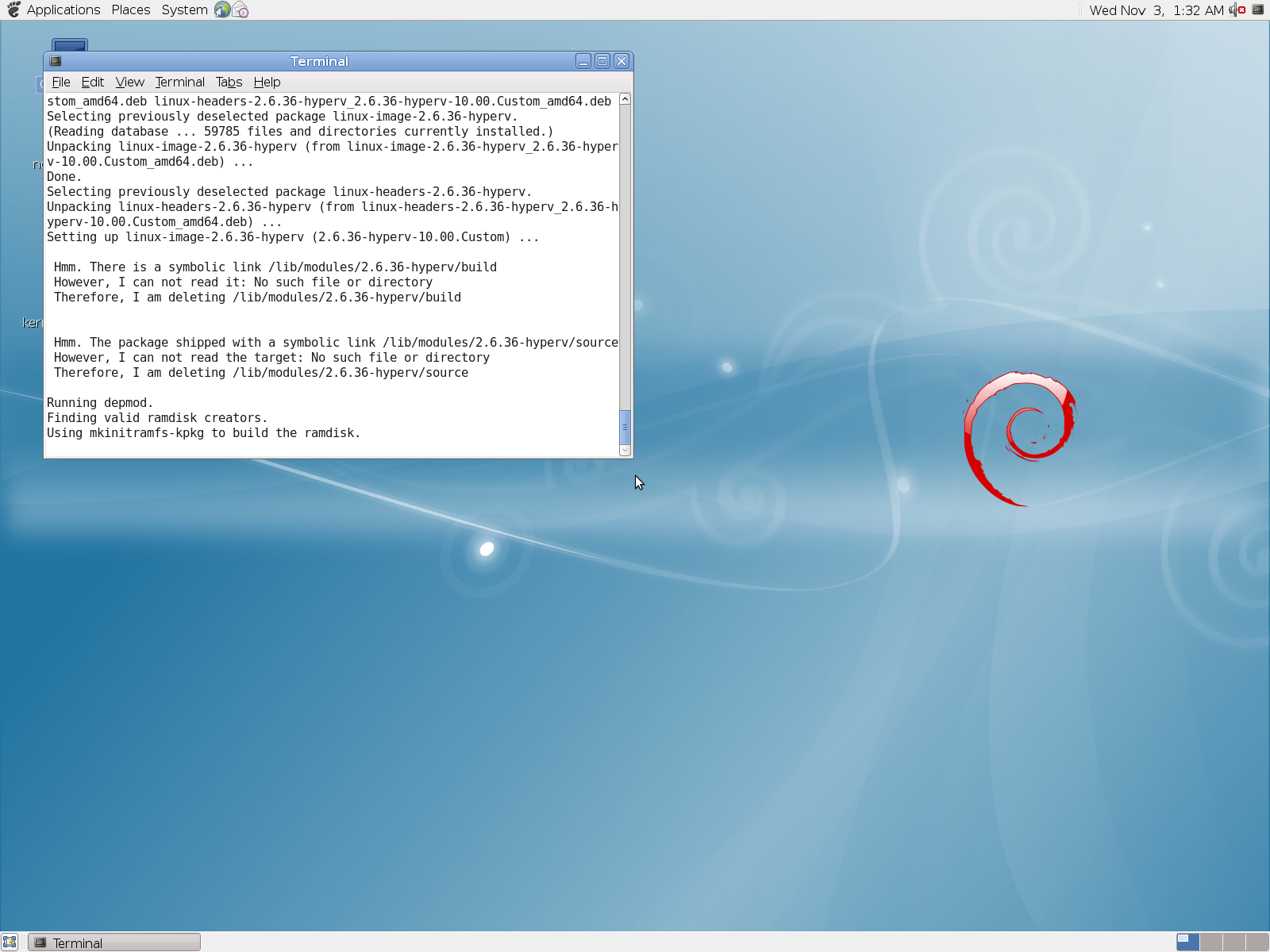
# dpkg -i linux-image-2.6.36-hyperv_2.6.36-hyperv-10.00.Custom_amd64.deb linux-headers-2.6.36-hyperv_2.6.36-hyperv-10.00.Custom_amd64.deb
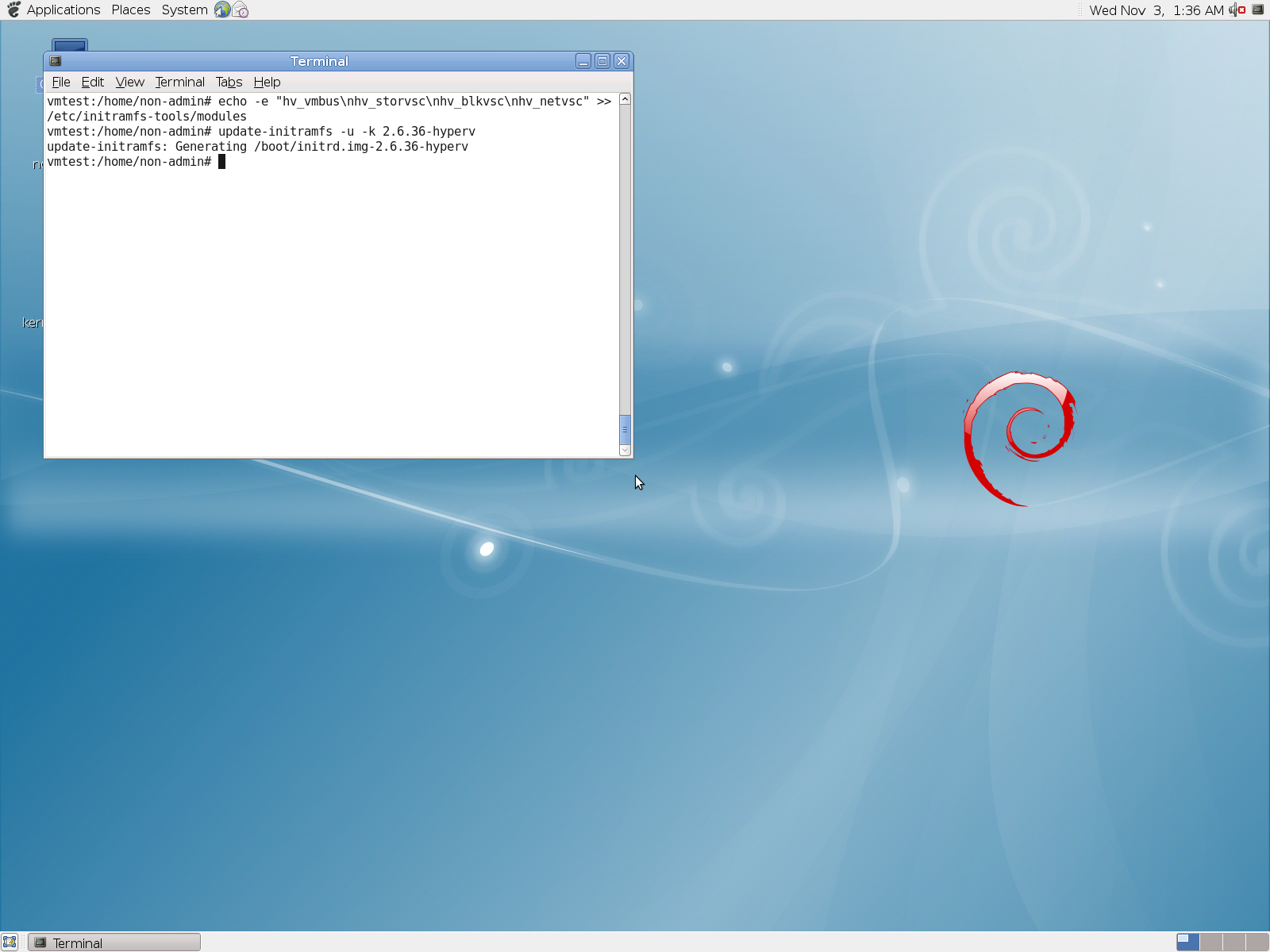
# echo -e “hv_vmbus\nhv_storvsc\nhv_blkvsc\nhv_netvsc” >> /etc/initramfs-tools/modules
# update-initramfs –u –k 2.6.36-hyperv
6. Shutdown the Virtual Machine
7. Added synthetic Network
8. Start the VM
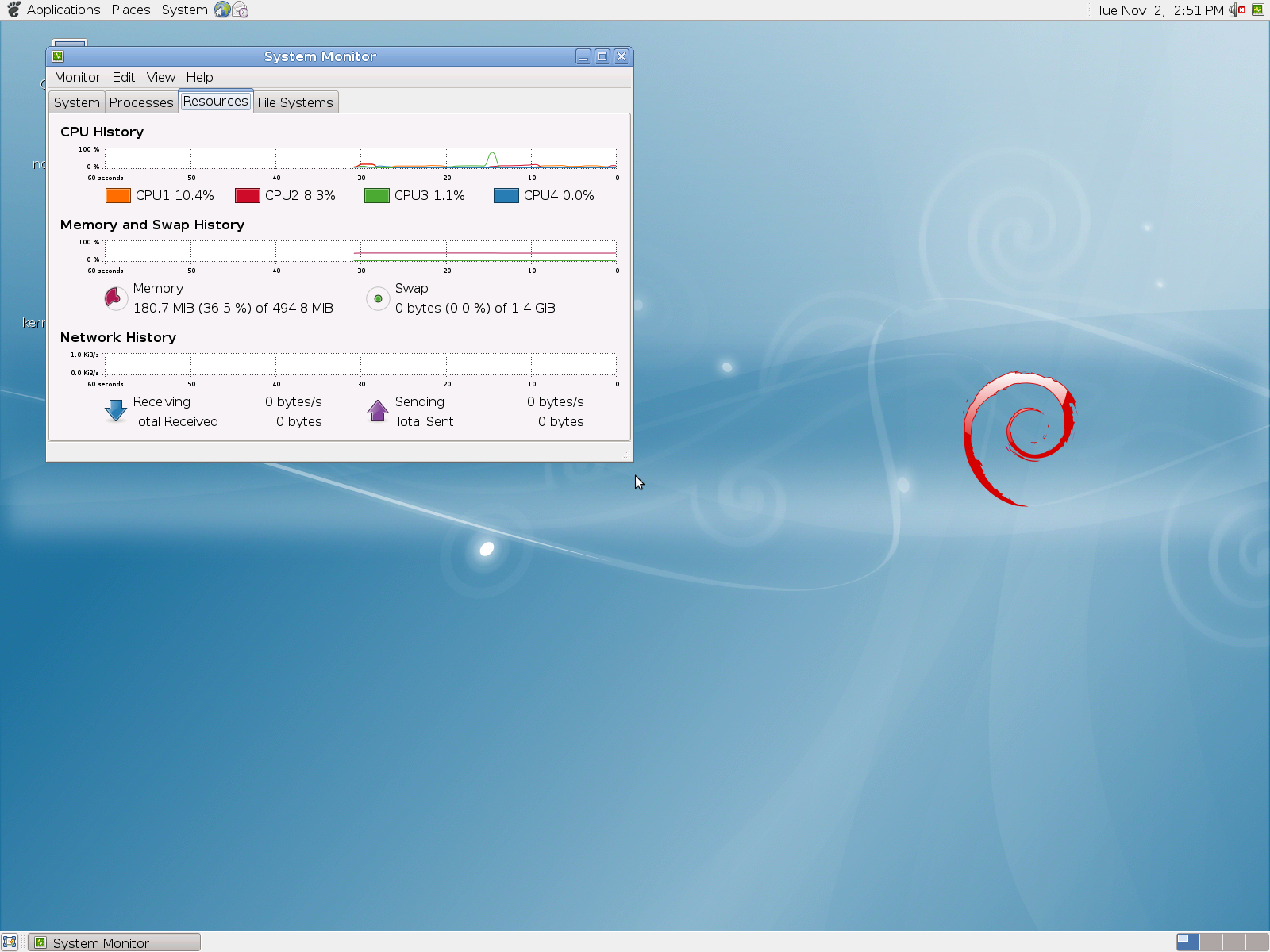
Done!
Now you have a Debian distribution running on Hyper-V, with 4 processors, synthetic network and also integrated shutdown is available. Simple as that!
Windows 7 and Windows Server 2008 R2 SP1 RC. Detailed list of Improvements and others questions
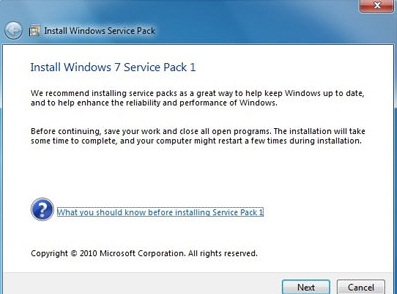
Microsoft has made available a Release Candidate (RC) for Service Pack 1 for Windows Server 2008 R2 and Windows 7. SP1 includes both a roll-up of operating system updates and several new capabilities for Windows Server.
Q: Can I install the Release Candidate over the Beta of SP1?
A. No. You must uninstall the beta.
Q: Can I install the RC on an evaluation version of Windows 7 or Windows Server 2008 R2?
A. Yes. The RC of SP1 can install on RTM evaluation versions of Windows 7 and Windows Server 2008 R2.
Q: There are several downloads available. Which one should I choose?
A: There are two ways you can obtain the service pack RC. You can download a special key to enable Windows Update to offer you the service pack RC, or you can download the service pack directly. For each download method, you should choose the correct download for your platform (x86, IA64 or x64).
Q: Should customers who are considering deploying Windows 7 wait for SP1?
A: No. Windows 7 is a high quality release and provides many benefits to consumers and businesses alike. SP1 will include all updates previously available to Windows 7 users through Windows Update, so there is no reason to wait or delay their use of Windows 7.
Q. Can I upgrade from the RC builds to the final build of SP1?
A. No. You will have to uninstall the Service Pack or do a clean install of Windows 7 or Windows Server 2008 R2.
Q. Will there be a slipstream build of SP1 RC?
A. No. The RC will only be available as the service pack update itself. You will need to have a release to manufacturing (RTM) version of Windows 7 or Windows Server 2008 R2 to install the RC of the service pack.
Q. What languages will be released at RC?
A. For RC, we will release English, French, German, Japanese, and Spanish.
Q: Which improvements are included in Windows Server 2008 R2 SP1?
A.
• Dynamic Memory – Dynamic Memory allows for memory on a host machine to be pooled and dynamically distributed to virtual machines as necessary. Memory is dynamically added or removed based on current workloads, and is done so without service interruption.
• Microsoft RemoteFX – a new set of remote user experience capabilities that enable a media-rich user environment for virtual desktops, session-based desktops and remote applications
• Enhancements to scalability and high availability when using DirectAccess – improvements have been made to enhance scalability and high availability when using DirectAccess, through the addition of support for 6to4 and ISATAP addresses when using DirectAccess in conjunction with Network Load Balancing (NLB).
• Support for Managed Service Accounts (MSAs) in secure branch office scenarios – enhanced support for managed service accounts (MSAs) to be used on domain-member services located in perimeter networks (also known as DMZs or extranets).
• Support for increased volume of authentication traffic on domain controllers connected to high-latency networks – more granular control of the maximum number of possible concurrent connections to a domain controller, enabling a greater degree of performance tuning for service providers.
• Enhancements to Failover Clustering with Storage – SP1 enables enhanced support for how Failover Clustering works with storage that is not visible for all cluster nodes. In SP1, improvements have been made to the Cluster Validation and multiple Failover Cluster Manager wizards to allow workloads to use disks that are shared between a subset of cluster nodes.
Q: Which improvements are included in Windows 7 SP1?
A.
• Additional support for communication with third-party federation services – Additional support has been added to allow Windows 7 clients to effectively communicate with third-party identity federation services (those supporting the WS-Federation passive profile protocol).
• Improved HDMI audio device performance – Updates have been incorporated into SP1 to ensure that connections between Windows 7 computers and HDMI audio devices are consistently maintained.
• Corrected behavior when printing mixed-orientation XPS documents – Prior to the release of SP1, some customers have reported difficulty when printing mixed-orientation XPS documents (documents containing pages in both portrait and landscape orientation) using the XPS Viewer, resulting in all pages being printed entirely in either portrait or landscape mode. This issue has been addressed in SP1, allowing users to correctly print mixed-orientation documents using the XPS Viewer.
Q: Changes common to both client and server platforms:
A.
• Change to behavior of “Restore previous folders at logon” functionality – SP1 changes the behavior of the “Restore previous folders at logon” function available in the Folder Options Explorer dialog. Prior to SP1, previous folders would be restored in a cascaded position based on the location of the most recently active folder. That behavior changes in SP1 so that all folders are restored to their previous positions.
• Enhanced support for additional identities in RRAS and IPsec – Support for additional identification types has been added to the Identification field in the IKEv2 authentication protocol. This allows for a variety of additional forms of identification (such as E-mail ID or Certificate Subject) to be used when performing authentication using the IKEv2 protocol.
• Support for Advanced Vector Extensions (AVX) – Advanced Vector Extensions (AVX) is a 256 bit instruction set extension for processors. AVX is designed to allow for improved performance for applications that are floating point intensive. Support for AVX is a part of SP1 to allow applications to fully utilize the new instruction set and register extensions.
How Hyper-V responds to disk failure
Ben Armstrong ( Virtual PC Guy ), Virtualization Program Manager at Microsoft, wrote a good article about this.
Take a look here : http://blogs.msdn.com/b/virtual_pc_guy/archive/2010/10/07/how-hyper-v-responds-to-disk-failure.aspx
Virtualisation planning process : memory configuration maximums.
Today’s challenge for a virtualization admins it’s to provision memory requirements within the guest for unique workloads, paying attention to the host environment.
Although today, memory is relatively cheap, it may not be the case in the future and we also need to take in consideration the host maximums, as this will impact what OS would be available for a guest virtual machine as well as the aggregated impact on the host. It is notorios that system/applications that are replacing older servers running W2K/W2K3 to now require more resources(RAM, CPU, Disk, Network ) than the previous systems/apps.
It is important to pay special attention to the memory limits, requirements and aggregate memory capacity with insight to future needs.
Limits on memory and address space vary by platform, operating system, and by whether the IMAGE_FILE_LARGE_ADDRESS_AWARE value of the LOADED_IMAGE structure and 4-gigabyte tuning (4GT) are in use. IMAGE_FILE_LARGE_ADDRESS_AWARE is set or cleared by using the /LARGEADDRESSAWARE linker option.
Limits on physical memory for 32-bit platforms also depend on the Physical Address Extension (PAE), which allows 32-bit Windows systems to use more than 4 GB of physical memory.
Memory and Address Space Limits
The following table specifies the limits on memory and address space for supported releases of Windows. Unless otherwise noted, the limits in this table apply to all supported releases.
| Memory type | Limit in 32-bit Windows | Limit in 64-bit Windows |
| User-mode virtual address space for each 32-bit process | 2 GBUp to 3 GB with IMAGE_FILE_LARGE_ADDRESS_AWARE and 4GT | 2 GB with IMAGE_FILE_LARGE_ADDRESS_AWARE cleared (default)4 GB with IMAGE_FILE_LARGE_ADDRESS_AWARE set |
| User-mode virtual address space for each 64-bit process | Not applicable | With IMAGE_FILE_LARGE_ADDRESS_AWARE set (default):x64: 8 TBIntel IPF: 7 TB2 GB with IMAGE_FILE_LARGE_ADDRESS_AWARE cleared |
| Kernel-mode virtual address space | 2 GBFrom 1 GB to a maximum of 2 GB with 4GT | 8 TB |
| Paged pool | Limited by available kernel-mode virtual address space or the PagedPoolLimit registry key value.Windows Vista: Limited only by kernel mode virtual address space. Starting with Windows Vista with Service Pack 1 (SP1), the paged pool can also be limited by the PagedPoolLimit registry key value.Windows Home Server and Windows Server 2003: 530 MBWindows XP: 490 MBWindows 2000: 350 MB | 128 GBWindows Server 2003 and Windows XP: Up to 128 GB depending on configuration and RAM.Windows 2000: Not applicable |
| Nonpaged pool | Limited by available kernel-mode virtual address space, the NonPagedPoolLimit registry key value, or physical memory.Windows Vista: Limited only by kernel mode virtual address space and physical memory. Starting with Windows Vista with SP1, the nonpaged pool can also be limited by the NonPagedPoolLimit registry key value.Windows Home Server, Windows Server 2003, and Windows XP/2000: 256 MB, or 128 MB with 4GT. | 75% of RAM up to a maximum of 128 GBWindows Vista: 40% of RAM up to a maximum of 128 GB.Windows Server 2003 and Windows XP: Up to 128 GB depending on configuration and RAM.Windows 2000: Not applicable |
| System cache virtual address space (physical size limited only by physical memory) | Limited by available kernel-mode virtual address space or the SystemCacheLimit registry key value.Windows Vista: Limited only by kernel mode virtual address space. Starting with Windows Vista with SP1, system cache virtual address space can also be limited by the SystemCacheLimit registry key value.Windows Home Server, Windows Server 2003, and Windows XP/2000: 860 MB with LargeSystemCache registry key set and without 4GT; up to 448 MB with 4GT. | Always 1 TB regardless of physical RAMWindows Server 2003 and Windows XP: Up to 1 TB depending on configuration and RAM.Windows 2000: Not applicable |
—
Physical Memory Limits: Windows Server 2008 R2
The following table specifies the limits on physical memory for Windows Server 2008 R2. Windows Server 2008 R2 is available only in 64-bit editions.
| Version | Limit in 64-bit Windows |
|---|---|
| Windows Server 2008 R2 Datacenter | 2 TB |
| Windows Server 2008 R2 Enterprise | 2 TB |
| Windows Server 2008 R2 for Itanium-Based Systems | 2 TB |
| Windows Server 2008 R2 Foundation | 8 GB |
| Windows Server 2008 R2 Standard | 32 GB |
| Windows HPC Server 2008 R2 | 128 GB |
| Windows Web Server 2008 R2 | 32 GB |
—-
Physical Memory Limits: Windows Server 2008
The following table specifies the limits on physical memory for Windows Server 2008. Limits greater than 4 GB for 32-bit Windows assume that PAE is enabled.
| Version | Limit in 32-bit Windows | Limit in 64-bit Windows |
|---|---|---|
| Windows Server 2008 Datacenter | 64 GB | 1 TB |
| Windows Server 2008 Enterprise | 64 GB | 1 TB |
| Windows Server 2008 HPC Edition | Not applicable | 128 GB |
| Windows Server 2008 Standard | 4 GB | 32 GB |
| Windows Server 2008 for Itanium-Based Systems | Not applicable | 2 TB |
| Windows Small Business Server 2008 | 4 GB | 32 GB |
| Windows Web Server 2008 | 4 GB | 32 GB |
—–
Physical Memory Limits: Windows Server 2003
The following table specifies the limits on physical memory for Windows Server 2003. Limits over 4 GB for 32-bit Windows assume that PAE is enabled.
| Version | Limit in 32-bit Windows | Limit in 64-bit Windows |
|---|---|---|
| Windows Server 2003 with Service Pack 2 (SP2), Datacenter Edition | 128 GB64 GB with 4GT | IA64 2 TBX64 1 TB |
| Windows Server 2003 with Service Pack 2 (SP2), Enterprise Edition | 64 GB | IA64 2 TBX64 1 TB |
| Windows Storage Server 2003, Enterprise Edition | 8 GB | Not applicable |
| Windows Storage Server 2003 | 4 GB | Not applicable |
| Windows Server 2003 R2 Datacenter EditionWindows Server 2003 with Service Pack 1 (SP1), Datacenter Edition | 128 GB16 GB with 4GT | 1 TB |
| Windows Server 2003 R2 Enterprise EditionWindows Server 2003 with Service Pack 1 (SP1), Enterprise Edition | 64 GB16 GB with 4GT | 1 TB |
| Windows Server 2003 R2 Standard EditionWindows Server 2003, Standard Edition SP1Windows Server 2003, Standard Edition SP2 | 4 GB | 32 GB |
| Windows Server 2003, Datacenter Edition | 128 GB16 GB with 4GT | 512 GB |
| Windows Server 2003, Enterprise Edition | 32 GB16 GB with 4GT | 64 GB |
| Windows Server 2003, Standard Edition | 4 GB | 16 GB |
| Windows Server 2003, Web Edition | 2 GB | Not applicable |
| Windows Small Business Server 2003 | 4 GB | Not applicable |
| Windows Compute Cluster Server 2003 | Not applicable | 32 GB |
New Dell’s smartphone Venue Pro running Microsoft’s Windows Phone 7
Hera are some of its key features of the new Dell’s smartphone, running Windows Phone 7 :
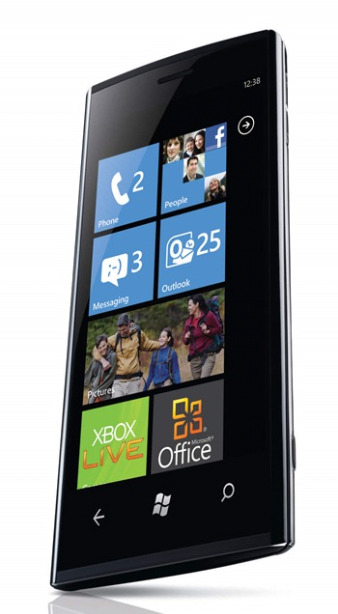
- Stunning 4.1” WVGA AMOLED capacitive, multi-touch display
- A full portrait QWERTY keyboard to provide a better viewing & messaging experience
- Supported with T-Mobile service
- Elliptical, slender form provides elegance in a pocket-friendly size
- Gorilla Glass for unprecedented durability and scratch resistance
Some of the highlights and use cases for the new Windows Phone 7 :
- People hub: Enter social central to scan Windows Live and Facebook feeds and photos, in addition to dialing or texting friends in the address book.
- Pictures hub: Share photos easily from pictures saved to the phone, Facebook and Windows Live. Go from pocket to picture in seconds with a press of the camera button, and send photos from the hub to friends or post to Windows Live or Facebook.
- Games hub: Play games with friends, track scores and wins in the gamer profile. With more than 50 popular game titles available at launch, try-before-you-buy demos, Xbox LIVE leader boards, turn-based multiplayer, achievements and more, Windows Phone 7 brings the quality, consistency and community of the Xbox experience to gamers on the go.
- Music + Video: Play movies, TV shows and music quickly. Enjoy custom playlists, listen to podcasts and recommend favorite songs to friends.
- Office hub: View, edit, share and sync Microsoft Office documents. Collaborate with co-workers through SharePoint Workspace Mobile.
- Marketplace hub: Get quality applications like games, music, entertainment, news, sports, social networking, productivity, travel and many more. Apps are tested and certified to deliver a consistently great experience. Marketplace is also accessible through a PC client that is integrated into Microsoft’s popular Zune software.
The question is when the Venue Pro is comming to Australia?
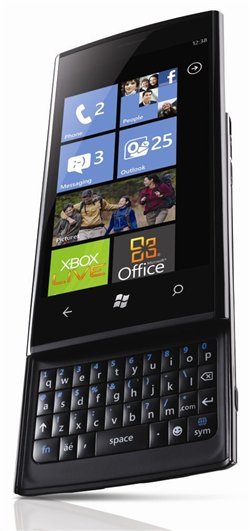
Want to hear what people are saying about the all-new Dell Venue Pro? Follow the conversation on Twitter using the #DellVenuePro and #windowsphone hashtags.
Recommended Books


System Center 2012 R2 Virtual Machine

System Center Virtual Machine Manager 2012 Cookbook


 Cloudtidings.com