
Archive
It is time for you to upgrade do the new Windows 2012 #HYPER-V
Windows 2012 is now RTM.
It will be generally available for evaluation and purchase to customers around the world on September 4th. Save the date : http://www.microsoft.com/en-us/server-cloud/new.aspx
Windows Server 2012 Hyper-V provides key capabilities that can help you meet the needs of your organization at whichever level you are in the virtualization life cycle—Basic, Standardized, Orchestrated, and Automated.
Windows 2012 RTM : This is the news we’ve all been waiting for! Are you ready for it?
Microsoft release Windows 2012 RTM on August 1st. . It means that it is time for you to upgrade do the new Windows 2012 HYPER-V .
It will be generally available for evaluation and purchase to customers around the world on September 4th
Get your hands on it! There will be 5 SKU’s
Editions Overview
| Edition | Ideal for… | High Level Feature Comparison | Licensing Model |
| Datacenter | Highly virtualized private & hybrid cloud environments | Full Windows Server functionality with unlimited virtual instances | Processor + CAL* |
| Standard | Low density or non- virtualized environments | Full Windows Server functionality with two virtual instances | Processor + CAL* |
| Essentials | Small business environments | Simpler interface, pre-configured connectivity to cloud based services; no virtualization rights | Server (25 User Account Limit) |
| Foundation | Economical general purpose server | General purpose server functionality with no virtualization rights | Server (15 User Account Limit) |
More …
Licensing and pricing details in the downloadable datasheet : http://download.microsoft.com/download/0/4/B/04BD0EB1-42FE-488B-919F-3981EF9B2101/WS2012_Licensing-Pricing_Datasheet.pdf
Find the answers to the most commonly asked pricing and licensing questions. : http://download.microsoft.com/download/4/D/B/4DB352D1-C610-466A-9AAF-EEF4F4CFFF27/WS2012_Licensing-Pricing_FAQ.pdf
Dell EqualLogic and VMM 2012 support
With the release of VMM 2012 SP1 CTP2, Microsoft added support to the SMP storage provider.
Now VMM 2012 with SP1, supports the following types of storage providers:
- SMI-S CIM–XML
- SMP
Besides the new SMP provider type, the VMM 2012 SP1 release adds the following new functionality:
- Supports auto (dynamic) iSCSI target systems, such as the Dell EqualLogic PS Series. System Center 2012 – Virtual Machine Manager supported only static iSCSI target systems.
- Supports the thin provisioning of logical units through VMM. Your storage array must support thin provisioning, and thin provisioning must be enabled for a storage pool by your storage administrator
For a detailed step by step, look at my blog post https://virtualisationandmanagement.wordpress.com/2012/06/28/vmm-2012-sp1-installing-dell-equallogic-ps-series-smp-provider-new/
Infrastructure Planning and Design Guide for VMM 2012
The new IPD Guide for System Center 2012 – Virtual Machine Manager is now available to download
Infrastructure Planning and Design streamlines the planning process by:
- Defining the technical decision flow through the planning process.
- Listing the decisions to be made and the commonly available options and considerations.
- Relating the decisions and options to the business in terms of cost, complexity, and other characteristics.
- Framing decisions in terms of additional questions to the business to ensure a comprehensive alignment with the appropriate business landscape
Download the guide now: http://go.microsoft.com/fwlink/?LinkId=245473
Hyper-V DR Solution
DR is a key component of the Business Continuity Plan.
When considering DR options, virtualization is a game changer. Virtualization makes DR affordable to companies that could not afford it before. But in order to understand how DR can be optimized in a virtualized environment, it is important to understand the technical aspects, like replication functionality.
Remember : even though high availability can be achieved with clustering, this will not safeguard your businessfrom the entire data center or hosting facility going down (in case of a fire or a flood, for example). In this case you need a DR solution geographically dispersed.
Last week I started writing about Hyper-V DR solution in Windows 2012:
Keep watching this blog for the part 2…
Also, there is a good DR solution document for Windows 2008R2 here :
and here : Hyper-V in the Real World –Multi-Site DR with the System Center Suite of Products http://www.techdays.ca/contentlibrary/video/en/2011-hyper-v-in-the-real-world-–multi-site-dr-with-the-system-center-suite-of-products.aspx
Windows 2012 Hyper-V Replica : Deployment Scenarios, Functionality and Step by Step by using SSL Certificate Part I
With Windows 2012 around the corner ( first week of august 2012 ), you probably started planning the deployment already.
I am starting a series of blog posting with step by steps. The first one is about Hyper-V Replica, a real nice feature.
Hyper-V Replica. what is ?
Hyper-V replica is a new feature of Windows 2012 that enables you to replicate any Virtual Machine (yes, copy the entire VM: VHD/VHDX and configuration ) from one Hyper-V Server to another, without storage or any special hardware. You only need 2 servers running Windows 2012 Hyper-V.
You can replicate the content over the LAN or WAN (without compromising the link) by using HTTP or HTTPS protocols using SSL certificates inclusive.
Once you enable the Hyper-V Replica on the VM, the source host starts to maintain a HRL (Hyper-V Replica Log file) for the VHDs. Every 1 write by the VM = 1 write to VHD and 1 write to the HRL. Depending on bandwidth availability, the logfiles are sent to the target host every 5 minutes(setting not configurable). On the target the Hyper-V Replica mechanism run asynchronous, processing the log file in reverse order, allowing it only to store the latest writes. It replicates only the changes.
Note: After 5 minutes, if the replay hasn’t happened then you get an alert. The replica log file replication will take up to 30min to complete before going into a failed state where your intervention will be required to look at the issue and fix it.
The configurations at each site do not have to be the same with respect to server or storage hardware. Hyper-V Replica provides the option to restore virtualized workloads to a point in time depending on the Recovery History selections for the virtual machine.
Really easy to deploy and use.
Deployment Scenarios:
– Between 2 sites (DataCenter replication to small offices)

– Cross premises DR solution
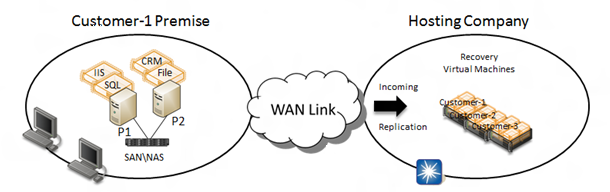
Cluster
Hyper-V Replica works with clusters. In fact you can do the following replications:
- Standalone host to cluster
- Cluster to cluster
- Cluster to standalone host
NOTE : Hyper-V Replica is NOT an alternative to clustering. It is not intended for High Availability purposes.
Functional description
• Replication Engine: Manages the replication configuration details and handles initial replication, delta replication, failover, and test-failover operations. It also tracks virtual machine and storage mobility events and takes appropriate actions as needed (i.e. it pauses replication events until migration events complete and then resumes where they left off).
• Change Tracking: Provides a virtual machine level change tracking mechanism on the primary server by keeping track of the write-operations, which happen in the virtual machine.
• Network Module: The Networking Module provides a secure and efficient compressed network channel to transfer virtual machine replicas between Primary and Replica site.
• Hyper-V Replica Broker role: The Hyper-V Replica Broker role is configured in a Windows Server 2012 Failover Cluster. This functionality supports seamless replication even in the event of a migration of a replica virtual machine from one cluster node to another.
• Management Experience: Hyper-V Manager UI; Failover Cluster Manager UI; PowerShell scripting; Hyper-V Replica APIs.
Step by Step – Part I
On the source Hyper-V Server
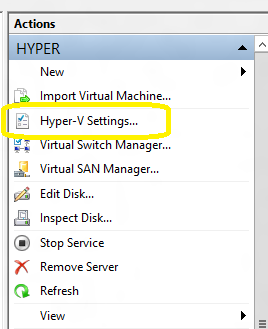
1. Open the Hyper-V Server Manager and click on the Hyper-V server. Then in the right pane, click on Hyper-V settings
2. On the Hyper-V settings page, click on Replication Configuration on the left pane
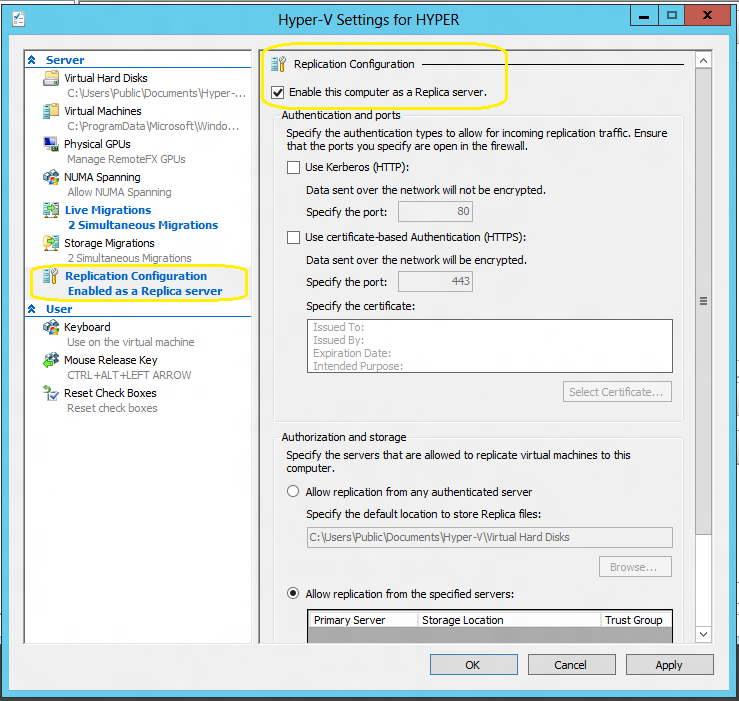
3. On the Replication Configuration, click on Enable this computer as a Replica Server
4.You have now the choose how the replication will occur : by using HTc.TP (port 80) or HTTPS (port 443, with encryption).
HTTPS: If you select HTTPS, I recommend you to buy an SSL Certificate from a trusted Certification Authority (CA), then :
a. Create an INF file for an Wildcard certificate request. Use the following example and replace the subject with the hyper-v servers domain name. Save the content in a text file as cert.inf for example.
[Version]
Signature=”$Windows NT$”
[NewRequest]
Subject = “CN=*.YOURDOMAIN.local”
Exportable = TRUE ; Private key is exportable
KeyLength = 2048 ; Common key sizes: 512, 1024, 2048, 4096, 8192, 16384
KeySpec = 1 ; AT_KEYEXCHANGE
KeyUsage = 0xA0 ; Digital Signature, Key Encipherment
MachineKeySet = True ; The key belongs to the local computer account
ProviderName = “Microsoft RSA SChannel Cryptographic Provider”
ProviderType = 12
RequestType = CMC[EnhancedKeyUsageExtension]
OID=1.3.6.1.5.5.7.3.1 ;Server Authentication
OID=1.3.6.1.5.5.7.3.2 ;Client Authentication
b. Create a request. Open the command prompt with Administrative rights ( run as Administrator ) and type the following:
certreq –new CERT.inf CERT.req
c. Create the CSR to submit the certificate request to an external CA
certutil -encode CERT.req CERT.csr
d.Upload the ENTIRE content of the text file CERT.csr into the external CA webpage. (could be any external trusted CA)
e.After the certificate is issued and you received the email with the certificate, open the command prompt and type the following commands to import and store the certificate on all Hyper-V servers ( source and target )
certreq -accept CERT.cer
certutil –store my
HTTP: Select : Use Kerberos HTTP
5. Configure the Authorization and storage. This includes designating a specific location to store replica virtual machine files if the default location is not to be used. Should you not desire to allow all Primary servers to be serviced, there is an option to allow only specific servers (Primary servers) to send replication requests.
If you want to allow all servers within the domain, a wildcard character can be used (e.g. *.yourdomain.local). When using a wildcard, only one storage location can be specified. If individual server entries are used, different storage locations for replica files can be configured. Complete all entries for the Primary Server, Storage Locations, and Security Tag information.
6. Click Apply or OK when finished.
Next article : configuring the target server
Convert Vmware virtual machines to Hyper-V with Microsoft Virtual Machine Converter
Convert and deploy virtual machines to Hyper-V with Microsoft Virtual Machine Converter
The Microsoft Virtual Machine Converter (MVMC) Release Candidate is now available! This release allows you to convert and deploy virtual machines from VMware hosts to Hyper-V hosts running Windows Server 2012 Release Candidate and Microsoft Hyper-V Server 2012 Release Candidate. The MVMC Release Candidate also adds virtual network interface cards (NICs) to the converted virtual machine on Hyper-V and configures the dynamic memory on the converted virtual machine.
MVMC supports converting virtual machines using the following guest operating systems:
- Windows Server 2003 with Service Pack 2
- Windows Server 2003 R2 with Service Pack 2
- Windows Server 2008 R2
- Windows 7
The Microsoft Virtual Machine Converter converts VMware virtual machines created with:
- VMware vSphere 4.1
- VMware vSphere 5.0
To virtual machines for:
- Windows Server 2008 R2 SP1 Hyper-V
- Microsoft Hyper-V Server 2008 R2 SP1
Microsoft Virtual Machine Converter key features:
- MVMC provides a quick, low-risk option for VMware customers to evaluate Hyper-V.
- MVMC converts the virtual disks and the VMware VMs configuration, such as memory, virtual processor, and other machine settings from the source.
- Use this tool to uninstall VMware tools on the source VM and install the Hyper-V Integration Services as appropriate.
- An easy-to-use wizard-driven GUI simplifying VM conversion is also included.
- MVMC supports offline conversions of VMware virtual hard disks (VMDK) to a Hyper-V based virtual hard disk file format (VHD).
- MVMC includes a scriptable Command Line Interfaces (CLI) for performing machine conversion and offline disk conversion which integrates with datacenter automation workflows, such as those authored and executed within System Center Orchestrator. The command line can also be invoked through PowerShell.
Download the Microsoft Virtual Machine Converter Release Candidate.
Get ready for Windows Server 2012 with new Solution Accelerators : MAP Toolkit
Accelerate Windows Server 2012 readiness with MAP 7.0!
Get ready for Windows Server 2012 with the Microsoft Assessment and Planning (MAP) Toolkit 7.0. The latest version of the MAP Toolkit adds several new planning scenarios that help you build for the future with agility and focus while lowering the cost of delivering IT. New capabilities allow you to understand your readiness to deploy Windows 8 and Windows Server 2012 in your environment.
Windows 2012 Hyper-V RTM to be released first week of August 2012
Microsoft announced at WPC in Toronto, both server and client announced RTM (first week of August) and GA(Sept for Server, Oct for client) timing publicly:
“Windows 8/Windows 2012 is on track to Release to Manufacturing (RTM) the first week of August. For enterprise customers with Software Assurance benefits, they will have full access to Windows 8 bits as early as August. Additionally, she noted that RTM is when we’ll be turning on the commerce platform so that developers can start earning money for their apps ”
Recommended Books


System Center 2012 R2 Virtual Machine

System Center Virtual Machine Manager 2012 Cookbook


 Cloudtidings.com