
Archive
Windows Server 8 Hyper-V: first public glimpse
What is comming in the new version?
16+virtual processors within a Hyper-V VM, to support large scale up workloads.
Hyper-V Replica. Today, replication is complex to configure and often requires expensive proprietary hardware. Hyper-V Replica is asynchronous, application consistent, virtual machine replication built-in to Windows Server 8. With Hyper-V Replica, you can replicate a virtual machine from one location to another with Hyper-V and a network connection. Hyper-V Replica works with any server vendor, any network vendor and any storage vendor. In addition, we will provide unlimited replication in the box.
Microsoft also is going to allow Windows Server 8 users to replicate unlimitedly without charging additional fees per virtual machine. On the other hand, VMware with their upcoming version of Site Recovery Manager (SRM) is going to charge customers a per VM replication to replicate. This is going to be interesting….
Several others new features coming in the next version of Windows Server. Stay Tuned…
Hyper-V : Network Design, Configuration and Prioritization : Guidance
There is a lot of posts regarding Hyper-V and network, but I found a lot people still don’t get it.
1. Network Design. How many nic’s we need for production environment for High Availiability:
- 1 for Management. Microsoft recommends a dedicated network adapter for Hyper-V server management.
- 2 ( Teamed ) for Virtual machines.Virtual network configurations of the external type require a minimum of one network adapter.
- 2 ( MPIO ) for SCSI.Microsoft recommends that IP storage communication have a dedicated network, so one adapter is required and two or more are necessary to support multipathing.
- 1 for Failover cluster.Windows® failover cluster requires a private network.
- 1 for Live migration.This new Hyper-V R2 feature supports the migration of running virtual machines between Hyper-V servers. Microsoft recommends configuring a dedicated physical network adapter for live migration traffic. This network should be separate from the network for private communication between the cluster nodes, from the network for the virtual machine, and from the network for storage
- 1 for CSV. Microsoft recommends a dedicated network to support the communications traffic created by this new Hyper-V R2 feature. In the network adapter properties, Client for Microsoft Networks and File and Printer Sharing for Microsoft Networks must be enabled to support SMB
But how about production environments when the blades have only 4 Physical NIC’s?
Option 1. If your vendor does support NPAR technology(Broadcom, QLogic), you will be able to create up to 4 “Virtual Logical NIC’s” per physical NIC ( VLAN/QoS ). Although this solution is not supported by MS, it’s the best solution in terms of performance and it is supported by the vendors. This solution will provide you 100% HA as you can have up to 16 Logical NIC’s.
Option 2. Supported by MS. Allocate 2(two) NIC’sfor the iSCSI using MPIO and then :
| Host configuration | Virtual machine access | Management | Cluster and Cluster Shared Volumes | Live migration | Comments |
| 2 network adapters with 10 Gbps | Virtual network adapter 1 | Virtual network adapter 1 with bandwidth capped at 1% | Network adapter 2 | Network adapter 2 with bandwidth capped at 50% | Supported |
Note that the QoS configuration is based on “per port” and Windows only allows you to cap specify caps – not reserves. This solution, although supported by MS, dos not give you 100% HA.
2. Network Configuration. What need to be enabled/disabled?
| Usage | Number of Network Cards | Comments |
| Management Network(Parent Partition) | 1 Network Card |
|
| Storage ISCSI | 2 Network Cards – Not Teamed |
|
| VM Network (Parent Partition) |
2 Network cards : 1 for Dynamic IP’s 1 for Reserved IP’s |
|
| Cluster Heartbeat | 1 Network Card |
|
| Cluster Shared Volume (CSV) | 1 Network Card |
|
| Live Migration | 1 Network Card |
|
2. Network Prioritization. What need to be enabled/disabled?
By default, all internal cluster network have a metric value starting at 1000 and incrementing by 100. The first internal network which the cluster sees when it first comes online has a metric of 1000, the second has a metric of 1100, etc.
When you create CSV’s, the failover cluster automatically chooses the network that appears to be the best for CSV communication. The lowest Metric value designates the network for Cluster and CSV traffic. The second lowest value designates the network for live migration. Additional networks with a metric below 10000 will be used as backup networks if the “Cluster & CSV Traffic” or “Live Migration Traffic” networks fail. The lowest network with a value of at least 10000 will be used for “Public Traffic”. Consider giving the highest possible values to the networks which you do not want any cluster or public traffic to go through, such as for “ISCSI Traffic”, so that they are never used, or only used when no other networks at all are available.
To view the networks, their metric values, and if they were automatically or manually configured, run the clustering PowerShell cmdlet:
PS > Get-ClusterNetwork | ft Name, Metric, AutoMetric
To change the value of a network metric, run:
PS >Get-ClusterNetwork “Live Migration” ).Metric =800
If you want the cluster to start automatically assigning the Metric setting again for the network named “Live Migration”:
PS > Get-ClusterNetwork “Live Migration” ).AutoMetric = $true
How to override Network Prioritization Behavior?
Option 1. Change the network’s properties. If you select “Do not allow cluster network communication on this network”, then it will not be possible to send any “Cluster & CSV Traffic” or “Live Migration Traffic” through this network, even if the network has the lowest metric values. The cluster will honor this override and find the network with the next lowest value to send this type of traffic :
- In the Failover Cluster Manager snap-in, if the cluster that you want to configure is not displayed, in the console tree, right-click Failover Cluster Manager, click Manage a Cluster, and then select or specify the cluster that you want.
- Select Properties
- Change the radio buttons or checkboxes.
Option 2 (exclusively for “Live Migration Traffic”) :
To configure a cluster network for live migration:
- In the Failover Cluster Manager snap-in, if the cluster that you want to configure is not displayed, in the console tree, right-click Failover Cluster Manager, click Manage a Cluster, and then select or specify the cluster that you want.
- Expand Services and applications.
- In the console tree (on the left), select the clustered virtual machine for which you want to configure the network for live migration.
- Right-click the virtual machine resource displayed in the center pane (not on the left), and then click Properties.

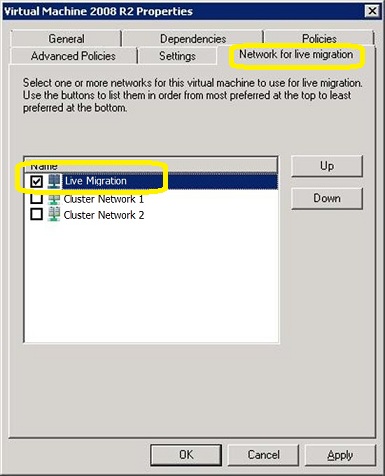
- Click the Network for live migration tab, and select one or more cluster networks to use for live migration. Use the buttons on the right to move the cluster networks up or down to ensure that a private cluster network is the most preferred. The default preference order is as follows: networks that have no default gateway should be located first; networks that are used by cluster shared volumes and cluster traffic should be located last.Live migration will be attempted in the order of the networks specified in the list of cluster networks. If the connection to the destination node using the first network is not successful, the next network in the list is used until the complete list is exhausted, or there is a successful connection to the destination node using one of the networks.
Note : You don’t need to perform this action as per VM basis. When you configure a network for live migration for a specific virtual machine, the setting is global and therefore applies to all virtual machines.
Some other interesting articles:
http://technet.microsoft.com/en-us/library/dd446679(WS.10).aspx
http://blogs.technet.com/b/vishwa/archive/2011/02/01/tuning-scvmm-for-vdi-deployments.aspx
http://blogs.msdn.com/b/clustering/archive/2011/06/17/10176338.aspx
I am Speaking at Teched Australia 2011

I am absolutely thrilled to announce I will be presenting the following two sessions at Tech.Ed Australia 2011 :
| SCVMM 2012: Deployment, Planning, Upgrade
This session provides a scenario rich detailed walk through of VMM 2012 deployment, planning, and upgrade scenarios. Come and learn how to best plan your next VMM rollout |
| SCVMM 2012 Fabric Lifecycle: Networking and Storage
This session provides a scenario rich detailed walk through of new and more robust networking and storage features in VMM 2012. In this session you will learn how to discover, configure, and provision networking |
Came along! It will be an excellent session.
Tech.Ed Australia 2011 is on the Gold Coast between the 30th August and the 2nd September, registrations are now open. Find out more at http://australia.msteched.com/

Hyper-V Backup software : Altaro
In January I was contacted by David Vella, CEO of Altaro to provide some feedback about a new Hyper-V backup software.
Altaro Hyper-V Backups works on Windows 2008 R2 (all editions, including core installation) and should be installed on the Hyper-V Host, not within the guest.
Yesterday, I receive a beta copy to test and I will post here my feedback, later. Anyway, my collegue MVP Hans Vredevoort post a good review in his blog with Femi Adegoke help.
For Hans Vredevoort review
http://www.hyper-v.nu/archives/hvredevoort/2011/05/altaro-hyper-v-backup-review/
Interested ? Here http://www.altaro.com/hyper-v-backup/ you can download the installation. The install size is only 14 Mb in size.
Window 7 as Guest OS for VDI : Max Virtual Processors Supported
Looking to implement a VDI scenario with Windows 7 as the guest with a 12:1 (VP:LP) ratio ? With the launch of the SP1 for W2008R2, Microsof increased the maximum number of running virtual processors (VP) per logical processor (LP) from 8:1 to 12:1 when running Windows 7 as the guest operating system for VDI deployments
Formula : (Number of processors) * (Number of cores) * (Number of threads per core) * 12
Virtual Processor to Logical Processor2 Ratio & Totals
|
Physical |
Cores per |
Threads per |
Max Virtual Processors |
|
2 |
2 |
2 |
96 |
|
2 |
4 |
2 |
192 |
|
2 |
6 |
2 |
288 |
|
2 |
8 |
2 |
384 |
|
4 |
2 |
2 |
192 |
|
4 |
4 |
2 |
384 |
|
4 |
6 |
2 |
512 |
|
4 |
8 |
2 |
512 |
1Remember that Hyper-V R2 supports up to a maximum of up to 512 virtual processors per server so while the math exceeds 512, they hit the maximum of 512 running virtual processors per server.
2A logical processor can be a core or thread depending on the physical processor.
- If a core provides a single thread (a 1:1 relationship), then a logical processor = core.
- If a core provides two threads per core (a 2:1 relationship), then each thread is a logical
processor.
More info :
http://technet.microsoft.com/en-us/library/ee405267%28WS.10%29.aspx
http://blogs.technet.com/b/virtualization/archive/2011/04/25/hyper-v-vm-density-vp-lp-ratio-cores-and-threads.aspx
SCVMM 2008 Ports and Protocols
SCVMM 2008, SCVMM 2008 R2 and SCVMM 2008 R2 SP1 default ports :
| Connection type | Protocol | Default port | Where to change the port setting |
|---|---|---|---|
| VMM server to VMM agent on Windows Server–based host (control) | WS-Management | 80 | at VMM setup, registry |
| VMM server to VMM agent on Windows Server–based host (file transfers) |
HTTPS (using BITS) | 443 (Maximum value: 32768) | Registry |
| VMM server to remote Microsoft SQL Server database | TDS | 1433 | Registry |
| VMM server to P2V source agent | DCOM | 135 | Registry |
| VMM Administrator Console to VMM server | WCF | 8100 | at VMM setup, registry |
| VMM Self-Service Portal Web server to VMM server | WCF | 8100 | at VMM setup |
| VMM Self-Service Portal to VMM self-service Web server | HTTPS | 443 | at VMM setup |
| VMM library server to hosts | BITS | 443 (Maximum value: 32768) | at VMM setup, registry |
| VMM host-to-host file transfer | BITS | 443* (Maximum value: 32768)
* VMM 2008 R2 : port 30443 (http://support.microsoft.com/kb/971816) |
Registry |
| VMRC connection to Virtual Server host | VMRC | 5900 | VMM Administrator Console, registry |
| VMConnect (RDP) to Hyper-V hosts | RDP | 2179 | VMM Administrator Console, registry |
| Remote Desktop to virtual machines | RDP | 3389 | Registry |
| VMware Web Services communication | HTTPS | 443 | VMM Administrator Console, registry |
| SFTP file transfer from VMWare ESX Server 3.0 and VMware ESX Server 3.5 hosts |
SFTP | 22 | Registry |
| SFTP file transfer from VMM server to VMWare ESX Server 3i hosts | HTTPS | 443 | Registry |
More info : http://technet.microsoft.com/en-us/library/cc764268.aspx
SCVMM 2012 Management ports and protocols. Detailed
Here are the list of ports/protocols for the new SCVMM 2012.

| From | To | Protocol | Default port |
Where to change port setting |
| VMM management server | P2V source agent (control channel) |
DCOM | 135 | |
| Load Balancer | HTTP/HTTPS | 80/443 | Load balancer configuration provider | |
| WSUS server (data channel) | HTTP/HTTPS | 80/8530 (non-SSL), 443/8531 (with SSL) |
These ports are the IIS port binding with WSUS. They cannot be changed from VMM. | |
| WSUS server (control channel) | HTTP/HTTPS | 80/8530 (non-SSL), 443/8531 (with SSL) |
These ports are the IIS port binding with WSUS. They cannot be changed from VMM. | |
| VMM agent on Windows Server–based host (data channel for file transfers) |
HTTPS (using BITS) |
443 (Maximum value: 32768) |
||
| Citrix XenServer host (customization data channel) |
iSCSI | 3260 | On XenServer in transfer VM | |
| XenServer host (control channel) | HTTPS | 5989 | On XenServer host in: /opt/cimserver/cimserver_planned.conf | |
| remote Microsoft SQL Server database | TDS | 1433 | ||
| VMM agent on Windows Server–based host (control channel) |
WS-Management | 5985 | VMM setup | |
| VMM agent on Windows Server–based host (control channel – SSL) |
WS-Management | 5986 | ||
| in-guest agent (VMM to virtual machine control channel) |
WS-Management | 5985 | ||
| Storage Management Service | WMI | Local call |
||
| Cluster PowerShell interface | PowerShell | n/a | ||
| P2V source agent (data channel) | BITS | User-Defined | P2V cmdlet option | |
| VMM library server | hosts file transfer |
BITS | 443 (Maximum value: 32768) |
VMM setup |
| VMM host-to-host file transfer | BITS | 443 (Maximum value: 32768) |
||
| VMM Self-Service Portal | VMM Self-Service Portal web server |
HTTPS | 443 | VMM setup |
| VMM Self-Service Portal web server | VMM management server |
WCF | 8100 | VMM setup |
| Console connections (RDP) | virtual machines through Hyper-V hosts (VMConnect) |
RDP | 2179 | VMM console |
| Remote Desktop | virtual machines |
RDP | 3389 | On the virtual machine |
| VMM console | VMM management server |
WCF | 8100 | VMM setup |
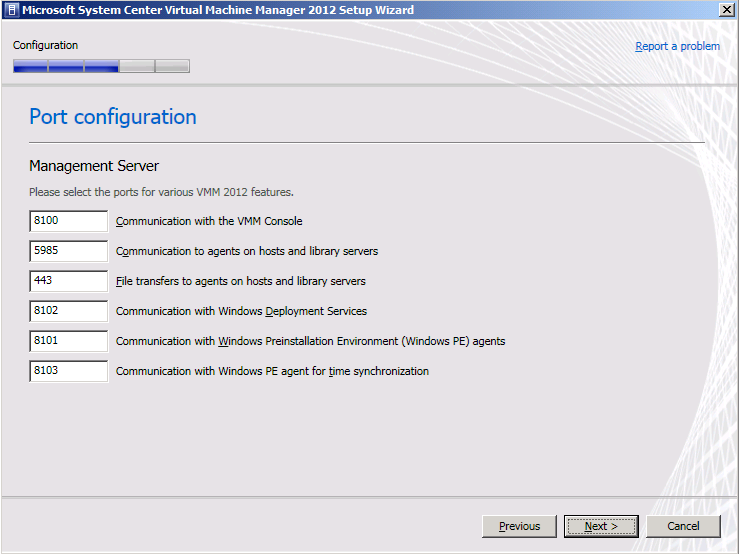
| VMM management server (HTTPS) | WCF | 8101 | VMM setup | |
| VMM management server (NET.TCP) | WCF | 8102 | VMM setup | |
| VMM management server (HTTP) | WCF | 8103 | VMM setup | |
| Windows PE agent | VMM management server (control channel) |
WCF | 8101 | VMM setup |
| VMM management server (time sync) | WCF | 8103 | VMM setup | |
| WDS provider | VMM management server |
WCF | 8102 | VMM setup |
| Storage Management Service | SMI-S Provider | CIM-XML | Provider-specific port |
|
| VMM management server | VMware ESX Server 3i hosts |
HTTPS | 443 | |
Others
| Connection Type | Protocol | Default port | Where to change port setting |
| OOB Connection – SMASH over WS-Man | HTTPS | 443 | On BMC |
| OOB Connection IPMI | IPMI | 623 | On BMC |
|
BITS port for VMM transfers (data channel)
|
BITS | 443 | VMM setup |
| VMware ESX Server 3.0 and VMware ESX Server 3.5 hosts | SFTP | 22 | |
| VMware Web Services communication |
HTTPS | 443 | VMM console |
Note: When you install the VMM management server you can assign some of the ports that it will use for communications and file transfers between the VMM components.
Hyper-V : Best Practices and Supported scenarios regarding Exchange Server 2010
The following are the supported scenarios for Exchange 2010 SP1 :
- The Unified Messaging server role is supported in a virtualized environment.
- Combined Exchange 2010 high availability solutions (database availability groups (DAGs)) with hypervisor-based clustering, high availability, or migration solutions that will move or automatically failover mailbox servers that are members of a DAG between clustered root servers
HyperV Guest Configuration
Keep in mind that because there are no routines within Exchange Server that test for a virtualized platform, Exchange Server behaves no differently programmatically on a virtualized platform than it does on a physical platform.
Determining Exchange Server Role Virtual Machine Locations
When determining Exchange Server Role virtual machine locations, consider the following general best practices:
- Deploy the same Exchange roles across multiple physical server roots (to allow for load balancing and high availability).
- Never deploy Mailbox servers that are members of the same Database Availability Groups (DAGs) on the same root.
- Never deploy all the Client Access Servers on the same root.
- Never deploy all the Hub Transport servers on the same root.
- Determine the workload requirements for each server and balance the workload across the HyperV guest virtual machines.
Guest Storage
Each Exchange guest virtual machine must be allocated sufficient storage space on the root virtual machine for the fixed disk that contains the guest’s operating system, any temporary memory storage files in use, and related virtual machine files that are hosted on the root machine.Consider the following best practices when configuring Hyper-V guests:
- Fixed VHDs are recommended for the virtual operating system.
- Allow for a minimum of a 15-GB disk for the operating system, allow additional space for the paging file, management software, and crash recovery (dump) files. Then add Exchange server role space requirements.
- Storage used by Exchange should be hosted in disk spindles that are separate from the storage that hosts the guest virtual machine’s operating system.
- For Hub Transport servers, correctly provision the necessary disk space needed for the message queue database, and logging operations.
- For Mailbox servers, correctly provision the necessary disk space for databases, transaction logs, the content index, and other logging operations. .
Guest Memory : Dynamic Memory should be disabled
Memory must be sized for guest virtual machines using the same methods as physical computer deployments. Exchange—like many server applications that have optimizations for performance that involve caching of data in memory—is susceptible to poor system performance and an unacceptable client experience if it doesn’t have full control over the memory allocated to the physical computer or virtual machine on which it is running.
Many of the performance gains in recent versions of Exchange, especially those related to reduction in input/output (I/O) are based on highly efficient usage of large amounts of memory. When that memory is no longer available, the expected performance of the system can’t be achieved. For this reason, memory oversubscription or dynamic adjustment of virtual machine memory must be disabled for production Exchange servers.
Deployment Recommendations
When designing an Exchange Server 2010 virtualized environment, the core Exchange design principles apply. The environment must be designed for the correct performance, reliability, and capacity requirements. Design considerations such as examining usage profiles, message profiles, and so on must still be taken into account.
See this article (Mailbox Storage Design Process) as a starting point when considering a high availability solution that uses DAGs.
Because virtualization provides the flexibility to make changes to the design of the environment later, some organizations might be tempted to spend less time on their design at the outset. As a best practice, spend adequate time designing the environment to avoid pitfalls later.
Group the Exchange Server roles in such a way that balances workloads on the root servers. Mixing both roles on the same HyperV root server can balance the workloads and prevent one physical resource from being unduly stressed, rather than if the same roles were put on the same hosts
The updated support guidance applies to any hardware virtualization vendor participating in the Windows Server Virtualization Validation Program (SVVP).
Best Practices for Virtualizing Exchange Server 2010 with Windows Server 2008 R2 Hyper-Vwhitepaper. This whitepaper is designed to provide technical guidance on Exchange server roles, capacity planning, sizing and performance, as well as high availability best practices.
Complete system requirements for Exchange Server 2010 running under hardware virtualization software can be found in Exchange 2010 System Requirements. Also, the support policy for Microsoft software running in non-Microsoft hardware virtualization software can be found here.
CentOS now have official support as guest VM in Hyper-V
Effective immediately, Microsoft will support Windows Server2008 R2 Hyper-V to run CentOS.
CentOS is a popular Linux distribution for Hosters, and this was the number one requirement for interoperability that we heard from that community.
This development will enable MS Hosting partners to consolidate their mixed Windows + Linux infrastructure on Windows Server Hyper-V; reducing cost and complexity, while betting on an enterprise class virtualization platform. .
How will support work?
Call Microsoft CSS. Support will cover installation issues as well as configuration issues.
What version of the Linux Integration Services support CentOS?
The existing Hyper-V Linux Integration Services for Linux Version 2.1 support CentOS. The following features are included in the Hyper-V Linux Integration Services 2.1 release:
· Symmetric Multi-Processing (SMP) Support: Supported Linux distributions can use up to 4 virtual processors (VP) per virtual machine.
· Driver support for synthetic devices: Linux Integration Services supports the synthetic network controller and the synthetic storage controller that were developed specifically for Hyper-V.
· Fastpath Boot Support for Hyper-V: Boot devices take advantage of the block Virtualization Service Client (VSC) to provide enhanced performance.
· Timesync: The clock inside the virtual machine will remain synchronized with the clock on the host.
· Integrated Shutdown: Virtual machines running Linux can be gracefully shut down from either Hyper-V Manager or System Center Virtual Machine Manager.
· Heartbeat: Allows the host to detect whether the guest is running and responsive.
· Pluggable Time Source: A pluggable clock source module is included to provide a more accurate time source to the guest.
The Linux Integration Services are available via the Microsoft Download Center here: http://www.microsoft.com/downloads/details.aspx?displaylang=en&FamilyID=eee39325-898b-4522-9b4c-f4b5b9b64551
From Wikipedia:
CentOS is a community-supported, mainly free software operating system based on Red Hat Enterprise Linux (RHEL). It exists to provide a free enterprise class computing platform and strives to maintain 100% binary compatibility with its upstream distribution. CentOS stands for Community ENTerprise Operating System.
Red Hat Enterprise Linux is available only through a paid subscription service that provides access to software updates and varying levels of technical support. The product is largely composed of software packages distributed under either an open source or a free software license and the source code for these packages is made public by Red Hat.
CentOS developers use Red Hat’s source code to create a final product very similar to Red Hat Enterprise Linux. Red Hat’s branding and logos are changed because Red Hat does not allow them to be redistributed.
CentOS is available free of charge. Technical support is primarily provided by the community via official mailing lists, web forums, and chat rooms. The project is not affiliated with Red Hat and thus receives no financial or logistical support from the company; instead, the CentOS Project relies on donations from users and organizational sponsors.
Hyper-V : Supported Server Guest Operating Systems. Updated May 2011
The following tables list the Server guest operating systems that are supported for use on a virtual machine as a guest operating system.
| Server guest operating system | Editions | Virtual processors |
|---|---|---|
| Windows Server 2008 R2 with Service Pack 1 | Standard, Enterprise, Datacenter, and Web editions | 1, 2, or 4 |
| Windows Server 2008 R2 | Standard, Enterprise, Datacenter, and Windows Web Server 2008 R2 | 1, 2, or 4 |
| Windows Server 2008 | Standard, Standard without Hyper-V, Enterprise, Enterprise without Hyper-V, Datacenter, Datacenter without Hyper-V, Windows Web Server 2008, and HPC Edition | 1, 2, or 4 |
| Windows Server 2003 R2 with Service Pack 2 | Standard, Enterprise, Datacenter, and Web | 1 or 2 |
| Windows Home Server 2011 | Standard | 1 |
| Windows Storage Server 2008 R2 | Essentials | 1 |
| Windows Small Business Server 2011 | Essentials | 1 or 2 |
| Windows Small Business Server 2011 | Standard | 1, 2, or 4 |
| Windows Server 2003 R2 x64 Edition with Service Pack 2 | Standard, Enterprise, and Datacenter | 1 or 2 |
| Windows Server 2003 with Service Pack 2 | Standard, Enterprise, Datacenter, and Web | 1 or 2 |
| Windows Server 2003 x64 Edition with Service Pack 2 | Standard, Enterprise, and Datacenter | 1 or 2 |
| CentOS 5.2 through 5.6 (NEW) | x86 edition and x64 edition | 1, 2, or 4 |
| Red Hat Enterprise Linux 5.6 | x86 edition and x64 edition | 1, 2, or 4 |
| Red Hat Enterprise Linux 5.5 | x86 edition and x64 edition | 1, 2, or 4 |
| Red Hat Enterprise Linux 5.4 | x86 edition and x64 edition | 1, 2, or 4 |
| Red Hat Enterprise Linux 5.3 | x86 edition and x64 edition | 1, 2, or 4 |
| Red Hat Enterprise Linux 5.2 | x86 edition and x64 edition | 1, 2, or 4 |
| SUSE Linux Enterprise Server 11 with Service Pack 1 | x86 edition and x64 edition | 1, 2, or 4 |
| SUSE Linux Enterprise Server 10 with Service Pack 4 | x86 edition and x64 edition | 1, 2, or 4 |
Note: Support for Windows 2000 Server and Windows XP with Service Pack 2 (x86) ended on July 13, 2010
Source : http://technet.microsoft.com/en-us/library/cc794868(WS.10).aspx
Recommended Books


System Center 2012 R2 Virtual Machine

System Center Virtual Machine Manager 2012 Cookbook


 Cloudtidings.com