
Archive
Remove yourself as guest user of a partner organisation AD tenant
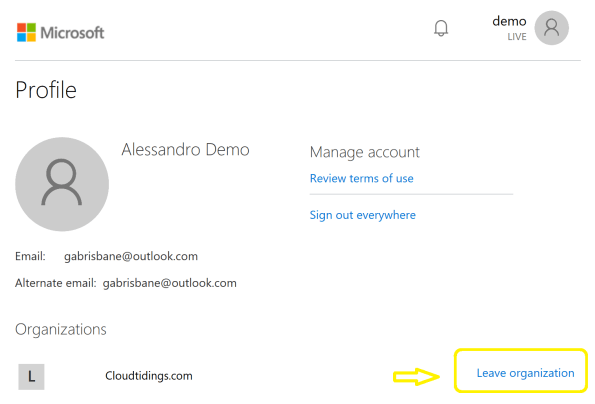
In the past, when working with partner organisations where you were invited to access shared resources or applications, in order to get your access removed/revoked you would need to contact their Global Admin and ask them to remove you. That was not an easy task!
Now, Microsoft released a Azure B2B update which will allow you to remove yourself from the partner organisation AD tenant
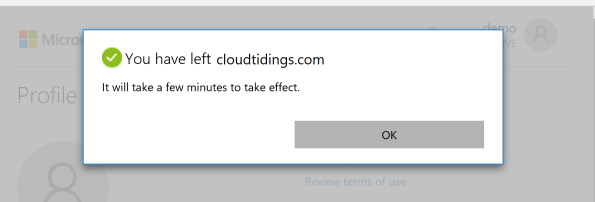
When a user leaves an organization, the user account is “soft deleted” in the directory.
By default, the user object moves to the Deleted users area in Azure AD but is not permanently deleted for 30 days. This soft deletion enables the administrator to restore the user account (including groups and permissions), if the user makes a request to restore the account within the 30-day period.
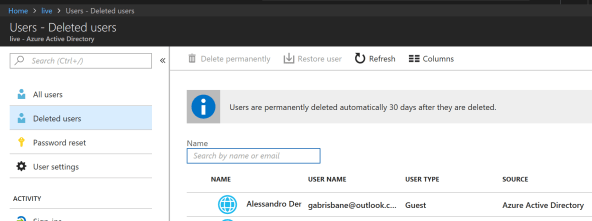
If you permanently delete a user, this action is irrevocable.
These highly-requested capabilities simplify and modernize your collaboration. They also empower your partner users and help you with your GDPR obligations.
You can find more information about this an other new exciting features of Azure B2B at : https://docs.microsoft.com/en-au/azure/active-directory/active-directory-b2b-leave-the-organization
If you’re interested in viewing or deleting personal data, please see the Azure Data Subject Requests for the GDPR article. If you’re looking for general info about GDPR, see the GDPR section of the Service Trust portal.
New Azure B2B Invite process.
 New Azure B2B Invite process: Redemption through a direct link
“Just in Time Redemption”.
In the past, in order for your guest/partner users to access a shared resources utilising Azure B2B Collaboration, they would have had to be invited by email to access resources/apps on your Azure Tenant. When receiving the email, your guest/partner clicks on the invitation link which will trigger its acceptance and consequent adding the guest/partner account as a guest user in your tenant and the providing access to the resources or apps you have configured.
Now, although that option still available, your guest/partner users can simply access the application you’ve invited them to. How? You can invite a guest/partner user by sending him/her a direct link to a shared app.
NEW Modernized Consent Experience. When a guest/partner user accesses your organization’s resources for the first time, they will interact with a brand new, simple, modernized consent experience.
 Image source:https://cloudblogs.microsoft.com/enterprisemobility/2018/05/14/exciting-improvements-to-the-b2b-collaboration-experience/
After any guest user signs in to access resources in a partner organization for the first time, they see a Review permissions screen.
The guest/partner user must accept the use of their information in accordance to the inviting organization’s privacy policies to continue
Upon consent, the guest/partner users will be redirected to the application shared by you.
How it works:
-
-
- You want your guest/partner user to access a specific application
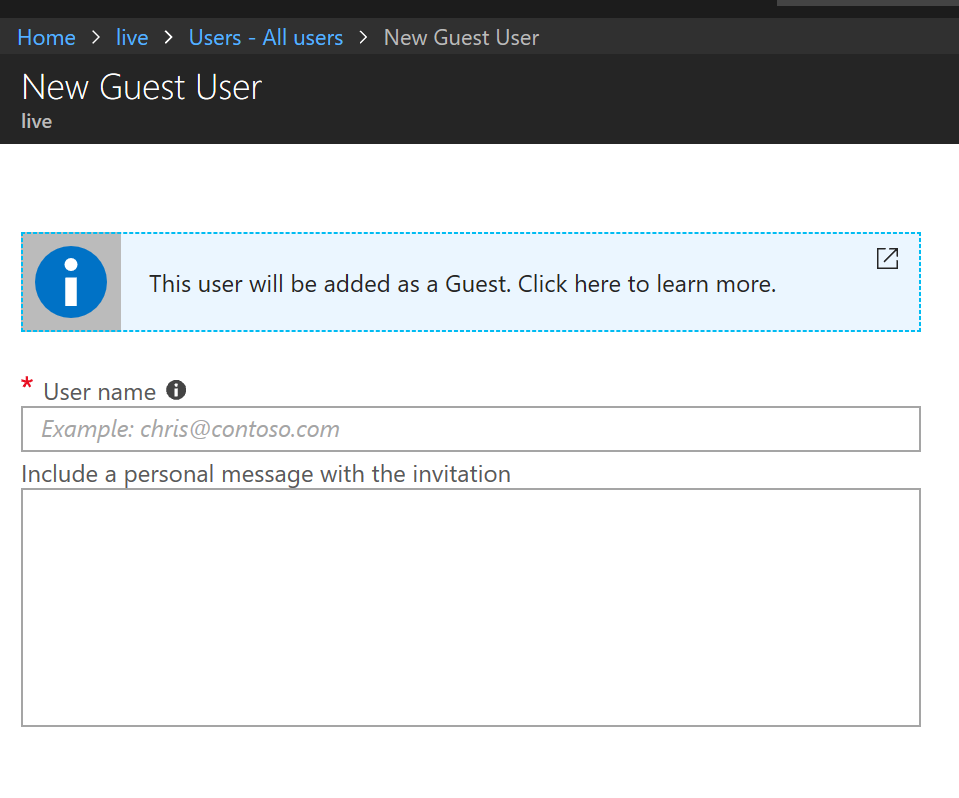
- You add them as a guest user to your organization (In the Azure Portal, go to Azure Active Directory -> Users -> New Guest User)
-
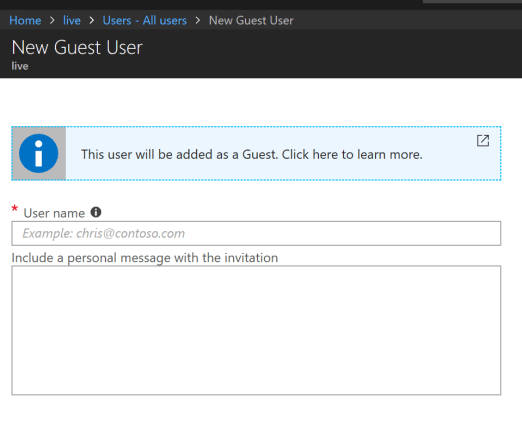
- In the message invitation, type the link to the application you want them to have access to
- Now, your guest/partner user will only have to click on the link to the application to immediately access it after giving consent.
It’s very simple isn’t it?
Recommended Books


System Center 2012 R2 Virtual Machine

System Center Virtual Machine Manager 2012 Cookbook


 Cloudtidings.com