
System Center 2012 Operations Manager. How to quickly become more efficient
Recently when working on a System Center 2012 R2 project I found some very useful videos that will help you speed your learning curve on Operations Manager and will help you become more efficient.
System Center 2012 Operations Manager Dashboards: Visualizing Alert Data. Richard Pesenko, Microsoft Senior Support Escalation Engineer who works on Operations Manager support team, published a video out that walks you all through visualizing alert data in OpsMgr 2012.
Video URL: http://www.youtube.com/watch?v=lKVvjeQAGm0&feature=player_embedded
Private Cloud Demo Extravaganza : Deep Application Diagnostics & Insight with System Center 2012. how to analyze and isolate a problem impacting an application using System Center 2012. Adam Hall and Symon Perriman show you System Center 2012 Operations Manager along with some of its features:
- Application advisor web component
- Understand the problem distribution analysis
- Navigate problem reports to see the line of code that caused the problem
- View detailed events and alerts from a component of the application
- See which transactions happened when the problem occurred
- Understand related events to a particular issue
- View the application diagnostics at the developer level
Video URL: WMV | MP4 | WMV (ZIP) | PSP
Private Cloud Demo Extravaganza 12: Enabling Application Performance Monitoring with System Center 2012 : How to enable Application Performance Monitoring (APM) with System Center 2012. Adam Hall and Symon Perriman show you System Center 2012 Operations Manager along with some of its features:
- Discover an application
- Configuration an application for APM
- Use a template to add a monitoring Management Pack (MP)
- Enable a .NET APM configuration
- Create a new MP
- Search and filter to discover applications across servers
- Set custom thresholds
- Review exception options
MVP renewed : 6 consecutive years!
What a way to start 2014!. For 6 consecutive years I have been awarded Microsoft MVP in virtualisation.
Below is the email I just got from Microsoft:
“Congratulations! We are pleased to present you with the 2014 Microsoft® MVP Award! This award is given to exceptional technical community leaders who actively share their high quality, real world expertise with others. We appreciate your outstanding contributions in Virtual Machine technical communities during the past year.
The Microsoft MVP Award provides us the unique opportunity to celebrate and honor your significant contributions and say “Thank you for your technical leadership.”
Mike Hickman
Director
Community Engagement
Microsoft”
“As a Microsoft MVP, you are part of a highly select group of experts that represent technology’s best and brightest who share a deep commitment to community and a willingness to help others.
On behalf of everyone at Microsoft, thank you for your contributions to technical communities.
Sincerely,
Soyoung Lee, your Community Program Manager”
Removing the ghost Hyper-V vNic adapter when using Converged Networks after in-place upgrade to W2012R2
Scenario:
You have a Windows 2012 with NIC Team configured, Hyper-V Virtual Switch and vNIC’s and you have done an in-place upgrade to Windows 2012 R2
What will happen:
You will find out that the Hyper-V Virtual Nic Adapter (vNIC) is disconnected (as shown below). As you can see, the Management and Migration vNIC’s are showing as network cable unplugged.
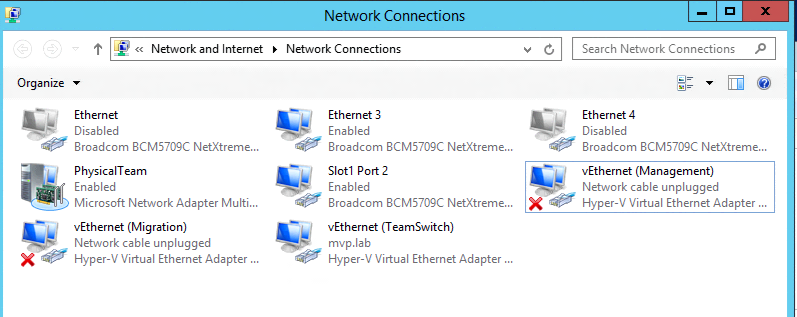
You can also use wmi to query for the vNIC’s (pictured below):
gwmi -nnamespace root\virtualization\v2 -Class MSVM_InternalEthernetPort | select elementname

What should you do to avoid this situation:
Recommendation: Before upgrading from Windows 2012 to Windows 2012 R2, make sure you remove the Hyper-V Virtual Switches and the Network Team (in this order).
What you could do if you did not follow the recommended approach:
Below I describe the step by step that you need to take in order to get the ghost vNIC’s removed.
Note: The following process was certified by Ben Armstrong (aka Virtual PC Guy), Microsoft PM for Hyper-V and it is supported by Microsoft, as a valid similar approach that fix the Physical Networking by using the registry, as per MS KB : http://support.microsoft.com/kb/146333 ( don’t follow the method described in that article, to fix the VNIC issue.)
Steps:
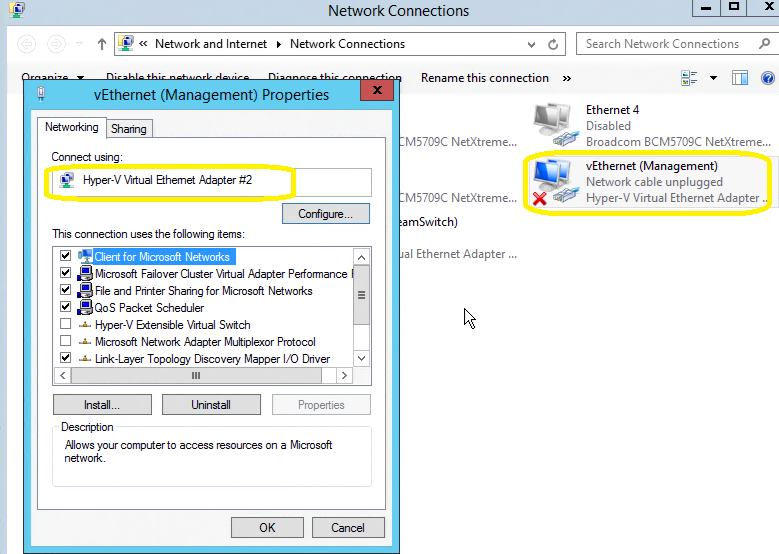
1. in the Network Connections, take note of the vNIC name (e.g. Hyper-V Virtual Ethernet Adapter #2) in the properties: Select the vNIC (e.g. Management), right click properties ( as per below):
2. Open the registry: Windows Key + R, then type regedit
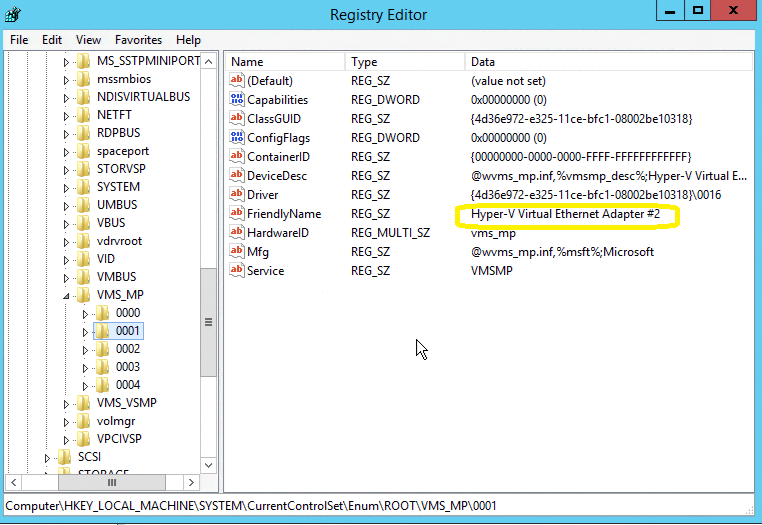
3. Locate the following Key: HKEY_LOCAL_MACHINE\SYSTEM\CurrentControlSet\Enum\ROOT\VMS_MP
4. Go though the folders until you find the folder that contains the FriendlyName with the SAME name of the ghost vNIC
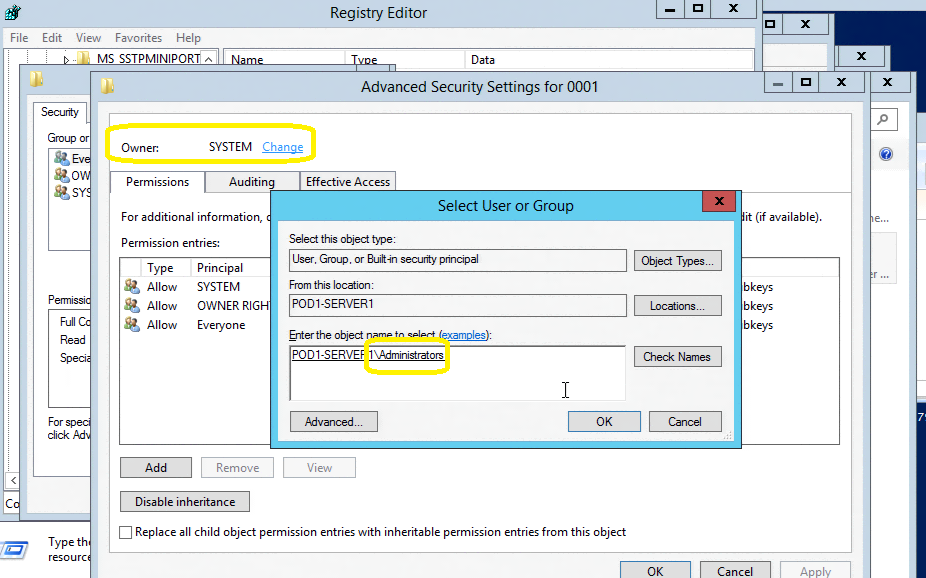
5. Select the Folder, right click and select Permissions, click on Advanced and replace the owner of the folder to Local Server Administrators (currently: System), by clicking on Change, typing Administrators (make sure the From this location show your server name) and click OK.
6. Disable the inheritance by clicking on Disable inheritance and then clicking on Convert inherited permissions into explicit permissions on this object and then add the local server Administrators group with Full Control
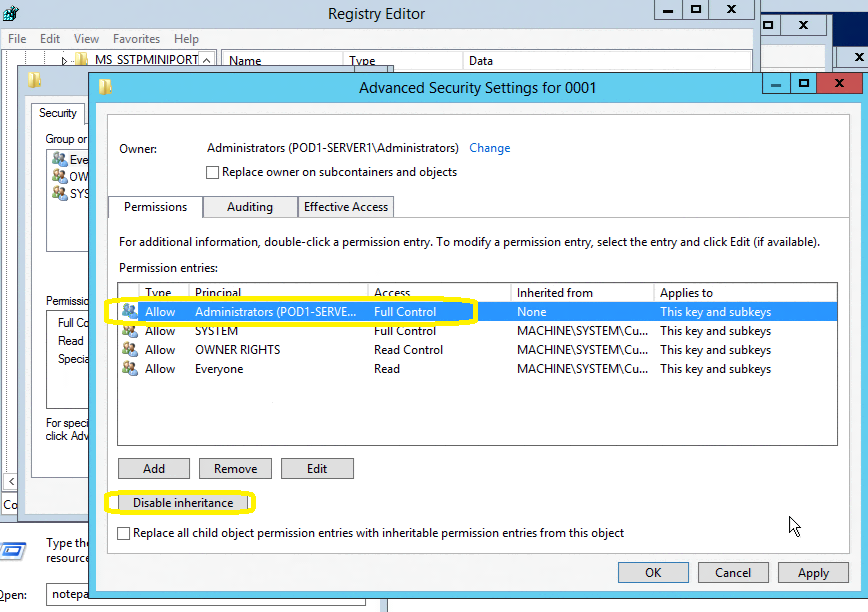
7. Select all the objects INSIDE the folder, right click and click on Delete
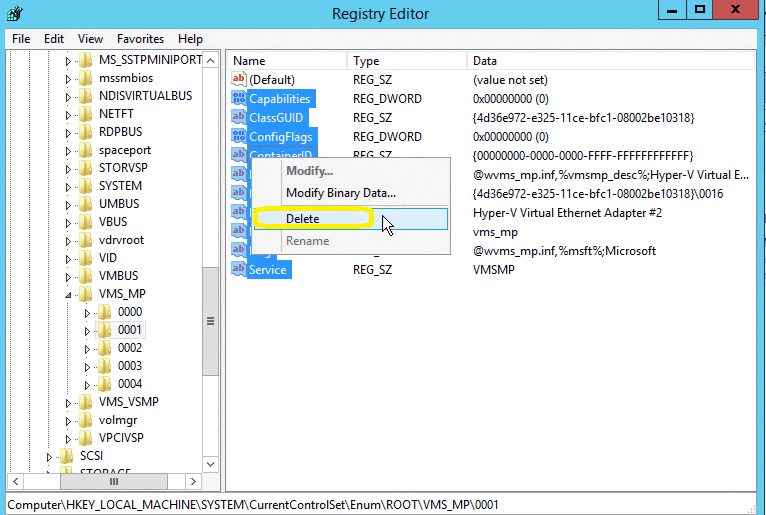
8. Repeat the steps 5-7 for all ghosts vNIC’s and close the registry
9. Open the Device Manager: Windows Key, type Device Manager and click on Scan for Hardware Changes. ( Select the Server Name, Click on Action and then Scan for Hardware Changes)
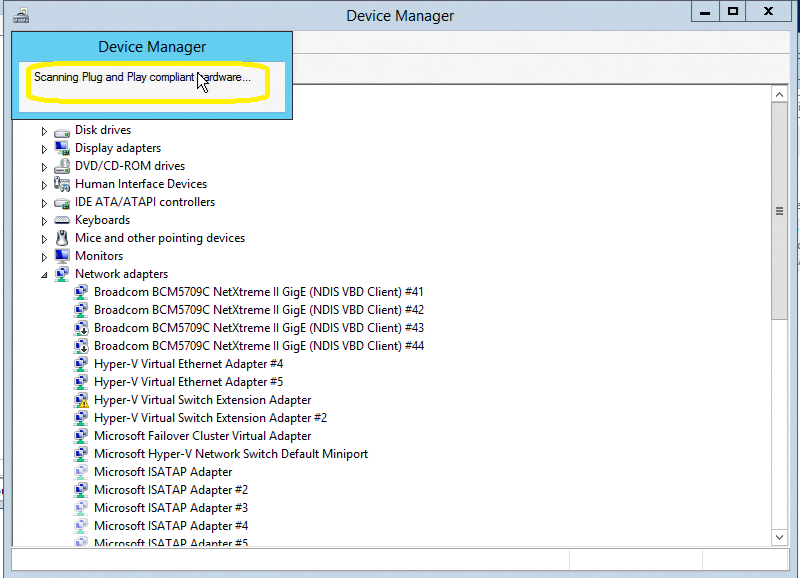
…and you are done! All fixed. Go back to Network Connections and refresh and you will noticed that the ghosts vNIC’s are all gone.
Thanks to Ben Armstrong, who actually found this solution and Taylor Brown.
System Center 2012R2 enables at-scale management of major Windows Server 2012 R2 capabilities.
Utilizing the Windows Server 2012 R2 and System Center 2012 R2, which powers the Cloud OS vision, organizations can quickly and flexibly build and manage modern applications across platforms, locations, and devices, unlock insights from volumes of existing and new data, and support end-user productivity wherever and on whatever device they choose.
System Center 2012 R2 delivers unified management across on-premises, service provider and Windows Azure environments, in a manner that’s simple and cost-effective, application focused, and enterprise-class. System Center 2012 R2 offers exciting new features and enhancements across infrastructure provisioning, infrastructure monitoring, application performance monitoring, automation & self-service, and IT service management.
Clique here to download the full 180 day trial
Need more information about System Center 2012 R2? See the product details page.
- System Center 2012 R2 effectively manages the scale and performance that Windows Server 2012 R2 offers. Building on System Center 2012, this release enables at-scale management of major Windows Server 2012 R2 capabilities, including running VM snapshots, dynamic VHDX resize, and Storage Spaces.
- System Center 2012 R2 also extends software-defined networking in Windows Server 2012 R2 with provisioning and management support for a multitenant VPN gateway to enable seamless extension of datacenter capacity. System Center 2012 R2 will continue to help you provision and manage a flexible hybrid IT environment that adapts dynamically to changing business needs, including migrating workloads to Windows Azure Virtual Machines and managing them consistently.
Windows Server 2012 R2 key capabilities
Microsoft announced on October 18th that the final release of Windows Server 2012 R2, Hyper-V 2012 R2 and System Center 2012 R2 are now generally available.
Windows Server 2012 R2 delivers significant value around seven key capabilities:
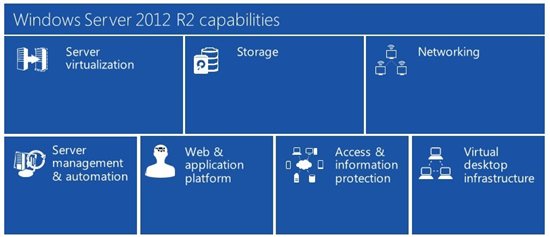
- Server virtualization. Whether you are looking to expand virtual machine mobility, increase virtual machine availability, handle multi-tenant environments, gain bigger scale, or gain more flexibility, Windows Server 2012 R2 with Hyper-V gives you the platform and tools you need to increase business agility with confidence. Plus, you can also benefit from workload portability as you extend your on-premises datacenter into a service provider cloud or Windows Azure.
- Storage.Microsoft designed Windows Server 2012 R2 with a strong focus on storage capabilities, including improvements in the provisioning, accessing, and managing of storage and the transfer of data across the network that resides on that storage. The end result is a storage solution that delivers the efficiency, performance, resiliency, availability, and versatility you need at every level.
- Networking.Windows Server 2012 R2 makes it as straightforward to manage an entire network as a single server, giving you the reliability and scalability of multiple servers at a lower cost. Automatic rerouting around storage, server, and network failures enables file services to remain online with minimal noticeable downtime. In addition, Windows Server 2012 R2 provides the foundation for software-defined networking, out-of-the box, enabling seamless connectivity across public, private, and hybrid cloud implementations.
- Server management and automation. Datacenter infrastructure has become more and more complex. Multiple industry standards are confusing hardware vendors. Customers are looking for guidance on how to best automate their datacenter while adopting a standards-based management approach supporting their multi-vendor investments. Windows Server 2012 R2 enables IT professionals to offer an integrated platform to automate and manage the increasing datacenter ecosystem. Features within Windows Server 2012 R2 enable you to manage many servers and the devices connecting them, whether they are physical or virtual, on-premises or in the cloud.
- Web and application platform. Even greater application flexibility, helping you build and deploy applications either on-premises, in the cloud, or both at once, with hybrid solutions that can work in both environments. Windows Server 2012 R2 provides the tools you need to build, provision, and manage multi-tenant environments while still supporting your large enterprise or the many customers hosted within your service provider infrastructure.
- Access and information protection. Users need to be able to access this information from anywhere, share it where appropriate, and achieve maximum productivity with the assets they have. Windows Server 2012 R2 helps you accommodate these changes through exciting new remote access options, significant improvements to Active Directory and Active Directory Federation Services, and the introduction of policy-based information access and audits with Dynamic Access Control, and new scenarios to help customers provide access to corporate resources for users from their own devices. With these new capabilities, you can better manage and protect data access, simplify deployment and management of your identity infrastructure, and provide more secure access to data from virtually anywhere across both on-premises well managed devices and new consumer orientated form factors.
- Virtual Desktop Infrastructure. VDI technologies in Windows Server 2012 R2 offer easy access to a rich, full-fidelity Windows environment running in the datacenter, from virtually any device. Through Hyper-V and Remote Desktop Services (RDS), Microsoft offers three flexible VDI deployment options in a single solution: Pooled Desktops, Personal Desktops, and Remote Desktop Sessions (formerly Terminal Services). With Windows Server 2012 R2, you get a complete VDI toolset for delivering flexible access to data and applications from virtually anywhere on popular devices, while also helping to maintain security and compliance.
You can find more info here: http://blogs.technet.com/b/windowsserver/archive/2013/10/18/announcing-the-general-availability-of-windows-server-2012-r2-the-heart-of-cloud-os.aspx
Oracle running on Azure
Yes, your heard right
Oracle virtual machines on Windows Azure are now in preview, Multi-Factor Authentication is generally available and we have an announcement regarding SQL Database.
Microsoft and Oracle provide end-to-end support for customers running business-critical Oracle software on Windows Azure
Oracle, Oracle WebLogic Server, and the Java development environment are now available, in preview, in the Windows Azure Virtual Machines Image Gallery. These images include licenses for the Oracle software that they contain.
During the preview period, there is no charge for the included Oracle licenses. You will pay only for the Windows Azure compute and storage resources that your Virtual Machine consumes. If you would prefer to use an Oracle software license that you already own, you can do that too. Just choose a Windows Server image from the Image Gallery and install the Oracle software yourself.
Whether you bring your own Oracle license or use one of the license-included images, you now have increased flexibility and choice in where to deploy your applications and the peace of mind that comes from knowing you will be fully supported by Oracle.
To get started, sign in to the Windows Azure Management Portal and add a new Virtual Machine from the Image Gallery.
For more information, visit the Oracle information page on the Windows Azure website.
Transform the Datacenter Immersion workshop event in Melbourne and Sydney
Attend The Modern Datacentre: Envision & Evolve workshop. This is a TDI workshop: Transform the Datacenter Immersion.
The workshop will inspire you to take further steps towards private/hybrid cloud architecture and operating model for their data centres. The attendees will learn about strategies to cut costs and enable innovation across four solution areas:
· Service Delivery and Automation
· Infrastructure Management and Optimisation
· Modern Work styles
Technologies covered : Windows 2012R2 Hyper-V, System Center 2012 R2 VMM, System Center 2012 R2 Operations Manager, Windows Azure.
Register at http://au.insight.com/events/experience-the-cloud-optimised-datacenter/
WHERE & WHEN |
|
SydneyThursday 26th September 2013 8:30 am to 10:30 am @ Microsoft – Ground Floor Level 1, 1 Epping Road Freshwater Place North Ryde NSW 2113 |
MelbourneWednesday 25th September 2013 8:30 am to 10:30 am @ Microsoft – Exhibition Room Level 5, 4 Freshwater Place Southbank VIC 3006 |
Windows 2012 R2 and Windows 8.1 released to MSDN and TechNet subscriptions
A few hours ago, Microsoft released an communication starting that today (September 10/09/2013) , Windows 8.1, Windows 8.1 Pro and Windows Server 2012 R2 RTM builds are now available for download to the developer and IT professional communities via MSDN and TechNet subscriptions. You can download it here: http://www.msdn.com
More on Windows 2012 R2:
- What’s New in Hyper-V in Windows Server 2012 R2
This topic describes the new and changed functionality of the Hyper-V role in Windows Server 2012 R2 Preview. - What’s New in Hyper-V Network Virtualization in Windows Server 2012 R2
This topic describes the new or changed features and functionality in Hyper-V Network Virtualization in Windows Server 2012 R2 Preview. - What’s New in Hyper-V Virtual Switch in Windows Server 2012 R2
This topic provides information about the new features in Hyper-V Virtual Switch in Windows Server 2012 R2 Preview
The Windows 8.1 RTM Enterprise edition will be available through MSDN and TechNet for businesses later this month.
VMM 2012 book. Review by Vijay Tewari, Principal Group Program Manager at Microsoft Corp
I just got the following email from Vijay with a review of my book. It is rewarding to see that coming from Vijay.
System Center 2012, SP1, Virtual Machine Manager (VMM) is the foundation of the Microsoft Private Cloud. Windows Server 2012, Hyper-V is chockfull of capabilities that are very valuable for customers looking to deploy Hyper-V at scale and virtualize literally any workload. VMM is the management infrastructure that enable customers to deploy and manage Hyper-V at scale. Alessandro’s book on VMM, SP1 is packed with useful tips and tricks that can really help you to get the most out of VMM. This is not just any book on VMM, it is your Swiss army knife for deploying and operating VMM. The chapter on installation itself is worth its weight. Thanks Alessandro!!!!Vijay TewariPrincipal Group Program Manager, System Center Virtual Machine ManagerMicrosoft Corp
To buy it see :
My sessions at Microsoft TechEd New Zeeland 2013
This year I will be presenting 3 sessions at TechEd New Zeeland. Come to my sessions to learn how System Center can empower your cloud deployment and management, plus you can win a signed copy of my book: System Center 2012 VMM. (1 book per session) . See you there!
My Sessions:
| MDC412
Thursday 11:55am |
Availability Strategies for a Resilient Private Cloud
Your private cloud should be designed to be protected from downtime. This session will cover the breath of features available to reduce and protect from both planned and unplanned downtime, such as: live migration, storage migration, Failover Clustering, Cluster Aware Updating, and Hyper&-V Replica.
|
| MDC417
Friday |
Managing Clouds with System Center
This session will take you through the architecture and steps to create and manage an Private/Hybrid Cloud. We will talk about multi-tentant, charge back, network virtualisation and new features of System Center. This session will address the ideal architecture design and requirements and will be full of tips. |
| MDC421
Friday |
Managing and Monitoring your hybrid datacenter with VMM and Operations Manager
is session will cover the integration with VMM and Operations Manager, taking you through all the required steps and requirements. Which management packs? How to monitor Hyper-V and VMware hypervisors. Which information/reports are available ? |
Recommended Books


System Center 2012 R2 Virtual Machine

System Center Virtual Machine Manager 2012 Cookbook


 Cloudtidings.com