
Archive
How can to increase the network throughput to guest VMs
Manage your VMware environment using SCVMM scripts
Do you know that you can create scripts using cmdlets that are provided with SCVMM 2008 to manage your VMware environment ?
For example, you can use the Add-VirtualizationManager cmdlet to add a VirtualCenter Server.
# Description: Adds a VMware VirtualCenter Server to VMM.
# Connect to the VMM server.
Get-VMMServer -ComputerName "VMMServer1.Contoso.com"
# Define the variables.
$AddCredential = Get-Credential
$Cert= Get-Certificate -Computername "VirtMgrServer01.Contoso.com"
# Require user to accept the certificate before adding the VirtualCenter Server.
Write-Host "Following is the certificate information for this VirtualCenter Server:"
$Cert
$AcceptCert = Read-Host "Do you accept this certificate? If you accept, enter Y."
If ($AcceptCert -eq "Y")
{
# Add the Virtual Center Server.
Add-VirtualizationManager -ComputerName "VirtMgrServer01.Contoso.com" -Certificate $Cert –TCPPort 443 -Credential $AddCredential -SecureMode $TRUE
}
Else
{
Write-Host "The script cannot continue unless the certificate is verified. Ending script."
}
After you add the VirtualCenter Server, you can manage the VMware ESX Server hosts.
Cmdlets and Parameters in VMM 2008 R2
The following list summarizes the new and updated cmdlets and parameters in VMM 2008 R2.
Cmdlets
- Disable-VMHost
- This cmdlet places a VMM host into maintenance mode. For more information, see Maintenance Mode for Hosts.
- Enable-VMHost
- This new cmdlet removes a VMM host from maintenance mode and returns it to service. For more information, see Maintenance Mode for Hosts.
Parameters
- AllowUnencryptedTransfers
- You can use the AllowUnencryptedTransfers parameter to specify that network file transfers into or out of a library, or into, out of, or within a host group, do not require encryption. Allowing unencrypted file transfers can improve performance when neither the source computer nor the destination computer requires encryption. This parameter can be used with the Set-LibraryServer and Set-VMHostGroup cmdlets.
- BlockLMIfHostBusy
- You can use the BlockLMIfHostBusy parameter of the Move-VM cmdlet to stop Hyper-V live migration from attempting to restart a live migration that could not previously start because the source host or the destination host was already performing a live migration.
- LimitCPUForMigration
- The LimitCPUForMigration parameter limits the processor features for a virtual machine so that the virtual machine can be migrated to a different physical computer that has a different version of the same processor as the source computer. Migrating virtual machines between physical computers with processors from different manufacturers is not supported. This parameter can be used with the following cmdlets: New-HardwareProfile, Set-HardwareProfile, New-VM, Set-VM, and Set-Template.
- MoveWithinCluster
- When you place a host that is a member of a host cluster into maintenance mode using the Disable-VMHost cmdlet, and you use the MoveWithinCluster parameter, all the virtual machines that are currently deployed on the host will be migrated to another host in the same host cluster.
- RemoveLibraryStoreSharePath
- You can use the RemoveLibraryStoreSharePath parameter of the Set-VMMUserRole cmdlet to clear the path to the specified library share. This share is used by members of a self-service user role to store virtual machines or as a repository from which to deploy stored virtual machines or stored ISO images.
- RetainDeletedObjects
- When you use the RetainDeletedObjects parameter with the Get-VMMServer cmdlet, the objects in the cache that are marked for deletion will be preserved. This parameter is included for users who might develop a user interface.
- RetainObjectCache
- When you use the RetainObjectCache parameter with the Get-VMMServer cmdlet, the objects in the cache remain in memory and are not reclaimed by garbage collection. This parameter is included for users who might develop a user interface.
- UseCluster
- The UseCluster parameter lets you force the transfer of a virtual machine using Windows Server 2008 Cluster Migration, even when Hyper-V live migration is available, when you move a virtual machine using the Move-VM cmdlet. For more information, see Live Migration.
- UseLocalVirtualHardDisks
- The UseLocalVirtualHardDisks parameter specifies that the virtual hard disk file (.vhd) for a new virtual machine that is created by using the New-VM cmdlet is at a specified location on the destination host, and that no .vhd files will be copied from the library. For more information, see Rapid Provisioning of Virtual Machines.
- VMNetworkOptimizationEnabled
- The VMNetworkOptimizationEnabled parameter enables virtual machine network optimization detection. This feature improves network performance for virtual machines with network adapters that support virtual machine queue (VMQ) or TCP Chimney Offload. VMQ enables creation of a unique network queue for each network adapter. TCP Chimney Offload enables network traffic processing to be offloaded from the networking stack. This parameter can be used with the New-VirtualNetworkAdapter, Set-VirtualNetworkAdapter, New-P2V, and New-V2V cmdlets.
- VMWarePortGroup
- You can use the VMWarePortGroup parameter to specify a VMware port group.

Windows 2008 : view list of software updates before installing Hyper-V
After you have installed Windows Server 2008, you must apply the Hyper-V update packages for Windows Server 2008 (KB950050).
You should also apply any other required updates before you install the Hyper-V role.
To view the list of software updates and check if any are missing, at the command prompt, type:
wmic qfe list
If you do not see “kbid=950050”, download the Hyper-V updates and then type the following command at a command prompt:
wusa.exe Windows6.0-KB950050-x64.msu /quiet
There are three update packages. After you install the updates, you must restart the server. The Update for Windows Server 2008 x64 Edition (KB 950050) and Language Pack for Hyper-V (KB951636) must be installed on the parent partition of the Server Core installation.
The Update for Windows Server 2008 (KB952627) is for remote management of the Server Core installation if you are managing the server from a computer running Windows Vista Service Pack 1 (SP1), and must be installed on the computer running Windows Vista SP1.
Remember : Before you enable the Hyper-V role, ensure that you have enabled the required hardware-assisted virtualization and hardware-enforced Data Execution Prevention (DEP) BIOS settings. Checks for these settings are performed before you enable the Hyper-V role on a full installation, but not on a Server Core installation.
MAC address pool duplication in Hyper-V
Since the MAC address pool is created when the Hyper-V role is installed, attempting to install the role and image the physical machine will cause each Hyper-V server deployed using the image to have the same MAC address pool. Even if you sysprep the machine before you image it, the registry values are not reset.
There are a some steps to avoid this situation:
- Do not install the Hyper-V role before you sysprep the machine, but have it install as part of the post mini-setup process.
- Before you sysprep the machine, delete the following two key values under HKLMSoftwareMicrosoftWindows NTCurrentVersionVirtualization
- MinimumMacAddress
- MaximumMacAddress

Using the first option will force unique values for the MAC address pool when you install the Hyper-V. The second option will force the keys to be recreated when the VMMS service starts during boot.
Using SCVMM 2008 to deal with MAC issue
System Center Virtual Machine Manager 2008 uses a different approach when managing virtual machines and MAC addresses by using static MAC addresses from a defined pool. This pool is used across all hosts that it manages regardless of host type (Virtual Server 2005 R2 SP1, Hyper-V, or VMware). By default the pool is in the range of 00-1D-D8-B7-1C-00 to 00-1D-D8-F4-1F-FF for 3,998,719 available MAC addresses. You can define your own range if you like, but you must follow these rules:
-
The first three octets must be the same for the Minimum and Maximum addresses.
-
You cannot use octets that are already in use by Microsoft or VMware.
Steps to modify the default range in the SCVMM 2008:
- Go to the SCVMM Administration console.
- Click on the Administration View button.
- Click Networking.
- Click Global Static MAC address Range.
- In the actions pane, click Modify.
- Change the range values.
- Click OK.
Now all virtual machines deployed using the System Center Virtual Machine Manager 2008 administration console or using SCVMM PowerShell cmdlets will get a static MAC address from the global pool.
Be carefull : do not
deploy a virtual machine using the Hyper-V Manager MMC on a host managed by SCVMM, the virtual machine will not use the SCVMM static MAC address pool, but will use the locally defined dynamic MAC address pool on the Hyper-V host and then you can have the MAC duplication issue.
The network connection of a running Hyper-V virtual machine is lost under heavy outgoing network traffic on a Windows Server 2008 R2-based computer
If you’ve deployed your Virtual Machine on Hyper-V R2 and noticed that a connection between the guest and the virtual switch starts "acting odd", perfoms poorly or becomes disconnected entirely, you may want to apply this update:
Prerequisites
To apply this hotfix, your computer must be running Windows Server 2008 R2.
Additionally, you must have Hyper-V role installed on your computer.
Restart requirement
You have to restart the computer after you apply this hotfix
Steps to get you ready for virtualization
Scenarios driving virtualization:
- Server consolidation – lower data center costs
- Application migration
- Increased IT agility – reduced deployment and provisioning time
- Software development and training
Steps to get you ready for virtualization:
Step 1. Determine Whether Virtualization Is Appropriate:
Compatibility : Determine whether the workload can run in a virtualized environment.
Supportability : Determine whether the workload is supported in a virtualized environment. It might be necessary to verify third-party vendors’ policies for deployment of the workload on all the virtualization technologies that will be used.
Licensing : Determine whether the workload can be licensed for use in a virtualized environment.
Business benefits : Determine the business reasons for virtualizing the workload and the related benefits. Potential benefits include cost savings, reduced deployment time, and reduced administration costs.
Step 2. Categorize the Workload
Workloads designed for server operating systems typically have different resource requirements and different levels of interactivity than those designed for client workloads.
Step 3. Select Server Hardware or Server Software Virtualization
Microsoft offers two server virtualization products:
Windows Server 2008 R2 Hyper-V, which provides server hardware virtualization.
Virtual Server 2005 R2 SP1, which provides server software virtualization.
Step 4. Determine Client Connectivity
Option 1: Connected Client
Client computers that will always be connected to the network when running a particular workload can rely upon the network in order to access their applications and data. Typical scenarios include corporate desktop computers and kiosks as well as some computers used in remote offices and home offices. This option should be selected when client computers will have reliable network connections and do not need to run applications when not connected to the network. If the client will always be connected, proceed to Step 5: “Determine Workload Location.”Option 2: Disconnected Client
Client computers that must have the ability to run virtualized applications while disconnected from the network will require versions of the applications that are resident on the disconnected computer. These options are most useful for situations in which users need only occasional access to applications while traveling or when network connections are unreliable. If the client may run disconnected, proceed to Step 7: “Choose Application Virtualization or Virtualization on the Desktop.”
Step 5. Determine Workload Location
Option 1: Centralized Workload
If the workload can be centrally managed and efficiently run from a server, consider a centralized approach to application virtualization. This is beneficial when the workload configuration needs to be tightly controlled or when resources must be centrally managed. It allows for easier deployment and management of workloads.
Proceed to Step 6: “Select Desktop or Session Virtualization.”Option 2: Decentralized Workload
Some workloads cannot be run from a central server or they require individualized configuration or access to local system resources to run efficiently. These workloads should be deployed using a virtualization method that can be distributed to desktop systems.
Proceed to Step 7: “Choose Application Virtualization or Virtualization on the Desktop.”
Step 6. Select Desktop or Session Virtualization
Option 1: Desktop Virtualization
VDI provides virtualized desktops that can run a wide variety of client or server operating systems since they are hosted in VMs on the Windows Server 2008 operating system. Since there will normally be only one user on the client’s operating system, he or she may be granted administrative rights.Option 2: Session Virtualization
The client’s applications are run directly on the Windows Server 2008 operating system. There will normally be many connected clients that share the operating system and the applications, so clients cannot be granted administrative rights.
All applications that are installed on the server must be able to run on the same Windows Server 2008 operating system. Any incompatibilities should be managed by using another application virtualization technology, such as Microsoft Application Virtualization.
Step 7. Choose Application Virtualization or Virtualization on the Desktop
Option 1: Application Virtualization
Microsoft Application Virtualization (App-V) provides a method for installing applications into a virtualized environment via MSI or streaming them on-demand. Application processing will occur on client computers. App-V requires that client computers have a complete client operating system that supports the virtualized applications, as well as meeting the hardware requirements for applications that will be deployed and executed on that computer. Sufficient network bandwidth for deploying applications must also be available.
See the Infrastructure Planning and Design Guide for Microsoft Application Virtualization at http://go.microsoft.com/fwlink/?LinkId=160978.Option 2: Virtualization on the Desktop
Virtual PC allows users to run entire client operating systems on their local computers. In order to support this configuration, the client computer must have sufficient CPU, memory, disk, and network resources to support the base Windows operating system, as well as resources for each of the VMs that will be supported.
Virtual PC provides support for running legacy applications and operating systems. Windows XP Mode provides a tailored Windows XP VM that runs on Virtual PC in Windows 7.
Users can create a wide variety of different VMs and can start and stop them as needed. This solution is particularly helpful for software developers and testers who often require access to multiple different platforms.
Additional Considerations
After selecting the most appropriate virtualization technology for each requirement, decide how the virtualized environment will be managed, and determine whether virtualization technologies should be used separately or together in combination.
Managing the Virtualization Environment
To help you with the challenges of managing a virtualized environment you will need the System Center Virtual Machine Manager and MED-V. Some of the key benefits of them, include:
- Optimal consolidation of under-utilized physical servers.
- Rapid provisioning of new VMs.
- Maximization of data center resources.
- Integration with System Center Operations Manager 2007.
More info : Microsoft Infrastructure Planning and Design (IPD) Guide for Selecting the Right Virtualization Technology
How to determine the right Server Virtualization scenarios for your IT needs
MAP is a powerful inventory, assessment, and reporting tool that can securely run in small or large IT environments without requiring the installation of agent software on any computers or devices.
The server virtualization scenarios help you identify underutilized resources and the hardware specifications needed to successfully consolidate your servers using Microsoft Hyper-V technology.
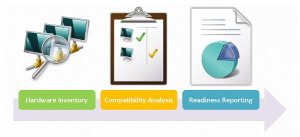
Additionally, the toolkit can help you identify unmanaged assets, Microsoft SQL Server® components and virtual machines in your environment
Download here : Download the Microsoft Assessment and Planning Toolkit
SCVMM : Windows 7 Template Creation Error : –2147024864
Here are the Release Notes from the RC that discusses this issue. It’s about half way down under the System Preparation Tool section
http://download.microsoft.com/download/F/D/B/FDBFC5A5-51CD-4C8D-9F18-7BCC3810498E/Windows%207%20RC%20Release%20Notes.htm
SCVMM takes care of applying sysprep.
sysprep 1.1 is here:
http://www.microsoft.com/downloads/details.aspx?familyid=0C4BFB06-2824-4D2B-ABC1-0E2223133AFB&displaylang=en
and Server 2003 is here:
http://www.microsoft.com/downloads/details.aspx?familyid=93F20BB1-97AA-4356-8B43-9584B7E72556&displaylang=en
and XP is here:
http://www.microsoft.com/downloads/details.aspx?familyid=673A1019-8E3E-4BE0-AC31-70DD21B5AFA7&displaylang=en
But you most likely want the "Deployment Toolkit"
http://www.microsoft.com/downloads/details.aspx?familyid=3bd8561f-77ac-4400-a0c1-fe871c461a89&displaylang=en&Hash=HD%2f3UQpbIQnCaKf%2fth6Sfnc8bHXTDgeIgX6nNzQZVmYzRXFYx9%2bZHVDniseSpp6wwteVT%2bTXF6qj3bTF39cAsw%3d%3d
Recommended Books


System Center 2012 R2 Virtual Machine

System Center Virtual Machine Manager 2012 Cookbook


