
Archive
SCVMM 2012 : Ports commnications for Firewall Configuration
When you install the SCVMM 2012 you can assign some of the ports that it will use for communications and file transfers between the VMM components.
Note: Not all of the ports can be changed through VMM.
The default settings for the ports are listed in the following table:
| Connection type | Protocol | Default port | Where to change port setting |
| SFTP file transfer from VMware ESX Server 3.0 and VMware ESX Server 3.5 hosts | SFTP | 22 | |
| VMM management server to P2V source agent (control channel) | DCOM | 135 | |
| VMM management server to Load Balancer | HTTP/HTTPS | 80/443 | Load balancer configuration provider |
| VMM management server to WSUS server (data channel) | HTTP/HTTPS | 80/8530 (non-SSL), 443/8531 (with SSL) |
These ports are the IIS port binding with WSUS. They cannot be changed from VMM. |
| VMM management server to WSUS server (control channel) | HTTP/HTTPS | 80/8530 (non-SSL), 443/8531 (with SSL) | These ports are the IIS port binding with WSUS. They cannot be changed from VMM. |
| BITS port for VMM transfers (data channel) | BITS | 443 | During VMM setup |
| VMM library server to hosts file transfer | BITS | 443 (Maximum value: 32768) | During VMM setup |
| VMM host-to-host file transfer | BITS | 443 (Maximum value: 32768) |
|
| VMM Self-Service Portal to VMM Self-Service Portal web server | HTTPS | 443 | During VMM setup |
| VMware Web Services communication | HTTPS | 443 | VMM console |
| SFTP file transfer from VMM management server to VMware ESX Server 3i hosts | HTTPS | 443 | |
| OOB Connection – SMASH over WS-Man | HTTPS | 443 | On BMC |
| VMM management server to in-guest agent (VMM to virtual machine data channel) | HTTPS (using BITS) |
443 | |
| VMM management server to VMM agent on Windows Server–based host (data channel for file transfers) | HTTPS (using BITS) |
443 (Maximum value: 32768) |
|
| OOB Connection IPMI | IPMI | 623 | On BMC |
| VMM management server to remote Microsoft SQL Server database | TDS | 1433 | |
| Console connections (RDP) to virtual machines through Hyper-V hosts (VMConnect) | RDP | 2179 | VMM console |
| VMM management server to Citrix XenServer host (customization data channel) | iSCSI | 3260 | On XenServer in transfer VM |
| Remote Desktop to virtual machines | RDP | 3389 | On the virtual machine |
| VMM management server to VMM agent on Windows Server–based host (control channel) | WS-Management | 5985 | During VMM setup |
| VMM management server to in-guest agent (VMM to virtual machine control channel) | WS-Management | 5985 | |
| VMM management server to VMM agent on Windows Server–based host (control channel – SSL) | WS-Management | 5986 | |
| VMM management server to XenServer host (control channel) | HTTPS | 5989 | On XenServer host in: /opt/cimserver/cimserver_planned.conf |
| VMM console to VMM management server | WCF | 8100 | During VMM setup |
| VMM Self-Service Portal web server to VMM management server | WCF | 8100 | During VMM setup |
| VMM console to VMM management server (HTTPS) | WCF | 8101 | During VMM setup |
| Windows PE agent to VMM management server (control channel) | WCF | 8101 | During VMM setup |
| VMM console to VMM management server (NET.TCP) | WCF | 8102 | During VMM setup |
| WDS provider to VMM management server | WCF | 8102 | During VMM setup |
| VMM console to VMM management server (HTTP) | WCF | 8103 | During VMM setup |
| Windows PE agent to VMM management server (time sync) | WCF | 8103 | During VMM setup |
| VMM management server to Storage Management Service | WMI | Local call |
|
| VMM management server to Cluster PowerShell interface | PowerShell | n/a | |
| Storage Management Service to SMI-S Provider | CIM-XML | Provider-specific port |
|
| VMM management server to P2V source agent (data channel) | BITS | User-Defined | P2V cmdlet option |
Hyper-v: Detailed step by step installing RedHat 6.1 VM in expert mode with the new Linux Integration Services 3.1
Microsoft released the a new Linux Integration Services, fully tested against RHEL 6.0, RHEL 6.1, and CentOS 6.0
http://www.microsoft.com/download/en/details.aspx?id=26837
To Create a RedHat 6 VM
1. Open Hyper-V Manager: Click Start, point to Administrative Tools, and then click
Hyper-V Manager.
2. Create a new virtual machine where you will install Linux: In the Actions menu, click New, and then click Virtual Machine.
Note: if you do not Add a legacy network adapter a this point, the virtual machine will not have network support, until you install the Linux Integration Services.
3. Specify the Linux installation media: Right-click the virtual machine that you created, and then click Settings. In IDE Controller, specify one of the following:
a. An image file in ISO format that contains the files required for installation
b. A physical CD/DVD drive that contains the installation media
4. Turn on the virtual machine: Right-click the virtual machine that you created, and then click Connect.
To Install Redhat Linux 6.1
1. After a short delay, the Welcome to Red Hat Linux 6.1! screen appears. Press <Tab>
2.At the prompt, add the text: append expert and then press <Enter>
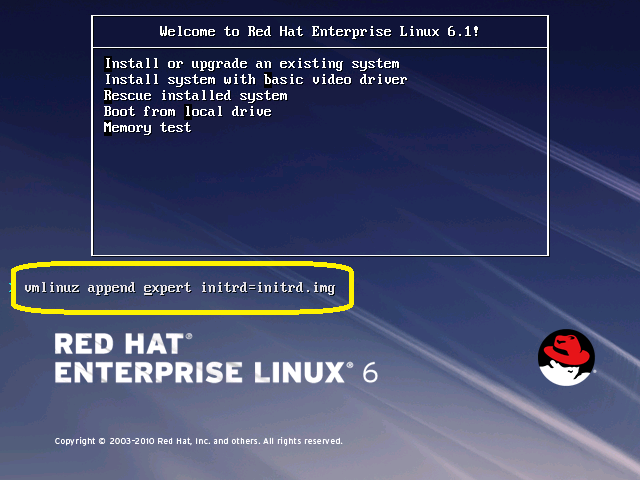
3. Press <OK> to check the installation media or <SKIP> to not test check in the next screen

4. Click Next to continue

5. The Choose a Language screen appears. This screen asks you to select the language to be used during the installation process. Use the up-or down-arrow key to select alanguage (the system highlights your choice). Click Next

6.The Keyboard Type screen appears asking you to select a keyboard type. Use the up- or down-arrow key to select a keyboard type (the system highlights your choice). Click Next
7. At the “Devices” screen select Basic Storage Devices to install Red Hat Enterprise Linux on the following storage devices: hard drives or solid-state drives connected directly to the local system

8. As you selected Basic Storage Devices, anaconda automatically detects the local storage attached to the system and does not require further input.Click Next.
9. Enter the Hostname for your server, select OK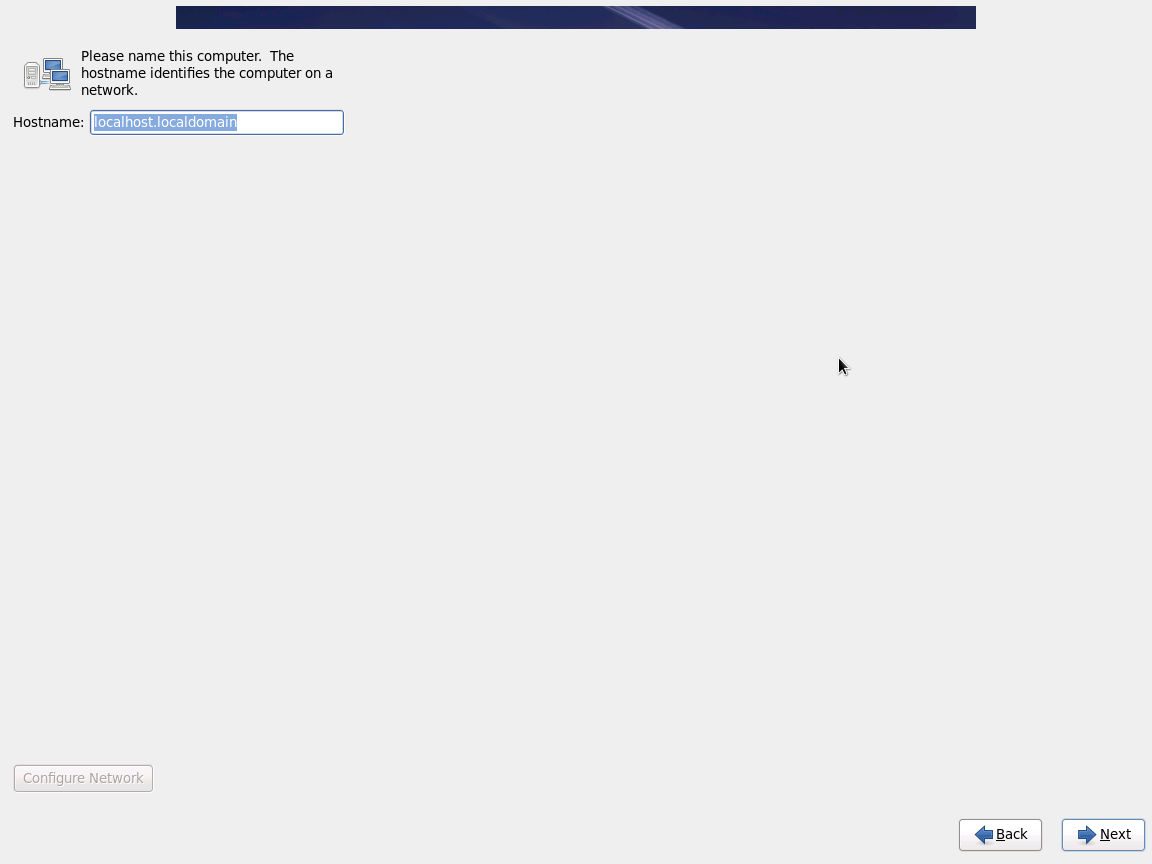
10 If you added the Legacy Network at the creation of the VM, then click Configure Network . At the “Network Configuration” window, Specify an IP address/gateway. Otherwise, skip this task. You can setup the network later, after installing the Linux Integration Services

Use the IPv4 Settings tab to configure the IPv4 parameters for the previously selected network connection. Select Start automatically to start the connection automatically when the system boots.

11.Click Next
12. At the “Time Zone Selection” window, highlight the correct time zone. Click Next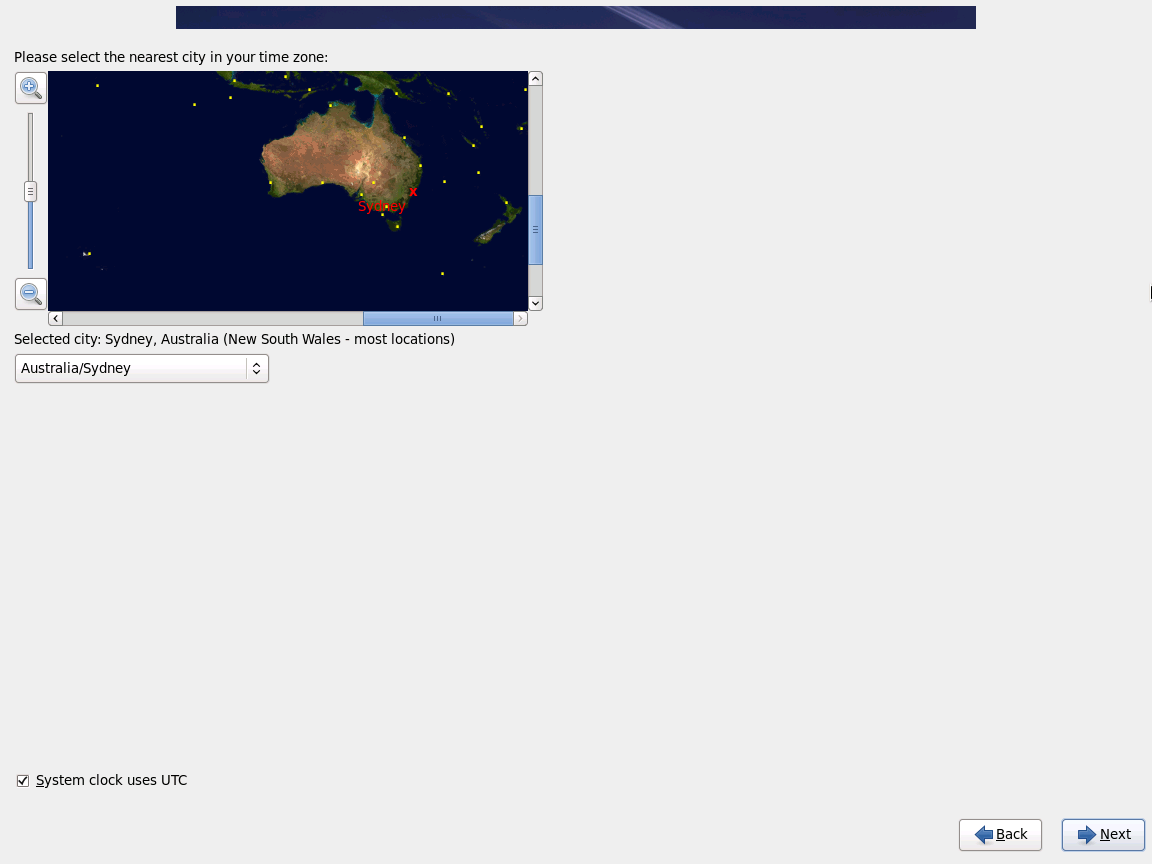
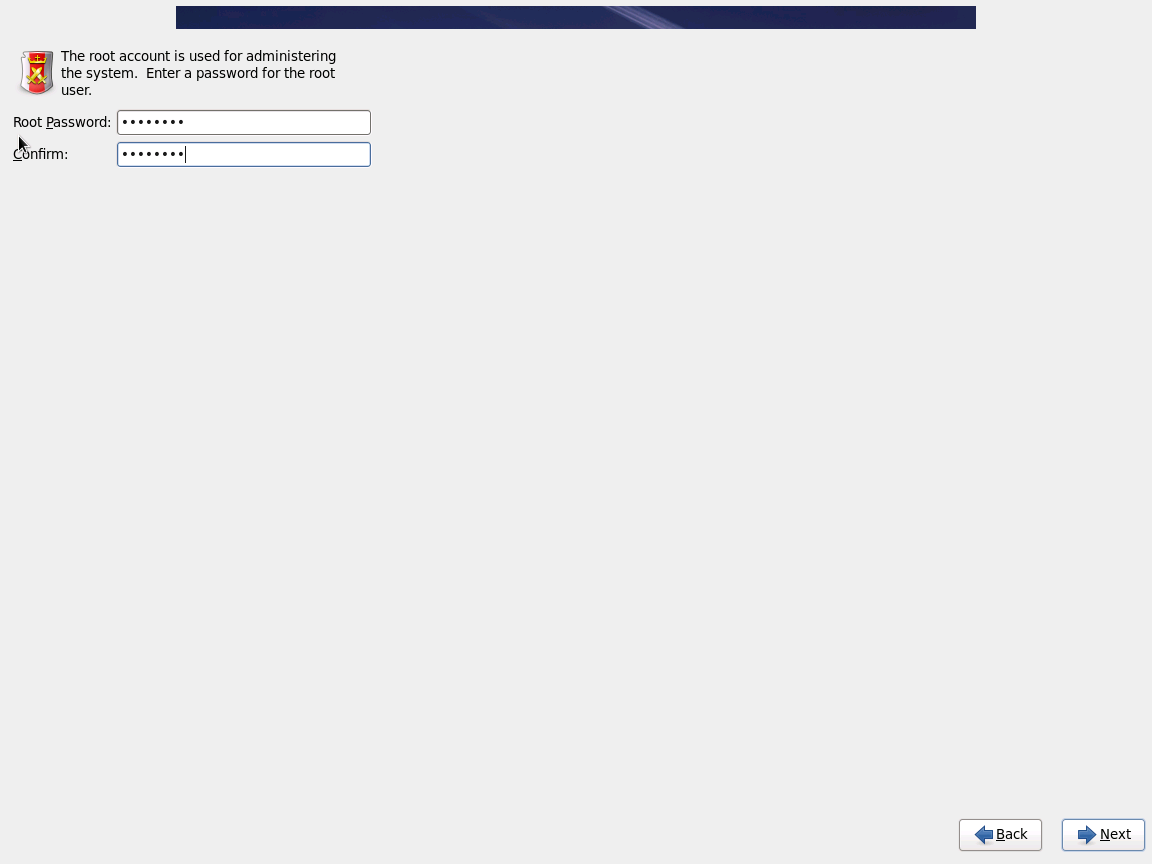
13.For Root Password, type and confirm the password. Click Next
14. If no readable partition tables are found on existing hard disks, the installation program asks to initialize the hard disk. This operation makes any existing data on the hard disk unreadable. If your system has a brand new hard disk with no operating system installed, or you have removed all partitions on the hard disk, click Re-initialize drive

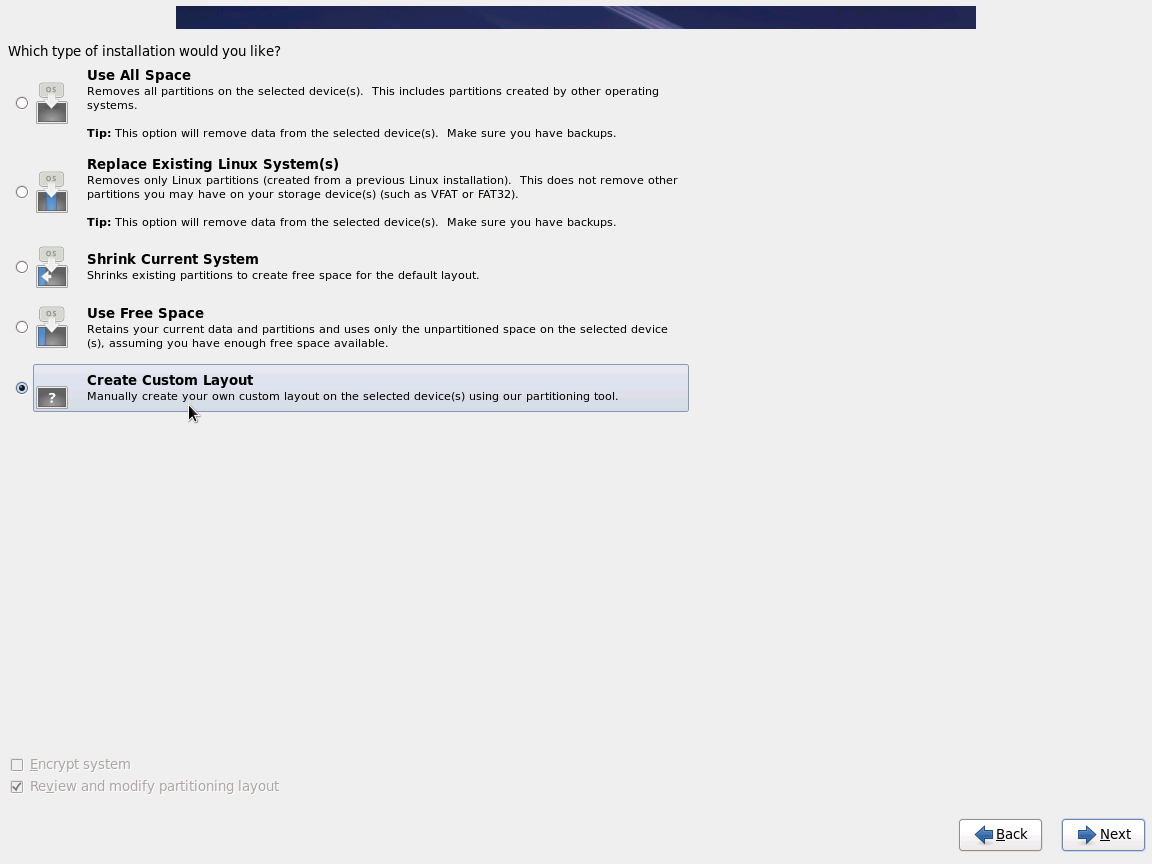
15. Select the type of installation would you like and then click Next.
Note: If you chose one of the automatic partitioning options (first 4 options) and selected Review, you can either accept the current partition settings (click Next), or modify the setup manually in the partitioning screen. To review and make any necessary changes to the partitions created by automatic partitioning, select the Review option. After selecting Review and clicking Next to move forward, the partitions created for you by anaconda appear. You can make modifications to these partitions if they do not meet your needs.
If you chose to create a custom layout, you must tell the installation program where to install Red Hat Enterprise Linux. This is done by defining mount points for one or more disk partitions in which Red Hat Enterprise Linux is installed. You may also need to create and/or delete partitions at this time
Unless you have a reason for doing otherwise, I recommend that you create the following partitions for x86, AMD64, and Intel
64 systems:
• swap partition
• /boot partition
• / partition
Advice on Partitions:
- A swap partition (at least 256 MB) — swap partitions are used to support virtual memory. In other words, data is written to a swap partition when there is not enough RAM to store the data your system is processing. In years past, the recommended amount of swap space increased linearly with the amount of RAM in the system. But because the amount of memory in modern systems has increased into the hundreds of gigabytes, it is now recognized that the amount of swap space that a system needs is a function of the memory workload running on that system. However, given that swap space is usually designated at install time, and that it can be difficult to determine beforehand the memory workload of a system, use the recommended:
| Amount of RAM in the System | Recommended Amount of Swap Space |
| 4GB of RAM or less | a minimum of 2GB of swap space |
| 4GB to 16GB of RAM | a minimum of 4GB of swap space |
| 16GB to 64GB of RAM | a minimum of 8GB of swap space |
| 64GB to 256GB of RAM | a minimum of 16GB of swap space |
- The /var directory holds content for a number of applications. It also is used to store downloaded update packages on a temporary basis. Ensure that the partition containing the /var directory has enough space to download pending updates and hold your other content.
- The /usr directory holds the majority of software content on a Red Hat Enterprise Linux system. For an installation of the default set of software, allocate at least 4 GB of space.
If you are a software developer or plan to use your Red Hat Enterprise Linux system to learn software development skills, you may want to at least double this allocation. - Consider leaving a portion of the space in an LVM volume group unallocated. This unallocated space gives you flexibility if your space requirements change but you do not wish to remove data from other partitions to reallocate storage
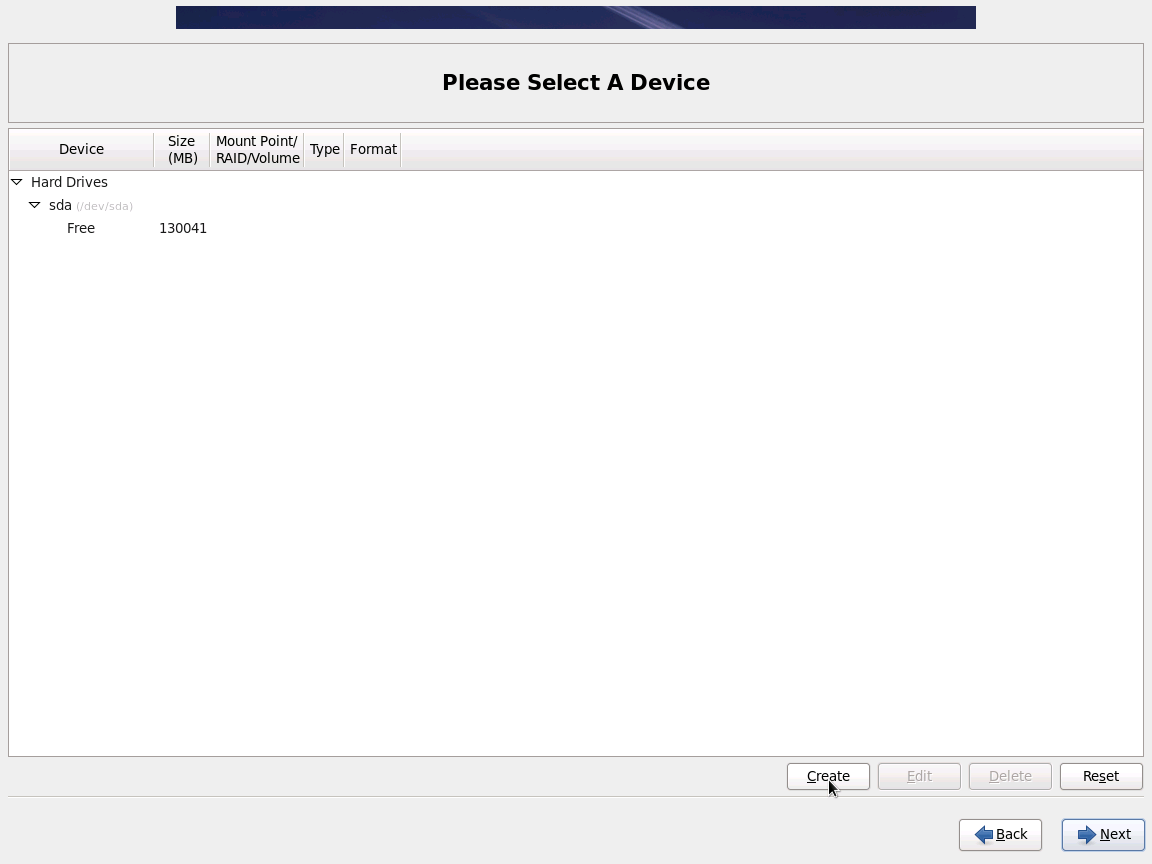
16. After finishing creating the partitions, Click Next. The installer prompts you to confirm the partitioning options that you selected. Click Write changes to disk to allow the installer to partition your hard drive and install Red Hat Enterprise Linux

17.Allow the installation process to complete. The Package Installation Defaults screen appears and details the default package set for the Red Hat Enterprise Linux installation
If you select Basic Server, this option will provide a basic installation of Red Hat Enterprise Linux for use on a server.
18. Select Customize now to specify the software packages for your final system in more detail. This option causes the installation process to display an additional customization screen when you select Next. The following screens shows the customized packages selected

Note : The packages that you select are not permanent. After you boot your system, use the Add/Remove Software tool to either install new
software or remove installed packages. To run this tool, from the main menu, select System -> Administration -> Add/Remove Software
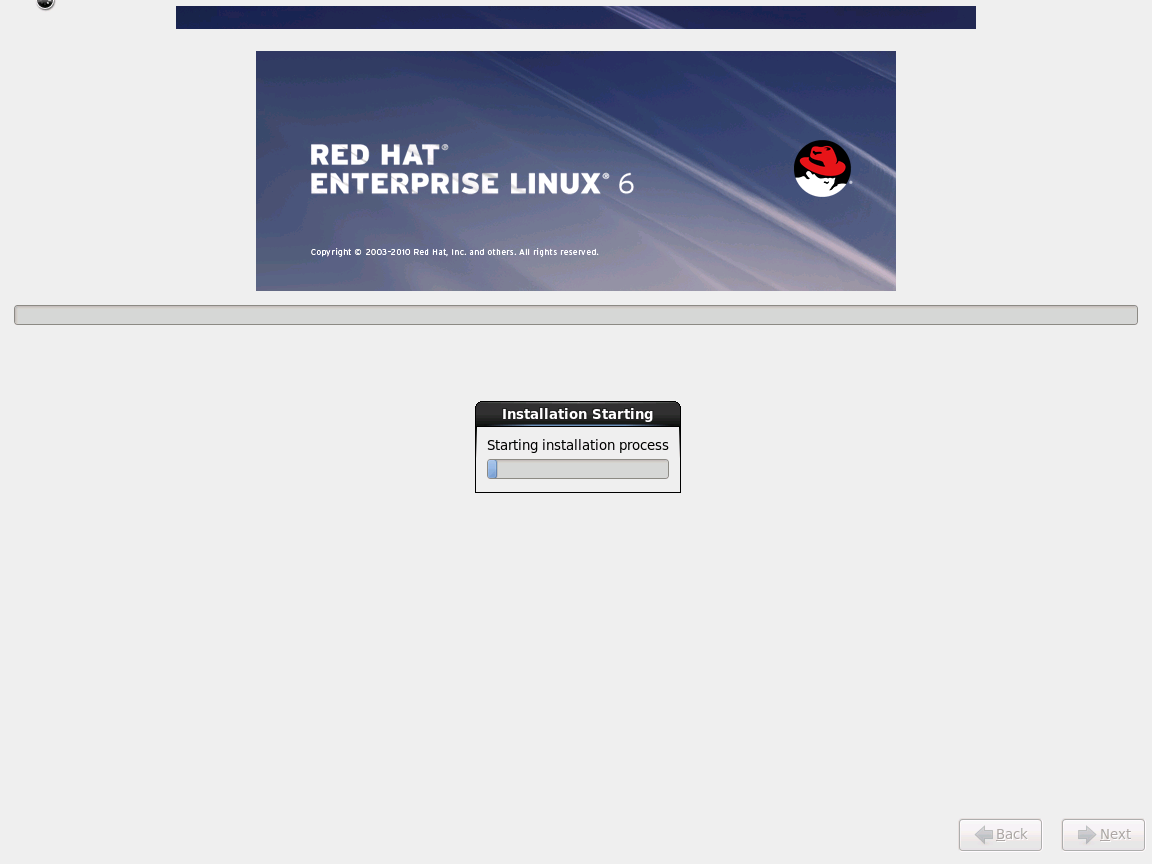
19. Click Next to continue the installation. The installer checks your selection, and automatically adds any extra packages required to use the software you selected. The installation process will start. At this point there is nothing left for you to do until all the packages have been installed.
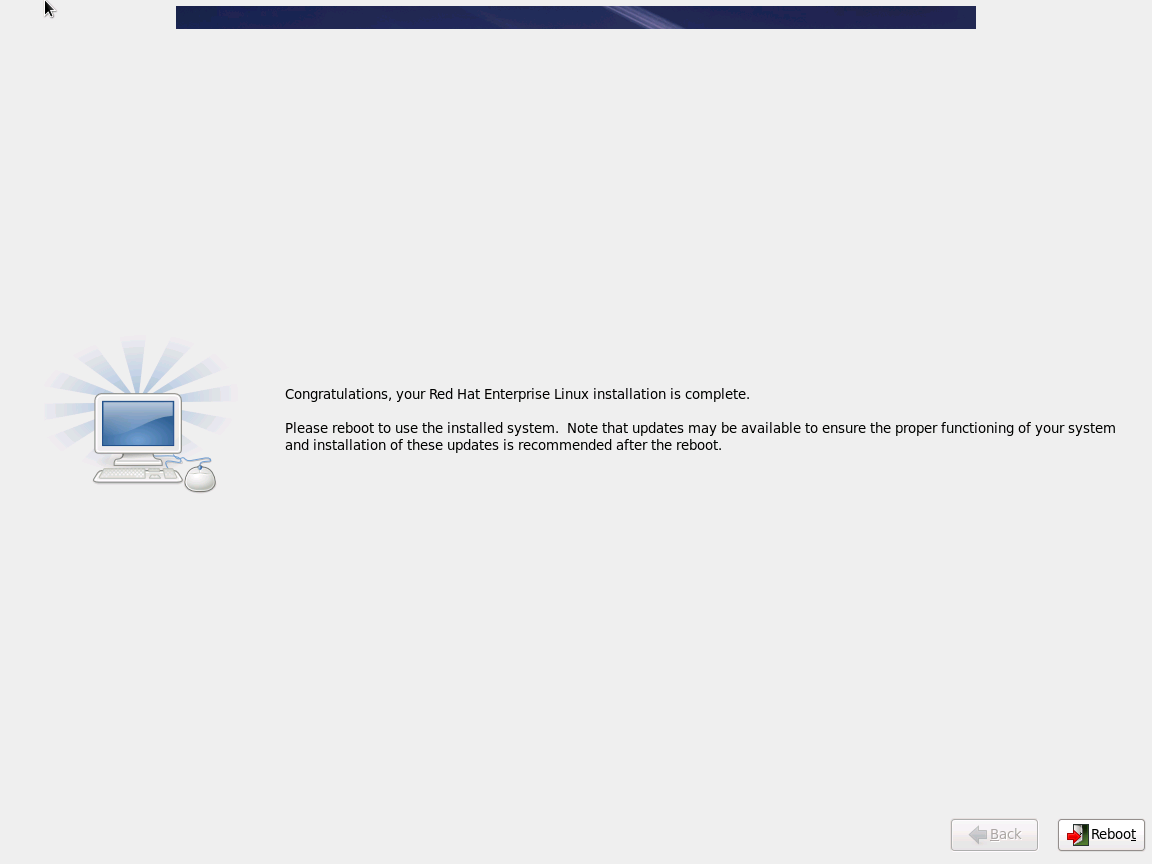
20. Installation Complete: Red Hat Enterprise Linux installation is now complete. select Reboot to restart your Virtual Machine
Now it’s time for the first-boot configuration.
21. First Boot lets you configure your environment at the beginning. Click Forward to proceed
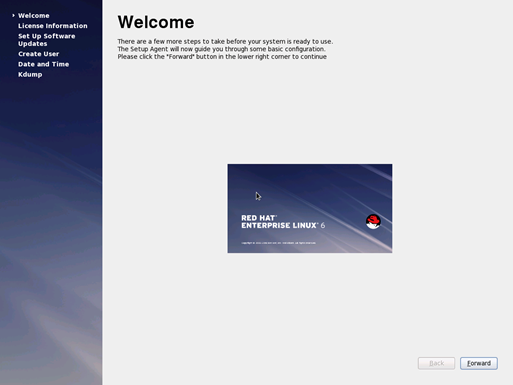
22. Accept the License and Click Forward to proceed
23. Setting up software updates. Select whether to register the system immediately with Red Hat Network. To register the system, select Yes, I’d like to register now, and click Forward.
Note : it can be registered with the RedHat Entitlement Service later using the Red Hat Subscription Manager tools

24. Create User to use as a regular non-administrative use. Enter a user name and your full name, and then enter your chosen password. Type your password once more in the Confirm Password box to ensure that it is correct.
Note: If you do not create at least one user account in this step, you will not be able to log in to the RedHat Enterprise Linux graphical environment
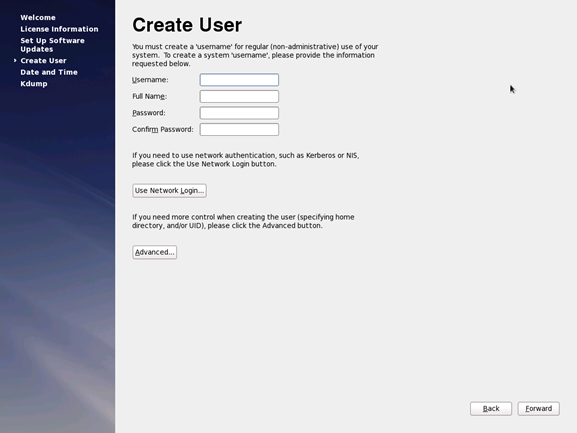
25. Click Forward to proceed
26. Date and Time. Use this screen to adjust the date and time of the system clock.
27. Click Forward to proceed
28. Kdump. Use this screen to select whether or not to use the Kdump kernel crash dumping mechanism on this system. Note that if you
select this option, you will need to reserve memory for Kdump and that this memory will not be available for any other purpose.
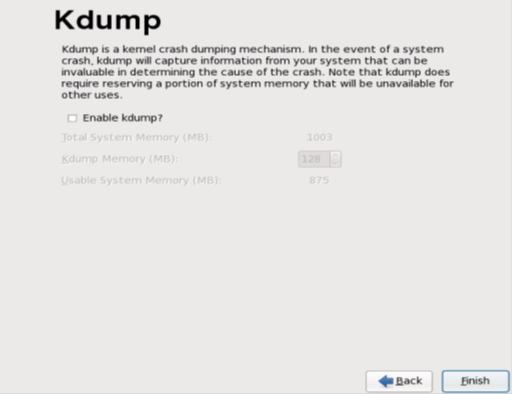
29 Click Finish to proceed.
Done installation and configuration of RedHat Linux 6.1 completed. Not let’s configure the Linux Integration Services.
To install Linux Integration Services Version 3.1
Important Note: There is an issue where the SCVMM 2008 Service can crash with VMs running Linux Integration Components v3.1 for Hyper-V.
Resolution: Disabling the KVP daemon on the Linux virtual machine will prevent the SCVMM service crash. The command to make this change must be run as root.#/sbin/chkconfig –level 35 hv_kvp_daemon off
This will prevent the KVP service from auto starting while retaining all other functionality of hv_utils. hv_utils provides integrated shutdown, key value pair data exchange, and heartbeat features. More info : http://blogs.technet.com/b/scvmm/archive/2011/07/28/new-kb-the-scvmm-2008-virtual-machine-manager-service-crashes-with-vms-running-linux-integration-components-v3-1-for-hyper-v.aspx
1. Log on to the virtual machine.
2. In Hyper-V Manager, configure LinuxIC v30.ISO (located in the directory where you extracted the downloaded files) as a physical CD/DVD drive on the virtual machine.
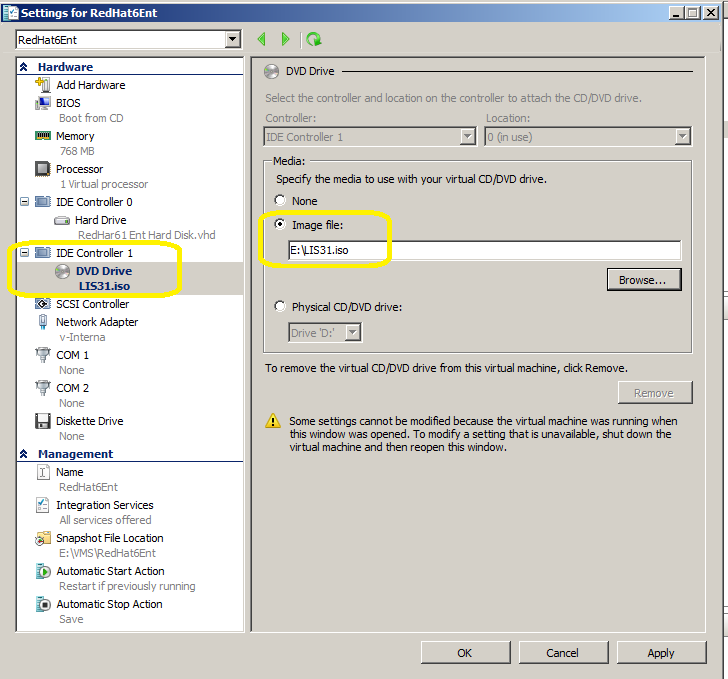
3. Open a Terminal Console ( command line )

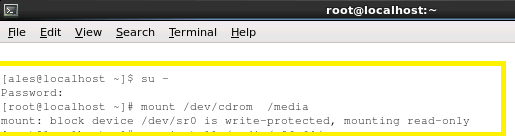
4. As the root user, mount the CD in the virtual machine by issuing the following command at a shell prompt:
#mount /dev/cdrom /media
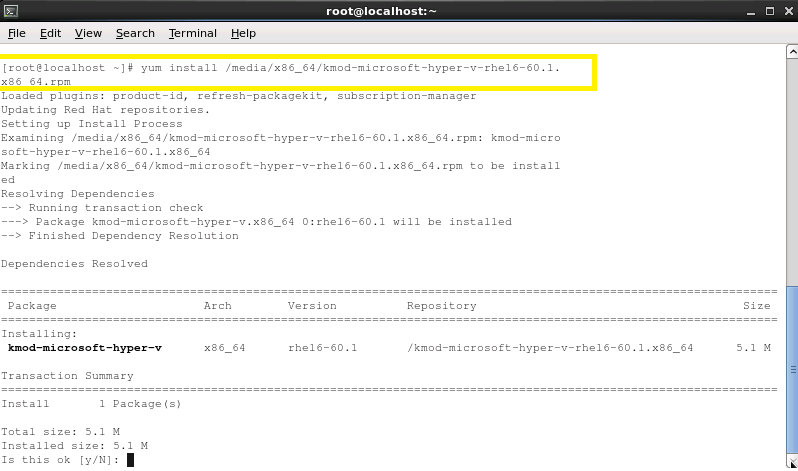
4. As the root user, run the following command to install the synthetic drivers. A reboot is required after installation.
For 64-bit versions:
# yum install /media/x86_64/kmod-microsoft-hyper-v-rhel6-60.1.x86_64
# yum install /media/x86_64/microsoft-hyper-v-rhel6-60.1.x86_64
# reboot
or if you prefer to use rpm:
# rpm –ivh /media/x86_64/kmod-microsoft-hyper-v-rhel6-60.1.x86_64.rpm
# rpm –ivh /media/x86_64/microsoft-hyper-v-rhel6-60.1.x86_64.rpm
# reboot
For 32-bit versions:
# yum install /media/x86/kmod-microsoft-hyper-v-rhel6-60.1.i686
#yum install /media/x86/microsoft-hyper-v-rhel6-60.1.i686
# reboot
or
# rpm –ivh /media/x86/kmod-microsoft-hyper-v-rhel6-60.1.i686.rpm
# rpm –ivh /media/x86/microsoft-hyper-v-rhel6-60.1.i686.rpm
# reboot
DONE! You should now have RedHat 6.1 running as VM on Hyper-V.
Note:
After Linux Integration Services are installed on the virtual machine, Key Value Pair exchange functionality is activated. This allows the virtual machine to provide the following information to the virtualization server:
-
Fully Qualified Domain Name of the virtual machine
-
Version of the Linux Integration Services that are installed
-
IP Addresses (both IPv4 and IPv6) for all Ethernet adapters in the virtual machine
-
OS Build information, including the distribution and kernel version
-
Processor architecture (x86 or x86-64)
The data can be viewed using the Hyper-V WMI provider, and accessed via Windows PowerShell. Instructions for viewing Key Value Pair exchange data are available at these websites:
http://social.technet.microsoft.com/wiki/contents/articles/hyper-v-script-to-check-icversion.aspx
http://blogs.msdn.com/b/virtual_pc_guy/archive/2008/11/18/hyper-v-script-looking-at-kvpguestintrinsicexchangeitems.aspx
The Great Big Hyper-V Survey of 2011
The Hyper-V MVP’s Aida Finn, Damian Flynn (another Hyper-V MVP), and Hans Vredevoort (Failover Clustering MVP), have joined forces to bring you the …
GREAT BIG HYPER-V SURVEY of 2011
The goals are:
- We learn a bit more about what everyone is up to
- We can share the findings with everyone so you can learn what everyone else is up to
This survey will run from this morning until 5th of September. We want to publish the results later that week, which just so happens to be the week before the Build Windows conference. We’ll be publishing the percentages breakdowns, and also trying to figure out trends.
In the survey, we ask about:
- Your Hyper-V project/environment
- Your Hyper-V installation
- Systems management
- What you considering to do in 2012
There is no personal information, no company specific information. Microsoft has zero involvement. They’ll see/read the results the same way you do, on the blogs of myself, Damian, and Hans (Hyper-V.nu).
The whole thing will take just 5 minutes; the more people that contribute, the more we will all learn about what people are up to, and the more we’ll be able to tweak blog posts, speaking, training, writing, etc, to what is really being done. If this goes well, we’ll do another one in 2012, 2013, and so on.
So come on …. give the greater community 5 minutes of your time.
Share it : http://kwiksurveys.com/?u=BigHyperVSurvey2011. let’s make it The Great Big Hyper-V Survey of 2011
Hyper-V Dynamic Memory Help SQL Server Workload
One of the most important system resources for SQL Server is memory.
Lack of memory resources for the database engine results in increased I/O that is orders of magnitude slower than accessing memory.
One of the key benefits of leveraging dynamic memory is the flexibility to respond to the needs of a particular workload that would benefit from additional memory resources and make the most use out of all physical memory resources on a system.
VERY IMPORTANT : The benefit of additional memory depends on your workload.
The main highlights of using DM are:
– Without Hyper-V Dynamic Memory the virtual machines would have to be sized with a specific amount of static memory to ensure that all virtual machines could run on a single node in the case of a failover.
– The additional memory provides significant reduction in the number of I/O operations needed to support the same workload throughput.
– It should be noted that the benefit depends on your workload.
To read the complete review: :Running SQL Server with Hyper-V Dynamic Memory – Best Practices and Considerations
SQL Server with Hyper-V Dynamic Memory – Best Practices and Considerations
The SQL Server team published a whitepaper about considerations for Dynamic Memory in SQL Server VMs.
Dynamic memory enables virtual machines to make more efficient use of physical memory resources. Hyper-V Dynamic Memory treats memory as a shared resource that can be reallocated automatically among running virtual machines. There are unique considerations that apply to virtual machines that run SQL Server workloads in such environments .
To review the document, please download the Running SQL Server with Hyper-V Dynamic Memory – Best Practices and Considerations Word document.
Simplify your cloud migration planning with MAP 6.0
The latest release from the Microsoft Assessment and Planning (MAP) team provides organizations with tools to simplify public and private cloud migration planning.
Download the MAP Toolkit 6.0:http://www.microsoft.com/map
New features and benefits from MAP 6.0 release help you:
· Analyze your portfolio of applications for a move to the Windows Azure Platform
· Accelerate private cloud planning with Hyper-V Cloud Fast Track onboarding
· Identify migration opportunities with enhanced heterogeneous server environment inventory
· Assess your client environment for Office 365 readiness
· Determine readiness for migration to Windows Internet Explorer 9
· Discover Oracle database schemas for migration to SQL Server
Windows Server 8 Hyper-V: first public glimpse
What is comming in the new version?
16+virtual processors within a Hyper-V VM, to support large scale up workloads.
Hyper-V Replica. Today, replication is complex to configure and often requires expensive proprietary hardware. Hyper-V Replica is asynchronous, application consistent, virtual machine replication built-in to Windows Server 8. With Hyper-V Replica, you can replicate a virtual machine from one location to another with Hyper-V and a network connection. Hyper-V Replica works with any server vendor, any network vendor and any storage vendor. In addition, we will provide unlimited replication in the box.
Microsoft also is going to allow Windows Server 8 users to replicate unlimitedly without charging additional fees per virtual machine. On the other hand, VMware with their upcoming version of Site Recovery Manager (SRM) is going to charge customers a per VM replication to replicate. This is going to be interesting….
Several others new features coming in the next version of Windows Server. Stay Tuned…
Hyper-V : Network Configuration and Prioritization
Every since I came along with questions regarding Hyper-V and Network
In fact there are good articles talking about, but let’s summarize here:
1. Network Configuration
In Production, use multiple networks in your cluster. For a complete HA environment, I recommend at least 8 :
- 1 for Management. Microsoft recommends a dedicated network adapter for Hyper-V server management.
- 2 (teamed ) for Virtual machines.Virtual network configurations of the external type require a minimum of one network adapter.
- 2 (MPIO ) for SCSI.Microsoft recommends that IP storage communication have a dedicated network, so one adapter is required and two or more are necessary to support multipathing.
- 1 for Failover cluster.Windows failover cluster requires a private network.
- 1 for Live migration.This new Hyper-V R2 feature supports the migration of running virtual machines between Hyper-V servers. Microsoft recommends configuring a dedicated physical network adapter for live migration traffic. This network should be separate from the network for private communication between the cluster nodes, from the network for the virtual machine, and from the network for storage
- 1 for CSV. Microsoft recommends a dedicated network to support the communications traffic created by this new Hyper-V R2 feature. In the network adapter properties, Client for Microsoft Networks and File and Printer Sharing for Microsoft Networks must be enabled to support SMB
Note: If your Hardware vendor supports NPAR ( Broadcom, Qlogic ), you can create “Virtual logical NIC’s” . The NPAR technology allows you to create up to 4 logical Nic’s, which means for example that a Blade with 4 10Gb NIC’s with NPAR that support the technology it’s a good start.
2. Network Prioritization
To rank a network, it is given a unique integer from 1 to 268,000,000+, which is called a “metric”. To view the networks, their metric values, and if they were automatically or manually configured, run the clustering PowerShell cmdlet:
PS > Get-ClusterNetwork | ft Name, Metric, AutoMetric
By default, all internal cluster network will have a metric value starting at 1000 and incrementing by 100. The first internal network which the cluster sees when it first comes online has a metric of 1000, the second has a metric of 1100, …
To change the value of a network metric, run:
PS > $n = Get-ClusterNetwork “Live Migration”
PS > $n.Metric = 1050
Overriding network prioritization behavior:
– Right-click on the network in Failover Cluster Manager
– Select Properties
– Change the radio buttons or checkboxes. If you select “Do not allow cluster network communication on this network”, then it will not be possible to send any “Cluster & CSV Traffic” or “Live Migration Traffic” through this network, even if the network has the lowest metric values. The cluster will honor this override and find the network with the next lowest value to send this type of traffic.
Overriding network prioritization behavior “Live Migration Traffic” , by changing the network’s properties:
The networks for live migration can be configured more granularly :
– Right-click on any Virtual Machine resource
– Select Properties
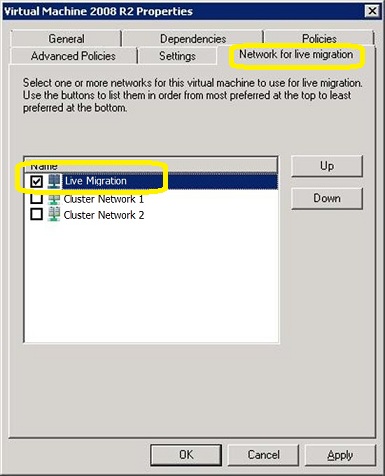
– Click the Network for live migration tab and then specify which networks can and cannot be used for “Live Migration Traffic” and in which order they should be used.
Note: Even though it appears that this setting may be unique to that specific VM, it is actually a global setting for live migration.
Hyper-V : Network Design, Configuration and Prioritization : Guidance
There is a lot of posts regarding Hyper-V and network, but I found a lot people still don’t get it.
1. Network Design. How many nic’s we need for production environment for High Availiability:
- 1 for Management. Microsoft recommends a dedicated network adapter for Hyper-V server management.
- 2 ( Teamed ) for Virtual machines.Virtual network configurations of the external type require a minimum of one network adapter.
- 2 ( MPIO ) for SCSI.Microsoft recommends that IP storage communication have a dedicated network, so one adapter is required and two or more are necessary to support multipathing.
- 1 for Failover cluster.Windows® failover cluster requires a private network.
- 1 for Live migration.This new Hyper-V R2 feature supports the migration of running virtual machines between Hyper-V servers. Microsoft recommends configuring a dedicated physical network adapter for live migration traffic. This network should be separate from the network for private communication between the cluster nodes, from the network for the virtual machine, and from the network for storage
- 1 for CSV. Microsoft recommends a dedicated network to support the communications traffic created by this new Hyper-V R2 feature. In the network adapter properties, Client for Microsoft Networks and File and Printer Sharing for Microsoft Networks must be enabled to support SMB
But how about production environments when the blades have only 4 Physical NIC’s?
Option 1. If your vendor does support NPAR technology(Broadcom, QLogic), you will be able to create up to 4 “Virtual Logical NIC’s” per physical NIC ( VLAN/QoS ). Although this solution is not supported by MS, it’s the best solution in terms of performance and it is supported by the vendors. This solution will provide you 100% HA as you can have up to 16 Logical NIC’s.
Option 2. Supported by MS. Allocate 2(two) NIC’sfor the iSCSI using MPIO and then :
| Host configuration | Virtual machine access | Management | Cluster and Cluster Shared Volumes | Live migration | Comments |
| 2 network adapters with 10 Gbps | Virtual network adapter 1 | Virtual network adapter 1 with bandwidth capped at 1% | Network adapter 2 | Network adapter 2 with bandwidth capped at 50% | Supported |
Note that the QoS configuration is based on “per port” and Windows only allows you to cap specify caps – not reserves. This solution, although supported by MS, dos not give you 100% HA.
2. Network Configuration. What need to be enabled/disabled?
| Usage | Number of Network Cards | Comments |
| Management Network(Parent Partition) | 1 Network Card |
|
| Storage ISCSI | 2 Network Cards – Not Teamed |
|
| VM Network (Parent Partition) |
2 Network cards : 1 for Dynamic IP’s 1 for Reserved IP’s |
|
| Cluster Heartbeat | 1 Network Card |
|
| Cluster Shared Volume (CSV) | 1 Network Card |
|
| Live Migration | 1 Network Card |
|
2. Network Prioritization. What need to be enabled/disabled?
By default, all internal cluster network have a metric value starting at 1000 and incrementing by 100. The first internal network which the cluster sees when it first comes online has a metric of 1000, the second has a metric of 1100, etc.
When you create CSV’s, the failover cluster automatically chooses the network that appears to be the best for CSV communication. The lowest Metric value designates the network for Cluster and CSV traffic. The second lowest value designates the network for live migration. Additional networks with a metric below 10000 will be used as backup networks if the “Cluster & CSV Traffic” or “Live Migration Traffic” networks fail. The lowest network with a value of at least 10000 will be used for “Public Traffic”. Consider giving the highest possible values to the networks which you do not want any cluster or public traffic to go through, such as for “ISCSI Traffic”, so that they are never used, or only used when no other networks at all are available.
To view the networks, their metric values, and if they were automatically or manually configured, run the clustering PowerShell cmdlet:
PS > Get-ClusterNetwork | ft Name, Metric, AutoMetric
To change the value of a network metric, run:
PS >Get-ClusterNetwork “Live Migration” ).Metric =800
If you want the cluster to start automatically assigning the Metric setting again for the network named “Live Migration”:
PS > Get-ClusterNetwork “Live Migration” ).AutoMetric = $true
How to override Network Prioritization Behavior?
Option 1. Change the network’s properties. If you select “Do not allow cluster network communication on this network”, then it will not be possible to send any “Cluster & CSV Traffic” or “Live Migration Traffic” through this network, even if the network has the lowest metric values. The cluster will honor this override and find the network with the next lowest value to send this type of traffic :
- In the Failover Cluster Manager snap-in, if the cluster that you want to configure is not displayed, in the console tree, right-click Failover Cluster Manager, click Manage a Cluster, and then select or specify the cluster that you want.
- Select Properties
- Change the radio buttons or checkboxes.
Option 2 (exclusively for “Live Migration Traffic”) :
To configure a cluster network for live migration:
- In the Failover Cluster Manager snap-in, if the cluster that you want to configure is not displayed, in the console tree, right-click Failover Cluster Manager, click Manage a Cluster, and then select or specify the cluster that you want.
- Expand Services and applications.
- In the console tree (on the left), select the clustered virtual machine for which you want to configure the network for live migration.
- Right-click the virtual machine resource displayed in the center pane (not on the left), and then click Properties.

- Click the Network for live migration tab, and select one or more cluster networks to use for live migration. Use the buttons on the right to move the cluster networks up or down to ensure that a private cluster network is the most preferred. The default preference order is as follows: networks that have no default gateway should be located first; networks that are used by cluster shared volumes and cluster traffic should be located last.Live migration will be attempted in the order of the networks specified in the list of cluster networks. If the connection to the destination node using the first network is not successful, the next network in the list is used until the complete list is exhausted, or there is a successful connection to the destination node using one of the networks.
Note : You don’t need to perform this action as per VM basis. When you configure a network for live migration for a specific virtual machine, the setting is global and therefore applies to all virtual machines.
Some other interesting articles:
http://technet.microsoft.com/en-us/library/dd446679(WS.10).aspx
http://blogs.technet.com/b/vishwa/archive/2011/02/01/tuning-scvmm-for-vdi-deployments.aspx
http://blogs.msdn.com/b/clustering/archive/2011/06/17/10176338.aspx
I am Speaking at Teched Australia 2011

I am absolutely thrilled to announce I will be presenting the following two sessions at Tech.Ed Australia 2011 :
| SCVMM 2012: Deployment, Planning, Upgrade
This session provides a scenario rich detailed walk through of VMM 2012 deployment, planning, and upgrade scenarios. Come and learn how to best plan your next VMM rollout |
| SCVMM 2012 Fabric Lifecycle: Networking and Storage
This session provides a scenario rich detailed walk through of new and more robust networking and storage features in VMM 2012. In this session you will learn how to discover, configure, and provision networking |
Came along! It will be an excellent session.
Tech.Ed Australia 2011 is on the Gold Coast between the 30th August and the 2nd September, registrations are now open. Find out more at http://australia.msteched.com/

Recommended Books


System Center 2012 R2 Virtual Machine

System Center Virtual Machine Manager 2012 Cookbook


 Cloudtidings.com