- User interface changes in response to feedback we received from beta testers
- Support for dynamic memory on Standard & Web editions of Windows Server
Archive
Author Archive
Physical to Virtual (P2V) Migration : Download
November 9, 2010
Leave a comment
Microsoft P2V Migration for Software Assurance automates the delivery of an updated and personalized Windows 7 operating system while backing up and converting the legacy Windows XP or later desktop and its applications for seamless use within Windows 7. P2V Migration supports both native Microsoft Deployment Toolkit (MDT) Lite Touch Installation as well as Microsoft System Center Configuration Manager 2007 Zero Touch Installation.
System Requirements
- Supported Operating Systems:Windows 7;Windows Vista;Windows XP
- Microsoft Word or Microsoft Word Viewer 2003 (available as a free download) can be used to view Word documents
- Microsoft Office Compatibility Pack for Word, Excel, and PowerPoint File Formats (available as a free download) can be used to open, edit, and save documents, workbooks, and presentations in the file formats new to Microsoft Office
To install P2VMigration.msi:
- Double-lick the P2VMigration.msi.
- Accept the Microsoft Software License Terms.
- Follow the steps in the installation process to complete the installation
Download P2V Migration for Software Assurance now:
http://www.microsoft.com/downloads/en/details.aspx?FamilyID=14d08880-bd5e-4602-a747-2717d3f54cb2
Categories: Virtualization
P2V, Virtualisation, Windows 2008R2 SP1, Windows Server® 2008 R2
Windows 2008R2 SP1: Changes that were made to the Hyper-V Manager
November 4, 2010
Leave a comment
In response to feedback from beta users of the service pack 1 release, Microsoft made some changes to the Hyper-V Manager and also to the virtual machine settings user interface.
There are three changes that have been made to the virtual machine settings user interface
- “Memory priority” is now “Memory weight”
- The memory buffer is now configured using a text box instead of a slider.
- Memory buffer now uses different math.
To learn more and understand why, check here on Ben Armstrong (Virtual PC Guy ) Blog:
- http://blogs.msdn.com/b/virtual_pc_guy/archive/2010/10/29/updates-to-dynamic-memory-ui-in-sp1-rc-part-1.aspx
- http://blogs.msdn.com/b/virtual_pc_guy/archive/2010/11/01/updates-to-dynamic-memory-ui-in-sp1-rc-part-2.aspx

Categories: Virtualization
Dynamic Memory, Hyper-V, Windows 2008R2 SP1, Windows Server® 2008 R2
Debian on Hyper-V with 4 vCPU support and syntetic network.
November 2, 2010
2 comments
When Microsoft says that does not support all linux distributions, does not mean that a particular distribution will not work on Hyper-V.
It’s easy to get a DEBIAN running on Hyper-V. It took me more time to install Debian than to add the Hyper-V integration services components, thanks to Yusuf Ozturk , who created the kernel updates, ready to deploy on Debian.

Here are the steps:
1. Download Debian 5.06 (lenny) from http://www.debian.org/releases/lenny/debian-installer/ (full CD/DVD sets – CD 1 )
2. Create a VM with 1 Legacy Network ( we will add the synthetic one, later ) and 4 processors
3. Install Debian using the ISO.
4. After installation finished, logon
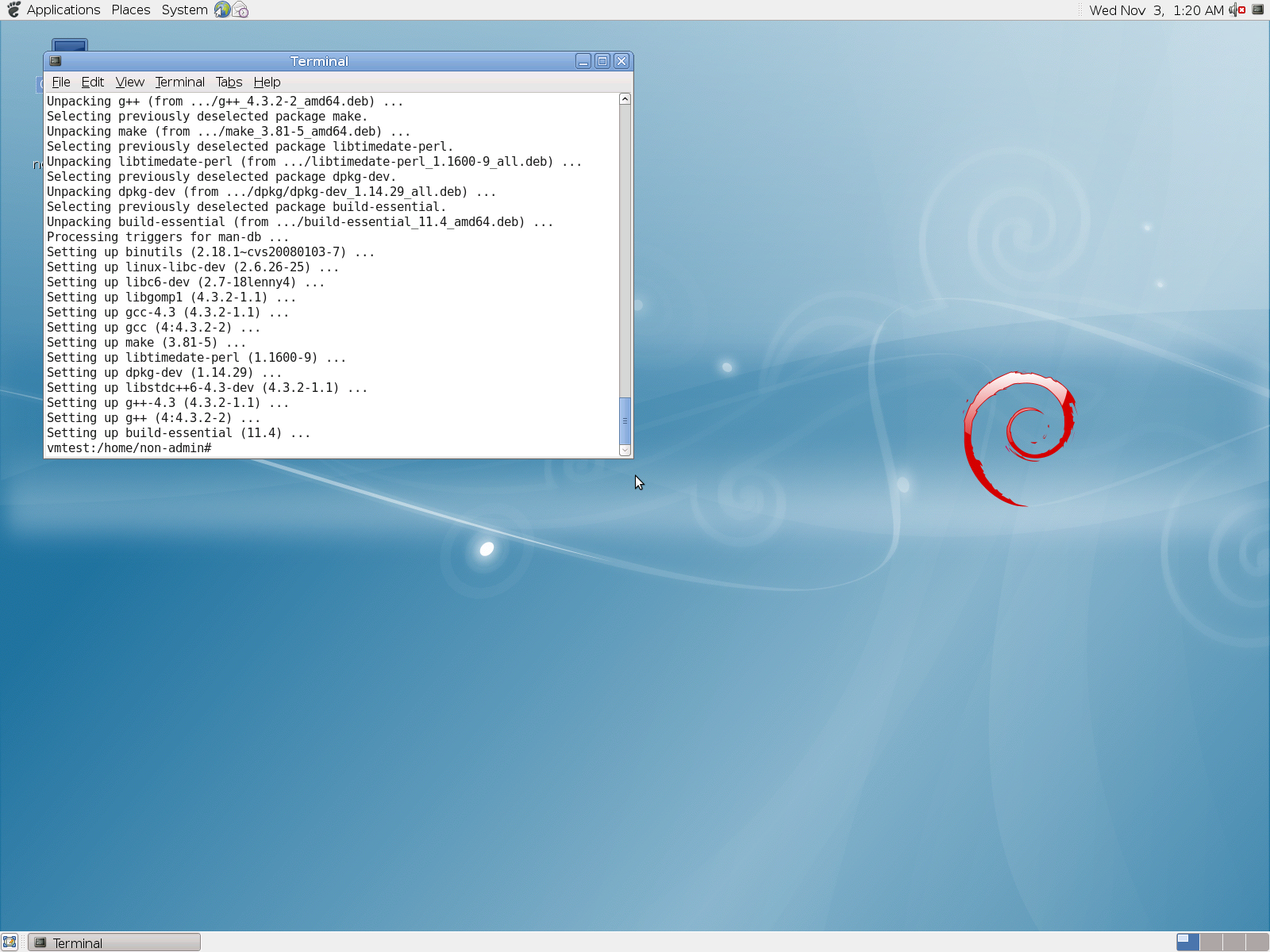
5. Using a Terminal session, typed the following commands
# apt-get update
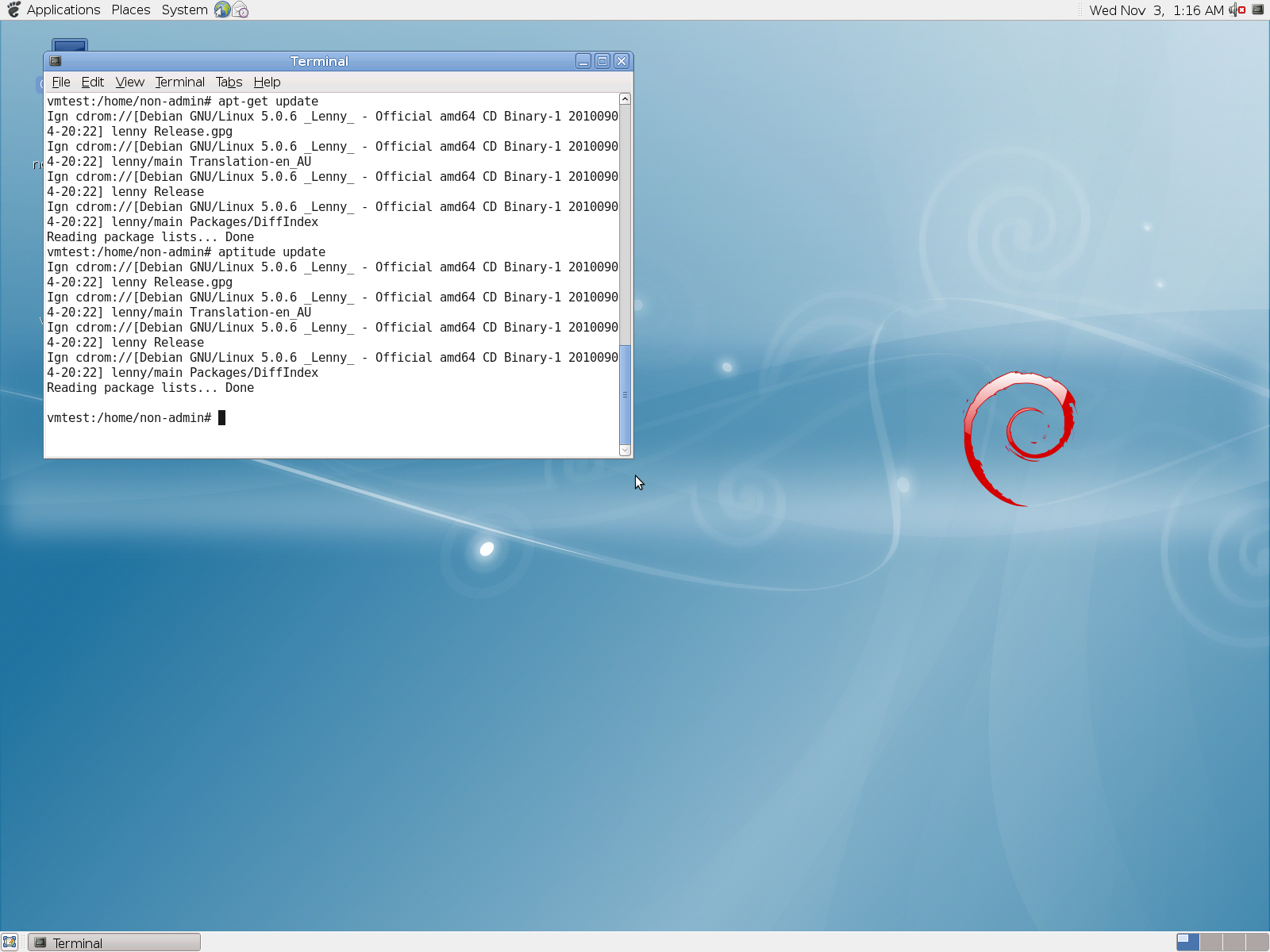
# aptitude update
# wget -c http://www.yusufozturk.info/linux/linux-headers-2.6.36-hyperv-debian.x86_64.deb
# wget -c http://www.yusufozturk.info/linux/linux-image-2.6.36-hyperv-debian.x86_64.deb
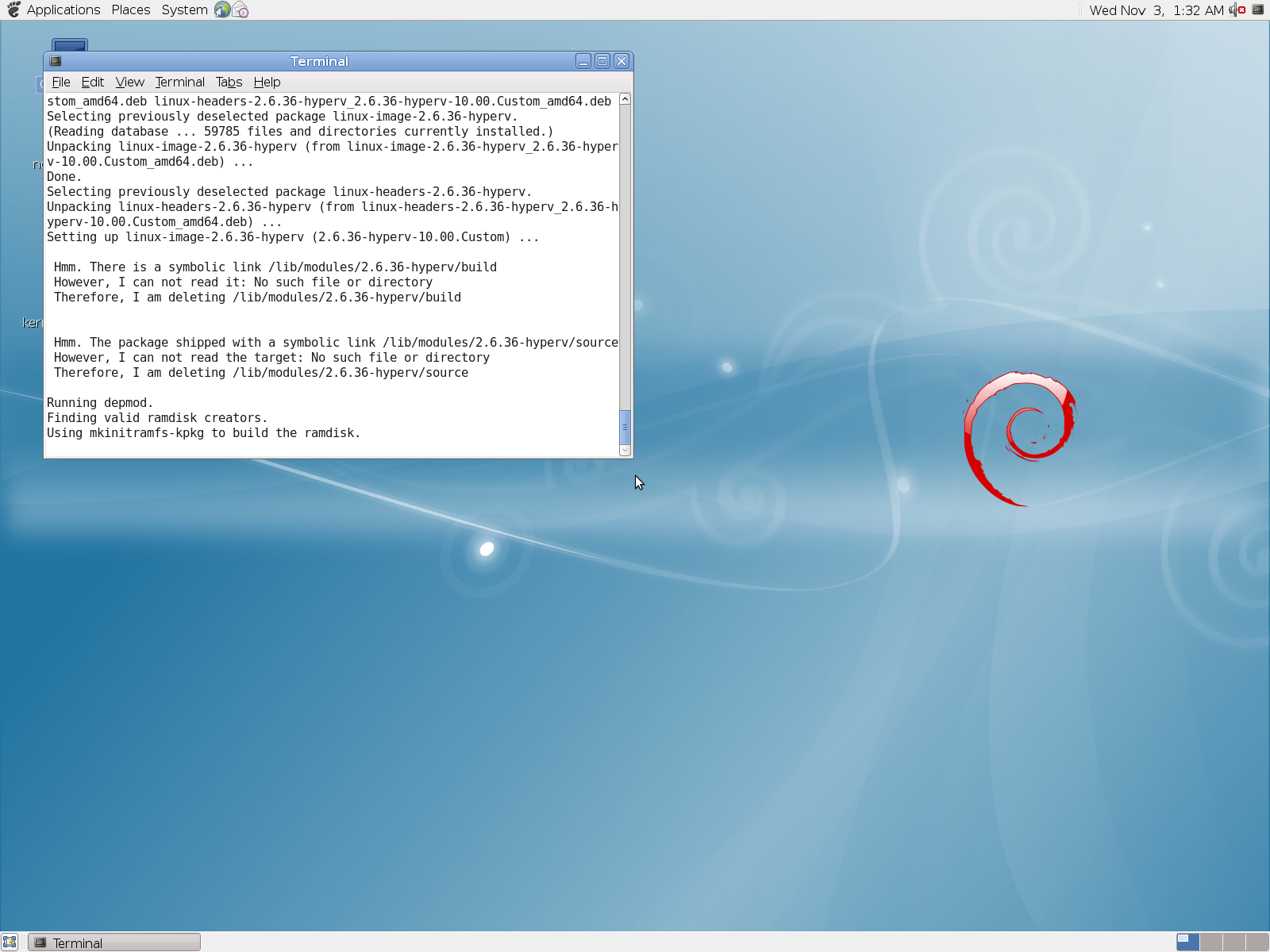
# dpkg -i linux-image-2.6.36-hyperv_2.6.36-hyperv-10.00.Custom_amd64.deb linux-headers-2.6.36-hyperv_2.6.36-hyperv-10.00.Custom_amd64.deb
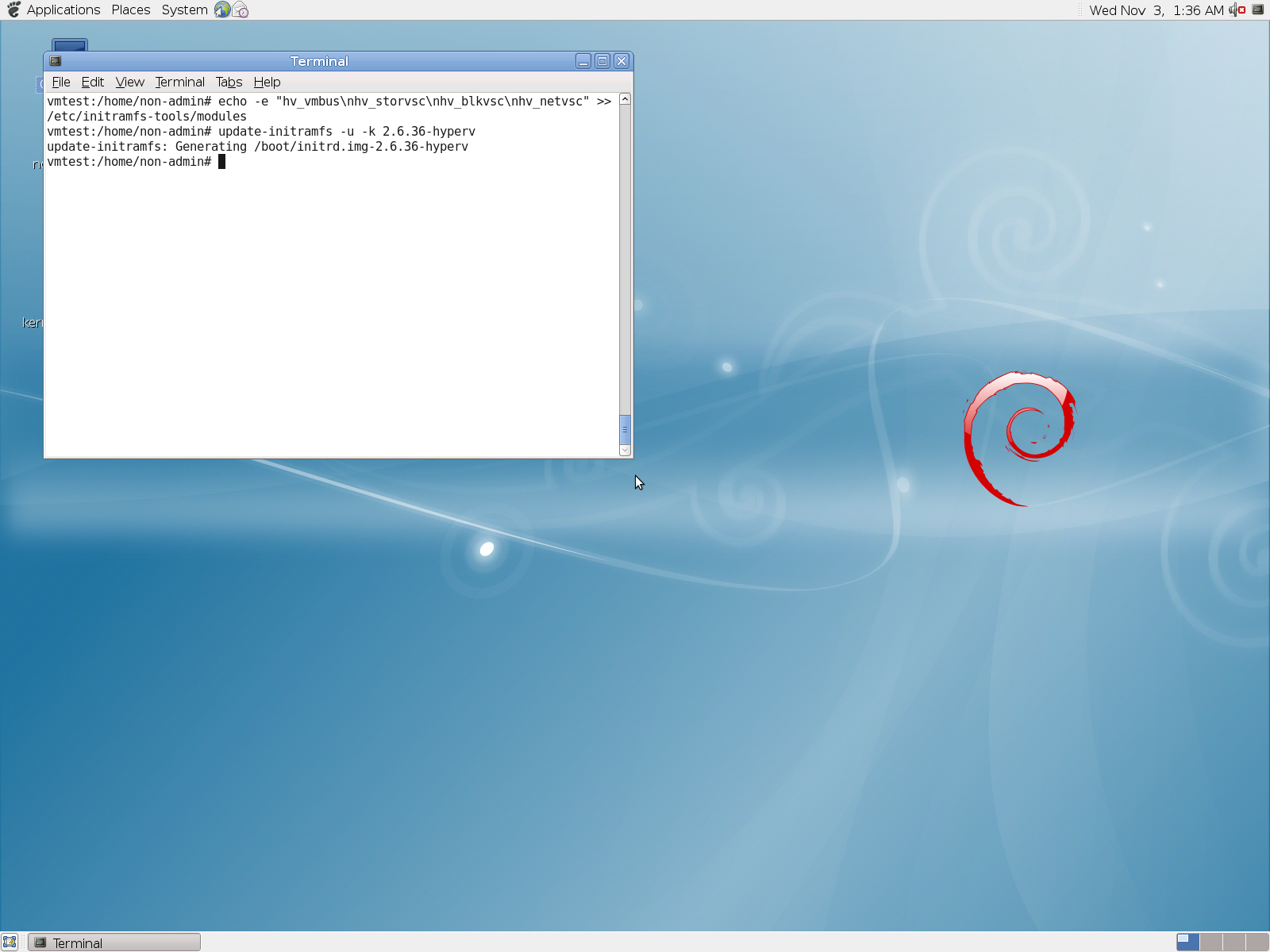
# echo -e “hv_vmbus\nhv_storvsc\nhv_blkvsc\nhv_netvsc” >> /etc/initramfs-tools/modules
# update-initramfs –u –k 2.6.36-hyperv
6. Shutdown the Virtual Machine
7. Added synthetic Network
8. Start the VM
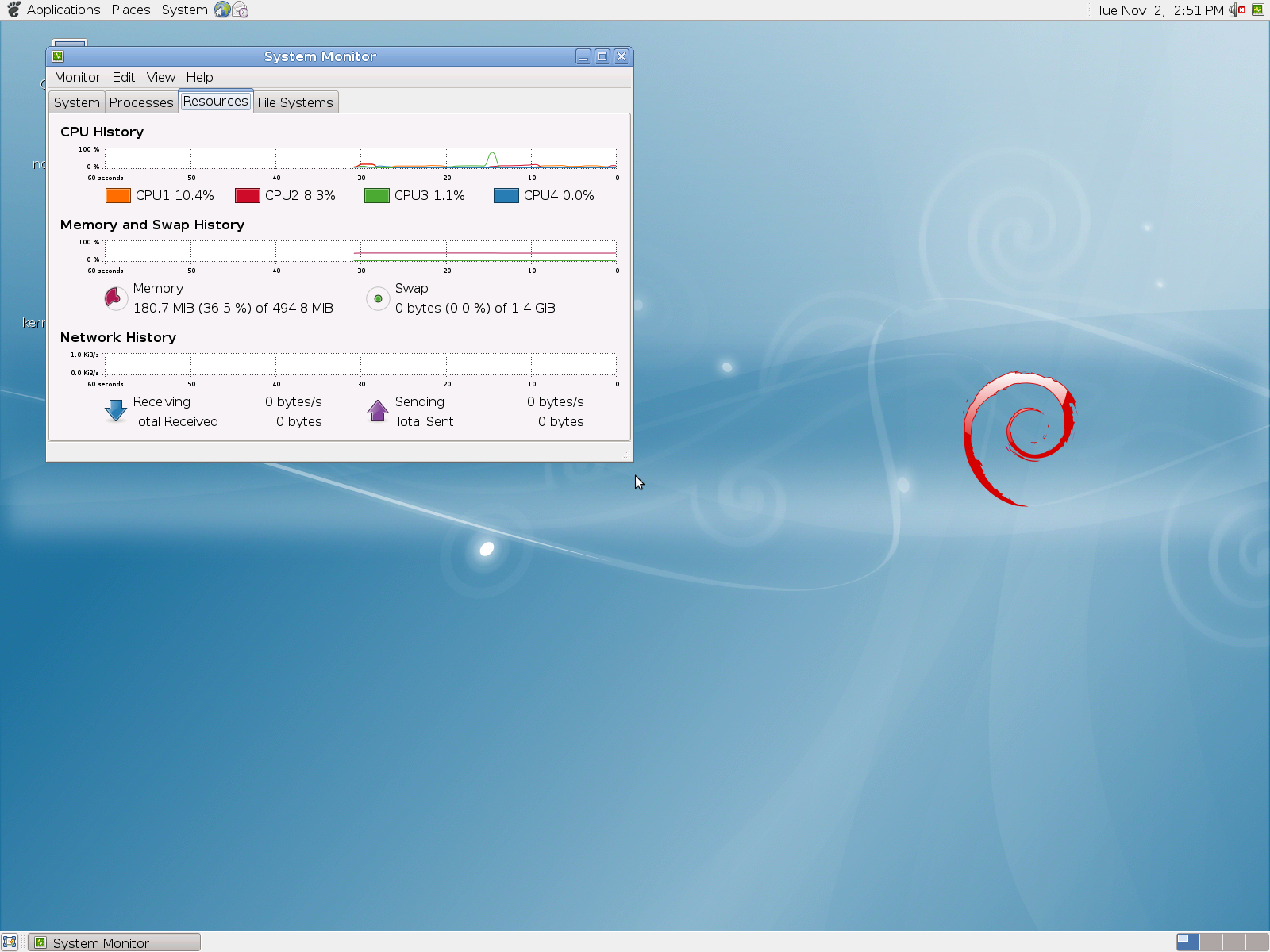
Done!
Now you have a Debian distribution running on Hyper-V, with 4 processors, synthetic network and also integrated shutdown is available. Simple as that!
Windows 7 and Windows Server 2008 R2 SP1 RC. Detailed list of Improvements and others questions
November 1, 2010
Leave a comment
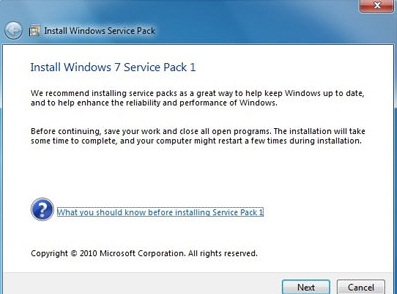
Microsoft has made available a Release Candidate (RC) for Service Pack 1 for Windows Server 2008 R2 and Windows 7. SP1 includes both a roll-up of operating system updates and several new capabilities for Windows Server.
Q: Can I install the Release Candidate over the Beta of SP1?
A. No. You must uninstall the beta.
Q: Can I install the RC on an evaluation version of Windows 7 or Windows Server 2008 R2?
A. Yes. The RC of SP1 can install on RTM evaluation versions of Windows 7 and Windows Server 2008 R2.
Q: There are several downloads available. Which one should I choose?
A: There are two ways you can obtain the service pack RC. You can download a special key to enable Windows Update to offer you the service pack RC, or you can download the service pack directly. For each download method, you should choose the correct download for your platform (x86, IA64 or x64).
Q: Should customers who are considering deploying Windows 7 wait for SP1?
A: No. Windows 7 is a high quality release and provides many benefits to consumers and businesses alike. SP1 will include all updates previously available to Windows 7 users through Windows Update, so there is no reason to wait or delay their use of Windows 7.
Q. Can I upgrade from the RC builds to the final build of SP1?
A. No. You will have to uninstall the Service Pack or do a clean install of Windows 7 or Windows Server 2008 R2.
Q. Will there be a slipstream build of SP1 RC?
A. No. The RC will only be available as the service pack update itself. You will need to have a release to manufacturing (RTM) version of Windows 7 or Windows Server 2008 R2 to install the RC of the service pack.
Q. What languages will be released at RC?
A. For RC, we will release English, French, German, Japanese, and Spanish.
Q: Which improvements are included in Windows Server 2008 R2 SP1?
A.
• Dynamic Memory – Dynamic Memory allows for memory on a host machine to be pooled and dynamically distributed to virtual machines as necessary. Memory is dynamically added or removed based on current workloads, and is done so without service interruption.
• Microsoft RemoteFX – a new set of remote user experience capabilities that enable a media-rich user environment for virtual desktops, session-based desktops and remote applications
• Enhancements to scalability and high availability when using DirectAccess – improvements have been made to enhance scalability and high availability when using DirectAccess, through the addition of support for 6to4 and ISATAP addresses when using DirectAccess in conjunction with Network Load Balancing (NLB).
• Support for Managed Service Accounts (MSAs) in secure branch office scenarios – enhanced support for managed service accounts (MSAs) to be used on domain-member services located in perimeter networks (also known as DMZs or extranets).
• Support for increased volume of authentication traffic on domain controllers connected to high-latency networks – more granular control of the maximum number of possible concurrent connections to a domain controller, enabling a greater degree of performance tuning for service providers.
• Enhancements to Failover Clustering with Storage – SP1 enables enhanced support for how Failover Clustering works with storage that is not visible for all cluster nodes. In SP1, improvements have been made to the Cluster Validation and multiple Failover Cluster Manager wizards to allow workloads to use disks that are shared between a subset of cluster nodes.
Q: Which improvements are included in Windows 7 SP1?
A.
• Additional support for communication with third-party federation services – Additional support has been added to allow Windows 7 clients to effectively communicate with third-party identity federation services (those supporting the WS-Federation passive profile protocol).
• Improved HDMI audio device performance – Updates have been incorporated into SP1 to ensure that connections between Windows 7 computers and HDMI audio devices are consistently maintained.
• Corrected behavior when printing mixed-orientation XPS documents – Prior to the release of SP1, some customers have reported difficulty when printing mixed-orientation XPS documents (documents containing pages in both portrait and landscape orientation) using the XPS Viewer, resulting in all pages being printed entirely in either portrait or landscape mode. This issue has been addressed in SP1, allowing users to correctly print mixed-orientation documents using the XPS Viewer.
Q: Changes common to both client and server platforms:
A.
• Change to behavior of “Restore previous folders at logon” functionality – SP1 changes the behavior of the “Restore previous folders at logon” function available in the Folder Options Explorer dialog. Prior to SP1, previous folders would be restored in a cascaded position based on the location of the most recently active folder. That behavior changes in SP1 so that all folders are restored to their previous positions.
• Enhanced support for additional identities in RRAS and IPsec – Support for additional identification types has been added to the Identification field in the IKEv2 authentication protocol. This allows for a variety of additional forms of identification (such as E-mail ID or Certificate Subject) to be used when performing authentication using the IKEv2 protocol.
• Support for Advanced Vector Extensions (AVX) – Advanced Vector Extensions (AVX) is a 256 bit instruction set extension for processors. AVX is designed to allow for improved performance for applications that are floating point intensive. Support for AVX is a part of SP1 to allow applications to fully utilize the new instruction set and register extensions.
Workaround for Pluggable Time Source support for RHEL 5.x 64-bit Hyper-V guests
October 29, 2010
Leave a comment
When installed in a supported Linux virtual machine running on Hyper-V, the Linux Integration Components provide:
• Driver support for synthetic devices: The Linux integration components include support for both the synthetic network controller and synthetic storage controller that have been developed specifically for Hyper-V. These components take advantage of the new high-speed bus, VMBus, which was developed for Hyper-V.
• Fastpath Boot Support: Boot devices now take advantage of the storage VSC to provide enhanced performance.
• Timesync: The clock inside the virtual machine will remain synchronized with the clock on the host.
• Integrated Shutdown: Virtual machines running Linux can be shut down from either Hyper-V Manager or System Center Virtual Machine Manager, using the “Shut Down” command.
• Symmetric Multi-Processing (SMP) Support: Supported Linux distributions can use up to 4 virtual processors (VP) per virtual machine.
• Heartbeat: Allows the host to detect whether the guest is running and responsive.
• Pluggable Time Source: A pluggable clock source module is included to provide a more accurate time source to the guest.
Although this version of the integration services for Hyper-V supports Novell SUSE Linux Enterprise Server 10 SP3, SUSE Linux Enterprise Server 11, and Red Hat Enterprise Linux 5.2 / 5.3 / 5.4 / 5.5, Red Hat Enterprise Linux 5 x64 editions do not support using the Pluggable Time Source component.

However, you can use the existing timesync component with the adjtimex RPM package, to compensate for time drift:
If using the x64 version of Red Hat Enterprise Linux, follow these additional instructions:
1. Attach the Red Hat Enterprise Linux ISO that was used for installation in the virtual machine, and mount it using the following commands at a shell prompt:
# mkdir /mnt/cdrom
# mount /dev/cdrom /mnt/cdrom
2. Install the adjtimex RPM for more accurate time keeping in the virtual machine:
# rpm –ivh /mnt/cdrom/Server/adjtimex-1.20-2.1.x86_64.rpm
To install the Linux IC.
After the ISO is “available”.
Firstly, install the Required Components via Command Line
Red Hat updates
# yum install kernel-devel
# yum groupinstall “development tools”
# yum update
Restart the VM and then, insert the LinuxIC iso into the DVD drive and copy the contents to /opt/linuxic directory.
Run the commands below, to install the IC:
# mount /dev/cdrom /mnt
# mkdir /opt/linux_is
# cp –r /mnt/* /opt/linux_is
# cd /opt/linux_is
# make
# make install
To verify that the Linux ICs are working.
# /sbin/lsmod | grep vsc
# modinfo vmbus

To verify the Synthetic Ethernet adapter is working
# ifconfig seth0

Note:  Article also published by myself at http://social.technet.microsoft.com/wiki/contents/articles/workaround-for-pluggable-time-source-support-for-rhel-5-x-64-bit-hyper-v-guests.aspx
My thanks to Sumesh P - MSFT, who helped with the tip.
Windows 7 SP1: RemoteFX. Steps to provide the same user experience as though they were running on a physical computer
October 28, 2010
Leave a comment
The RemoteFX feature allows Windows 7 SP1 and applications running in virtual machines to provide the same user experience as though they were running on a physical computer.
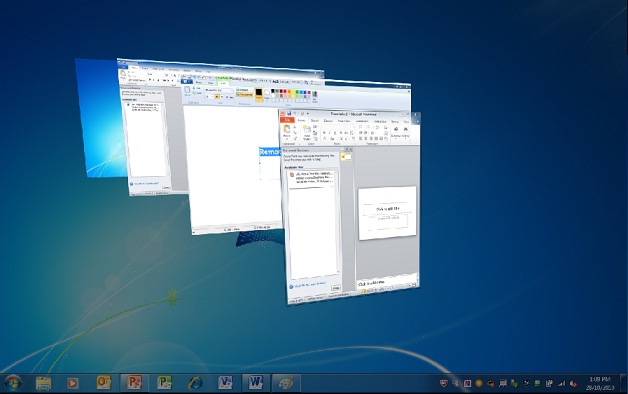
The RemoteFX feature also allows remote users to redirect local USB devices to their Remote Desktop sessions.( I will talk about this in my next article )
The following steps will help you understand how RemoteFX improves the user experience when running Windows 7 and applications in a virtualized environment :
1. Install Windows Server 2008 R2 SP1
- Verify that the appropriate device drivers have been installed for the 3D accelerated video display adapter.Unless the appropriate device drivers are installed for the 3D accelerated video display adapter, you cannot start the Windows 7 virtual machine with the RemoteFX 3D Video Adapter Support enabled
- Install the Hyper-V server role.
- Install the Remote Desktop Services server role with the following role services:
Remote Desktop Virtualization Host
Core Services
RemoteFX
2.Install Windows 7 SP1.
- Enable Remote Desktop connections
- Shutdown the Windows 7 virtual machine.
3. Enable RemoteFX 3D Video Adapter Support on Windows 7 Virtual Machine.
The RemoteFX 3D Video Adapter Support must be added to the Windows 7 virtual machine by performing the following steps on the computer running Windows Server 2008 R2 SP1:
- Start Hyper-V Manager.
- In Hyper-V Manager, select the Windows 7 virtual machine and in the Actions pane click Settings.
- In the navigation pane, under the Hardware section, click Add Hardware.
- Add the adapter; start the virtual machine; verify that the adapter is installed and then restart the machine.
- In the properties pane, click RemoteFX 3D Video Adapter, and then click Add.
- The RemoteFX 3D Video Adapter appears in the list of hardware in the Hardware section as show in the following figure.
- Start the virtual machine; verify that you can login and that you have loaded the driver. The VM will ask to be restarted at this point, perform the restart.

4. To checkout that RemoteFX is properly installed and configured :
-
Start the virtual machine running Windows 7 SP1.
-
Establish a Remote Desktop session with Windows 7 SP1 by using the Remote Desktop Connection client in Windows Server 2008 R2 SP1
- On the Local Resources tab(Remote Desktop Connection client), in Apply Windows key combinations, select one of the following:
- Only when using full screen. Select this option if you are going to run the Remote Desktop session in full screen.
- On the remote computer. Select this option if you are going to run the Remote Desktop session in a window.
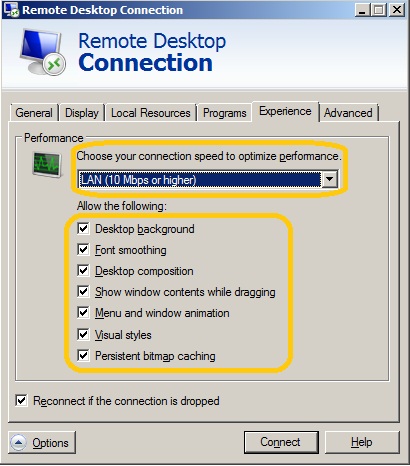
- On the Experience tab, in Performance section, select LAN (10Mbps or higher) and verify that all the check boxes are selected.
- Log on Windows 7 SP1.
- Change the theme for the Windows 7 to use an Aero theme. The desktop theme should appear with all the Aero features, such as transparency.

As you can see the RemoteFX feature allows Windows 7 SP1 and applications running in virtual machines to provide the same user experience as though they were running on a physical computer.
Other improvements in Windows 7 SP1 :
· Additional support for communication with third-party federation services – Additional support has been added to allow Windows 7 clients to effectively communicate with third-party identity federation services (those supporting the WS-Federation passive profile protocol).
· Improved HDMI audio device performance – Updates have been incorporated into SP1 to ensure that connections between Windows 7 computers and HDMI audio devices are consistently maintained.
· Corrected behavior when printing mixed-orientation XPS documents – Prior to the release of SP1, some customers have reported difficulty when printing mixed-orientation XPS documents (documents containing pages in both portrait and landscape orientation) using the XPS Viewer, resulting in all pages being printed entirely in either portrait or landscape mode. This issue has been addressed in SP1, allowing users to correctly print mixed-orientation documents using the XPS Viewer.
Windows Server 2008 R2 SP1 RC available for download
October 28, 2010
Leave a comment
You can download Windows Server 2008 R2 SP1 Release Candidate now which includes the usual bug fixes, etc… there are some specific changes for dynamic memory in there:
Download from here: http://www.microsoft.com/windowsserver2008/en/us/sp1.aspx
Some of the improvements for Windows Server 2008 R2 SP1 include:
• Dynamic Memory – Dynamic Memory allows for memory on a host machine to be pooled and dynamically distributed to virtual machines as necessary. Memory is dynamically added or removed based on current workloads, and is done so without service interruption.
• Microsoft RemoteFX – a new set of remote user experience capabilities that enable a media-rich user environment for virtual desktops, session-based desktops and remote applications
• Enhancements to scalability and high availability when using DirectAccess – improvements have been made to enhance scalability and high availability when using DirectAccess, through the addition of support for 6to4 and ISATAP addresses when using DirectAccess in conjunction with Network Load Balancing (NLB).
• Support for Managed Service Accounts (MSAs) in secure branch office scenarios – enhanced support for managed service accounts (MSAs) to be used on domain-member services located in perimeter networks (also known as DMZs or extranets).
• Support for increased volume of authentication traffic on domain controllers connected to high-latency networks – more granular control of the maximum number of possible concurrent connections to a domain controller, enabling a greater degree of performance tuning for service providers.
• Enhancements to Failover Clustering with Storage – SP1 enables enhanced support for how Failover Clustering works with storage that is not visible for all cluster nodes. In SP1, improvements have been made to the Cluster Validation and multiple Failover Cluster Manager wizards to allow workloads to use disks that are shared between a subset of cluster nodes.
Note : once the final build of SP1 ships, you’ll need to uninstall the RC version in order to upgrade.
Windows Server 2008 R2 Security Baseline : Solution Accelerators
October 28, 2010
Leave a comment
| Elevate the security of Windows Server 2008 R2.
The Windows Server 2008 R2 Security Baseline, in combination with the Security Compliance Manager tool, is designed to help your organization plan, deploy, and monitor the security of Windows Server 2008 R2. This release also includes a Windows Server 2008 R2 settings pack, enabling you to define baselines that include settings outside the scope of the security baselines from Microsoft. To get the public release of this security baseline, download the Security Compliance Manager. |
Categories: Microsoft
Security, Solution Accelerator, Windows Server® 2008 R2
New security baselines for SQL Server
October 28, 2010
Leave a comment
New security baselines for SQL Server 2008 and SQL Server 2008 R2 now available for beta download.
The latest security baselines in this beta review program are designed to help you plan, deploy, and monitor the security of Microsoft SQL Server 2008 and SQL Server 2008 R2.
The baselines are formatted for import using the Security Compliance Manager, which provides guidance and tools to help you balance your organization’s needs for security and functionality.
Categories: Microsoft
Security, Solution Accelerator, SQL Server
Hyper-V 2008R2 SP1: Guest Requirements for Dynamic Memory
October 22, 2010
Leave a comment
The following Windows server operating systems support Dynamic Memory when installed as the guest operating system on a virtual machine:
- Windows Server 2008 R2 Standard Edition SP1*
- Windows Server 2008 R2 Enterprise Edition SP1
- Windows Server 2008 R2 Datacenter Edition SP1
- Windows Server 2008 R2 Web Edition SP1*
- Windows Server 2008 Standard Edition SP2*
- Windows Server 2008 Enterprise Edition SP2
- Windows Server 2008 Datacenter Edition SP2
- Windows Server 2008 Web Edition SP2*
- Windows Server 2003 R2 Standard Edition SP2 or higher*
- Windows Server 2003 R2 Enterprise Edition SP2 or higher
- Windows Server 2003 R2 Datacenter Edition SP2 or higher
- Windows Server 2003 R2 Web Edition SP2 or higher*
- Windows Server 2003 Standard Edition SP2 or higher*
- Windows Server 2003 Enterprise Edition SP2 or higher
- Windows Server 2003 Datacenter Edition SP2 or higher
- Windows Server 2003 Web Edition SP2 or higher*
Note: The Beta release of Service Pack 1 does not support Dynamic Memory for the operating systems marked with an asterisk (*) above. However, support for Dynamic Memory for these operating systems will be added in a future release of SP1.
Note: Dynamic Memory is supported for both the x86 and x64 architectures of Windows Server 2003, Windows Server 2003 R2 and Windows Server 2008.
The following Windows client operating systems for both x86 and x64 architecture also support Dynamic Memory when installed as the guest operating system on a virtual machine:
- Windows® 7 Enterprise Edition
- Windows 7 Ultimate Edition
- Windows Vista® Enterprise Edition SP2
- Windows Vista Ultimate Edition SP2
Recommended Books


System Center 2012 R2 Virtual Machine

System Center Virtual Machine Manager 2012 Cookbook


 Cloudtidings.com