
Archive
Hyper-V Integration Services should be updated after applying SP1 on Virtual Machines
Now that you installed SP1 on Hyper-V/Windows 2008 R2 servers, you should upgrade the Integration Services in all virtual machines or have the SP1 installed on the VM’s also.
To do this using the Virtual Machine Manager, connect to the VM :
1. Click in ACTION,
2. Click Insert Integration Services Setup Disk
3. Click Install Hyper-V Integration Services
4. Click OK, when a message informing about a previous installation show.

To check the Integration Services version, look at the Driver version of the Microsoft Virtual Machine Bus Network Adapter in Device Manager

Microsoft Virtualization for VMware Professionals : Free Online Classes taught by two of the most respected authorities on virtualization technologies
Microsoft Virtualization for VMware Professionals – Free Online
Classes – March 29 – 31
Just one week after Microsoft Management Summit 2011 (MMS), Microsoft Learning will be hosting an exclusive three-day Jump Start class specially tailored for VMware and Microsoft virtualization technology pros. Registration for “Microsoft Virtualization for VMware Professionals” is open now and will be delivered as a FREE online class on March 29-31, 2010 from 10:00am-4:00pm PDT.
What’s the high-level overview?
This cutting edge course will feature expert instruction and real-world
demonstrations of Hyper-V and brand new releases from System Center Virtual
Machine Manager 2012 Beta (many of which will be announced just one
week earlier at MMS). Register Now!
- Day 1
will focus on “Platform” (Hyper-V, virtualization architecture, high
availability & clustering)- 10:00am– 10:30pm PDT: Virtualization 360 Overview
- 10:30am– 12:00pm: Microsoft Hyper-V Deployment Options & Architecture
- 1:00pm– 2:00pm: Differentiating Microsoft and VMware (terminology,etc.)
- 2:00pm– 4:00pm: High Availability & Clustering
- Day 2
will focus on “Management” (System Center Suite, SCVMM 2012 Beta, Opalis, Private Cloud solutions)- 10:00am – 11:00pm PDT: System Center
Suite Overview w/ focus on DPM - 11:00am – 12:00pm: Virtual Machine
Manager 2012 | Part 1 - 1:00pm – 1:30pm: Virtual
Machine Manager 2012 | Part 2 - 1:30pm – 2:30pm:
Automation with System Center Opalis & PowerShell - 2:30pm– 4:00pm: Private Cloud Solutions, Architecture & VMM SSP 2.0
- 10:00am – 11:00pm PDT: System Center
- Day 3
will focus on “VDI” (VDI Infrastructure/architecture, v-Alliance, application
delivery via VDI)- 10:00am – 11:00pm PDT: Virtual
Desktop Infrastructure (VDI) Architecture | Part 1 - 11:00am – 12:00pm: Virtual Desktop
Infrastructure (VDI) Architecture | Part 2 - 1:00pm – 2:30pm:
v-Alliance Solution Overview - 2:30pm– 4:00pm: Application Delivery for VDI
- 10:00am – 11:00pm PDT: Virtual
- Every section will be team-taught by two of the most respected authorities on virtualization technologies: Microsoft Technical Evangelist Symon Perriman and leading Hyper-V, VMware, and XEN infrastructure consultant, Corey Hynes
Who is the target audience for this training?
Suggested prerequisite skills include real-world experience with Windows Server 2008 R2,virtualization and datacenter management. The course is tailored to these types of roles:
- IT Professional
- IT Decision Maker
- Network Administrators & Architects
- Storage/Infrastructure
Administrators & Architects
How do I to register and learn more about this great training opportunity?
Register: Visit the Registration
Page and sign up for all three sessions
- Blog: Learn more from the Microsoft
Learning Blog - Twitter: Here are a few posts you can retweet:
- Mar. 29-31
“Microsoft #Virtualization for VMware Pros” @SymonPerriman Corey
Hynes http://bit.ly/JS-Hyper-V
@MSLearning #Hyper-V - @SysCtrOpalis Mar.
29-31 “Microsoft #Virtualization for VMware Pros” @SymonPerriman
Corey Hynes http://bit.ly/JS-Hyper-V
#Hyper-V - Learn all the cool new
features in Hyper-V & System Center 2012! SCVMM, Self-Service Portal 2.0, http://bit.ly/JS-Hyper-V
#Hyper-V #Opalis
- Mar. 29-31
What is a “Jump Start” course?
A “Jump Start” course is “team-taught” by two expert instructors in an engaging radio talk show style format. The idea is to deliver readiness training on strategic and emerging technologies that drive awareness at scale before Microsoft Learning develops mainstream Microsoft Official Courses (MOC) that map to certifications. All sessions are professionally recorded and distributed through MS Showcase, Channel 9, Zune Marketplace and iTunes for broader reach.
Uninstalling Windows 2008 R2/Windows 7 SP1 RC to install the RTM version
To remove the SP1 RC you have 2 options:
Option 1, using the GUI
1 Open the Control Panel->Programs->Programs and Features-> Installed Updates
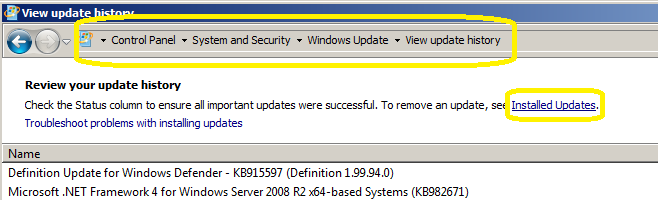
2 Select the kb:976932 and click Uninstall

Option 2 : command
If you tried to uninstall the SP1 by using the traditional Programs/Features -> updates installed without success, use this one:
wusa /uninstall /kb:976932
Microsoft MVP Summit: System Center MVP IT Pro Day
Today I am in Redmond for the Microsoft MVP Summit.
Although is freezing here in Seattle, in fact is quite warm here at the MS Buildings.
I am currently attending the System Center MVP IT Pro Day.
BTW, as we talking about Clould initiative do we really understand what private Clould means? It’s not just about a private virtual environment, it’s more. Let’s talk about more here….
Windows 2008R2/Windows 7 SP1: Changes common to both client and server platforms
Here are the changes common to W2008R2 ad Windows 7, after applying the SP1:
1. Change to behavior of “Restore previous folders at logon” functionality
SP1 changes the behavior of the “Restore previous folders at logon” function available in the Folder Options Explorer dialog. Prior to SP1, previous folders would be restored in a cascaded position based on the location of the most recently active folder. That behavior changes in SP1 so that all folders are restored to their previous positions.
2. Enhanced support for additional identities in RRAS and IPsec
Support for additional identification types has been added to the Identification field in the IKEv2 authentication protocol. This allows for a variety of additional forms of identification (such as E-mail ID or Certificate Subject) to be used when performing authentication using the IKEv2 protocol.
3. Support for Advanced Vector Extensions (AVX)
There has always been a growing need for ever more computing power and as usage models change, processors instruction set architectures evolve to support these growing demands. Advanced Vector Extensions (AVX) is a 256 bit instruction set extension for processors. AVX is designed to allow for improved performance for applications that are floating point intensive. Support for AVX is a part of SP1 to allow applications to fully utilize the new instruction set and register extensions.
4. Improved Support for Advanced Format (512e) Storage Devices
SP1 introduces a number of key enhancements to improve support of recently introduced storage devices with a 4KB physical sector size (commonly referred to as “Advanced Format”). These enhancements include functionality fixes, improved performance, and updated storage drivers which provide applications the ability to retrieve information as to the physical sector size of storage device. More information on these enhancements is detailed in Microsoft KB 982018.
Changes specific to Windows 7 with SP1
Here are the specific changes for Windows 7 SP1
1. Additional support for communication with third-party federation services
Additional support has been added to allow Windows 7 clients to effectively communicate with third-party identity federation services (those supporting the WS-Federation passive profile protocol). This change enhances platform interoperability, and improves the ability to communicate identity and authentication information between organizations.
Improved HDMI audio device performance
A small percentage of users have reported issues in which the connection between computers running Windows 7 and HDMI audio devices can be lost after system reboots. Updates have been incorporated into SP1 to ensure that connections between Windows 7 computers and HDMI audio devices are consistently maintained.
2. Corrected behavior when printing mixed-orientation XPS documents
Prior to the release of SP1, some customers have reported difficulty when printing mixed-orientation XPS documents (documents containing pages in both portrait and landscape orientation) using the XPS Viewer, resulting in all pages being printed entirely in either portrait or landscape mode. This issue has been addressed in SP1, allowing users to correctly print mixed-orientation documents using the XPS Viewer.
Changes specific to Windows Server 2008 R2 with SP1
Here are the specific to Windows 2008 R2 SP1:
Dynamic Memory
Constraints on the allocation of physical memory represents one of the greatest challenges organizations face as they adopt new virtualization technology and consolidate their infrastructure. With Dynamic Memory, an enhancement to Hyper-V™ introduced in Windows Server 2008 R2 SP1, organizations can now make the most efficient use of available physical memory, allowing them to realize the greatest possible potential from their virtualization resources. Dynamic Memory allows for memory on a host machine to be pooled and dynamically distributed to virtual machines as necessary. Memory is dynamically added or removed based on current workloads, and is done so without service interruption.
Virtual machines running a wide variety of operating systems can use Dynamic Memory; for a complete list, see the “Dynamic Memory Evaluation Guide” at http://go.microsoft.com/fwlink/?LinkId=192444. The guide also discusses Dynamic Memory settings and usage in detail.
Microsoft RemoteFX
Businesses are increasingly looking to leverage the efficiency and cost savings that can come from a virtualized desktop infrastructure. With the addition of Microsoft RemoteFX in Windows Server 2008 R2 SP1, a new set of remote user experience capabilities that enable a media-rich user environment for virtual desktops, session-based desktops and remote applications is introduced. Harnessing the power of virtualized graphics resources, RemoteFX can be deployed to a range of thick and thin client devices, enabling cost-effective, local-like access to graphics-intensive applications and a broad array of end user peripherals, improving productivity of remote users.
RemoteFX can function independently from specific graphics stacks and supports any screen content, including today’s most advanced applications and rich content (including Silverlight and Adobe Flash), ensuring that end users maintain a rich, local-like desktop experience even in a virtualized thin-client environment.
RemoteFX also adds mainstream USB device support to virtual desktop computing, including support for USB drives, cameras and PDAs connected to the client device. RemoteFX also provides a platform for hardware and software partners to enhance RemoteFX capabilities in a variety of possible host, client and network configurations.
To use RemoteFX, the virtualization server must be running Windows Server 2008 R2 with SP1, the virtual machine must be running Windows 7 Enterprise with SP1 or Windows 7 Ultimate with SP1, and the remote client computer must be running either Windows Server 2008 R2 with SP1 or Windows 7 with SP1. To connect to the virtual machine, the remote client computer requires an updated version of Remote Desktop Services (included in the service pack for all editions of Windows 7).
Enhancements to scalability and high availability when using DirectAccess
DirectAccess is a new feature in the Windows 7 and Windows Server 2008 R2 operating systems that gives users the experience of being seamlessly connected to their corporate network any time they have Internet access. In Windows Server 2008 R2 SP1, improvements have been made to enhance scalability and high availability when using DirectAccess, through the addition of support for 6to4 and ISATAP addresses when using DirectAccess in conjunction with Network Load Balancing (NLB).
Support for Managed Service Accounts (MSAs) in secure branch office scenarios
SP1 enables enhanced support for managed service accounts (MSAs) to be used on domain-member services located in perimeter networks (also known as DMZs or extranets).
Support for increased volume of authentication traffic on domain controllers connected to high-latency networks
As a greater volume of IT infrastructure migrates to cloud-based services, there is a need for higher thresholds of authentication traffic to domain controllers located on high-latency networks (such as the public Internet). SP1 allows for more granular control of the maximum number of possible concurrent connections to a domain controller, enabling a greater degree of performance tuning for service providers.
Enhancements to Failover Clustering with Storage
SP1 enables enhanced support for how Failover Clustering works with storage that is not visible for all cluster nodes. In SP1, improvements have been made to the Cluster Validation and multiple Failover Cluster Manager wizards to allow workloads to use disks that are shared between a subset of cluster nodes.
Windows 7 and W2008 R2 SP1 released. Important Steps to follow before you install
SP1 Download link : http://www.microsoft.com/downloads/en/details.aspx?FamilyID=c3202ce6-4056-4059-8a1b-3a9b77cdfdda
Before you install Windows 7 SP1 , make sure that you follow these steps:
| STEP 1 : Uninstalling SP1 using Programs and Features |
The easiest way to uninstall SP1 is using Programs and Features.
- Click the Start button
 , click Control Panel, click Programs, and then click Programs and Features.
 - Click View installed updates.
- Click Service Pack for Microsoft Windows (KB 976932), and then click Uninstall.
If you don’t see Service Pack for Microsoft Windows (KB 976932) in the list of installed updates, your computer likely came with SP1 already installed, and you can’t uninstall the service pack. If the service pack is listed but grayed out, you can’t uninstall the service pack.
| Uninstalling SP1 using the Command Prompt |
- Click the Start button , and then, in the search box, type Command Prompt.
- In the list of results, right-click Command Prompt, and then click Run as administrator.
 If you’re prompted for an administrator password or confirmation, type the password or provide confirmation.
 - Type the following: wusa.exe /uninstall /kb:976932
- Press the Enter key.
Step 2: Back up your important files
Back up your files to an external hard disk, DVD or CD, USB flash drive, or network folder. For information about how to back up your files, see Back up your files (http://windows.microsoft.com/en-US/windows7/Back-up-your-files) .
Update device drivers as necessary. You can do this by using Windows Update in Control Panel or by going to the device manufacturer’s website.
Important If you are using an Intel integrated graphics device, you should be aware that there are known issues with certain versions of the Intel integrated graphics device driver and with D2D enabled applications, such as certain versions of Windows Live Mail. The versions of the Intel integrated graphics device driver that are known to be problematic are Igdkmd32.sys and Igdkmd64.sys versions 8.15.10.2104 through 8.15.10.2141. For more information about a known issue with these drivers and with Windows Live Mail, see Microsoft Knowledge Base article 2505524 (http://support.microsoft.com/kb/2505524) .
To check whether you are using the Intel integrated graphics device driver Igdkmd32.sys or Igdkmd64.sys versions 8.15.10.2104 through 8.15.10.2141, follow these steps:
- Start DirectX Diagnostic Tool. To do this, click Start, type dxdiag in the Search programs and files box, and then press Enter.
- Click the Display tab.
- Note the driver and driver version.
- If you have the Intel integrated graphics driver Igdkmd32.sys or Igdkmd64.sys versions 8.15.10.2104 through 8.15.10.2141, visit the computer manufacturer’s website to see whether a newer driver is available, and then download and install that driver.
Step 4: Install Windows Update KB2454826
Install Windows Update KB2454826 from Windows Update (http://www.update.microsoft.com/) if it is not already installed. If you install the service pack from the Microsoft Download Center and do not install Windows Update KB245862, you could encounter a Stop error in Windows in rare cases.
Windows Update KB2454826 will automatically be installed when you install the service pack by using Windows Update. However, Windows Update KB2454826 is not automatically installed when you install the service pack from the Microsoft Download Center.
To check whether Windows Update KB2454826 is installed, click Start, type View installed updates in the Search programs and files box, and then press Enter. Notice whether Update for Microsoft Windows (KB2454826) is listed. If the update is not listed, you will have to install it from Windows Update
Step 5: Check for malware
Check your computer for malware by using antivirus software. Some antivirus software is sold together with annual subscriptions that can be renewed as needed. However, much antivirus software is also available for free. Microsoft offers Microsoft Security Essentials, free antivirus software that you can download from the Microsoft Security Essentials (http://go.microsoft.com/fwlink/?LinkId=168949) website. You can also visit the Microsoft Consumer security software providers (http://go.microsoft.com/fwlink/?LinkId=135654) webpage to find third-party antivirus software.
Important If your computer is infected with malware and you install Windows 7 SP1, you could encounter blue screens or a Windows Update error such as 8007f0f4 or FFFFFFFF. If malware is detected, Windows Update will be unable to install SP1.
MS Support policy for SQL Server in a virtualization environment
SQL Server 2005/ 2008 / 2008 R2 are supported in the following virtualization environments:
- Windows Server 2008 /R2 with Hyper-V
- Microsoft Hyper-V Server 2008 / R2
- Configurations that are validated through the Server Virtualization Validation Program (SVVP), which includes VmWare and Citrix.
Note The SVVP solution must be running on hardware that is certified for Windows Server 2008 to be considered a valid SVVP configuration.
Restrictions and Limitations
- Guest Failover Clustering is supported for SQL Server 2005 / 2008 / 2008 R2 in a virtual machine provided all of the following requirements are met:
- The OS running in the virtual machine (the “Guest Operating System”) is Windows Server 2008 or higher
- The virtualization environment meets the requirements of Windows 2008 Failover Clustering, as documented in the following Microsoft Knowledge Base article:
943984 (http://support.microsoft.com/kb/943984/ ) The Microsoft Support Policy for Windows Server 2008 Failover Clusters
- Virtualization Snapshots for Hyper-V or any virtualization vendor are not supported to use with SQL Server in a virtual machine. It is possible that you may not encounter any problems when using snapshots and SQL Server, but Microsoft will not provide technical support to SQL Server customers for a virtual machine that was restored from a snapshot.
Is Quick and Live Migration with Windows Server 2008 R2 Hyper-V supported with SQL Server?
Yes, Live Migration is supported for SQL Server 2005, SQL Server 2008, and SQL Server 2008 R2 when using Windows Server 2008 R2 with Hyper-V or Hyper-V Server 2008 R2.Quick Migration, which was introduced with Windows Server 2008 with Hyper-V and Hyper-V Server 2008, is also supported for SQL Server 2005, 2008, and 2008 R2 for Windows Server 2008 with Hyper-V, Windows Server 2008 R2 with Hyper-V, Hyper-V Server 2008, and Hyper-V Server 2008 R2.
For more information : http://support.microsoft.com/kb/956893
Virtualisation:Go beyond doing more with less
Source : Microsoft Technet
Go beyond doing more with less and reducing your carbon footprint; virtualization enables a more agile, responsive infrastructure and lays the foundation for cloud services.
By Mitch Irsfeld
With IT departments wedged between limited budget growth in 2011 and the expectations for new services–especially cloud computing–getting in the virtualization game has become a virtual no-brainer. The reason: Running enterprise workloads on virtual machines not only positions your existing IT infrastructure for cloud services, it delivers substantial savings over physical servers and enables a more agile, scalable and resilient server environment…
To read the comple article go to : http://technet.microsoft.com/en-au/magazine/gg591293.aspx
Recommended Books


System Center 2012 R2 Virtual Machine

System Center Virtual Machine Manager 2012 Cookbook


 Cloudtidings.com