
Archive
Private Cloud Solutions : Hyper-V Cloud Deployment Guides
Private cloud is the implementation of cloud services on resources that are dedicated to your organization, whether they exist on-premises or off-premises with the benefits of public cloud computing—including self-service, scalability, and elasticity and the additional control and customization.
Build your own private cloud and you will have a dynamic, virtualized infrastructure with advantages including:
- Pools of compute resources
- Automated management
- High-availability
- Scale-out capabilities
- Multi-tenancy
- Self-service provisioning
To learn more how to build your own private cloud with Windows Server 2008 R2 Hyper-V, System Center, and the Virtual Machine Manager Self-Service Portal 2.0 using the Hyper-V Clould Deployment Guide:
Dell and Microsoft have partnered to deliver cloud solutions
At Microsoft’s TechEd conference in Berlin, November/2010, Germany, Dell announced the availability of several “turnkey” Hyper-V based private cloud solutions comprised of pre-tested, pre-assembled and fully-supported hardware, software and services enabling customers to easily deploy and manage their cloud infrastructures with confidence.
Dell’s new Business-Ready Configurations (BRC) consist of PowerEdge servers, EqualLogic storage arrays, PowerConnect network switches and management capabilities through Microsoft Systems Center. Through the Hyper-V Cloud Fast Track program, Dell and Microsoft are offering private cloud solutions that deliver a variety of benefits including:
- Faster speed to deploy private cloud infrastructures
- Reduced risk – validated configurations
- Choice and Flexibility – broad offering of hardware and services
To learn more, take a look here : http://en.community.dell.com/dell-blogs/enterprise/b/inside-enterprise-it/archive/2010/11/06/dell-and-microsoft-partner-to-deliver-open-turn-key-cloud-solutions.aspx
Hyper-V CSV protection with DPM 2010
DPM design for Hyper-V :
- Incremental Backups Only – full only once
- No More Backup Window – online backups
- Application consistency via VSS
- Protect Live Migration VMs in CSV clusters
- Protect whole VM, recover individual items
- Auto Protection of new VMs
- Routine backups – nightly or more frequently
Strategy to Deply DPM 2010 in Hyper-V/CSV environment :
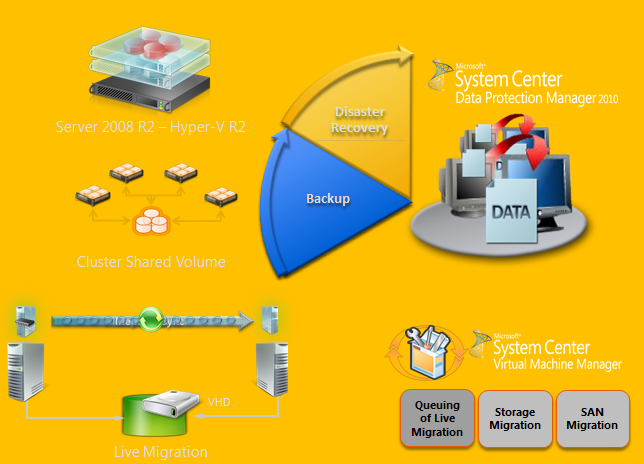
1. Plan:
- Identify Project Requirements and scope
- Simulate using Hyper-V Calculator
- Review Hyper-V design guidelines & Best Practices
- Acquire VSS Hardware Provider & check environment with SDPM SAN Testing Tool:
- Verify that the SAN supports hardware snapshots & is certified for DPM.
- http://blogs.technet.com/dpm/archive/2010/02/05/tested-hardware-vss-provider-table.aspx
- Install the VSS hardware provider
- Self Certifying your SAN. If your SAN is not in the certified list & you have a SAN, run the SCDPM SAN Testing Tool : StartCSVTests.cmd /run ( to be realeased yet )
- Validate a Pilot Environment
- Ready for Deployment
- Integration components should be updated on both VMs.
- Ensure that Live Migration is functional
2. Deploy : Protected CSV server
- Install all recommended prerequisites:
| General Prerequisite | Install the integration components on the guests. For more information, see Install a Guest Operating System (http://go.microsoft.com/fwlink/?LinkId=165041). |
| Microsoft Windows Server 2008 SP2 | Install Microsoft Windows Server 2008 SP2 OR Install the Microsoft Hyper-V prerequisites (http://go.microsoft.com/fwlink/?LinkID=133781). |
| Microsoft Windows Server 2008 R2 | Install the following on the host computer:KB975354 (http://support.microsoft.com/kb/975354)KB975921 (http://support.microsoft.com/kb/975921) |
- Failover Cluster Validation
- Enable Automount : Enable Auto mount on the host for successful child partition backups : MOUNTVOL /E
- Install Hardware Provider:Ensure that VSS hardware providers are installed : vssadmin list providers
- Validate Hardware snapshots
- Use DSConfig Tool to serialize backups (for software snapshots providers only) :
· Problem:With software snapshots, simultaneous triggering of VM backups (especially scale deployments) will cause backup jobs to time out and fail.
· Enable Per CSV LUN Serialization:This serialization limits the number of virtual machine backups happening on a single CSV LUN.Create a DataSourceGroups.xml file by running the DSConfig.ps1 script on any one node of a cluster containing CSV.Place the file in the DPM server at %PROGRAMFILES%\Microsoft DPM\DPM\Config.Repeat step 1 for every cluster that is protected by a DPM server.The DataSourceGroups.xml file needs to be updated only when virtual machines are added, deleted, or modified in the cluster and protection is configured for them.
3. Deploy : DPM 2010 server
- Enable Hyper-V Role on DPM Server :DPM supports item-level recovery (ILR), which allows you to do granular recovery of files, folders, volumes, and virtual hard disks (VHDs) from a host-level backup of Hyper-V virtual machines to a network share or a volume on a DPM protected server. You must have the Hyper-V role enabled on the DPM server to perform item-level recoveries. During item-level recovery, DPM has to mount the VHDs of the protected virtual machines
- Install DPM server pre-requisites
- Install DPM 2010
- Turn off “TCP Chimney offload”For better throughput, TCP Chimney Offload should be turned off.
- Allocate Storage Pool & Deploy Agents
- Datasourcegroups.xml file:
- Merge the DatasourceGroups.XML file for all CSVs protected by DPM server. This is applicable when software providers are used on the CSV cluster.
- Copy the <Group> tags from all the DataSourceGroup.xml files generated and add the text between the <DataSourceGroup> tags. The DataSourceGroups.xml file will now contain one <header> tag, one <DataSourceGroup> tag, and <Group> tags from all CSV clusters.
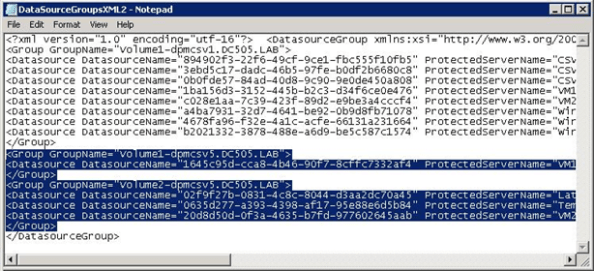
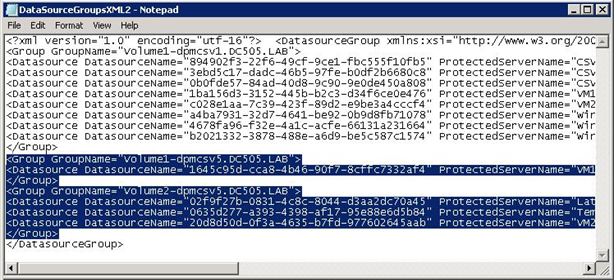
- Configure Protection Groups
- DPM2010 provides Datasource caching for faster enquiry.
- Remember to clear cache if new VMs have been added
- Enable AutoProtection:
Script to Auto-add VMs : http://blogs.technet.com/dpm/archive/2009/12/03/hyper-v-protection-with-dpm-2010-beta-how-to-automatically-protect-new-virtual-machines.aspx
TechNet Radio: TechNet on: Virtualization Best Practices
About this Video : http://technet.microsoft.com/en-us/edge/technet-radio-technet-on-virtualization-best-practices.aspx
Join Keith Combs and Matt Hester as they discuss virtualization best practices with Microsoft Director, Edwin Yuen. Edwin was part of the System Center Virtual Machine Manager (SCVMM) team for several years and has talked with thousands of customers about their virtualization problems and solutions. Expect a lively discussion on Hyper-V, SCVMM, SANS, Clustering and other technologies used to create world class virtualization solutions.
Free eBook:Understanding Microsoft Virtualization Solutions — From the Desktop to the Datacenter
Learn about the benefits of the latest virtualization technologies and how to plan, implement, and manage virtual infrastructure solutions based on these technologies.
Free eBook:Understanding Microsoft Virtualization Solutions — From the Desktop to the Datacenter
Virtualization: Top 10 Virtualization Best Practices
Source:TechNet Magazine , by Wes Miller *
Virtualization has gone from being a test lab technology to a mainstream component in datacenters and virtual desktop infrastructures. Along the way, virtualization has occasionally received a “get out of jail free” card, and has not had the same degree of efficient IT practices applied to virtual deployments as would be expected of actual physical machines. This is a mistake.
If you had an unlimited budget, would you let everyone in your organization order a new system or two and hook it up to the network? Probably not. When virtualization first appeared on the scene, unlimited and unmanaged proliferation was kept in check by the fact that there was actually a cost associated with hypervisor applications. This provided some line of defense against rogue virtual machines in your infrastructure. That is no longer the case.
There are several free hypervisor technologies available, for both Type 1 and Type 2 hypervisors. Anyone in your organization with Windows installation media and a little free time can put up a new system on your network. When virtual machines are deployed without the right team members knowing about it, that means a new system can become an unwelcome honeypot for new zero-day vulnerabilities, ready to take down other systems on your network that are business critical.
Virtual systems should never be underappreciated or taken for granted. Virtual infrastructures need to have the same best practices applied as actual physical systems. Here, we will discuss 10 key best practices that should always be on your mind when working with virtual systems.
To read to full article go to http://technet.microsoft.com/en-au/magazine/gg131921.aspx
*Wes Miller is the director of Product Management at CoreTrace (CoreTrace.com) in Austin, Texas. Previously, he worked at Winternals Software and as a program manager at Microsoft. Miller can be reached at wm@getwired.com.
Duplicate virtual machines (VMs) may appear in the SCVMM Administrator Console window after a Hyper-V VM in a cluster fails over to another cluster node. HotFix KB2308590
-
Click Start, and then select Control Panel.
-
In Control Panel, double-click Windows Update.
-
In the Windows Update window, click Check Online for updates from Microsoft Update.
-
Click important updates are available.
-
Select Update for System Center Virtual Machine Manager 2008 R2 (KB2308590), and then click OK.
-
Click Install updates.
To update the SCVMM agent on multiple hosts, follow these steps:
-
Open the SCVMM Administrator Console window.
-
Click Administration, and then click Managed Computers.
-
Select the hosts, and then click Update Agent.
-
Enter your user account credentials, and then click OK.
-
Extract the VmmServer64Update-RETAIL.cab file to a temporary directory.
-
Open an elevated command prompt, type the following command, and then press ENTER to install the update:
msiexec /update vmmServer64Update-RETAIL.msp BOOTSTRAPPED=1Note The name of the package varies, depending on the version that was downloaded. -
After the hotfix rollup package is installed on the SCVMM server, update the SCVMM agent on the Hyper-V and Virtual Server hosts.
You must have SCVMM 2008 R2 installed.
Recommended Books


System Center 2012 R2 Virtual Machine

System Center Virtual Machine Manager 2012 Cookbook


 Cloudtidings.com