Archive
SCVMM 2008 Ports and Protocols
SCVMM 2008, SCVMM 2008 R2 and SCVMM 2008 R2 SP1 default ports :
| Connection type | Protocol | Default port | Where to change the port setting |
|---|---|---|---|
| VMM server to VMM agent on Windows Server–based host (control) | WS-Management | 80 | at VMM setup, registry |
| VMM server to VMM agent on Windows Server–based host (file transfers) |
HTTPS (using BITS) | 443 (Maximum value: 32768) | Registry |
| VMM server to remote Microsoft SQL Server database | TDS | 1433 | Registry |
| VMM server to P2V source agent | DCOM | 135 | Registry |
| VMM Administrator Console to VMM server | WCF | 8100 | at VMM setup, registry |
| VMM Self-Service Portal Web server to VMM server | WCF | 8100 | at VMM setup |
| VMM Self-Service Portal to VMM self-service Web server | HTTPS | 443 | at VMM setup |
| VMM library server to hosts | BITS | 443 (Maximum value: 32768) | at VMM setup, registry |
| VMM host-to-host file transfer | BITS | 443* (Maximum value: 32768)
* VMM 2008 R2 : port 30443 (http://support.microsoft.com/kb/971816) |
Registry |
| VMRC connection to Virtual Server host | VMRC | 5900 | VMM Administrator Console, registry |
| VMConnect (RDP) to Hyper-V hosts | RDP | 2179 | VMM Administrator Console, registry |
| Remote Desktop to virtual machines | RDP | 3389 | Registry |
| VMware Web Services communication | HTTPS | 443 | VMM Administrator Console, registry |
| SFTP file transfer from VMWare ESX Server 3.0 and VMware ESX Server 3.5 hosts |
SFTP | 22 | Registry |
| SFTP file transfer from VMM server to VMWare ESX Server 3i hosts | HTTPS | 443 | Registry |
More info : http://technet.microsoft.com/en-us/library/cc764268.aspx
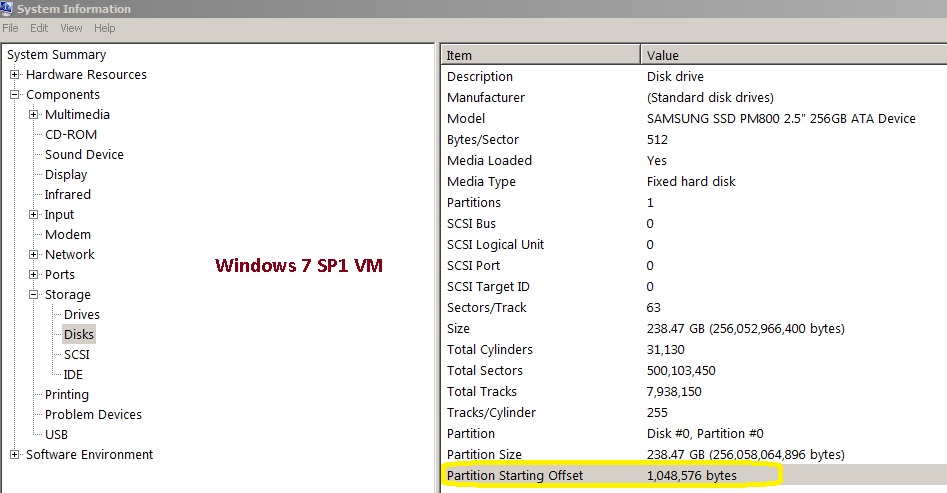
SCVMM 2012 Management ports and protocols. Detailed
Here are the list of ports/protocols for the new SCVMM 2012.

| From | To | Protocol | Default port |
Where to change port setting |
| VMM management server | P2V source agent (control channel) |
DCOM | 135 | |
| Load Balancer | HTTP/HTTPS | 80/443 | Load balancer configuration provider | |
| WSUS server (data channel) | HTTP/HTTPS | 80/8530 (non-SSL), 443/8531 (with SSL) |
These ports are the IIS port binding with WSUS. They cannot be changed from VMM. | |
| WSUS server (control channel) | HTTP/HTTPS | 80/8530 (non-SSL), 443/8531 (with SSL) |
These ports are the IIS port binding with WSUS. They cannot be changed from VMM. | |
| VMM agent on Windows Server–based host (data channel for file transfers) |
HTTPS (using BITS) |
443 (Maximum value: 32768) |
||
| Citrix XenServer host (customization data channel) |
iSCSI | 3260 | On XenServer in transfer VM | |
| XenServer host (control channel) | HTTPS | 5989 | On XenServer host in: /opt/cimserver/cimserver_planned.conf | |
| remote Microsoft SQL Server database | TDS | 1433 | ||
| VMM agent on Windows Server–based host (control channel) |
WS-Management | 5985 | VMM setup | |
| VMM agent on Windows Server–based host (control channel – SSL) |
WS-Management | 5986 | ||
| in-guest agent (VMM to virtual machine control channel) |
WS-Management | 5985 | ||
| Storage Management Service | WMI | Local call |
||
| Cluster PowerShell interface | PowerShell | n/a | ||
| P2V source agent (data channel) | BITS | User-Defined | P2V cmdlet option | |
| VMM library server | hosts file transfer |
BITS | 443 (Maximum value: 32768) |
VMM setup |
| VMM host-to-host file transfer | BITS | 443 (Maximum value: 32768) |
||
| VMM Self-Service Portal | VMM Self-Service Portal web server |
HTTPS | 443 | VMM setup |
| VMM Self-Service Portal web server | VMM management server |
WCF | 8100 | VMM setup |
| Console connections (RDP) | virtual machines through Hyper-V hosts (VMConnect) |
RDP | 2179 | VMM console |
| Remote Desktop | virtual machines |
RDP | 3389 | On the virtual machine |
| VMM console | VMM management server |
WCF | 8100 | VMM setup |
| VMM management server (HTTPS) | WCF | 8101 | VMM setup | |
| VMM management server (NET.TCP) | WCF | 8102 | VMM setup | |
| VMM management server (HTTP) | WCF | 8103 | VMM setup | |
| Windows PE agent | VMM management server (control channel) |
WCF | 8101 | VMM setup |
| VMM management server (time sync) | WCF | 8103 | VMM setup | |
| WDS provider | VMM management server |
WCF | 8102 | VMM setup |
| Storage Management Service | SMI-S Provider | CIM-XML | Provider-specific port |
|
| VMM management server | VMware ESX Server 3i hosts |
HTTPS | 443 | |
Others
| Connection Type | Protocol | Default port | Where to change port setting |
| OOB Connection – SMASH over WS-Man | HTTPS | 443 | On BMC |
| OOB Connection IPMI | IPMI | 623 | On BMC |
|
BITS port for VMM transfers (data channel)
|
BITS | 443 | VMM setup |
| VMware ESX Server 3.0 and VMware ESX Server 3.5 hosts | SFTP | 22 | |
| VMware Web Services communication |
HTTPS | 443 | VMM console |
Note: When you install the VMM management server you can assign some of the ports that it will use for communications and file transfers between the VMM components.
24 Hours in the Cloud : Live on June 1st
The GITCA “24 Hours in the Cloud” round-the-world virtual event focusing on Cloud Computing is scheduled for June 1st. The speakers will be available via twitter to answer questions . Please visit http://sp.GITCA.org/sites/24Hours to find out more.
This is a very important community project and GITCA, supported by Microsoft, is acting as the enabler. So this is the community helping the community which is the way it should be. We have a great selection of presentations from experienced speakers from around the world. Please go to http://sp.gitca.org/sites/24hours/ugpages/FinalSpeakers.aspx to
view the list of speakers and http://sp.gitca.org/sites/24hours/ugpages/FinalSessions.aspx to view the list of sessions.
The first session, keynote by Doug Terry of Microsoft Research, will start at 9am Pacific Daylight
Time [UTC -7]. Please note the start time was incorrectly shown as UTC-8 in previous messages. The event can be accessed via http://vepexp.microsoft.com/24hitc which will go live on June 1st.
Hyper-V : Best Practices and Supported scenarios regarding Exchange Server 2010
The following are the supported scenarios for Exchange 2010 SP1 :
- The Unified Messaging server role is supported in a virtualized environment.
- Combined Exchange 2010 high availability solutions (database availability groups (DAGs)) with hypervisor-based clustering, high availability, or migration solutions that will move or automatically failover mailbox servers that are members of a DAG between clustered root servers
HyperV Guest Configuration
Keep in mind that because there are no routines within Exchange Server that test for a virtualized platform, Exchange Server behaves no differently programmatically on a virtualized platform than it does on a physical platform.
Determining Exchange Server Role Virtual Machine Locations
When determining Exchange Server Role virtual machine locations, consider the following general best practices:
- Deploy the same Exchange roles across multiple physical server roots (to allow for load balancing and high availability).
- Never deploy Mailbox servers that are members of the same Database Availability Groups (DAGs) on the same root.
- Never deploy all the Client Access Servers on the same root.
- Never deploy all the Hub Transport servers on the same root.
- Determine the workload requirements for each server and balance the workload across the HyperV guest virtual machines.
Guest Storage
Each Exchange guest virtual machine must be allocated sufficient storage space on the root virtual machine for the fixed disk that contains the guest’s operating system, any temporary memory storage files in use, and related virtual machine files that are hosted on the root machine.Consider the following best practices when configuring Hyper-V guests:
- Fixed VHDs are recommended for the virtual operating system.
- Allow for a minimum of a 15-GB disk for the operating system, allow additional space for the paging file, management software, and crash recovery (dump) files. Then add Exchange server role space requirements.
- Storage used by Exchange should be hosted in disk spindles that are separate from the storage that hosts the guest virtual machine’s operating system.
- For Hub Transport servers, correctly provision the necessary disk space needed for the message queue database, and logging operations.
- For Mailbox servers, correctly provision the necessary disk space for databases, transaction logs, the content index, and other logging operations. .
Guest Memory : Dynamic Memory should be disabled
Memory must be sized for guest virtual machines using the same methods as physical computer deployments. Exchange—like many server applications that have optimizations for performance that involve caching of data in memory—is susceptible to poor system performance and an unacceptable client experience if it doesn’t have full control over the memory allocated to the physical computer or virtual machine on which it is running.
Many of the performance gains in recent versions of Exchange, especially those related to reduction in input/output (I/O) are based on highly efficient usage of large amounts of memory. When that memory is no longer available, the expected performance of the system can’t be achieved. For this reason, memory oversubscription or dynamic adjustment of virtual machine memory must be disabled for production Exchange servers.
Deployment Recommendations
When designing an Exchange Server 2010 virtualized environment, the core Exchange design principles apply. The environment must be designed for the correct performance, reliability, and capacity requirements. Design considerations such as examining usage profiles, message profiles, and so on must still be taken into account.
See this article (Mailbox Storage Design Process) as a starting point when considering a high availability solution that uses DAGs.
Because virtualization provides the flexibility to make changes to the design of the environment later, some organizations might be tempted to spend less time on their design at the outset. As a best practice, spend adequate time designing the environment to avoid pitfalls later.
Group the Exchange Server roles in such a way that balances workloads on the root servers. Mixing both roles on the same HyperV root server can balance the workloads and prevent one physical resource from being unduly stressed, rather than if the same roles were put on the same hosts
The updated support guidance applies to any hardware virtualization vendor participating in the Windows Server Virtualization Validation Program (SVVP).
Best Practices for Virtualizing Exchange Server 2010 with Windows Server 2008 R2 Hyper-Vwhitepaper. This whitepaper is designed to provide technical guidance on Exchange server roles, capacity planning, sizing and performance, as well as high availability best practices.
Complete system requirements for Exchange Server 2010 running under hardware virtualization software can be found in Exchange 2010 System Requirements. Also, the support policy for Microsoft software running in non-Microsoft hardware virtualization software can be found here.
Hyper-V : Supported Server Guest Operating Systems. Updated May 2011
The following tables list the Server guest operating systems that are supported for use on a virtual machine as a guest operating system.
| Server guest operating system | Editions | Virtual processors |
|---|---|---|
| Windows Server 2008 R2 with Service Pack 1 | Standard, Enterprise, Datacenter, and Web editions | 1, 2, or 4 |
| Windows Server 2008 R2 | Standard, Enterprise, Datacenter, and Windows Web Server 2008 R2 | 1, 2, or 4 |
| Windows Server 2008 | Standard, Standard without Hyper-V, Enterprise, Enterprise without Hyper-V, Datacenter, Datacenter without Hyper-V, Windows Web Server 2008, and HPC Edition | 1, 2, or 4 |
| Windows Server 2003 R2 with Service Pack 2 | Standard, Enterprise, Datacenter, and Web | 1 or 2 |
| Windows Home Server 2011 | Standard | 1 |
| Windows Storage Server 2008 R2 | Essentials | 1 |
| Windows Small Business Server 2011 | Essentials | 1 or 2 |
| Windows Small Business Server 2011 | Standard | 1, 2, or 4 |
| Windows Server 2003 R2 x64 Edition with Service Pack 2 | Standard, Enterprise, and Datacenter | 1 or 2 |
| Windows Server 2003 with Service Pack 2 | Standard, Enterprise, Datacenter, and Web | 1 or 2 |
| Windows Server 2003 x64 Edition with Service Pack 2 | Standard, Enterprise, and Datacenter | 1 or 2 |
| CentOS 5.2 through 5.6 (NEW) | x86 edition and x64 edition | 1, 2, or 4 |
| Red Hat Enterprise Linux 5.6 | x86 edition and x64 edition | 1, 2, or 4 |
| Red Hat Enterprise Linux 5.5 | x86 edition and x64 edition | 1, 2, or 4 |
| Red Hat Enterprise Linux 5.4 | x86 edition and x64 edition | 1, 2, or 4 |
| Red Hat Enterprise Linux 5.3 | x86 edition and x64 edition | 1, 2, or 4 |
| Red Hat Enterprise Linux 5.2 | x86 edition and x64 edition | 1, 2, or 4 |
| SUSE Linux Enterprise Server 11 with Service Pack 1 | x86 edition and x64 edition | 1, 2, or 4 |
| SUSE Linux Enterprise Server 10 with Service Pack 4 | x86 edition and x64 edition | 1, 2, or 4 |
Note: Support for Windows 2000 Server and Windows XP with Service Pack 2 (x86) ended on July 13, 2010
Source : http://technet.microsoft.com/en-us/library/cc794868(WS.10).aspx
MS Virtualization for VMware Pros : Jump Start
Exclusive Jump Start virtual training event – “Microsoft Virtualization for VMware Professionals” FREE – on TechNet Edge
Where do I go for this great training?
The HD-quality video recordings of this course are on TechNet Edge. If you’re interested in one specific topic, I’ve included links to each module as well.
· Entire course on TechNet Edge: “Microsoft Virtualization for VMware Professionals” Jump Start
o Virtualization Jump Start (01): Virtualization Overview
o Virtualization Jump Start (02): Differentiating Microsoft & VMware
o Virtualization Jump Start (03a): Hyper-V Deployment Options & Architecture | Part 1
o Virtualization Jump Start (03b): Hyper-V Deployment Options & Architecture | Part 2
o Virtualization Jump Start (04): High-Availability & Clustering
o Virtualization Jump Start (05): System Center Suite Overview with focus on DPM
o Virtualization Jump Start (06): Automation with Opalis, Service Manager & PowerShell
o Virtualization Jump Start (07): System Center Virtual Machine Manager 2012
o Virtualization Jump Start (08): Private Cloud Solutions, Architecture & VMM Self-Service Portal 2.0
o Virtualization Jump Start (09): Virtual Desktop Infrastructure (VDI) Architecture | Part 1
o Virtualization Jump Start (10): Virtual Desktop Infrastructure (VDI) Architecture | Part 2
o Virtualization Jump Start (11): v-Alliance Solution Overview
o Virtualization Jump Start (12): Application Delivery for VDI
· Links to course materials on Born to Learn
Microsoft is back for another Springboard Series Tour!
Microsoft is back in the US for another Springboard Series Tour!

May 2 – Toronto | May 4 – Detroit | May 6 – Chicago | May 9 – Indianapolis | May 11 – Dallas | May 13 – Columbus
The Springboard Series Tour is back! This 6 city tour brings the top product teams from Microsoft to you. We understand the questions and issues that IT pros deal with every day. How do I manage end users bringing consumer devices into the office? Should we look to the cloud for key solutions? Should I virtualize? What are the best tools to manage application compatibility and deployment? The Springboard Series Tour brings the experts and the answers.
Join us for a full day’s deep dive into the tools, solutions and options to help you do more with less. We will cover managing the flexible workspace, a first look at Windows Intune and Office 365. We’ll also show you some of the new Windows Slates and give you details around Microsoft’s strategy for Slate devices. We will preview the new tools in the MDOP 2011 suite, a deep dive into managing and deploying Office 2010 and great tips and tricks to help you deploy Windows 7 and move your users from Windows XP with speed and ease.
REGISTER NOW and save your seat for this free day of technical demos, Q&A sessions, and real-world guidance from Microsoft experts. We’ll see you on the road!
Virtual Machines that are misaligned
For existing child VMs that are misaligned, in order to correct the partition offset, a new physical disk must be created and formatted, and the data has to be migrated from the original disk to the new one.
Important note: Both Windows 7 and Windows 2008/2008R2 create aligned partition
This problem occurs when the partitioning scheme used by the host OS doesn’t match the block boundaries inside the LUN.If the guest file system is not aligned, it may become necessary to read or write twice as many blocks of storage than the guest actually requested since any guest file system block actually occupies at least two partial storage blocks.
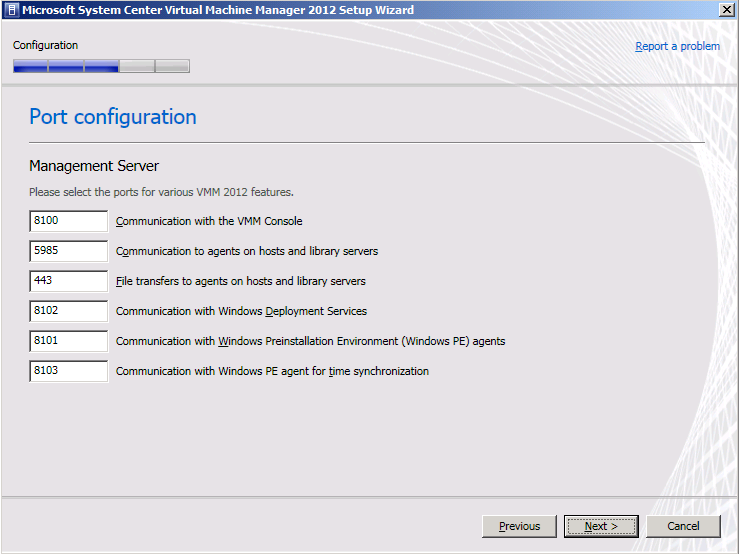
All VHD types can be formatted with the correct offset at the time of creation by booting the child VM before installing an OS and manually setting the partition offset. . The recommended starting offset value for Windows OSs is 32768. The default starting offset value typically observed is 32256.
How to verify the Offset value:
1. Run msinfo32 on the guest VM by selecting
Start > All Programs > Accessories > System Tools > System Information.
or type Start > Run and enter the following command : MSINFO32
2. Navigate to Components > Storage > Disks and check the value for partition starting offset.
If the misaligned virtual disk is the boot partition, follow these steps:
1. Back up the VM system image.
2. Shut down the VM.
3. Attach the misaligned system image virtual disk to a different VM.
4. Attach a new aligned virtual disk to this VM.
5. Copy the contents of the system image (for example, C: in Windows) virtual disk to the new aligned virtual disk.
There are various tools that can be used to copy the contents from the misaligned virtual disk to the new aligned virtual disk:
− Windows xcopy
− Norton/Symantec™ Ghost: Norton/Symantec Ghost can be used to back up a full system image on the misaligned virtual disk and then be restored to a previously created, aligned virtual disk file system.
For Microsoft Hyper-V LUNs mapped to the Hyper-V parent partition using the incorrect LUN protocol type but with
aligned VHDs, create a new LUN using the correct LUN protocol type and copy the
contents (VMs and VHDs) from the misaligned LUN to this new LUN.
For Microsoft Hyper-V LUNs mapped to the Hyper-V parent partition using the incorrect LUN protocol type but with misaligned VHDs, create a new LUN using the correct LUN protocol type and copy the contents (VMs and VHDs) from the misaligned LUN to this new LUN.!01
Next, To set up the starting offset, follow these steps:
1. Boot the child VM with the Windows Preinstall Environment boot CD.
2. Select
Start > Run and enter the following command:
diskpart
3. Type the following into the prompt:
select disk 0
4. Type the following into the prompt:
create partition primary align=32
5. Reboot the child VM with the Windows Preinstall Environment boot CD.
6. Install the operating system as normal.
Virtual disks to be used as data disks can be formatted with the correct offset at the time of creation by using Diskpart in the VM. To align the virtual disk, follow these steps:
1. Boot the child VM with the Windows Preinstall Environment boot CD.
2. Select Start > Run and enter the following command:
diskpart
3. Determine the appropriate disk to use by typing the following into the prompt:
list disk
4. Select the correct disk by typing the following into the prompt:
select disk [#]
5. Type the following into the prompt:
create partition primary align=32
6. To exit, type the following in the prompt:
exit
7. Format the data disk as you would normally
For pass-through disks and LUNs directly mapped to the child OS, create a new LUN using the correct LUN protocol type, map the LUN to the VM, and copy the contents from the misaligned LUN to this new aligned LUN.
Hyper-V Integration Services should be updated after applying SP1 on Virtual Machines
Now that you installed SP1 on Hyper-V/Windows 2008 R2 servers, you should upgrade the Integration Services in all virtual machines or have the SP1 installed on the VM’s also.
To do this using the Virtual Machine Manager, connect to the VM :
1. Click in ACTION,
2. Click Insert Integration Services Setup Disk
3. Click Install Hyper-V Integration Services
4. Click OK, when a message informing about a previous installation show.

To check the Integration Services version, look at the Driver version of the Microsoft Virtual Machine Bus Network Adapter in Device Manager

Microsoft Virtualization for VMware Professionals : Free Online Classes taught by two of the most respected authorities on virtualization technologies
Microsoft Virtualization for VMware Professionals – Free Online
Classes – March 29 – 31
Just one week after Microsoft Management Summit 2011 (MMS), Microsoft Learning will be hosting an exclusive three-day Jump Start class specially tailored for VMware and Microsoft virtualization technology pros. Registration for “Microsoft Virtualization for VMware Professionals” is open now and will be delivered as a FREE online class on March 29-31, 2010 from 10:00am-4:00pm PDT.
What’s the high-level overview?
This cutting edge course will feature expert instruction and real-world
demonstrations of Hyper-V and brand new releases from System Center Virtual
Machine Manager 2012 Beta (many of which will be announced just one
week earlier at MMS). Register Now!
- Day 1
will focus on “Platform” (Hyper-V, virtualization architecture, high
availability & clustering)- 10:00am– 10:30pm PDT: Virtualization 360 Overview
- 10:30am– 12:00pm: Microsoft Hyper-V Deployment Options & Architecture
- 1:00pm– 2:00pm: Differentiating Microsoft and VMware (terminology,etc.)
- 2:00pm– 4:00pm: High Availability & Clustering
- Day 2
will focus on “Management” (System Center Suite, SCVMM 2012 Beta, Opalis, Private Cloud solutions)- 10:00am – 11:00pm PDT: System Center
Suite Overview w/ focus on DPM - 11:00am – 12:00pm: Virtual Machine
Manager 2012 | Part 1 - 1:00pm – 1:30pm: Virtual
Machine Manager 2012 | Part 2 - 1:30pm – 2:30pm:
Automation with System Center Opalis & PowerShell - 2:30pm– 4:00pm: Private Cloud Solutions, Architecture & VMM SSP 2.0
- 10:00am – 11:00pm PDT: System Center
- Day 3
will focus on “VDI” (VDI Infrastructure/architecture, v-Alliance, application
delivery via VDI)- 10:00am – 11:00pm PDT: Virtual
Desktop Infrastructure (VDI) Architecture | Part 1 - 11:00am – 12:00pm: Virtual Desktop
Infrastructure (VDI) Architecture | Part 2 - 1:00pm – 2:30pm:
v-Alliance Solution Overview - 2:30pm– 4:00pm: Application Delivery for VDI
- 10:00am – 11:00pm PDT: Virtual
- Every section will be team-taught by two of the most respected authorities on virtualization technologies: Microsoft Technical Evangelist Symon Perriman and leading Hyper-V, VMware, and XEN infrastructure consultant, Corey Hynes
Who is the target audience for this training?
Suggested prerequisite skills include real-world experience with Windows Server 2008 R2,virtualization and datacenter management. The course is tailored to these types of roles:
- IT Professional
- IT Decision Maker
- Network Administrators & Architects
- Storage/Infrastructure
Administrators & Architects
How do I to register and learn more about this great training opportunity?
Register: Visit the Registration
Page and sign up for all three sessions
- Blog: Learn more from the Microsoft
Learning Blog - Twitter: Here are a few posts you can retweet:
- Mar. 29-31
“Microsoft #Virtualization for VMware Pros” @SymonPerriman Corey
Hynes http://bit.ly/JS-Hyper-V
@MSLearning #Hyper-V - @SysCtrOpalis Mar.
29-31 “Microsoft #Virtualization for VMware Pros” @SymonPerriman
Corey Hynes http://bit.ly/JS-Hyper-V
#Hyper-V - Learn all the cool new
features in Hyper-V & System Center 2012! SCVMM, Self-Service Portal 2.0, http://bit.ly/JS-Hyper-V
#Hyper-V #Opalis
- Mar. 29-31
What is a “Jump Start” course?
A “Jump Start” course is “team-taught” by two expert instructors in an engaging radio talk show style format. The idea is to deliver readiness training on strategic and emerging technologies that drive awareness at scale before Microsoft Learning develops mainstream Microsoft Official Courses (MOC) that map to certifications. All sessions are professionally recorded and distributed through MS Showcase, Channel 9, Zune Marketplace and iTunes for broader reach.
Recommended Books


System Center 2012 R2 Virtual Machine

System Center Virtual Machine Manager 2012 Cookbook


 Cloudtidings.com