
Archive
free Virtualisation Workshop in Sydney, Brisbane, Melbourne, Perth, Canberra, Adelaide
Attend this free Virtualization event and get up to date with Microsoft’s Virtualization technologies! This event will travel to six capital cities starting on February 1st 2011 and continuing throughout the month.
See details of the event below, along with registration links. Register now as seats are limited!
To attend this event you will need to bring your own laptop with you. To connect to the labs you will need the Remote Desktop Connection Client 7.0 Update installed. This client is built into Windows 7 and is a complimentary download for Windows XP SP3 and Windows Vista SP1 and SP2. We have already run these events in other countries and it works extremely well. There will be food provided and in each city, we will be giving away a copy of the latest Hyper-V Resource Kit. So over to the agenda:
Event Overview
This workshop aims at providing an in-depth understanding of Microsoft’s server virtualization technologies. They are the basis of a dynamic infrastructure and provide the building blocks of a private cloud solution. The workshop covers the following:
Agenda Topics
-
- Day 1
- Virtualization 360 Overview
- Hyper-V Architecture and Implementation
- High Availability
- Lab – Setup a 2-node Hyper-V Cluster
- System Center Virtual Machine Manager
- Day 2
- System Center Operations Manager
- Lab – Setup SCVMM, SCOM and Pro-Pack integration
- System Center Data Protection Manager
- Lab: Setup DPM and backup virtual machines
- Architecture Considerations and Best Practices
- Virtual Machine Manager Self Service Portal 2.0
- Lab: Deploy, Configure & Use VMMSSP 2.0
- Day 1
Dates and Registration Details:
| Brisbane Date: 1–2 February 2011 Location: Microsoft Brisbane Time: 9:00 – 5:00PM each day Registration: Click Here to Register |
Canberra Date: 15–16 February 2011 Location: Microsoft Canberra Time: 9:00 – 5:00PM each day Registration: Click Here to Register |
| Melbourne Date: 7–8 February 2011 Location: Microsoft Melbourne Time: 9:00 – 5:00PM each day Registration: Click Here to Register |
Perth Date: 21–22 February 2011 Location: L7 Solutions Perth Time: 9:00 – 5:00PM each day Registration: Click Here to Register |
| Sydney Date: 10–11 February 2011 Location: Microsoft Sydney Time: 9:00 – 5:00PM each day Registration: Click Here to Register |
Adelaide Date: 24–25 February 2011 Location: Microsoft Adelaide Time: 9:00 – 5:00Pm each day Registration: Click Here to Register |
Hyper-V Cloud. Links to download the Deployment Guides
As many are requesting the links to download the Microsoft Hyper-V Cloud Deployment guides.
Building Private Clouds With Hyper-V Cloud and the Windows Server Platform
Windows Server 2008 R2, Microsoft’s server platform, already delivers comprehensive virtualization and management capabilities through Windows Server 2008 R2 Hyper-V. These technologies, along with Microsoft System Center, provide the components organizations need to implement private clouds. With the new Hyper-V Cloud Fast Track program, Microsoft and its partners will deliver a broad choice of predefined, validated configurations for private cloud deployments, comprising compute, storage, networking resources, virtualization and management software. These programs and offerings help reduce the risk and increase the speed of private cloud deployments.
here are the links. ( Right click -> Save as )
What Is Private Cloud?
http://download.microsoft.com/download/F/A/5/FA5B09CA-D020-45A2-9ED5-84BBB7FB4F33/Hyper-V_Private_Cloud-Datasheet-Final.pdf
http://download.microsoft.com/download/D/9/6/D9688623-02EE-4546-9996-640DBA4543DA/HVC_Deployment_Guides_Module_1-Architecture.pdf
http://download.microsoft.com/download/D/9/6/D9688623-02EE-4546-9996-640DBA4543DA/HVC_Deployment_Guides_Module_2-Deployment.pdf
http://download.microsoft.com/download/D/9/6/D9688623-02EE-4546-9996-640DBA4543DA/HVCDeploymen%20GuidesModule4-ProjectValidationWorkbook.xls
More information on Hyper-V Cloud and additional details on how Dell, Fujitsu, Hitachi, HDS, HP, IBM and NEC are participating in the program can be found at http://www.microsoft.com/privatecloud
Virtualisation planning process : memory configuration maximums.
Today’s challenge for a virtualization admins it’s to provision memory requirements within the guest for unique workloads, paying attention to the host environment.
Although today, memory is relatively cheap, it may not be the case in the future and we also need to take in consideration the host maximums, as this will impact what OS would be available for a guest virtual machine as well as the aggregated impact on the host. It is notorios that system/applications that are replacing older servers running W2K/W2K3 to now require more resources(RAM, CPU, Disk, Network ) than the previous systems/apps.
It is important to pay special attention to the memory limits, requirements and aggregate memory capacity with insight to future needs.
Limits on memory and address space vary by platform, operating system, and by whether the IMAGE_FILE_LARGE_ADDRESS_AWARE value of the LOADED_IMAGE structure and 4-gigabyte tuning (4GT) are in use. IMAGE_FILE_LARGE_ADDRESS_AWARE is set or cleared by using the /LARGEADDRESSAWARE linker option.
Limits on physical memory for 32-bit platforms also depend on the Physical Address Extension (PAE), which allows 32-bit Windows systems to use more than 4 GB of physical memory.
Memory and Address Space Limits
The following table specifies the limits on memory and address space for supported releases of Windows. Unless otherwise noted, the limits in this table apply to all supported releases.
| Memory type | Limit in 32-bit Windows | Limit in 64-bit Windows |
| User-mode virtual address space for each 32-bit process | 2 GBUp to 3 GB with IMAGE_FILE_LARGE_ADDRESS_AWARE and 4GT | 2 GB with IMAGE_FILE_LARGE_ADDRESS_AWARE cleared (default)4 GB with IMAGE_FILE_LARGE_ADDRESS_AWARE set |
| User-mode virtual address space for each 64-bit process | Not applicable | With IMAGE_FILE_LARGE_ADDRESS_AWARE set (default):x64: 8 TBIntel IPF: 7 TB2 GB with IMAGE_FILE_LARGE_ADDRESS_AWARE cleared |
| Kernel-mode virtual address space | 2 GBFrom 1 GB to a maximum of 2 GB with 4GT | 8 TB |
| Paged pool | Limited by available kernel-mode virtual address space or the PagedPoolLimit registry key value.Windows Vista: Limited only by kernel mode virtual address space. Starting with Windows Vista with Service Pack 1 (SP1), the paged pool can also be limited by the PagedPoolLimit registry key value.Windows Home Server and Windows Server 2003: 530 MBWindows XP: 490 MBWindows 2000: 350 MB | 128 GBWindows Server 2003 and Windows XP: Up to 128 GB depending on configuration and RAM.Windows 2000: Not applicable |
| Nonpaged pool | Limited by available kernel-mode virtual address space, the NonPagedPoolLimit registry key value, or physical memory.Windows Vista: Limited only by kernel mode virtual address space and physical memory. Starting with Windows Vista with SP1, the nonpaged pool can also be limited by the NonPagedPoolLimit registry key value.Windows Home Server, Windows Server 2003, and Windows XP/2000: 256 MB, or 128 MB with 4GT. | 75% of RAM up to a maximum of 128 GBWindows Vista: 40% of RAM up to a maximum of 128 GB.Windows Server 2003 and Windows XP: Up to 128 GB depending on configuration and RAM.Windows 2000: Not applicable |
| System cache virtual address space (physical size limited only by physical memory) | Limited by available kernel-mode virtual address space or the SystemCacheLimit registry key value.Windows Vista: Limited only by kernel mode virtual address space. Starting with Windows Vista with SP1, system cache virtual address space can also be limited by the SystemCacheLimit registry key value.Windows Home Server, Windows Server 2003, and Windows XP/2000: 860 MB with LargeSystemCache registry key set and without 4GT; up to 448 MB with 4GT. | Always 1 TB regardless of physical RAMWindows Server 2003 and Windows XP: Up to 1 TB depending on configuration and RAM.Windows 2000: Not applicable |
—
Physical Memory Limits: Windows Server 2008 R2
The following table specifies the limits on physical memory for Windows Server 2008 R2. Windows Server 2008 R2 is available only in 64-bit editions.
| Version | Limit in 64-bit Windows |
|---|---|
| Windows Server 2008 R2 Datacenter | 2 TB |
| Windows Server 2008 R2 Enterprise | 2 TB |
| Windows Server 2008 R2 for Itanium-Based Systems | 2 TB |
| Windows Server 2008 R2 Foundation | 8 GB |
| Windows Server 2008 R2 Standard | 32 GB |
| Windows HPC Server 2008 R2 | 128 GB |
| Windows Web Server 2008 R2 | 32 GB |
—-
Physical Memory Limits: Windows Server 2008
The following table specifies the limits on physical memory for Windows Server 2008. Limits greater than 4 GB for 32-bit Windows assume that PAE is enabled.
| Version | Limit in 32-bit Windows | Limit in 64-bit Windows |
|---|---|---|
| Windows Server 2008 Datacenter | 64 GB | 1 TB |
| Windows Server 2008 Enterprise | 64 GB | 1 TB |
| Windows Server 2008 HPC Edition | Not applicable | 128 GB |
| Windows Server 2008 Standard | 4 GB | 32 GB |
| Windows Server 2008 for Itanium-Based Systems | Not applicable | 2 TB |
| Windows Small Business Server 2008 | 4 GB | 32 GB |
| Windows Web Server 2008 | 4 GB | 32 GB |
—–
Physical Memory Limits: Windows Server 2003
The following table specifies the limits on physical memory for Windows Server 2003. Limits over 4 GB for 32-bit Windows assume that PAE is enabled.
| Version | Limit in 32-bit Windows | Limit in 64-bit Windows |
|---|---|---|
| Windows Server 2003 with Service Pack 2 (SP2), Datacenter Edition | 128 GB64 GB with 4GT | IA64 2 TBX64 1 TB |
| Windows Server 2003 with Service Pack 2 (SP2), Enterprise Edition | 64 GB | IA64 2 TBX64 1 TB |
| Windows Storage Server 2003, Enterprise Edition | 8 GB | Not applicable |
| Windows Storage Server 2003 | 4 GB | Not applicable |
| Windows Server 2003 R2 Datacenter EditionWindows Server 2003 with Service Pack 1 (SP1), Datacenter Edition | 128 GB16 GB with 4GT | 1 TB |
| Windows Server 2003 R2 Enterprise EditionWindows Server 2003 with Service Pack 1 (SP1), Enterprise Edition | 64 GB16 GB with 4GT | 1 TB |
| Windows Server 2003 R2 Standard EditionWindows Server 2003, Standard Edition SP1Windows Server 2003, Standard Edition SP2 | 4 GB | 32 GB |
| Windows Server 2003, Datacenter Edition | 128 GB16 GB with 4GT | 512 GB |
| Windows Server 2003, Enterprise Edition | 32 GB16 GB with 4GT | 64 GB |
| Windows Server 2003, Standard Edition | 4 GB | 16 GB |
| Windows Server 2003, Web Edition | 2 GB | Not applicable |
| Windows Small Business Server 2003 | 4 GB | Not applicable |
| Windows Compute Cluster Server 2003 | Not applicable | 32 GB |
Short list of Microsoft Desktop Virtualisation solutions
And how you can use them in your organization:
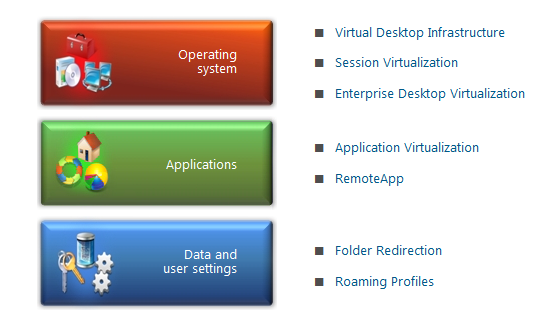
VDI: Enables users to access their personalized Windows desktops hosted on servers. For many organizations, virtualizing desktops within the datacenter is seen as an excellent means to provide a centrally-managed Windows desktop to connected users. http://www.microsoft.com/downloads/details.aspx?displaylang=en&FamilyID=8d454921-72d6-45b4-b6ba-ac1c26d337bd
Session Virtualization: Makes it possible for you to run an application or an entire desktop in one location, but have it be controlled in another. Session virtualization allows you to install and manage session-based desktops and applications, or virtual-machine based desktops on centralized servers in the datacenter; deliver images to users, and send keystrokes and mouse movements from user client machines, in turn, back to the server. From a user perspective, applications are integrated seamlessly—looking, feeling, and behaving like local applications. http://technet.microsoft.com/library/cc742806.aspx
MED-V: Provides you with the ability to deploy and manage virtual Windows desktops to help enterprises upgrade to the latest version of Windows, without having to worry about application compatibility. MED-V provides organizations the ability to run two operating systems on one device, adding virtual image delivery, policy-based provisioning, and centralized management. http://technet.microsoft.com/library/ff433588.aspx
App-V: Helps you make business applications available to end users on any authorized PC. App-V decouples applications from the OS and helps to eliminate application-to-application incompatibility, as applications are no longer installed on the local client machine. In addition, application streaming expedites the application delivery process so that your IT department no longer needs to install applications locally on every machine. http://technet.microsoft.com/library/ee958103.aspx
RemoteApp: Enables programs that are accessed remotely through Terminal Services to appear as if they are running on the end user’s local computer. Users can run RemoteApp programs side by side with their local programs. A user can minimize, maximize, and resize the program window, and can easily start multiple programs at the same time. If a user is running more than one RemoteApp program on the same terminal server, the RemoteApp programs will share the same Terminal Services session. http://technet.microsoft.com/library/cc755055.aspx
Data and User Settings: Utilizes folder redirection and roaming profiles to enable you to make the user’s personal profile and data available dynamically on any authorized PC, and to back up personal profiles and data to the datacenter. http://technet.microsoft.com/library/cc732275.aspx
To find more about, visit : http://technet.microsoft.com/en-us/windows/gg276319.aspx?ITPID=insider
Recommended Books


System Center 2012 R2 Virtual Machine

System Center Virtual Machine Manager 2012 Cookbook


 Cloudtidings.com