
Archive
Safely service offline virtual machines in your SCVMM library : Virtual Machine Servicing Tool 3.0
Using new features in VMST 3.0, customers can now service:
-
Offline virtual machines in a SCVMM library.
-
Stopped and saved state virtual machines on a host.
-
Virtual machine templates.
-
Offline virtual hard disks in a SCVMM library by injecting update packages.
-
Windows Server 2008 R2 failover clusters running Hyper-V.
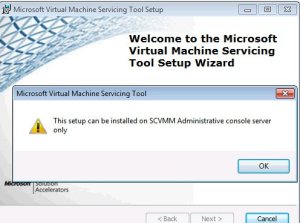
The parent partition uses a different VMBus version. You need to Install a matching VMBus version in this guest installation.
Source: storvsp
Event ID: 5
Level: Error
Computer: 2008 R2 guest
Log Name: System
Source: vmbus
Level: Error
Computer: 2008R2-Guest
Source: VMSMP
Event ID: 26
Level: Error
Computer: 2008R2-Guest
Free Virtualization Workshops in Melbourne, Sydney, Canberra, Brisbane, Perth and Adelaide
Event Overview
Two day workshop focused on Hyper-V and Microsoft Virtualization technologies. The 2 day workshop will be a mixture of theory presentations and hands on labs. Participants will walk away with a better understanding of Microsoft’s Virtualization technologies.
Agenda Topics
- Day 1
- Virtualization 360 Overview

- Evaluating the Environment & Planning: MAP Tools and IPD Guides
- MAP Lab
- Hyper-V Architecture and Implementation – Hypervisor architecture, virtual disk and networks, security and licensing.
- High Availability – 2008 R2 Clusters, Quick and Live Migration, Storage Implications
- Lab: Setup a 2-Node Hyper-V Cluster

- Virtualization 360 Overview
- Day 2
- System Centre Virtual Machine Manager 2008 R2 – Creating a Library, Physical to Virtual Migration, Optimal Placement
- System Centre Operations Manager – Overview and integration with Virtual Machine Manager
- System Centre Data Protection Manager – Overview and integration with Virtual Machine Manager
- Architecture Considerations and Best Practices – Sizing Servers, storage and designing for high availability
- Considerations on Dynamic IT – Integrating Hyper-V, SCVMM, SCOM with PowerShell to build a dynamic environment
- Lab: Setup SCVMM and SCOM


Dates and Registration Details:
| Melbourne Date: May 31st – June 1st Location: Microsoft Melbourne Time: 9:00 – 5:00PM each day Registration: Click Here to Register |
Sydney Date: June 10th – June 11th Location – Microsoft Sydney Time: 9:00 – 5:00Pm each day Registration: Click Here to Register |
| Canberra Date: June 3rd – June 4th Location – Microsoft Canberra Time: 9:00 – 5:00PM each day Registration: Click Here to Register |
Perth Date: June 15th – June16th Location – Microsoft Perth Time: 9:00 – 5:00PM each day Registration: Click Here to Register |
| Brisbane Date: June 7th – June 8th Location – Microsoft Brisbane Time: 9:00 – 5:00PM each day Registration: Click Here to Register |
Adelaide Date: June 21st – June 22nd Location – Microsoft Adelaide Time: 9:00 – 5:00Pm each day Registration: Click Here to Register |
Hyper-V and Dynamic Memory
With the release of the SP1 for Windows Server 2008 R2. Microsoft will be releasing the new feature for Hyper-V : Dynamic Memory.
But what Dynamic Memory will do?
Dynamic memory is an enhancement to Hyper-V in R2 and allows IT administrators to pool all the memory available on a physical host and dynamically distribute it to virtual machines running on that host as necessary. That means based on changes in workload, your VMs will be able to receive new memory allocations without a service interruption.
At a high level, Hyper-V Dynamic Memory is a memory management enhancement for Hyper-V designed for production use that enables customers to achieve higher consolidation/VM density ratios
To be Clear : Dynamic memory is allocating ram automatically among guest depending on usage. You still can’t allocate more RAM than what you have physically
Technology Preview: future release of System Center Virtual Machine Manager V-next
During the MMS 2010, Microsoft demonstrated the Preview of System Center Virtual Machine Manager V-next, and System Center Operations Manager V-next both of which are planned to be available in 2011. Check out the demos.
Some Notes :
- System Center Configuration Manager 2007 R3, which includes power management capabilities that could reduce your power bills by tens of dollars per PC, per year – a capability we’re already using internally at Microsoft.
- The RTM versions of System Center Data Protection Manager 2010, System Center Service Manager and the new Compliance Pack for Service Manager—all designed to enable you to manage your complete IT environment in a more cost-effective way.
- Windows Intune, a new desktop infrastructure solution that delivers security and management from the cloud. This is the evolution of the System Center Online concept I shared at last year’s MMS. Using Windows cloud services and Windows 7, Intune is designed for mid-sized businesses, who want to operate at great performance, from anywhere.
SCDPM 2010: Backup Machines in a Workgroup/DMZ. How to protect your Hyper-V Servers that are not domain joined
One of the greatest features of SCDPM 2010 is the ability to backup machines that are in a workgroup/DMZ/untrusted domain. This is good for example because some of my Hyper-V serveres are in the workgroup mode.
1. Install the DPM agent on the server you want to protect. Copy the agent folder to that server and double click the EXE and wait for the message to tell you that the agent was installed successfully. You then might need to reboot.
- x86 : <installation drive>Program FilesMicrosoft DPMDPMProtectionAgentsRA3.0.7558.0i386DPMAgentInstaller_x86.exe
- x64 : <installation drive>Program FilesMicrosoft DPMDPMProtectionAgentsRA3.0.7558.0amd64DPMAgentInstaller_x64.exe
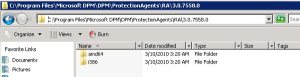
Also, copy the SetDPMServer.exe from <installation drive>Program FilesMicrosoft Data Protection ManagerDPMbin
Once the agent is installed it needs to be configured. This is done using SetDPMServer.exe
2. Run SetDPMServer.exe with following arguments, you need to specify the DPM server name and a user name for a new local account to be created.
SetDPMServer.exe -DPMServerName <DPMServerName> -IsNonDomainServer -UserName <NewUserName>
You will be prompted to give a password for the new user account and to confirm it, once done the agent is configured and the relevant changes have been made to the Windows firewall.
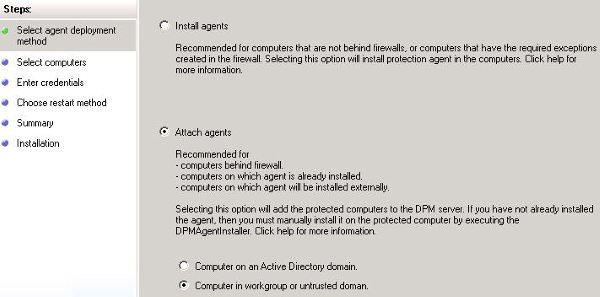
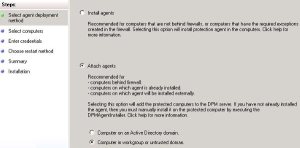
3. Now the agent needs to be attached to the DPM server. Attaching DPM agents to a DPM server can be done through the DPM GUI .
- To attach a non-domain server agent:
- Open the DPM console
- Select the Management Pane
- on the Actions menu, Click Install
- Select Attach agents, when the Protection Agent Installation Wizard opens.
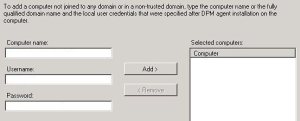
- Type the name of the untrusted computer that the DPM agent is installed on
- Type the user name and password specified when running SetDPMServer.exe.
- Click "Add >" to add the computer to the selected computers list.
- Click Attach
Now, you can create a protection group to protect the data on the machine. To do that, click on Protection Pane and select Create Proection Group, as usual
Desktop Virtualization Roadshow : Microsoft and Citrix are coming to Brisbane and Camberra, Australia
Learn how server & desktop virtualization can help you:
- Build a desktop virtualization management strategy that helps you manage your applications, data, mobile workers and multiple physical and virtual form factors.
- Reduce desktop costs.
- Enable flexible and agile IT through virtualization.
- Increase desktop security and compliance.
- Improve business continuity and end user productivity.
- Understand how Microsoft is building a solid foundation for a private cloud.
- Increase end user productivity and streamline your IT management with Windows 7.
| Apr 29 | Australia | Brisbane |  |
| May 6 | Australia | Canberra | |
Register today!
VMware to create patch to fix performance behind Hyper-V R2 and XenServer
In a recent update of the phase II of Project VRC, VMware was behind Hyper-V R2 and XenServer.
Although XenServer and Hyper-V R2 performed nearly identical, Vmware get behind by 10%-30%. VMware responded to the findings and wrote a fix for VMware vSphere 4.0 to try to close the gap :
"…What we discovered led us to create a vSphere patch that would allow users to improve performance in some benchmarking environments."
There are three specific conditions that can excite this condition:
- A Xeon 5500 series processor is present with Hyper-Threading enabled,
- CPU utilization is near saturation, and
- A roughly one-to-one mapping between vCPUs and logical processors.
In this scenario, VMware vSphere favors fairness over throughput and sometimes pauses one vCPU to dedicate a whole core to another vCPU, eliminating gains provided by Hyper-Threading
VIRTUALIZING Terminal Server : analyzing Terminal Services (TS) workloads running on the latest generation hardware and hypervisors
Virtualizing Terminal Server and Citrix XenApp workloads is highly recommended, for managment and consolidation benefits and if you are thinking on x86 TS so far for more scalability.
So, If you are planning to run Terminal Server in a Virtual Environment, you shoud read the The Project VRC phase 2 whitepaper, that focuses completely on analyzing Terminal Services (TS) workloads running on the latest generation hardware and hypervisors.
Here is a brief summary :
"When comparing hypervisors, performance is close to equal throughout when no Hyper-threading is used by the VM’s. In all test the hypervisors perform with a 5% range with the Terminal Server workloads, with a slight edge for vSphere 4.0. Utilizing Hyper-Threading, on all platforms a performance increase in seen, but vSphere 4.0 trailing slightly by 15% in comparison to XenServer 5.5 and Hyper-V 2.0. These differences are only visible under full load.
Strikingly, XenServer 5.5 and Hyper-V 2.0 perform almost identical in all tests. The only differentiator between these two is that XenServer 5.5 (and vSphere 4.0) support 8vCPU’s, where Hyper-V 2.0 has a maximum of 4vCPU per VM"
if you are curious about the impact of different hypervisors and the performance differences with various hardware and if you are searching for best practices for your virtual Desktops … Project VRC whitepapers are a must read!
Dynamic Memory Coming to Hyper-V
Recommended Books


System Center 2012 R2 Virtual Machine

System Center Virtual Machine Manager 2012 Cookbook


