
Archive
Start your Private Cloud evaluations with System Center 2012
Get started with System Center 2012 by downloading/installing or by atteding Microsoft hands on sessions. Details below:
- Private Cloud Evaluation – Start you Private Cloud evaluations with System Center 2012 + Windows Server 2008 R2 SP1 Evaluation bits.
The Microsoft private cloud evaluation includes:
System Center 2012
- System Center 2012 Unified Installer is a utility designed to perform new, clean installations of System Center 2012 for testing and evaluation purposes only. If you want to upgrade from an existing System Center installation or choose set up options such as high availability or multi-server component installs, please refer instead to the System Center 2012 component installation guides located on the Microsoft Private Cloud Evaluation Resource Page.
- System Center 2012 App Controller provides a common self-service experience across private and public clouds that can help you empower application owners to easily build, configure, deploy, and manage new services.
- System Center 2012 Configuration Manager provides comprehensive configuration management for the Microsoft platform that can help you empower users with the devices and applications they need to be productive while maintaining corporate compliance and control.
- System Center 2012 Data Protection Manager provides unified data protection for Windows servers and clients that can help you deliver scalable, manageable, and cost-effective protection and restore scenarios from disk, tape, and off premise.
- System Center 2012 Endpoint Protection, built on System Center Configuration Manager, provides industry-leading threat detection of malware and exploits as part of a unified infrastructure for managing client security and compliance that can help you simplify and improve endpoint protection.
- System Center 2012 Operations Manager provides deep application diagnostics and infrastructure monitoring that can help you ensure the predictable performance and availability of vital applications and offers a comprehensive view of your datacenter, private cloud, and public clouds.
- System Center 2012 Orchestrator provides orchestration, integration, and automation of IT processes through the creation of runbooks that can help you to define and standardize best practices and improve operational efficiency.
- System Center 2012 Service Manager provides flexible self-service experiences and standardized datacenter processes that can help you integrate people, workflows, and knowledge across enterprise infrastructure and applications.
- System Center 2012 Virtual Machine Manager provides virtual machine management and services deployment with support for multi-hypervisor environments that can help you deliver a flexible and cost effective private cloud environment.
- Attend an IT Camp – Learn more and get hands on by attending an IT Camp on the Microsoft Private Cloud. These in person workshops give you hands on experience with a range of Microsoft technologies.
- Get Certified in Microsoft Cloud technologies by taking advantage of the recently announced redesign of Microsoft Certification which includes certifications focused on cloud computing.
Windows Server 2012: Hyper-V Network Virtualization
Hyper-V Network Virtualization allow customers to keep their own internal IP addresses when moving to the cloud while providing isolation from other customers’ VMs – even if those VMs happen to use the exact same IP addresses.
The way it works is that each VM receive two IP addresses :
The first one, the IP address visible in the VM, is relevant in the context of a given tenant’s virtual subnet. Following the IEEE nomenclature we call this the Customer Address (CA).
The other IP address is relevant in the context of the physical network in the cloud datacenter. This is called the Provider Address (PA). This decoupling of tenant and datacenter IP addresses provides many benefits.
One of the benefits is that you can move your VMs to the cloud without modifying the VM’s network configuration and without worrying about what else (or who else) is sitting in that datacentre.
Another big reason is the policy enforcement in the end hosts that provides a scalable solution for multi-tenant isolation, instead of using Vlan’s, for isolation.
There are 2 different mechanisms to virtualize the IP address:
Generic Routing Encapsulation (GRE) : should be used for network virtualization, because it provides the most flexibility and performance. It will be used for most environments/deployments
IP Rewrite : may be appropriate to provide performance and compatibility in some current high-capacity datacenters.
A very good article was posted by Jeffrey about this topic
W2008R2 Failover Cluster : New hotfix to improve performance enables faster failover times in a SQL 2012
After you enable the AlwaysOn Availability Group feature in Microsoft SQL Server 2012 on a Windows Server 2008 R2-based failover cluster, using local and remote Availability Group database replicas, the failover time to the local replica takes longer than expected.
Note This issue occurs because of inter-node communication within the cluster.
To improve the performance of the “AlwaysOn Availability Group” feature in SQL Server 2012 is available for Windows Server 2008 R2.
Important : You must restart the computer after you apply this hotfix
To download: http://support.microsoft.com/kb/2687741/en-us
Virtualizing ALL Domain Controllers in a Cluster environment. Would you recommend?
Would I recommend virtualizing All domain controllers on a Hyper-V Cluster?
My answer is : yes and NO.
1. Yes, for an home/test/demo deployment
2. Yes, for a multi-site cluster/single forest deployment, running multiples domain controllers
3. BIG NO, if it is an production environment running in one unique site and I will explain the reasons for that:
Root Domain Controller running on a Physical Hardware
Due the implementation of clustered Hyper-V, it is not recommended to virtualise all domain controllers. In case of connection lost to the Failover Cluster, it will fail to start as it cannot locate AD account for Cluster Hyper V Host. Microsoft Failover Cluster relies on Active Directory for authentication/authorization and it is a pre-requisite to setup failover cluster. That’s a serious matter and Microsoft released a very long articles about that.
References:
– “Always have at least one DC that is on physical hardware so that failover clusters and other infrastructure can start.” http://support.microsoft.com/kb/888794
(Article ID: 888794 – Last Review: December 29, 2011 – Revision: 13.0)
– Avoid creating single points of failure: Maintain physical domain controllers in each of your domains. This mitigates the risk of a virtualization platform malfunction that affects all host systems that use that platform.
http://technet.microsoft.com/en-us/library/virtual_active_directory_domain_controller_virtualization_hyperv(WS.10).aspx
(Updated: April 11, 2011)
Note : Although it is possible to minimize the risk by having the DC running as a standalone VM, on any Cluster Hyper V, Microsoft does not recommend to run standalone VM on a cluster Hyper V
How about you. What is your thoughts on this?
Recommended articles: http://blogs.msdn.com/b/virtual_pc_guy/archive/2008/11/24/the-domain-controller-dilemma.aspx
http://www.ms4u.info/2011/05/why-you-should-not-running-domain.html
http://msincic.wordpress.com/2011/06/09/virtualize-domain-controllers-should-i-or-not/
http://support.microsoft.com/kb/888794
http://technet.microsoft.com/en-us/library/dd348476(v=WS.10).aspx
SC2012 : The WinRM settings are not configured correctly
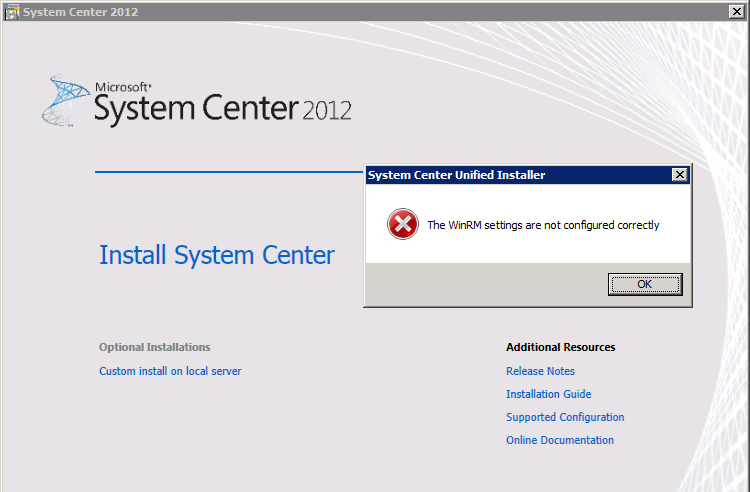
When installing System Center 2012, if you get into the following error:
The WinRM settings are not configured correctly :
To Fix :
1. Make sure you installed all pre-requisites:
- One of the following versions of Windows operating systems:
- 64-bit edition of Windows 7 Service Pack 1 (SP1)
- 64-bit edition of Windows Server 2008 R2 with (SP1)
- Internet Information Services (IIS)
- Microsoft .NET Framework 3.51
- Windows PowerShell 2.0
Plus, depending on which component you want to install, verify that :
| Prerequisite | Download | Component | ||
|---|---|---|---|---|
| .NET Framework 4 | Microsoft .NET Framework 4 (Standalone Installer) |
|
||
| Windows Automated Installation Kit 2.0** | The Windows Automated Installation Kit (AIK) for Windows 7 |
|
||
| Report Viewer 2008 SP1 Redistributable | Report Viewer Redistributable 2008 Service Pack 1 GDIPLUS.DLL Security Update |
|
||
| Trial Version of Microsoft® SQL Server® 2008 R2 | Trial version of Microsoft® SQL Server® 2008 R2 |
|
||
| SP1 for Microsoft® SQL Server® 2008 R2**Cumulative Update Package 4 for Microsoft SQL Server 2008 R2 SP1** | SP1 for Microsoft SQL Server 2008 R2CU4 for Microsoft SQL Server 2008 R2 SP1 |
|
||
| SQL Server 2008 R2 Native Client | Three different setup files are available for installing Microsoft SQL Server 2008 R2 Native Client based on the microprocessor architecture that you are using, as indicated in the following list: |
|
||
| Microsoft SQL Server 2008 R2 Command Line Utilities | Three different setup files are available for installing Microsoft SQL Server Command Line Utilities, based on the microprocessor architecture that you are using, as indicated in the following list:
|
|
||
| Microsoft Analysis Management Objects | Three different setup files are available for installing Microsoft AMOs, based on the microprocessor architecture that you are using, as indicated in the following list: |
|
 Note
Note* App Controller depends on the installation of VMM.
** SP1 for Microsoft® SQL Server® 2008 R2, the Cumulative Update Package 4 for Microsoft SQL Server 2008 R2 SP1, and the Windows Automated Installation Kit 2.0 will need to be extracted (uncompressed). The other files ending in .exe are executable files.
The Windows Automated Installation Kit can be extracted using any ISO extraction utility. CU4 and SP1 for SQL Server should be uncompressed using the command <filename>.exe /x
—————-
2. Edit the following local computer policy settings:
- Computer Configuration / Administrative Templates / System / Credential Delegation / Allow Delegating Fresh Credentials
- Computer Configuration / Administrative Templates / System / Credential Delegation / Allow Delegating Fresh Credentials with NTLM-only Server Authentication
There are two methods that you can use to make the following policy changes. You can edit the local group policy, or you can open a command prompt and run a series of WinRM commands. If you edit the local group policy, it can take some time for the changes to take effect. If you run the WinRM commands, the changes take effect immediately.
- Computer Configuration / Administrative Templates / Windows Components / Windows Remote Management (WRM) / WinRm Client / Allow CredSSP authentication
- Computer Configuration / Administrative Templates / Windows Components / Windows Remote Management (WRM) / WinRm Client / Trusted Hosts
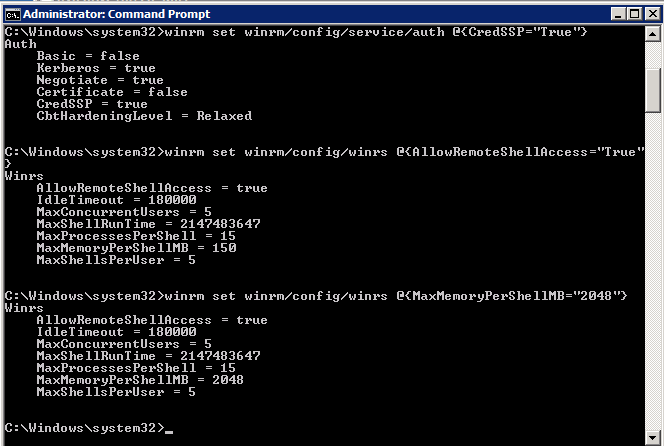
WinRM commands ( open the command prompt – Run as Administrator ):

winrm qc -q
winrm set winrm/config/service/auth @{CredSSP=”True”}
winrm set winrm/config/winrs @{AllowRemoteShellAccess=”True”}
winrm set winrm/config/winrs @{MaxMemoryPerShellMB=”2048″}
——————
3. If installing on a target computer, configure the target computer Windows firewall for the Unified Installer
- Click Start, click Administrative Tools, and then click Windows Firewall with Advanced Security.
- In the Windows Firewall with Advanced Security on Local Computer pane, click Inbound Rules.
- In the Actions pane, under Inbound Rules, click New Rule.
- In the New Inbound Rule Wizard, do the following:
- In Rule Type, click Port, and then click Next.
- In Protocol and Ports, click TCP, click Specific local ports, and then type 81, and then click Next.
- In Action, click Next.
- In Profile, click Next.
- In Name, type Installer Web TCP 81, and then click Finish.
- In the Actions pane, under Inbound Rules, click New Rule.
- In the New Inbound Rule Wizard, do the following:
- In Rule Type, click Port, and then click Next.
- In Protocol and Ports, click TCP, click Specific local ports, type 1433, and then click Next.
- In Action, click Next.
- In Profile, click Next.
- In Name, type Installer SQL TCP 1433, and then click Finish.
- In the Actions pane, under Inbound Rules, click New Rule.
- In the New Inbound Rule Wizard, do the following:
- In Rule Type, click Port, and then click Next.
- In Protocol and Ports, click UDP, click Specific local ports, type 1434, and then click Next.
- In Action, click Next.
- In Profile, click Next.
- In Name, type Installer SQL UDP 1434, and then click Finish.
- Close Windows Firewall with Advanced Security
Note: When you run the System Center 2012 – Unified Installer, you will be prompted for account credentials to use for installing a System Center 2012 component on a target computer. The account that you specify must be a member of the Administrators group on both the target computer and the installer computer
24 Hours in a Private Cloud
Event Description
Every organization has the power to employ cloud technologies in their own way, at their own pace and with their own terms. The use of private cloud technologies help transform how organizations manage infrastructure resources, provision applications and automate services for their business. It also helps them leverage and manage public cloud services that expand their current infrastructure and application capabilities. As an end result, organizations increase IT operational agility, improved business focus and achieve value-add economics that evolves their IT infrastructure into a strategic asset.
Over 24 hours, you will hear from top industry and technical professionals from around the world to help you better understand the private cloud technology solutions that are available today. You will hear from industry organizations about how they view the public cloud and how the role of the IT Professional will evolve as more and more organizations begin a private cloud transformation. Listen to the number of technical professionals who will be on hand talking about the required components to simplify private cloud creation and management. Talk with them and your peers about the numerous operational efficiencies that come from deploying a private cloud with the reduction of servers and the benefits of provisioning and managing virtual applications across multiple platforms.
We hope that you will come away from this event with the knowledge and experience to help you in your private cloud infrastructure decisions and be prepared to have thought-leadership based discussions focused on building and managing your organization’s agile and efficient private cloud environment.
Keynote Speakers
· Jim Reavis, Founding Director, Cloud Security Alliance
· Kevin Smith, Marketing Director, Private Cloud, Dell
· Dejan Milojicic, TBD, IEEE
Technical Areas of Focus
· Private Cloud Infrastructure
· Infrastructure Components
· Application Management
· Service Delivery and Automation
Registration link : http://bit.ly/24hipc
Microsoft’s Certifications Reinvented for the Cloud
Private Cloud and SQL lead the Microsoft Certified Solutions Expert (MCSE) reinvention
The need for cloud computing skills has been pushing the market for months. Solution providers are seeking cloud-ready employees to bring their businesses to the next level. The cloud computing market is evolving at such a pace that while the number of job postings is skyrocketing, the talent isn’t there to fill the positions.
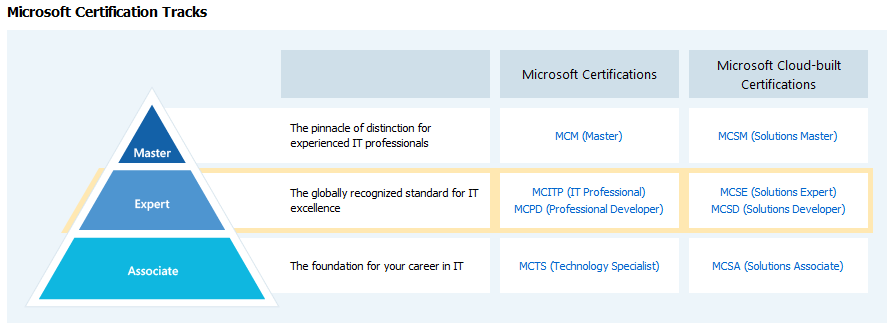
The new certification framework has also been streamlined to three skill levels to make it easier to navigate:
- The Associate Level comprises the Microsoft Certified Solutions Associate (MCSA) certification, which provides a clear starting point for job seekers early in their technology career. Candidates must prove they have the required skills to hit the ground running. This level represents a foundation and is the prerequisite certification necessary to earn an MCSE.
- The Expert Level comprises the Microsoft Certified Solutions Expert (MCSE) or its developer equivalent, Microsoft Certified Solutions Developer (MCSD), and is Microsoft’s flagship certification for individuals who want to lead their organization’s transition to the cloud. These certifications recognize IT professionals and developers with broad and deep skill sets across Microsoft solutions.
- The Master Level is the Microsoft Certified Solutions Master (MCSM) certification that differentiates the select few from their peers and represents the highest bar of knowledge and skills validation.
Microsoft Certifications : the return of MCSA/MCSE/MCSD
Microsoft announced the return of the MCSE : Microsoft Certified Solutions Expert (MCSE) emphasizes solutions.
Microsoft Certified Solutions Expert (MCSE) is a reinvented certification, Reinvented, Not Just Renamed.
Microsoft has reinvented its certification program by building a broader and deeper set of technology solutions skills validation, starting with cloud-enabled solution skills. As one of the most recognized and respected certification programs, Microsoft is charting the path for IT Professionals and Developers to keep their skills relevant as new technology solutions are released.
To learn more, visit the hot site http://www.microsoft.com/learning/en/us/certification/cert-overview.aspx
Windows 8 : Why should my hardware have SR-IOV capabality ?
Single Root I/O Virtualization (SR-IOV)
SR-IOV capability will significantly reduce the overhead on network IO operations.
It allows for a virtual machine to have near native IO against the physical NIC, allowing applications that require very low latency to work inside of virtual machines.
What does it require?
- It must bypass teaming
- Interrupt and DMA remapping
- Access Control Services (ACS) on PCIe root ports
- Alternative Routing ID Interpretation (ARI)
- Hardware virtualization, EPT or NPT
Where to create:
– In the Hyper-V Manager, click on Virtual Switch Manager on the right panel
– Click Add New Virtual Switch
– Type the name of the virtual switch
– Tick box for Enable Single Root I/O virtualization (SR-IOV)

IMPORTANT :

More about SR-IOV here : SR-IOV feature (Single Root – I/O Virtualization)
Microsoft SR-IOV Support on Dell PowerEdge Servers (source : http://en.community.dell.com/techcenter/os-applications/w/wiki/3459.dell-supported-platforms-for-windows-server-8-sr-iov-feature.aspx):
Dell PowerEdge 12th Generation servers support the SR-IOV servers but previous generations have exceptions.
Below is a list of Dell 11th Generation platforms that support the SR-IOV feature:
- R910
The following platforms are also supported and must be an 11G Generation II server:
- T410, R410, R510, R610, T610, R710, T710.
How to identify an 11G Generation II system:
- These servers will be physically marked with symbol “II” on the Express service tag. The Express service tag is located in front panel of the system.
- These systems support Intel 56XX (Westmere) processors
- The System Revision Field in the iDRAC GUI will have “II”
Supported SR-IOV network cards:
- Intel X520 10GB Ethernet adapters.
Because Windows Server 8 Beta is a pre-release product still in active development, Dell does not provide any support for this pre-release software and it is not recommended for use in a production environment.
Windows Server 2012/R2 and NIC teaming modes and how to
NIC teaming, the new feature of Windows 2012/R2, allows multiple network adapters on a computer to be placed into a team for the following purposes:
- Bandwidth aggregation
– Traffic failover to prevent connectivity loss in the event of a network component failure
Modes:
- Generic or static teaming (IEEE 802.3ad draft v1): This mode requires configuration on the switch and the computer to identify which links form the team. Because this is a statically configured solution, no additional protocol assists the switch and the computer to identify incorrectly plugged cables or other errors that could cause the team to fail. This mode is typically supported by server-class switches.
- Dynamic teaming (IEEE 802.1ax, LACP): IEEE 802.1ax uses the Link Aggregation Control Protocol (LACP) to dynamically identify links between the computer and a specific switch. This enables the automatic creation of a team and, in theory, the expansion and reduction of a team simply by the transmission or receipt of LACP from the peer network adapter. Typical server-class switches support IEEE 802.1ax, but most switches require manual administration to enable LACP on the port.
- Switch independent: do not require that the team members connect to different switches, they merely make it possible.
Characteristics:
- It is manageable through both PowerShell and the GUI
- Supported on various NIC types/vendors
- You can team up to 32 NICs
- Unlimited virtual interfaces
- Multiple teaming modes
- NIC teams can only be formed between homogenous NICs. So two 1GB NICs can be teamed, or two 10GB NICs can be teamed, but you cannot team a 1GB and 10GB NIC.
- If the individual NIC support Receive Side Scaling (RSS), the NIC team also supports RSS. Hence it is a good idea to team NICs that support RSS. The resulting NIC team is also highly capable and does not lose any functionality.
- If the individual NIC supports RDMA, the resulting NIC team does NOT support RDMA. Given how Windows 8 SMB 2.2 natively supports RDMA without modifying applications, it is a bad idea to team NICs with RDMA capabilities, and where the interconnect (routers, etc) also supports RDMA
How to:
Using Powershell:
- Static
New-NetLbfoTeam -Name “Team-Static” -TeamMembers NIC1,NIC2 -TeamingMode Static
- Dynamic
New-NetLbfoTeam -Name “Team-Static” -TeamMembers NIC1,NIC2 -TeamingMode Lacp
- Switch Independent
New-NetLbfoTeam -Name “Team-Independent” -TeamMembers NIC1,NIC2 –TeamingMode SwitchIndependent
More Power Shell Commands:
- To get the Teaming proprieties and settings in PowerShell:
Get-NetLbfoTeam
- To get all of the PowerShell commands available for NetLBFO
Get-Command -Module NetLbfo
Using GUI:
- Open Server Manager.
- In the console tree, click Local Server.
- In the details pane, in the Properties section, click NIC Teaming Administration under Remote Desktop.

- In the NIC Teaming Window, select the NIC’s to team on the bottom right on the screen
- Right click and select add to new team

- In the new team window, provide the name of the nic team(e.g. team-static)
- Expand the additional properties and select the team mode

- click OK to finalise and create the nic team.


Now you are ready to create the Hyper-v Network Switch by using the NIC team.
Recommended Books


System Center 2012 R2 Virtual Machine

System Center Virtual Machine Manager 2012 Cookbook


 Cloudtidings.com