
Archive
Microsoft Certifications : the return of MCSA/MCSE/MCSD
Microsoft announced the return of the MCSE : Microsoft Certified Solutions Expert (MCSE) emphasizes solutions.
Microsoft Certified Solutions Expert (MCSE) is a reinvented certification, Reinvented, Not Just Renamed.
Microsoft has reinvented its certification program by building a broader and deeper set of technology solutions skills validation, starting with cloud-enabled solution skills. As one of the most recognized and respected certification programs, Microsoft is charting the path for IT Professionals and Developers to keep their skills relevant as new technology solutions are released.
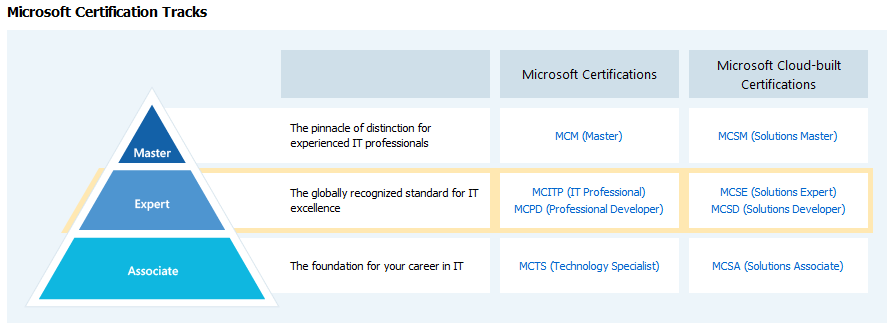
To learn more, visit the hot site http://www.microsoft.com/learning/en/us/certification/cert-overview.aspx
Windows 8 : Why should my hardware have SR-IOV capabality ?
Single Root I/O Virtualization (SR-IOV)
SR-IOV capability will significantly reduce the overhead on network IO operations.
It allows for a virtual machine to have near native IO against the physical NIC, allowing applications that require very low latency to work inside of virtual machines.
What does it require?
- It must bypass teaming
- Interrupt and DMA remapping
- Access Control Services (ACS) on PCIe root ports
- Alternative Routing ID Interpretation (ARI)
- Hardware virtualization, EPT or NPT
Where to create:
– In the Hyper-V Manager, click on Virtual Switch Manager on the right panel
– Click Add New Virtual Switch
– Type the name of the virtual switch
– Tick box for Enable Single Root I/O virtualization (SR-IOV)

IMPORTANT :

More about SR-IOV here : SR-IOV feature (Single Root – I/O Virtualization)
Microsoft SR-IOV Support on Dell PowerEdge Servers (source : http://en.community.dell.com/techcenter/os-applications/w/wiki/3459.dell-supported-platforms-for-windows-server-8-sr-iov-feature.aspx):
Dell PowerEdge 12th Generation servers support the SR-IOV servers but previous generations have exceptions.
Below is a list of Dell 11th Generation platforms that support the SR-IOV feature:
- R910
The following platforms are also supported and must be an 11G Generation II server:
- T410, R410, R510, R610, T610, R710, T710.
How to identify an 11G Generation II system:
- These servers will be physically marked with symbol “II” on the Express service tag. The Express service tag is located in front panel of the system.
- These systems support Intel 56XX (Westmere) processors
- The System Revision Field in the iDRAC GUI will have “II”
Supported SR-IOV network cards:
- Intel X520 10GB Ethernet adapters.
Because Windows Server 8 Beta is a pre-release product still in active development, Dell does not provide any support for this pre-release software and it is not recommended for use in a production environment.
Windows Server 2012/R2 and NIC teaming modes and how to
NIC teaming, the new feature of Windows 2012/R2, allows multiple network adapters on a computer to be placed into a team for the following purposes:
- Bandwidth aggregation
– Traffic failover to prevent connectivity loss in the event of a network component failure
Modes:
- Generic or static teaming (IEEE 802.3ad draft v1): This mode requires configuration on the switch and the computer to identify which links form the team. Because this is a statically configured solution, no additional protocol assists the switch and the computer to identify incorrectly plugged cables or other errors that could cause the team to fail. This mode is typically supported by server-class switches.
- Dynamic teaming (IEEE 802.1ax, LACP): IEEE 802.1ax uses the Link Aggregation Control Protocol (LACP) to dynamically identify links between the computer and a specific switch. This enables the automatic creation of a team and, in theory, the expansion and reduction of a team simply by the transmission or receipt of LACP from the peer network adapter. Typical server-class switches support IEEE 802.1ax, but most switches require manual administration to enable LACP on the port.
- Switch independent: do not require that the team members connect to different switches, they merely make it possible.
Characteristics:
- It is manageable through both PowerShell and the GUI
- Supported on various NIC types/vendors
- You can team up to 32 NICs
- Unlimited virtual interfaces
- Multiple teaming modes
- NIC teams can only be formed between homogenous NICs. So two 1GB NICs can be teamed, or two 10GB NICs can be teamed, but you cannot team a 1GB and 10GB NIC.
- If the individual NIC support Receive Side Scaling (RSS), the NIC team also supports RSS. Hence it is a good idea to team NICs that support RSS. The resulting NIC team is also highly capable and does not lose any functionality.
- If the individual NIC supports RDMA, the resulting NIC team does NOT support RDMA. Given how Windows 8 SMB 2.2 natively supports RDMA without modifying applications, it is a bad idea to team NICs with RDMA capabilities, and where the interconnect (routers, etc) also supports RDMA
How to:
Using Powershell:
- Static
New-NetLbfoTeam -Name “Team-Static” -TeamMembers NIC1,NIC2 -TeamingMode Static
- Dynamic
New-NetLbfoTeam -Name “Team-Static” -TeamMembers NIC1,NIC2 -TeamingMode Lacp
- Switch Independent
New-NetLbfoTeam -Name “Team-Independent” -TeamMembers NIC1,NIC2 –TeamingMode SwitchIndependent
More Power Shell Commands:
- To get the Teaming proprieties and settings in PowerShell:
Get-NetLbfoTeam
- To get all of the PowerShell commands available for NetLBFO
Get-Command -Module NetLbfo
Using GUI:
- Open Server Manager.
- In the console tree, click Local Server.
- In the details pane, in the Properties section, click NIC Teaming Administration under Remote Desktop.

- In the NIC Teaming Window, select the NIC’s to team on the bottom right on the screen
- Right click and select add to new team

- In the new team window, provide the name of the nic team(e.g. team-static)
- Expand the additional properties and select the team mode

- click OK to finalise and create the nic team.


Now you are ready to create the Hyper-v Network Switch by using the NIC team.
Understanding SR-IOV in Hyper-V
John Howard, Senior Program Manager in the Hyper-V team at Microsoft, have been talking about the use of SR-IOV in Hyper-V in Windows Server “8”. You can start reading about it here:
Windows 2008R2 – Hyper-V / Cluster. Post SP1 patches
Here is the list of required and optional post Windows 2008R2 SP1 hotfixes.
Please keep in mind that it all depends on which hardware and software combinations are used:
Note: Windows Server 2008 R2 SP1 should be installed at a minimum plus the required hotfixes.
1 Windows & Hyper-V : Required Hotfixes
Validate SCSI Device Vital Product Data (VPD) test fails after you install Windows Server 2008 R2 SP1
http://support.microsoft.com/kb/2531907(required for 3+ node Hyper-V clusters)
The network connection of a running Hyper-V virtual machine may be lost under heavy outgoing network traffic on a computer that is running Windows Server 2008 R2 SP1
http://support.microsoft.com/kb/2263829
The Cluster service stops unexpectedly on a Windows Server 2008 R2 failover cluster node when you perform multiple backup operations in parallel on a cluster shared volume
http://support.microsoft.com/kb/2494162(required for Veeam backup software)
MPIO failover fails on a computer that is running Windows Server 2008 R2
http://support.microsoft.com/kb/2460971
The MPIO driver fails over all paths incorrectly when a transient single failure occurs in Windows Server 2008 or in Windows Server 2008 R2
http://support.microsoft.com/kb/2522766
Performance decreases in Windows Server 2008 R2 when the Hyper-V role is installed on a computer that uses Intel Westmere or Sandy Bridge processors
http://support.microsoft.com/kb/2517329 (for example : Intel Xeon 5600 series processors )
Stop error 0x0000007a occurs on a virtual machine that is running on a Windows Server 2008 R2-based failover cluster with a cluster shared volume, and the state of the CSV is switched to redirected access.
http://support.microsoft.com/kb/2494016 (required for Veeam backup software)
Optional Hotfixes
An update is available for Hyper-V Best Practices Analyzer for Windows Server 2008 R2
http://support.microsoft.com/kb/2485986
“0x0000009E” Stop error when you add an extra storage disk to a failover cluster in Windows Server 2008 R2
http://support.microsoft.com/kb/2520235
A virtual machine online backup fails in Windows Server 2008 R2 when the SAN policy is set to “Offline All”
http://support.microsoft.com/kb/2521348
Cluster node cannot rejoin the cluster after the node is restarted or removed from the cluster in Windows Server 2008 R2
http://support.microsoft.com/kb/2549472
Cluster service stops when an error occurs in the registry replication process of a failover cluster in Windows Server 2008 R2 or in Windows Server 2008
http://support.microsoft.com/kb/2496034
“0x20001” Stop error when you start a Linux VM in Windows Server 2008 R2 SP1
http://support.microsoft.com/kb/2550569
A heap memory leak occurs when an application or service queries the MSCluster_Resource WMI class in Windows Server 2008 R2
http://support.microsoft.com/kb/2580360
Cluster service initiates a failover after a delay of about 80 seconds when you shutdown the active node in Windows Server 2008 R2
http://support.microsoft.com/kb/2575625/en-us?sd=rss&spid=14134
New registration entries are added to the Persistent Reservation table when the physical disk resource that is associated with the CSV is taken offline on a Windows Server 2008 R2-based Failover Cluster
http://support.microsoft.com/kb/2579052/en-us?sd=rss&spid=14134
A transient communication failure causes a Windows Server 2008 R2 failover cluster to stop working
http://support.microsoft.com/kb/2550886
Cluster service leaks memory when the service handles state change notifications in Windows Server 2008 R2 or Windows Server 2008
http://support.microsoft.com/kb/2550894
Hyper-V Export function consumes all available memory in Windows Server 2008 or in Windows Server 2008 R2
http://support.microsoft.com/kb/2547551
Microcode update for Intel processors in Windows 7 or in Windows Server 2008 R2
http://support.microsoft.com/kb/2493989
Corrupted VSS snapshot
http://support.microsoft.com/hotfix/KBHotfix.aspx?kbnum=975688&kbln=en-us
FIX: The guest operating system may crash (STOP 0xd) when you perform a live migration of Hyper-V virtual machines in a Windows Server 2008 R2 environment
http://support.microsoft.com/kb/2636573
————-
A BIG Thanks to Hans Vredevoort
How to ensure that you continuously learn and stay relevant in a transforming profession
That professionals with the right skills are able to receive higher salaries we already know. We also know that the value of a particular skill and certification depends on the demand it generates from the industry.
But how can we address this? How come we become one of the “most wanted professional”?
I would start with continously learning, certification and then experience and then back again to study, certification… you got it!
I do believe that certification encourage students to develop the skills that are necessary and this is essential in IT. But it needs to come with experience. So get your hands on!
Microsoft Learning is addressing this need for new skills by ensuring it offers training and certifications that enable IT Pros and Developers to develop and validate their skill sets across this new range of skills with a focus on specific technology solutions. One example of this effort is the recently announced private cloud certification.
You can start today by heading over to the Microsoft Private Cloud Certification Overview page : http://www.microsoft.com/learning/en/us/certification/cert-private-cloud.aspx?wt.mc_id=cloud_msl_mctflash_jan
Microsoft Private Cloud Certification
Get started today by heading over to the Microsoft Private Cloud Certification Overview page. That’s where you can prepare and practice for the certification, sign up for our upcoming Private Cloud Jump Start course, and get a head start on your private cloud certification by starting your MCITP Server Administrator certification.
The traditional datacenter model is changing rapidly—and Microsoft Certification continues to change with it, to help you keep your skills relevant in the new world of the private cloud.
Windows 8 Hyper-V : Powershell script to create vm’s based on csv file
This is my first PowerShell 3.0 script to create Virtual Machine based on .csv file which contains the necessary information.
I created this script when in the Hands on Hyper-V PowerShell session at the MVP Global Summit, in Redmond.
Save the following .csv file ( I saved it on c:\vms )
OperatingSystem,MinimumMemoryMB,RecommendMemoryMB,BaseVhdPath Win7,512,1024,c:\VHD\7601.17514.101119-1850_x86fre_Enterprise_en-us_VL.vhd 2008R2,1024,2048,c:\VHD\WS2008R2_Enterprise_x64.vhd
——————————
Here is the Powershell script:
$vms={}
$vms=import-csv C:\vms\OperatingSystems.csv
foreach ($vm in $vms) {
#this command creates the VM with the recommend memory
New-VM -Name $vm.operatingsystem -MemoryStartupBytes $vm.RecommendedMemoryMB
# this command set’s the minimum memory for the OS
Set-Vm -Name $vm.operatingsystem -MemoryMinimumBytes $vm.MinimumMemoryMB
#how cool is the new command to extract the path and join to a new string…
$vhpath= join-path (Split-Path $vm.basevhdpath -Parent) -ChildPath ($vm.operatingsystem+’Diff.vhdx’)
#this command create a new differencing disk and attach it to a vm
New-VHD –ParentPath $vm.BaseVhdPath –Path $vhdpath -Differencing Add-VMHardDiskDrive -VMName $vm.operatingsystem -Path c:\vhd\Diff.vhdx
}
Client Hyper-V in Windows 8
Windows PowerShell scripts for managing virtual machines that you create using Client Hyper-V are fully compatible in with Windows Server 8 Hyper-V.
There a few features included in Windows Server 8 Hyper-V that are not included in Client Hyper-V. These include: the remote FX capability to virtualize GPUs (software GPU in RDP 8), Live VM migration, Hyper-V Replica, SR-IOV networking, and synthetic fiber channel.
HARDWARE : Hyper-V requires a 64-bit system that has Second Level Address Translation (SLAT). GB RAM is required. The RAM on your Client Hyper-V machine is allocated and de-allocated dynamically as required by the VMs. You can run several VMs on a Client Hyper-V machine (also called a “host”) that has the minimum 4GB of RAM, but you will need additional RAM for 5 or more VMs, depending on the RAM requirements for each VM.
Client Hyper-V supports server Hyper-V’s “Live Storage Move” capability. This means you can use your VMs fairly independent of the underlying storage. You can move VMs to and from one local drive to another, to a USB stick, or to a remote file share without needing to stop the VM.
To Enable using GUI:
-
On the Control Panel click “Programs”, and then click “Programs and Features”
-
Click “Turn Windows features on or off”
-
Click “Hyper-V”, and then click “OK”, and then click “Close”
Enable-WindowsOptionalFeature –FeatureName Microsoft-Hyper-V -Restart
Important :
You must restart your machine, not just reboot, to complete installation
For more info: Windows 8 Client Hyper-V wiki page (FWLINK) (http://social.technet.microsoft.com/wiki/contents/articles/7704.client-hyper-v-survival-guide.aspx)
Windows Server 8 Beta builds are now available for download
The Windows Server 8 Beta builds are now available for download. Upgrades from previous builds are not supported or recommended.
http://msdn.microsoft.com/en-us/evalcenter/hh708764.aspx
| To use Windows Server “8” Beta, you need to be aware of the following system requirements*: Component | System Requirement |
| Processor | • Minimum: 1.4 GHz 64bit processor |
| Memory | • Minimum: 512 MB RAM |
| Available Disk Space | • Minimum: 32 GB |
Note: 32 GB should be considered an absolute minimum value for successful installation. Computers with more than 16 GB of RAM will require more disk space for paging, hibernation, and dump files. Drive DVD-ROM drive Display and Peripherals • Super VGA (800 x 600) or higher-resolution monitor • Keyboard • Microsoft Mouse or other compatible pointing device
*Actual requirements will vary based on your system configuration and the applications and features you choose to install. Processor performance is dependent upon not only the clock frequency of the processor, but the number of cores and the size of the processor cache. Disk space requirements for the system partition are approximate. Additional available hard-disk space may be required if you are installing over a network.
Recommended Books


System Center 2012 R2 Virtual Machine

System Center Virtual Machine Manager 2012 Cookbook


 Cloudtidings.com