
Home
> Cloud, Microsoft, Virtualization > Solved: Wireless not connecting after installing Windows Server TP2
Solved: Wireless not connecting after installing Windows Server TP2
Issue:
Wireless network does not connect on Windows Server TP2 after enabling Wireless Services and installing Wireless Drivers
Solution:
Add the Native WiFi Filter SERVICE in the properties of the wireless adapter
To be more specific:
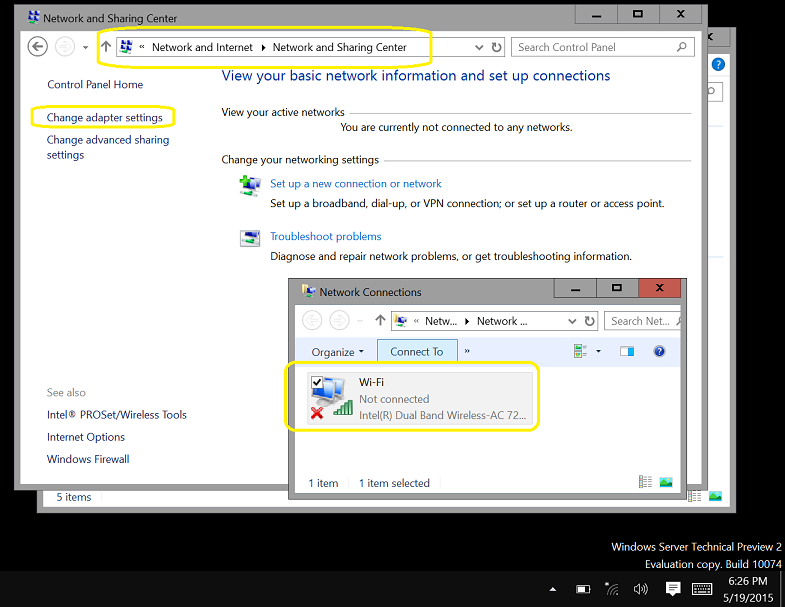
- In the Network and Sharing Center, click on Change Adapter Settings and then on the network connections, select the Wireless Network, right click and select Properties.
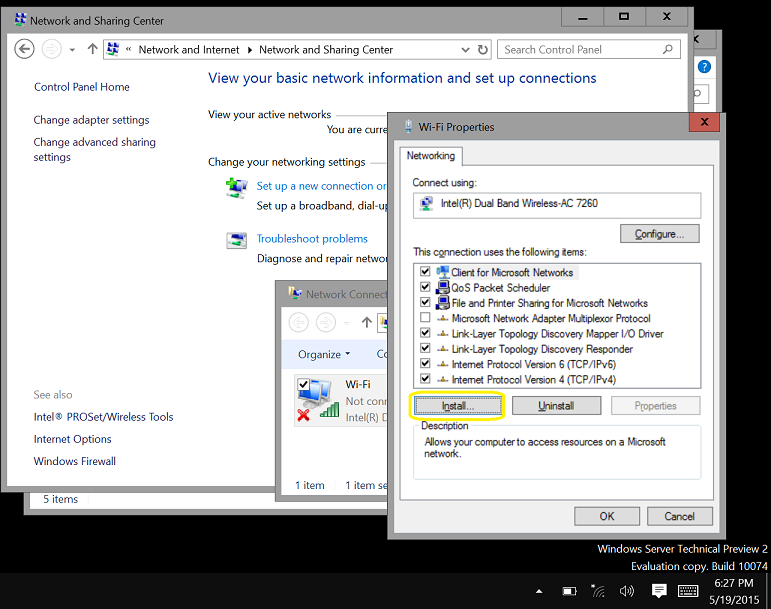
2. In the Properties on the Wireless Adapter, click on Install
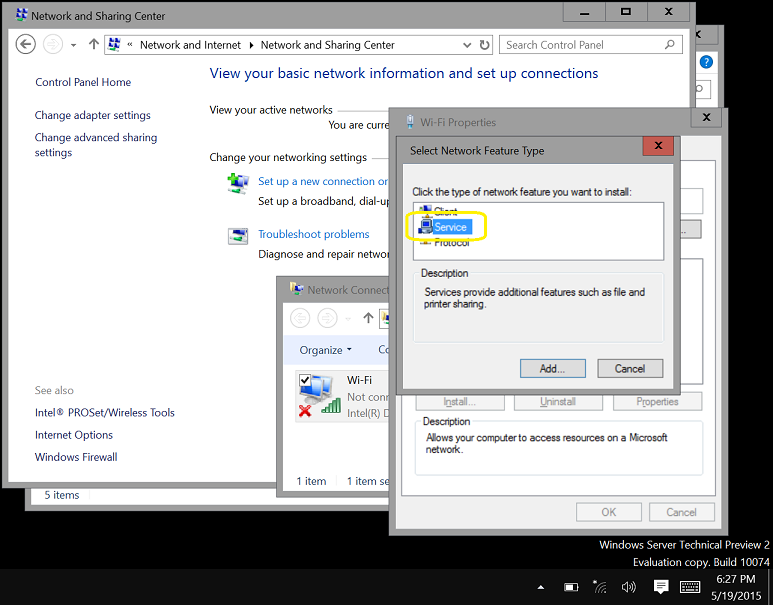
3. Select Service and click on Add
4. Select Native WiFi Filter and click on OK 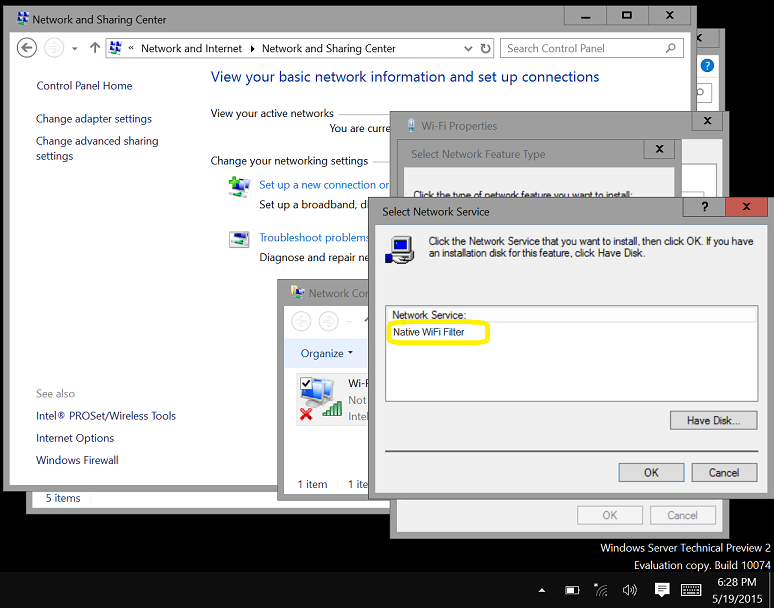
5. Done. You will be able to connect to a WiFi connection now.
Categories: Cloud, Microsoft, Virtualization
Native WiFi Filter, TP2, WiFI, Windows 2016
Leave a comment
Recommended Books


System Center 2012 R2 Virtual Machine

System Center Virtual Machine Manager 2012 Cookbook


 Cloudtidings.com
It is not DONE unless the system is able to find *.inf file required for this service installation. In my case after clicking “magic” Ok button it is not finding it neither on the computer or Win Server 2012R installtion disk.
What do I do next?
Hi Egor.
The issue I reported was related to TP2. Are you having the same issue with 2012R2?