
Archive
Introducing SCONFIG for Windows Server 2008 R2 Core Deployments
I really like the Core version and Microsoft is helping us a lot with some usefull comands/scripts.
MS announced that in Windows Server 2008 R2, there’s an easy to use CLI, SCONFIG. SCONFIG dramatically eases server configuration for Windows Server 2008 R2 core deployments. With SCONFIG, you can easily set your system up, get it on the network so you can easily manage the server remotely.
- Rename your computer? Press 2 and you will be prompted to type in the computer name.
- Domain join? Press 1 and you’ll be prompted for name & password.
Simple, EASY and fast.
With SCONFIG you can easily have a Windows Server 2008 R2 Server Core deployment setup in minutes. I should also mention that SCONFIG is also localized in almost 20 languages.
Tasks include:
- Domain join
- Rename Computer
- Configure Remote (Enable management via Server Manager, & PowerShell including properly configuring the firewall.)
- Configuring Windows Update
- Enabling Remote Desktop (in case you want to login remotely.)
- Configuring Networking (static vs. DHCP and for multiple NICs)
- and more….
All you have to do is type sconfig at the command line.

New IBM tools for Microsoft Virtualisation
For those who use IBM hardware, there is some great news today. IBM has released the Microsoft Assessment Planning Tool for IBM, which is based on the existing Microsoft Assessment Planning Tool. This tools provides specific guidance on how to consolidate and virtualize workloads on IBM System x and BladeCenter servers. If you use IBM systems, you should check this out. You can get the tool from
Note, this page is full of IBM resources for Microsoft Systems Management Solutions, including IBM PRO packs for Virtual Machine Manager.
Hyper-V and VM time drift adding the “/usepmtimer”
Dual Core or multiprocessor AMD Opteron processors may encounter Time Stamp Counter (TSC) drift in certain conditions when time precision is important
Whether the system is affected by this issue depends on the specific ProLiant server generation, the number and type of AMD Opteron processors installed, the operating system, and whether AMD’s PowerNow! feature is being utilized.
This condition affects operations such as network communications and performance monitoring tasks that are sensitive to system time. For example, Microsoft Active Directory domain controllers can report an Unexpected Network Error (Event ID 1054).
Event Description: Windows cannot obtain the domain controller name for your computer network. (An unexpected network error occurred ) . Group Policy processing aborted.
In addition, a negative PING time may be returned after issuing the PING command. The negative PING time occurs because of a Time Stamp Counter drift occurring on AMD Opteron platforms which include more than one processor core.
You may also see that the performance monitor shows you wrong values.
Cause
Many operating systems use the TSC as a timekeeping source. Each processor core (whether it is a single-core processor or dual-core processor) includes a TSC. When the TSC for different processor cores are not synchronized, the above symptoms and behaviors can occur if the operating system is using the TSC as a timekeeping source
Resolution
Edit the BOOT.ini file and add the parameter "/usepmtimer", then reboot the server. Adding the "/usepmtimer" parameter to the BOOT.INI file configures the Windows operating system to use the PM_TIMER, rather than the Time Stamp Counter.
Note: When installing the latest AMD PowerNow! Technology driver from AMD, the BOOT.INI file will automatically be updated with the “/usepmtimer” parameter. While the driver itself does not resolve this issue, the installation process will make the necessary changes to the BOOT.INI file to prevent the issue from occurring.
Unless you are running SP2 for W2K3 (where we use the PM timer for MP APIC ACPI HALs by default now), you must force the use of the PM timer on AMD machines via the /USEPMTIMER switch. The decision to use the PM timer versus the TSC is actually a check done on boot to query the BIOS, and determine whether or not it will properly support the PM timer functions – this check is not 100% accurate on AMD chipsets, and that is why forcing /USEPMTIMER is required. This section of code was rewritten for W2K3 SP2, and you should see the proper performance monitor data on AMD chipsets with SP2 installed without the use of the /USEPMTIMER switch.
The document from AMD in the below link also explains the above problem
http://developer.amd.com/Assets/TSC_Dual-Core_Utility.pdf
http://developer.amd.com/Pages/1214200692.aspx
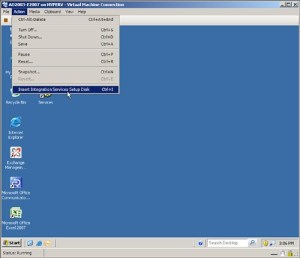
Hyper-V : Unsuported Guest OS error when installing IC in a VM running Windows 2003 x64 R2
Windows Server 2003, x64-based editions
Note Virtual machines are configured to use one or two virtual processors.
- Windows Server 2003 R2 Standard x64 Edition with Service Pack 2
- Windows Server 2003 R2 Enterprise x64 Edition with Service Pack 2
- Windows Server 2003 R2 Datacenter x64 Edition with Service Pack 2
- Windows Server 2003 Standard x64 Edition with Service Pack 2
- Windows Server 2003 Enterprise x64 Edition with Service Pack 2
- Windows Server 2003 Datacenter x64 Edition with Service Pack 2
Hyper-V – Dynamic MAC Issues
In a physical only world, you don’t usually have to worry about MAC addresses that much as each NIC vendor carves off a MAC address from their ranges which have been allocated to them. However, in a virtual environment, you have to be a little more careful, particularly if you are using dynamic MAC address assignment. This post looks at how Hyper-V allocates dynamic MAC addresses and some potential problems you can face. So often it can be the last thing people think to check, but can be the root cause of otherwise unexplained network oddities. 
Here’s a screenshot of a typical MAC collision problem – pings sometimes work, sometimes fail – and this is all on a local isolated network.

To start the walkthrough, I have a base install of Windows Server 2008 on a server with a single physical NIC – against best practice, but it serves fine for demonstration. I have already installed the RTM update (KB950050) to the server, but have not yet added the Hyper-V role. Let’s look at an output of “ipconfig /all”. You can see that the MAC address of the physical NIC is 00-13-20-F5-F8-7D and I’m obtaining an IP address from a DHCP server on the private test network I’m using.

Now let’s use Server Manager to enable the Hyper-V role. Note that Server Manager allows you to create an external virtual network switch during role enabling, but I am choosing not to do this. Let’s see what has happened in the registry after the Hyper-V role is enabled. Specifically, I’m looking at two keys which have been created under HKLMSoftwareMicrosoftWindowsNTCurrentVersionVirtualization, as-yet unpopulated: MinimumMacAddress and MaximumMacAddress, plus another key in the worker node, CurrentMacAddress – again as-yet unpopulated. (The astute walking through this in front of a machine will notice that CurrentMacAddress also appears in the Virtualization node. That key is not used though.)
To summarize: USE SCVMM to manage your Virtual Environment
If you use SCVMM for all your systems – SCVMM will assign static MAC addresses and ensure there are no conflicts.
If you use Hyper-V manager, we use dynamic MAC addresses by default. You can ensure that there are no MAC address conflicts by manually configuring your Hyper-V servers to have different MAC address pools. This has always been configurable via WMI but in R2 we also allow you to configure this through the UI under Virtual Network management.
Alessandro
Hyperv9 : Managing Virtual Machine by using Mobiles
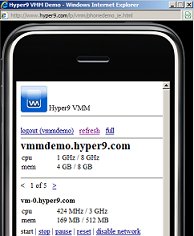
Hyper9 Virtualization Mobile Manager is a browser-based management and monitoring tool that allows Virtualization administrators to control their virtual infrastructures from a mobile device.
The Virtualization Mobile Manager (VMM), which was created by Andrew Kutz, a well-known developer in the VMware community, where hundreds of virtualization administrators have used the product in the field and provided positive feedback to Hyper9.
VMM has the ability to work with VMware Server 2, VMware Infrastructure 3, VMware vSphere 4, Microsoft Hyper-V, and Citrix XenServer 5. The application will also work with almost any mobile device, including the Apple iPhone, Blackberry, Google Android and Windows Mobile Devices.
VMM also offers the ability to monitor host and VM performance statistics (CPU, Memory), control VMs and take action on the go – start, stop, pause, reset and disable network – all of which were important features to the beta users.
 Hyper9 is doing its part to make VMM a compelling offering, by giving users the ability to manage up to five VMs for free as well as special introductory pricing of $199.00 for up to 1000 VMs.
To download the product, visit http://store.hyper9.com. To learn more, visit http://www.hyper9.com/vmm.
Virtualisation for cost savings and value.
Server Virtualisation
Hardware Virtualisation uses software to create a Virtual Machine (VM) that emulates a physical computer. This creates a separate OS environment that is logically isolated from the host server. By providing multiple VMs at once, this approach allows several operating systems to run simultaneously on a single physical machine.
Rather than paying for many under-utilised server machines, each dedicated to a specific workload, server virtualisation allows those workloads to be consolidated onto a smaller number of more fully-used machines.
Benefits
- Helps consolidate multiple, under-utilised physical servers on a single host, running Virtual Machines
- Helps reduce workforce/space/kilowatt by leveraging virtualisation for server consolidation and agility
- Helps save money because less management, less space and less kilowatt hours are needed
Resuming, virtualisation technologies enable you to optimise your assets, centrally managing all of your physical and virtual resources across multiple hypervisors down to the application level.
How Sony impedes virtualization, hurting customers, Intel and Microsoft (and many others)
The Sony customers that bought a VAIO laptop in the last couple of years and are interested in virtualization should know by now that their machines are not worth the money spent.
The company in fact completely locked down the computers’ BIOS, preventing the capability to enable the Intel Virtualization Technology (VT) extension.
For the newcomers, the Intel VT technology was introduced in November 2005, featured by Pentium 4 662 and 672 CPUs.
Today VT is included in almost every Intel CPU, from the Atom mobile processor to the Xeon 5500 server processors, up to the upcoming new generations Core i3, i5 and i7.
This extension is used by the virtualization vendors to perform some virtual machines stunts, like running a 64bit guest operating system on top of a 32bit host OS, without much overhead.
Every virtualization platform uses it, commercial and open source ones, hosted ones and bare-metal ones (aka hypervisors). And this list includes products like VMware ESX and Workstation, Microsoft Hyper-V and Virtual PC, Citrix XenServer, Oracle VM and Sun VirtualBox, Parallels Desktop, Red Hat KVM and others.
Given the ubiquity of Intel VT, most virtualization vendors don’t use anymore alternative techniques (like the VMware Binary Translation) to perform some complex operations that the processor can do on their behalf. Their products simply check if the CPU is VT-capable and if so they use it.
In some computers the Intel VT extension is not enabled by default, so when the virtualization platform recognizes its presence the customers is invited to go inside the BIOS and enable it. And this solves everything, except if you are a Sony customer.
If you are an unlucky owner of a VAIO notebook you simply can’t perform the operation above, because Sony doesn’t expose any option inside the BIOS to enable VT. And for the ones that want it Sony doesn’t provide any firmware update.
The official Sony position on this is that Intel VT is not supported on VAIO machines but it’s not true at all: any customer can download a simple and free tool like CrystalCPUID and verify that its CPU includes Intel VT.

The customers are so frustrated by this situation that have to perform a reverse engineering of the firmware and develop unsupported, dangerous patches to enable VT.
It doesn’t matter if the total number of Sony customers that want to run virtualization on their VAIO laptops is very low. This issue is damaging the virtualization vendors but most of all it is damaging the Intel image as they are selling themselves as the leading chipmakers in virtualization.
Worse than that Intel received complains about the topic since February 2009 and it is doing nothing to push Sony.
The next one that will receive a damage from this is Microsoft, and it will probably receive it on a much larger scale.
On October 22, Microsoft will release its new consumer operating system: Windows 7.
The successor of Vista embeds a special version of Virtual PC that Microsoft hopes will simplify the migration of legacy applications from Windows XP.
Simply dubbed Windows Virtual PC, it will allow the users to run in the so-called Windows XP Mode.
Basically the applications will run inside a Virtual PC 7 virtual machine and will appear on the Windows 7 desktop through the so-called seamless window publishing.
But guess what? Windows XP Mode requires Intel VT and so no Sony customer will be able to use it.
For the ones that are optimistic and believe in an providential BIOS updated before October 22, there is a bad news: Sony officially said that has no plans to enable VT on old and new VAIO models.
Source : http://www.virtualization.info/2009/07/how-sony-impedes-virtualization-hurting.html ( alessandro pirelli )
Note: Check this blog to find how you can HACK your sony to enable the VT. USE AT YOUR OWN RISK.
BTW. I don’t recomend any procedure like this.
Hyper-v R2 : Processor Compatibility
With Hyper-V R2, Microsoft include a new Processor Compatibility feature. Processor compatibility allows you to move a virtual machine up and down multiple processor generations from the same vendor.

Here’s how it works:
When a Virtual Machine (VM) is started on a host, the hypervisor exposes the set of supported processor features available on the underlying hardware to the VM. This set of processor features are called guest visible processor features and are available to the VM until the VM is restarted.
When a VM is started with processor compatibility mode enabled, Hyper-V normalizes the processor feature set and only exposes guest visible processor features that are available on all Hyper-V enabled processors of the same processor architecture, i.e. AMD or Intel. This allows the VM to be migrated to any hardware platform of the same processor architecture. Processor features are "hidden" by the hypervisor by intercepting a VM’s CPUID instruction and clearing the returned bits corresponding to the hidden features.
Just so we’re clear: this still means AMD<->AMD and Intel<->Intel. It does not mean you can Live Migrate between different processor vendors AMD<->Intel or vice versa.
In addition, you may be aware that both AMD and Intel have provided similar capabilities in hardware, Extended Migration and Flex Migration respectively. Extended and Flex Migration are cool technologies available on relatively recent processors, but this is a case where providing the solution in software allows us to be more flexible and provide this capability to older systems too. Processor Compatibility also makes it easier to upgrade to the newest server hardware. In addition, Hyper-V Processor Compatibility can be done on a per VM basis (it’s a checkbox) and doesn’t require any BIOS changes.
Time To Get Uber-Geeky
Now that I’ve explained what processor compatibility mode does and the flexibility provides, I’m guessing there are a few propeller heads who want to go further and know exactly what a "normalized processor" means from a processor feature standpoint. Happy to oblige. When a VM in processor compatibility mode is started, the following processor features are hidden from the VM:
|
Host running AMD based processor |
Host running Intel based processor |
|
SSSE3, SSE4.1, SSE4.A, SSE5, POPCNT, LZCNT, Misaligned SSE, AMD 3DNow!, Extended AMD 3DNow! |
SSSE3, SSE4.1, SSE4.2, POPCNT, Misaligned SSE, XSAVE, AVX |
FAQ
Q: What happens if a vendor has written an application that uses one of these features that isn’t visible with processor compatibility enabled?
A: Since the feature isn’t exposed to the virtual machine, the application won’t "see it" and it’s up to the application to determine how to proceed; however, there are two likely paths.
Path 1: The application will check to see if a specific processor feature is available and use it if it’s available. If the processor features isn’t available, it will use a different code path. Remember that applications that make use of these advanced processor features are generally written in a flexible fashion to accommodate the servers in market today and there are still thousands of older Xeons and Opterons on the market that don’t have some of the latest processor features.
Path 2: The application requires a specific processor feature and refuses to launch. At this point in time, we haven’t found any application that fall into this category. It’s possible they exist, but we haven’t hit one yet. Since we can’t test every application out there, processor compatibility is defaulted off. (We’re conservative by nature.).
BTW, if there were issues with Hyper-V Processor Compatibility, you’d also see it with other virtualization products which rely on underlying hardware capabilities to mitigate this problem as well.
Q: Does processor compatibility have a hardware requirement? Does it require Intel Flex Migration or AMD Extended Migration?
A: Hyper-V processor compatibility mode has no dependencies on these technologies.
Q: Does Hyper-V processor compatibility allow you to migrate a VM from an AMD host to an Intel host and vice versa?
A: No. Processor compatibility allows you to move a virtual machine up and down multiple processor generations from the same vendor. It does not allow migrating a VM (with or without processor compatibility mode) from AMD based hosts to Intel based hosts, and vice versa.
Again :
AMD<->AMD and Intel<->Intel.
Source : Windows Virtualization Team Blog.
http://blogs.technet.com/virtualization/archive/2009/05/12/tech-ed-windows-server-2008-r2-hyper-v-news.aspx
SCVMM R2 : NEW Quick Storage Migration (QSM)
Quick Storage Migration (QSM) In Brief
As you may have seen, we recently released the Release Candidate for System Center Virtual Machine Manager 2008 R2. One of the most anticipated features of SCVMM 2008 R2 is Quick Storage Migration (QSM) which enables the migration of the storage of VM from one location to another. For example, suppose you have virtual machines on a leased SAN (SAN 1). The lease runs out and you decide to upgrade to a new SAN (SAN 2) with more capacity, better performance and additional capabilities. Quick Storage Migration allows you to move the virtual machine which resides on SAN 1 to SAN 2. I have had a number of request for more details on how this works so we’ve written this brief guide to QSM. (In addition, we wanted to make this technology broadly available, not just the biggest enterprises. More on that below.)
QSM relies on Windows Server 2008 R2 Hyper-V and Background Intelligent Transfer Service (BITS). QSM can move the virtual disks of a running virtual machine independent of storage protocols (iSCSI, FC) or storage type (local, DAS, SAN), with minimal downtime.
QSM Is One of Many Migration Technologies Supported in Virtual Machine Manager’s Portfolio
|
VM Migration Type |
Platforms available on |
Technology used for transfer |
Expected downtime for VM |
|
Live Migration |
|
|
None
|
|
Quick Migration |
|
|
Under 1 minute in most cases
|
|
SAN Migration |
|
|
Under 1 minute in most cases
|
|
Network based migration (aka LAN migration) |
|
|
Minutes to hours (W2K8, W2K3 hosts)
Under 1 minute in most cases (W2K8 R2)
|
|
Storage Migration Type |
Platforms available on |
Technology used for transfer |
Expected downtime |
|
Storage vMotion |
|
|
None
|
|
Quick Storage Migration |
|
|
Under 1 minute in most cases (W2K8 R2)
|
Note on Processor Compatibility Mode:
To increase the mobility of a running virtual machine across hosts with different processor versions (with in the same processor family), Windows Server 2008 R2 Hyper-V offers Processor Compatibility Mode. This feature masks processor feature differences between the source and destination hosts. With this enabled, you can migrate a virtual machine from a host with Pentium 4 VT processors to a host with Nehalem processors. Processor Compatibility Mode does not require advanced processor features like Intel VT Flex Migration or AMD-V Extended Migration. For more on Processor Compatibility Mode, check out Jeff’s Blog a few weeks ago where he goes into detail here.
How QSM Compares To VMware Storage VMotion
|
VMM 2008 R2 + Windows Server 2008 R2 Hyper-V |
VMware (vCenter 2.5 + ESX 3.5) |
|
|
Migration of virtual machines across two hosts with independent storage |
Supported |
Not Supported |
|
Migration of virtual machines with snapshots |
Supported |
Not Supported |
|
Migration of Virtual machine with Virtual Disks |
Supported |
Supported (persistent mode) |
|
Requires sufficient resources to support two instances of the virtual machines running concurrently |
Not Required |
Required |
|
Additional Licensed Required |
None |
VMotion License |
|
Number of concurrent storage Migrations allowed |
10 |
4 |
|
Storage Migrations supported in the Administrator Console |
Yes (QSM and Storage vMotion) |
No |
|
Storage Migrations supported in the CLI |
Yes (QSM and Storage vMotion) |
Yes |
|
Protocol agnostic |
Yes |
Yes |
|
Support for migrations of VMs and storage between hosts with different processors versions (same manufacturer) |
Yes (use Hyper-V R2 Processor Compatibility Mode to increase the number of compatible hosts ) |
Not Applicable |
Recommended Books


System Center 2012 R2 Virtual Machine

System Center Virtual Machine Manager 2012 Cookbook


