
Archive
Deleting windows.old after upgrading to windows 7
Deleting the windows.old folder manually
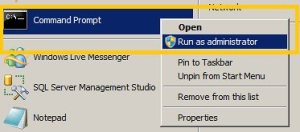
1) Open an elevated command prompt ( runas administrator )
- Click start
- Type: cmd
- right-click it under programs
- click Run As Administrator
2) Take ownership
- takeown c /F /A /R /D
3) grant yourself permission
- icacls c:windows.old /grant Administrators:F /T /L /Q
4) Delete the folder
Make sure you close any explorer or command windows that are looking at or inside the windows.old folder (except for the command window you are using). If you don’t, you will receive an error while performing this step.
- rd /S /Q windows.old
Free Seminar ; Windows 2008 R2 and Windows 7 : 16/September/2009
If you did not attend TechEd Australia in Gold Coast last week, you should attend this one : 16/09/2009 from 17:00 to 20:00
Sydney 1 Epping Rd. North Ryde NSW 2113 ( Microsoft Office)
Would you like to know the new features of Server 2008 R2? Windows Server 2008 R2 extends the award winning features of Windows Server 2008, and now comes with new features to enable organizations to increase reliability and flexibility .
These include new virtualization capabilities (Live Migration, Cluster Shared Volumes using Failover Clustering and Hyper-V), reduced power consumption, a new set of management tools and new Active Directory capabilities such as a "recycle bin" for deleted AD objects.
IIS 7.5 has been added to this release which also includes updated FTP server services. Security enhancements include the addition of DNSSEC support for DNS Server Service and encrypted clientless authenticated VPN services through DirectAccess for clients using Windows 7.
Windows Server 2008 R2 supports up to 64 physical processors or up to 256 logical processors per system. When deployed in a file server role, new File Classification Infrastructure services allow files to be stored on designated servers in the enterprise based on business naming conventions, relavance to business processes and overall corporate policies.
We will also talk about how Windows Server 2008 R2 works better together with Windows 7’s new features like branch caching, VPN etc, and Microsoft Exchange Server experts will talk about Exchange Server 2010 and how it integrates better with the new Active Directory control center in Server 2008 R2 . .
This seminar(s) is for people who like to learn about new technologies. All presentations will be delivered by Microsoft MVPs & MCTs who are experts in their field.
To attend these seminars is FREE but places are limited and all attendees have the chance to win copies of Windows Server 2008, WS08 R2 RC on dvd, and relevant MS Press books
Speakers :
Cem Erdal Ozkaya , MVP/MCT
Edvaldo Alessandro Cardoso, MVP/ MCT
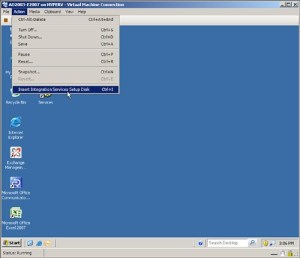
Hyper-V : Unsuported Guest OS error when installing IC in a VM running Windows 2003 x64 R2
Windows Server 2003, x64-based editions
Note Virtual machines are configured to use one or two virtual processors.
- Windows Server 2003 R2 Standard x64 Edition with Service Pack 2
- Windows Server 2003 R2 Enterprise x64 Edition with Service Pack 2
- Windows Server 2003 R2 Datacenter x64 Edition with Service Pack 2
- Windows Server 2003 Standard x64 Edition with Service Pack 2
- Windows Server 2003 Enterprise x64 Edition with Service Pack 2
- Windows Server 2003 Datacenter x64 Edition with Service Pack 2
Hyper-V – Dynamic MAC Issues
In a physical only world, you don’t usually have to worry about MAC addresses that much as each NIC vendor carves off a MAC address from their ranges which have been allocated to them. However, in a virtual environment, you have to be a little more careful, particularly if you are using dynamic MAC address assignment. This post looks at how Hyper-V allocates dynamic MAC addresses and some potential problems you can face. So often it can be the last thing people think to check, but can be the root cause of otherwise unexplained network oddities. 
Here’s a screenshot of a typical MAC collision problem – pings sometimes work, sometimes fail – and this is all on a local isolated network.

To start the walkthrough, I have a base install of Windows Server 2008 on a server with a single physical NIC – against best practice, but it serves fine for demonstration. I have already installed the RTM update (KB950050) to the server, but have not yet added the Hyper-V role. Let’s look at an output of “ipconfig /all”. You can see that the MAC address of the physical NIC is 00-13-20-F5-F8-7D and I’m obtaining an IP address from a DHCP server on the private test network I’m using.

Now let’s use Server Manager to enable the Hyper-V role. Note that Server Manager allows you to create an external virtual network switch during role enabling, but I am choosing not to do this. Let’s see what has happened in the registry after the Hyper-V role is enabled. Specifically, I’m looking at two keys which have been created under HKLMSoftwareMicrosoftWindowsNTCurrentVersionVirtualization, as-yet unpopulated: MinimumMacAddress and MaximumMacAddress, plus another key in the worker node, CurrentMacAddress – again as-yet unpopulated. (The astute walking through this in front of a machine will notice that CurrentMacAddress also appears in the Virtualization node. That key is not used though.)
To summarize: USE SCVMM to manage your Virtual Environment
If you use SCVMM for all your systems – SCVMM will assign static MAC addresses and ensure there are no conflicts.
If you use Hyper-V manager, we use dynamic MAC addresses by default. You can ensure that there are no MAC address conflicts by manually configuring your Hyper-V servers to have different MAC address pools. This has always been configurable via WMI but in R2 we also allow you to configure this through the UI under Virtual Network management.
Alessandro
Some Good Reasons to Switch to Windows 7…. and there are a lot more….
The overall presentation of Windows 7 is familiar enough to welcome XP users, but fundamentally it’s different enough to make you change the way you think of Microsoft.
Networking and mobility
DirectAccess
This item applies to Windows 7 Enterprise and Windows 7 Ultimate.
DirectAccess includes many improvements in smart card use, diagnostics, and user experience:
- Smart cards. Smart card support no longer requires Windows 7 Domain Functional Mode. Smart card management has been simplified to focus on edge enforcement as opposed to edge enforcement and local client enforcement. Beta feedback suggested that the local client enforcement option could create an increased number of support issues for organizations. Therefore, the option to enforce smart cards for all interactive logins is no longer available in the DirectAccess Wizard. Also, if a smart card is required, there is an enhanced user notification that is provided to help the user learn when a smart card is required.

- Troubleshooting. Support for troubleshooting is enhanced, including a new Windows Troubleshooting entry point within Control Panel. If a resource is not reachable (for example, a Web site fails to load), use the Diagnose Connection in Internet Explorer or Troubleshoot problems entry points to help determine the cause of the issue.

- User experience. Corporate Connectivity Notification has been removed to simplify the user experience; only Internet Access is displayed. If a resource is not reachable, the user should use the troubleshooting features to determine the reason.
For more information, see the DirectAccess (http://go.microsoft.com/fwlink/?LinkId=150441) home page on Microsoft® TechNet.
Transparent caching
Prior to Windows 7, to open a file across a slow network, client computers always retrieved the file from the server, even if the client computer had recently read the file. With Windows 7 transparent caching, client computers cache remote files more aggressively, reducing the number of times a client computer might have to retrieve the same data from a server.
With transparent caching, the first time a user opens a file in a shared folder, Windows 7 reads the file from the server and then stores it in a cache on the computer’s hard disk drive. The second and subsequent times a user reads the same file, Windows 7 retrieves the cached file from disk instead of reading it from the server. To provide data integrity, Windows 7 always contacts the server to ensure the cached copy is up-to-date. The cache is never accessed if the server is unavailable, and updates to the file are always written directly to the server.
Transparent caching is not enabled by default on fast networks. IT professionals can use Group Policy to enable transparent caching, to improve the efficiency of the cache, and to save disk space on the client computer. They can configure the amount of disk space the cache uses and prevent specific file types from being synchronized.
As the feature name implies, the benefit is transparent to end users, providing a branch office experience that more closely resembles the experience of being on the same LAN as a server. Additionally, transparent caching can reduce bandwidth use across WAN links.
Security
Protect data on computers and devices
The Windows 7 partition drive size (required for BitLocker™ and the Windows Recovery Environment) has been reduced from 200 MB to 100 MB.
AppLocker
These items apply to Windows 7 Enterprise and Windows 7 Ultimate.
- The AppLocker UI includes a new administrative template, which can be configured by an administrator to display a customized URL when AppLocker blocks an application from starting. The message can be used to reduce help desk calls by directing users to a help desk intranet site.
To customize the administrative template, follow these steps:
- Open the Group Policy Management snap-in, right-click a Group Policy object (GPO), and then click Edit.
- In the Group Policy Management Editor snap-in, expand Administrative Templates, expand Windows Components, and then click Windows Explorer.
- In the details pane, under Setting, double-click Set a support web page link.
- Select Enabled, and then type a custom URL in the Support Web page URL text box.

- Click OK.
- New Windows PowerShell cmdlets, used in conjunction with the AppLocker UI, provide building blocks that help author, test, maintain, and troubleshoot AppLocker policies. These cmdlets allow an organization to build and import new AppLocker rules from event log information collected by running AppLocker in audit mode. As a result, these cmdlets help automate the IT processes required to build appropriate rule sets easily and confidently.
User Account Control
In the beta release, a user could change the notification level in the User Account Control (UAC) control panel without receiving a prompt for administrative credentials. The UAC control panel now runs in a high integrity process; changing the level of the UAC prompts for confirmation. When a user is logged on with a standard user account, that user must provide administrative credentials to change the default UAC notification level.

Management
Windows Remote Management and Windows PowerShell remoting
The default HTTP/HTTPS ports for Windows Remote Management (WinRM) and Windows PowerShell remoting have changed from 80/443 to 5985/5986 since the beta release. This change provides a more secure default configuration by avoiding accidental exposure of the WinRM interface to Web traffic on an Internet-facing server.
As a result of this change, pre-RC and post-RC computers that are not configured properly cannot communicate. When pre-RC and post-RC computers are used together for remote management, either directly (using the WinRM command-line tool or the WSMan APIs) or through an application that uses WinRM (such as Windows PowerShell or Event Collector), an error message occurs. This is the same error message that displays when the server has not been configured for WinRM traffic, because it is contacting the wrong port.
To avoid this issue, upgrade all computers by installing Windows 7 or Windows Server® 2008 R2 or by installing WinRM 2.0.
End-user productivity
Hardware support
Microsoft has removed the Bluetooth® audio class driver from Windows 7. When installing a Bluetooth audio device for the first time, you will need to install a non-Microsoft driver (your version of Windows 7 may already include the non-Microsoft audio driver). If your version of Windows 7 does not include the correct drivers, you can download them from Windows Update, your computer manufacturer’s Web site, or (for a driver that’s specifically written for the Bluetooth device) directly from your Bluetooth radio manufacturer’s Web site.
Internet access to home media
Some networks or network equipment block Internet access to home media (for example, corporate network policy often prevents this type of connectivity). However, you can manually configure your home router to increase the likelihood that Internet access to home media will succeed.
Although Windows attempts to automatically enable settings on your home router when Internet access to home media is set up, some home routers do not support this capability or they have disabled it. For best results, use a home router that has been certified to work with Windows.
To manually enable the necessary settings on your home router, first try the following:
- From a Web browser, go to the configuration Web page of your home router (for example, http://192.168.0.1).
- Locate and enable the UPnP™ feature. Save your settings.
 Note
Note Home routers differ, but this feature is usually found in the Advanced settings. For more information about enabling the UPnP setting, consult your home router manual. - Open Windows Media® Player on your home computer that is running Windows 7.
Note
If Windows Media Player is already open, close and then reopen it. - On the Stream menu, select Allow Internet access to home media…
- On the Internet Home Media Access dialog box, select Do not allow Internet access to home media.
- On the Stream menu, select Allow Internet access to home media…
- On the Internet Home Media Access dialog box, select Allow Internet access to home media.
If the preceding procedure does not work because your home router does not support UPnP, you can manually configure advanced port-forwarding options on your home router.
To determine which TCP ports on your home router to forward to your home computer that is running Windows 7, follow these steps:
- In Windows Media Player, on the Stream menu, select Allow Internet access to home media…
- On the Internet Home Media Access dialog box, select Diagnose connections.
Note
If this option is not available, select Allow Internet access to home media to enable the feature, and then repeat steps 1 and 2. - Click the Port forwarding information link (located at the bottom of the window) to identify the TCP ports.
- From a Web browser, go to the configuration Web page of your home router (for example, http://192.168.0.1).
- Locate the port forwarding feature and specify the TCP ports that were identified in step 3. Save your settings.
Note
Home routers differ, but this feature is usually found in the Advanced settings. For more information about enabling port-forwarding, consult your home router manual.
Supporting tools and technologies
Although the following tools and technologies do not ship as part of the Windows 7 product, they support Windows 7 deployment and manageability.
Virtualization
- Windows XP Mode provides a virtual Windows XP environment in which you can run many Windows XP productivity applications on a Windows 7–based computer. Windows XP Mode is included in Windows 7 and is available as a pre-installed feature by your computer manufacturer or as a free download. For more information about Windows XP Mode, see Windows Virtual PC (http://go.microsoft.com/fwlink/?LinkId=150447) on the Microsoft Web site.

- Windows Virtual PC provides the virtualization technology for Windows 7. Windows Virtual PC allows multiple client operating systems to run at the same time on a Windows 7 desktop, and it offers the runtime engine for Windows XP Mode, which provides a virtual Windows XP environment on Windows 7. For more information about Windows Virtual PC, see Windows Virtual PC (http://go.microsoft.com/fwlink/?LinkId=150447) on the Microsoft Web site and the Windows Virtual PC Evaluation Guide.
- Microsoft Enterprise Desktop Virtualization (MED-V), built on Windows Virtual PC, is designed to provide IT professionals with the capability to centrally manage and deploy virtual Windows environments to reduce complexity, maintain control, and keep costs low. MED-V is available through Microsoft Desktop Optimization Pack (MDOP). For more information about MDOP, see Microsoft Desktop Optimization Pack (http://go.microsoft.com/fwlink/?LinkId=150448) on Microsoft TechNet.
Application compatibility
Application Compatibility Toolkit (ACT) 5.5 enables software developers, independent software vendors (ISVs), and IT professionals to determine the following:
- Whether their devices and applications are compatible with a new version of the Windows operating system.
- How an update to a new version of the Windows operating system will impact their applications.
The toolkit can also be used by developers as follows:
- To test Web applications and Web sites for compatibility with new releases and security updates to Internet Explorer®
- To determine potential compatibility issues due to the User Account Control (UAC) feature
- To create compatibility fixes for application compatibility issues
- To determine potential application installation and setup issues
ACT 5.5 includes the following functionality:
- Inventories applications, hardware, and devices on user’s computers that run earlier versions of the operating system.
- Analyzes compatibility traits of applications and devices, and synchronizes compatibility data with ISV, logo, and community assessment.
- Provides test tools for Internet Explorer 8 compatibility testing.
- Provides tools to build compatibility fixes (called “shims”) for incompatible applications.
For more information, see Microsoft Application Compatibility Toolkit (ACT) Version 5.5 (http://go.microsoft.com/fwlink/?LinkID=146754) on Microsoft TechNet.
Hyperv9 : Managing Virtual Machine by using Mobiles
Hyper9 Virtualization Mobile Manager is a browser-based management and monitoring tool that allows Virtualization administrators to control their virtual infrastructures from a mobile device.
The Virtualization Mobile Manager (VMM), which was created by Andrew Kutz, a well-known developer in the VMware community, where hundreds of virtualization administrators have used the product in the field and provided positive feedback to Hyper9.
VMM has the ability to work with VMware Server 2, VMware Infrastructure 3, VMware vSphere 4, Microsoft Hyper-V, and Citrix XenServer 5. The application will also work with almost any mobile device, including the Apple iPhone, Blackberry, Google Android and Windows Mobile Devices.
VMM also offers the ability to monitor host and VM performance statistics (CPU, Memory), control VMs and take action on the go – start, stop, pause, reset and disable network – all of which were important features to the beta users.
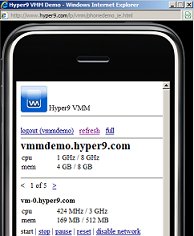 Hyper9 is doing its part to make VMM a compelling offering, by giving users the ability to manage up to five VMs for free as well as special introductory pricing of $199.00 for up to 1000 VMs.
To download the product, visit http://store.hyper9.com. To learn more, visit http://www.hyper9.com/vmm.
Calling all Windows Server Virtualization experts
Submit your SME profile now!
Do you consider yourself a whiz in Windows Server 2008 R2 Server Virtualization? Do you want to participate in the development of the next round of Virtualization exams? Well you can! Microsoft are looking for volunteers to participate in blueprinting for Exam 70-659, TS: Windows Server 2008 R2, Server Virtualization.
Microsoft will be using the new MSL SME database to find participants for blueprinting as well as other phases of development for this exam. For your best chance of participating, create a SME profile by filling out the survey on the MSL SME site on Microsoft Connect. (See this post for more information.) If you have already created your SME profile, make sure that you update it to reflect your experience with R2 Virtualization experience.
Best luck!
Virtualisation for cost savings and value.
Server Virtualisation
Hardware Virtualisation uses software to create a Virtual Machine (VM) that emulates a physical computer. This creates a separate OS environment that is logically isolated from the host server. By providing multiple VMs at once, this approach allows several operating systems to run simultaneously on a single physical machine.
Rather than paying for many under-utilised server machines, each dedicated to a specific workload, server virtualisation allows those workloads to be consolidated onto a smaller number of more fully-used machines.
Benefits
- Helps consolidate multiple, under-utilised physical servers on a single host, running Virtual Machines
- Helps reduce workforce/space/kilowatt by leveraging virtualisation for server consolidation and agility
- Helps save money because less management, less space and less kilowatt hours are needed
Resuming, virtualisation technologies enable you to optimise your assets, centrally managing all of your physical and virtual resources across multiple hypervisors down to the application level.
How Sony impedes virtualization, hurting customers, Intel and Microsoft (and many others)
The Sony customers that bought a VAIO laptop in the last couple of years and are interested in virtualization should know by now that their machines are not worth the money spent.
The company in fact completely locked down the computers’ BIOS, preventing the capability to enable the Intel Virtualization Technology (VT) extension.
For the newcomers, the Intel VT technology was introduced in November 2005, featured by Pentium 4 662 and 672 CPUs.
Today VT is included in almost every Intel CPU, from the Atom mobile processor to the Xeon 5500 server processors, up to the upcoming new generations Core i3, i5 and i7.
This extension is used by the virtualization vendors to perform some virtual machines stunts, like running a 64bit guest operating system on top of a 32bit host OS, without much overhead.
Every virtualization platform uses it, commercial and open source ones, hosted ones and bare-metal ones (aka hypervisors). And this list includes products like VMware ESX and Workstation, Microsoft Hyper-V and Virtual PC, Citrix XenServer, Oracle VM and Sun VirtualBox, Parallels Desktop, Red Hat KVM and others.
Given the ubiquity of Intel VT, most virtualization vendors don’t use anymore alternative techniques (like the VMware Binary Translation) to perform some complex operations that the processor can do on their behalf. Their products simply check if the CPU is VT-capable and if so they use it.
In some computers the Intel VT extension is not enabled by default, so when the virtualization platform recognizes its presence the customers is invited to go inside the BIOS and enable it. And this solves everything, except if you are a Sony customer.
If you are an unlucky owner of a VAIO notebook you simply can’t perform the operation above, because Sony doesn’t expose any option inside the BIOS to enable VT. And for the ones that want it Sony doesn’t provide any firmware update.
The official Sony position on this is that Intel VT is not supported on VAIO machines but it’s not true at all: any customer can download a simple and free tool like CrystalCPUID and verify that its CPU includes Intel VT.

The customers are so frustrated by this situation that have to perform a reverse engineering of the firmware and develop unsupported, dangerous patches to enable VT.
It doesn’t matter if the total number of Sony customers that want to run virtualization on their VAIO laptops is very low. This issue is damaging the virtualization vendors but most of all it is damaging the Intel image as they are selling themselves as the leading chipmakers in virtualization.
Worse than that Intel received complains about the topic since February 2009 and it is doing nothing to push Sony.
The next one that will receive a damage from this is Microsoft, and it will probably receive it on a much larger scale.
On October 22, Microsoft will release its new consumer operating system: Windows 7.
The successor of Vista embeds a special version of Virtual PC that Microsoft hopes will simplify the migration of legacy applications from Windows XP.
Simply dubbed Windows Virtual PC, it will allow the users to run in the so-called Windows XP Mode.
Basically the applications will run inside a Virtual PC 7 virtual machine and will appear on the Windows 7 desktop through the so-called seamless window publishing.
But guess what? Windows XP Mode requires Intel VT and so no Sony customer will be able to use it.
For the ones that are optimistic and believe in an providential BIOS updated before October 22, there is a bad news: Sony officially said that has no plans to enable VT on old and new VAIO models.
Source : http://www.virtualization.info/2009/07/how-sony-impedes-virtualization-hurting.html ( alessandro pirelli )
Note: Check this blog to find how you can HACK your sony to enable the VT. USE AT YOUR OWN RISK.
BTW. I don’t recomend any procedure like this.
Windows 7 and Windows 2008 R2 RTM.
When will I get Windows 7 RTM?
When you can get RTM depends on who you are….
For Partners & OEMs:
ISV (Independent software vendor) and IHV (Independent hardware vendor) Partners will be able to download Windows 7 RTM from Microsoft Connect or MSDN on August 6th. There is already a lot of momentum from ISVs and IHVs in the ecosystem today for Windows 7 as Mike Nash blogged last week. If you are a partner who has been working on Windows 7 for a while, now is the time to complete your testing with final version of Windows 7. For partners that haven’t gotten started yet with Windows 7, now is the time to get involved. You can also visit www.readyset7.com to learn more about getting ready for Windows 7.
Microsoft Partner Program Gold/Certified Members will be able to download Windows 7 RTM in English through the Microsoft Partner Network (MPN) Portal on August 16th. By October 1st, the remaining languages will become available to download.
Microsoft Action Pack Subscribers will be about to download Windows 7 RTM in English starting August 23rd. By October 1st, the remaining languages will become available to download.
OEMs will receive Windows 7 RTM software images beginning approximately 2 days after we officially RTM, as a little time is required to release and distribute these images. This will allow them to begin preparing images for new PCs to ship with Windows 7 on them. We know our OEMs are excited for Windows 7 and we can’t wait to hand them the final RTM bits!
For Business Customers:
If you are a Volume License (VL) customer with an existing Software Assurance (SA) license you will be able to download Windows 7 RTM in English starting August 7th via the Volume License Service Center (VLSC). The rest of the languages for Windows 7 RTM should be available within a couple of weeks after that.
Volume License customers without a SA license will be able to purchase Windows 7 through Volume Licensing on September 1st as we announced last week at WPC09. Mark these dates on your calendar and start making your deployment plans!
For IT Professionals:
There are a few ways you can get Windows 7 RTM. IT Professionals with TechNet Subscriptions will be able to download Windows 7 RTM in English on August 6th and remaining languages by October 1st.
IT Professionals at companies with Volume Licensing see above on how you can get Windows 7 RTM.
We have quite a bit of resources for IT Professionals to use to become experts on Windows 7 and to aid in their deployments. Those resources can be found at the Springboard Series.
For Developers:
Developers with MSDN Subscriptions will be able to download Windows 7 RTM in English on August 6th and remaining languages by October 1st.
To help developers who are developing applications for Windows 7 or updating existing applications to take advantage of new Windows 7 features, check out the Windows 7 for Developers Blog. Also, be sure to check out the Windows 7 Developers Guide on MSDN. Oh and there are also some fantastic videos on Channel 9 too!
For Beta Testers & Enthusiasts:
A special thank you to our beta testers is needed for their time and effort in helping make Windows 7 a solid release. The special pre-order offer we did offering Windows 7 Home Premium and Windows 7 Professional at almost 50% discount was done with our beta testers in mind. And many of you jumped at the chance to take advantage of this deal – thank you!
I know there have been some rumors going around about a “family pack” for Windows 7. We have heard a lot of feedback from beta testers and enthusiasts over the last 3 years that we need a better solution for homes with multiple PCs. I’m happy to confirm that we will indeed be offering a family pack of Windows 7 Home Premium (in select markets) which will allow installation on up to 3 PCs. As I’ve said before, stay tuned to our blog for more information on this and any other potential offers.
Beta testers will not automatically receive a free copy of Windows 7. Many beta testers are already subscribers to TechNet; those of you who fit that description will be able to download Windows 7 RTM shortly after RTM happens for free as part of your subscription.
However, if you don’t have TechNet and are waiting for GA (to either purchase Windows 7 or wait for your pre-order to arrive) you can continue to use the RC. In fact, you can continue to use it until it expires on June 1st, 2010 (expiration actually starts March 1, 2010, this is when the reboots start).
While our special pre-order offer with the near 50% has ended, Windows 7 can still be pre-ordered today from the various online retailers (including the Microsoft Store).
We are also going to release an evaluation of Windows 7 Professional for IT Professionals via the Springboard Series shortly after RTM. Over 40% of beta testers are IT Professionals and this will allow them to quickly access the RTM code and plan for deployments.
For Consumers:
Windows 7 will be in retail stores and shipping on new PCs starting October 22nd. If you pre-ordered Windows 7, it should be delivered sometime around the October 22nd timeframe (depends on the retailer).
Recommended Books


System Center 2012 R2 Virtual Machine

System Center Virtual Machine Manager 2012 Cookbook


 Cloudtidings.com