
Archive
Hyper-V : Correct Memory Sizing for Child and Root Partitions
Here are some recomendations about how you should size VM memory :
You must size it to reasonably handle the expected load at ordinary and peak times because insufficient memory can significantly increase response times and CPU or I/O usage.
When running Windows in the child partition, you can use the following performance counters within a child partition to identify whether the child partition is experiencing memory pressure and is likely to perform better with a higher VM memory size:
|
Performance counter |
Suggested threshold value |
|
Memory – Standby Cache Reserve Bytes |
Sum of Standby Cache Reserve Bytes and Free and Zero Page List Bytes should be 200 MB or more on systems with 1 GB, and 300 MB or more on systems with 2 GB or more of visible RAM. |
|
Memory – Free & Zero Page List Bytes |
Sum of Standby Cache Reserve Bytes and Free and Zero Page List Bytes should be 200 MB or more on systems with 1 GB, and 300 MB or more on systems with 2 GB or more of visible RAM. |
|
Memory – Pages Input/Sec |
Average over a 1-hour period is less than 10. |
Correct Memory Sizing for Root Partition
The root partition must have sufficient memory to provide services such as I/O virtualization, snapshot, and management to support the child partitions. The root partition should have at least 512 MB available. Using Server Core in the root partition leaves additional memory for the VMs to use (approximately 80 MB for commit charge on 64-bit Windows).
A good standard for the memory overhead of each VM is 32 MB for the first 1 GB of virtual RAM plus another 8 MB for each additional GB of virtual RAM. This should be factored in the calculations of how many VMs to host on a physical server. The memory overhead varies depending on the actual load and amount of memory that is assigned to each VM.
Patching and/or Updating Hyper-V : Recomendations
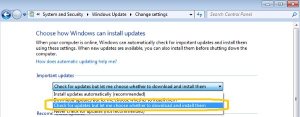
Comprehensive list of Hyper-V R2 updates
| Knowledge Base Article | Name | Date | Required? | File Name | Applies to | Availability | Link |
|---|---|---|---|---|---|---|---|
|
KB974598 |
“You receive a "Stop 0x0000007E" error on the first restart after you enable Hyper-V on a Windows Server 2008 R2-based computer”‘ |
10/1/2009 |
Yes, if you encounter this error and your server uses a “C-state” (lower power state) that is supported by the processor, but is not supported by Hyper-V. |
Windows6.1-KB974598-x64.msu |
Windows Server 2008 R2 |
Hotfix |
|
|
KB974909 |
“The network connection of a running Hyper-V virtual machine is lost under heavy outgoing network traffic on a Windows Server 2008 R2-based computer” |
10/21/2009 |
No. |
Windows6.1-KB974909-v2-x64.msu |
Windows Server 2008 R2 |
Hotfix |
|
|
KB975354 |
“A Hyper-V update rollup package is available for a computer that is running Windows Server 2008 R2” |
11/10/2009 |
Yes, if you are running a backup or restore solution. |
Windows6.1-KB975354-v2-x64.msu Windows6.1-KB975354-ia64.msu Windows6.1-KB975354-x86.msu |
Windows Server 2008 R2 |
Hotfix |
|
|
KB975530 |
“Stop error message on an Intel Xeon 5500 series processor-based computer that is running Windows Server 2008 R2 and that has the Hyper-V role installed: "0x00000101 – CLOCK_WATCHDOG_TIMEOUT" |
11/20/2009 |
Yes, if you are running Hyper-V on the affected hardware. |
Windows6.1-KB975530-v3-x64.msu |
Windows Server 2008 R2 |
Download Center, Hotfix |
Safely service offline virtual machines in your SCVMM library : Virtual Machine Servicing Tool 3.0
Using new features in VMST 3.0, customers can now service:
-
Offline virtual machines in a SCVMM library.
-
Stopped and saved state virtual machines on a host.
-
Virtual machine templates.
-
Offline virtual hard disks in a SCVMM library by injecting update packages.
-
Windows Server 2008 R2 failover clusters running Hyper-V.
The parent partition uses a different VMBus version. You need to Install a matching VMBus version in this guest installation.
Source: storvsp
Event ID: 5
Level: Error
Computer: 2008 R2 guest
Log Name: System
Source: vmbus
Level: Error
Computer: 2008R2-Guest
Source: VMSMP
Event ID: 26
Level: Error
Computer: 2008R2-Guest
Free Virtualization Workshops in Melbourne, Sydney, Canberra, Brisbane, Perth and Adelaide
Event Overview
Two day workshop focused on Hyper-V and Microsoft Virtualization technologies. The 2 day workshop will be a mixture of theory presentations and hands on labs. Participants will walk away with a better understanding of Microsoft’s Virtualization technologies.
Agenda Topics
- Day 1
- Virtualization 360 Overview

- Evaluating the Environment & Planning: MAP Tools and IPD Guides
- MAP Lab
- Hyper-V Architecture and Implementation – Hypervisor architecture, virtual disk and networks, security and licensing.
- High Availability – 2008 R2 Clusters, Quick and Live Migration, Storage Implications
- Lab: Setup a 2-Node Hyper-V Cluster

- Virtualization 360 Overview
- Day 2
- System Centre Virtual Machine Manager 2008 R2 – Creating a Library, Physical to Virtual Migration, Optimal Placement
- System Centre Operations Manager – Overview and integration with Virtual Machine Manager
- System Centre Data Protection Manager – Overview and integration with Virtual Machine Manager
- Architecture Considerations and Best Practices – Sizing Servers, storage and designing for high availability
- Considerations on Dynamic IT – Integrating Hyper-V, SCVMM, SCOM with PowerShell to build a dynamic environment
- Lab: Setup SCVMM and SCOM


Dates and Registration Details:
| Melbourne Date: May 31st – June 1st Location: Microsoft Melbourne Time: 9:00 – 5:00PM each day Registration: Click Here to Register |
Sydney Date: June 10th – June 11th Location – Microsoft Sydney Time: 9:00 – 5:00Pm each day Registration: Click Here to Register |
| Canberra Date: June 3rd – June 4th Location – Microsoft Canberra Time: 9:00 – 5:00PM each day Registration: Click Here to Register |
Perth Date: June 15th – June16th Location – Microsoft Perth Time: 9:00 – 5:00PM each day Registration: Click Here to Register |
| Brisbane Date: June 7th – June 8th Location – Microsoft Brisbane Time: 9:00 – 5:00PM each day Registration: Click Here to Register |
Adelaide Date: June 21st – June 22nd Location – Microsoft Adelaide Time: 9:00 – 5:00Pm each day Registration: Click Here to Register |
Microsoft is looking for a few good IT Pros. It’s for you!!!
Microsoft is building a worldwide community of IT Pros who want to share their frank opinions about our products (primarily Windows Server, Microsoft System Center, and Microsoft Forefront). We call it the International Customer Advisory Board (ICAB), and by the end of this year, we will be 1000 IT Pros strong.
The ICAB discusses Microsoft technology, troubleshoots one another’s technical issues, and weighs in on innovations in content and community—on a public blog, a Connect page (coming soon)m and/or a private, invitation-only Facebook group.¹ (Facebook participation is not required to be a member of the ICAB.)
Members may be invited to exclusive events at conferences like Tech Ed, the MVP Summit, and Management Summit and during customer visits in their home cities.
Interested?
If so, email icabnom@microsoft.com with your name and business card details
Visit : http://msicab.com/ for more info
Windows Aero and also rich media support including Silverlight and 3D graphics, remotely ? Yes. Will be possible with 2008 R2 SP1
Also Microsoft announced a collaboration agreement with Citrix, which will enable Citrix to integrate and use Microsoft RemoteFX within its XenDesktop suite of products and HDX.
Hyper-V and Dynamic Memory
With the release of the SP1 for Windows Server 2008 R2. Microsoft will be releasing the new feature for Hyper-V : Dynamic Memory.
But what Dynamic Memory will do?
Dynamic memory is an enhancement to Hyper-V in R2 and allows IT administrators to pool all the memory available on a physical host and dynamically distribute it to virtual machines running on that host as necessary. That means based on changes in workload, your VMs will be able to receive new memory allocations without a service interruption.
At a high level, Hyper-V Dynamic Memory is a memory management enhancement for Hyper-V designed for production use that enables customers to achieve higher consolidation/VM density ratios
To be Clear : Dynamic memory is allocating ram automatically among guest depending on usage. You still can’t allocate more RAM than what you have physically
The Last Mile: Pilot and Deploy Windows® 7
Springboard Series Virtual Roundtable
The Last Mile: Pilot and Deploy Windows® 7
→ ADD TO CALENDAR (ICS)
→ ADD TO CALENDAR (VCS)
 On April 29th, join Microsoft Technical Fellow, Mark Russinovich, as he will be leading a discussion around the process of planning, testing, assessing and rolling out Windows 7 in an enterprise organization.
Mark will be joined by a panel of IT professionals who are currently in the piloting and deployment process, along with Microsoft subject matter experts who can speak in depth about the technologies. The event will be broadcast live over the web at 9:00 am PDT, and will be available for on-demand viewing following the broadcast. The discussion will be open and candid, with the panel sharing insights, dispelling myths and getting down to the real story around technical adoption of Windows technologies. Specific topics will include the role of the pilot and the critical information it provides, best practices and tips & tricks for ensuring a successful effort, tools and technologies that will help automate the pilot and deployment processes, and conducting a frank post-pilot assessment. During the event, Mark will field questions coming in via the web from viewers across the globe.
Missed a previous Springboard Series Virtual Roundtable? Gain insight, tips, and tricks from Microsoft Technical Fellow Mark Russinovich, industry experts, and IT professionals from around the world from these recordings:
http://technet.microsoft.com/windows/dd421882.aspx
Technology Preview: future release of System Center Virtual Machine Manager V-next
During the MMS 2010, Microsoft demonstrated the Preview of System Center Virtual Machine Manager V-next, and System Center Operations Manager V-next both of which are planned to be available in 2011. Check out the demos.
Some Notes :
- System Center Configuration Manager 2007 R3, which includes power management capabilities that could reduce your power bills by tens of dollars per PC, per year – a capability we’re already using internally at Microsoft.
- The RTM versions of System Center Data Protection Manager 2010, System Center Service Manager and the new Compliance Pack for Service Manager—all designed to enable you to manage your complete IT environment in a more cost-effective way.
- Windows Intune, a new desktop infrastructure solution that delivers security and management from the cloud. This is the evolution of the System Center Online concept I shared at last year’s MMS. Using Windows cloud services and Windows 7, Intune is designed for mid-sized businesses, who want to operate at great performance, from anywhere.
Recommended Books


System Center 2012 R2 Virtual Machine

System Center Virtual Machine Manager 2012 Cookbook


 Cloudtidings.com