
Archive
Tips and Recomendations for DPM 2010 to protect Hyper-v/CSV
Based in my experience here are some recomendations and tips for SCDPM in a Hyper-v/CSV environment.
Recommendations :
-
Install SCDPM in a x64 physical server always with the OS installed in a Raid 1. I recommend at least 8GB of Ram and 2×4 cores
-
Ensure that ALL prerequisites software’s are installed on all the nodes in the cluster(IMPORTANT)
-
Ensure the SCDPM Server is updated. All patches should be installed
-
Have Installed a Raid 10 for the Storage Pool, as you cannot have the OS not the DPM installed on the disk that is dedicated to the storage pool, which is a set of disks on which the DPM server stores the replicas and recovery points for the protected data.
-
Check if the Tape library is compatible/recognized by Windows 2008 R2 ( VERY IMPORTANT!). Don’t try to use non signed drivers. The server will freeze when you most needed it.
-
Use a hardware VSS writer as you are using a CSV(IMPORTANT)
-
Have System Center Monitor in place
-
Install the Hyper-V role in your SCDPM Server from a command line instead of using Server Manager. This will enable DPM to manage/automate Item Level Recovery(ILR)
-
Install the SCOM agent to monitor your SCDPM server. Install the SCDPM Management pack. Monitor the SCDPM SQL Databases
-
Backup the SCDPM SQL Databases ( IMPORTANT )
-
Enable the SCDPM Alerts
Tips :
-
Tapes : By default you are unable to restore data from a expired tape. Also the recatalog option is disabled for expired tapes
-
Page File : 0.2 percent of the combined size of all recovery point volumes, in addition to the recommended size (generally, 1.5 times the amount of RAM on the computer)
Backing Up Virtual Machines on CSV with Hardware VSS Providers, Set to Register KEY
If you are using a hardware VSS provider, you can back up multiple virtual machines from the same CSV/node in the cluster.
To allow a maximum of three backups to run concurrently on each node, specify the number of concurrent backups that can run from a node.
Set the following registry key:
Key
HKLMSoftwareMicrosoftMicrosoft Data Protection Manager2.0ConfigurationMaxAllowedParallelBackups
Value Microsoft Hyper-V
Data 3
Type DWORD
Microsoft does not recommend that you do not use a value greater than 3 for optimal performance
Backing Up Virtual Machines on CSV with the System VSS Provider : Recommendations
If your SAN vendor does not have hardware VSS providers, you can use software snapshots to back up your virtual machines.
We recommend that virtual machines deployed on CSV should be backed up serially.
There are two aspects to serialization of backup jobs in a CSV environment:
- Serializing virtual machine backups on a per node basis.
To ensures that only one backup job will run at a time on a Hyper-V host, create the following registry key on the DPM server:
|
Key |
HKLMSoftwareMicrosoftMicrosoft Data Protection Manager2.0ConfigurationMaxAllowedParallelBackups |
|
Value |
Microsoft Hyper-V |
|
Data |
1 |
|
Type |
DWORD |
- Serializing virtual machine backups on a per CSV LUN basis.
This form of serialization limits the number of virtual machine backups happening on a single CSV LUN. This is done by creating a DataSourceGroups.xml file and placing it in the DPM server at %PROGRAMFILES%Microsoft DPMDPMConfig. This file provides DPM with information about the CSV virtual machine deployment configuration/distribution on the various CSV LUN so as to serialize the backups that happen per CSV LUN.
For more information about how to generate the file http://technet.microsoft.com/en-us/library/ff634192.aspx
Number of Hosts and Virtual Machines Supported by SCVMM 2008 R2
The maximum number of hosts and virtual machines tested with and supported by VMM on the highest recommended hardware configuration is 400 hosts and 8,000 virtual machines.
If your VMM implementation has over 150 hosts, we strongly recommended that you enable server-optimized garbage collector (GC) on the VMM server instead of the default workstation garbage collector. This can significantly reduce the CPU utilization on the VMM server and improve your performance for parallel VMM operations.
To enable server-optimized garbage collector (GC) on the VMM server, create a file that is named vmmservice.exe.config by using the following code, and then for VMM 2008, place it into the %SYSTEMDRIVE%\Program Files\Microsoft System Center Virtual Machine Manager 2008\Bin directory on the VMM server, or for VMM 2008 R2, place it into the %SYSTEMDRIVE%\Program Files\Microsoft System Center Virtual Machine Manager 2008 R2\Bin directory on the VMM server..
<configuration>
<runtime>
<gcServer enabled="true"/>
</runtime>
</configuration>
The number of virtual machines that can be run on a host is primarily limited by the configuration of the host and of the virtual machines on the host.
SCVMM 2008R2 Hardware Requirements
The minimum and recommended hardware requirements for the VMM server depend on the number of hosts that you manage and whether you use the same computer for the VMM server, the VMM database, and as a library server.
The minimum and recommended hardware requirements to install and operate all VMM components on a single computer are listed in the following tables based on the number of hosts that you manage.
From 5 to 10 hosts
|
Hardware component |
Minimum |
Recommended |
|
Processor |
Pentium 4, 2 GHz (x64) |
Dual-Core Pentium 4, 2 GHz (x64) or greater |
|
RAM |
2 GB |
2 GB |
|
Hard disk space |
10 GB |
40 GB |
From 11 to 20 hosts
|
Hardware component |
Minimum |
Recommended |
|
Processor |
Pentium 4, 2.8 GHz (x64) |
Dual-Core Pentium 4, 2.8 GHz (x64) or greater |
|
RAM |
2 GB |
4 GB |
|
Hard disk space |
10 GB |
50 GB |
Managing up to 150 hosts
|
Hardware component |
Minimum |
Recommended |
|
Processor |
Pentium 4, 2 GHz (x64) |
Dual-Processor, Dual-Core, 2.8 GHz (x64) or greater |
|
RAM |
2 GB |
4 GB |
|
Hard disk space (without a local VMM database) |
2 GB |
40 GB |
|
Hard disk space (with a local SQL Server 2005 Express Edition database) |
10 GB |
50 GB Note For the SQL Server 2005 Express Edition, the database size is limited to 4 GB. |
|
Hard disk space (with a local, full version SQL Server 2005 database) |
80 GB |
150 GB |
|
Note |
If you also use the VMM server as a library server, you need to provide additional hard disk space for storing objects. For more information about the hard disk space requirements for the VMM library, see System Requirements: VMM Library Server.
Managing more than 150 hosts
|
Hardware component |
Minimum |
Recommended |
|
Processor |
Pentium 4, 2.8 GHz (x64) |
Dual-Processor, Dual-Core, 3.6 GHz or greater (x64) |
|
RAM |
4 GB |
8 GB |
|
Hard disk space |
10 GB |
50 GB |
|
Note |
For better performance, when you are managing more than 150 hosts, it is recommended that you use a dedicated computer for the VMM server and do the following:
· Add one or more remote computers as library servers and do not use the default library share on the VMM server.
· Use a remote, full version of SQL Server for the VMM database.
SCVMM Admin Console crashes when you have a VM configured with 3 virtual processors : HOTFIX
SCVMM Administrator’s Console Rollup
Attention :
Restart requirement
After you apply this hotfix, you must restart the computer.
List of issues that are resolved:
- If a VM is configured to have 3 virtual processors, the SCVMM Admin Console crashes.
Note To resolve this issue, install the hotfix rollup package 982522 that is a hotfix rollup package for System Center Virtual Machine Manager 2008 R2 and then this hotfix rollup package. - This hotfix rollup package also resolves the issues that are documented in the following SCVMM 2008 R2 Admin Console update:
976246 When you remove a virtual hard disk from a virtual machine in System Center Virtual Machine Manager 2008 R2, the .vhd file on the Hyper-V server is deleted without warning
How to obtain the SCVMM 2008 R2 Admin Console hotfix rollup package
This hotfix rollup package is available on Microsoft Update.
To obtain this update from Microsoft Update, follow these steps on computers that have the SCVMM Admin Console installed:
- Click Start, and then select Control Panel.
- In Control Panel, double-click Windows Update.
- In the Windows Update window, click Check Online for updates from Microsoft Update.
- Click important updates are available.
- Select Update for System Center Virtual Machine Manager 2008 R2 (KB982523), and then click OK.
- Click Install updates.
To manually download the hotfix rollup package from the Microsoft Update Catalog, visit the following Microsoft website:
http://catalog.update.microsoft.com/v7/site/Search.aspx?q=982523
To manually download the hotfix rollup package from the Microsoft Update Catalog, visit the following Microsoft website:
To install this hotfix rollup package that can be downloaded from the Microsoft Update Catalog on the Virtual Machine Manager server, follow these steps:
- Extract the VmmClient32Update.cab or VmmClient64Update.cab file to a temporary directory.
- Open an elevated command prompt, type the following command for the 32-bit package, and then press ENTER to install the update:
msiexec /update vmmClient32Update.msp BOOTSTRAPPED=1
Note For the 64-bit package, type the following command:
msiexec /update vmmClient64Update.msp BOOTSTRAPPED=1
Hotfix rollup package information
Prerequisites
To apply this hotfix, you must have SCVMM Admin Console installed.
SCVMM 2008 R2 Rollup
List of issues that are resolved:SCVMM Server Rollup
Issue 1: A high availability virtual machine with a GPT pass-thru disk is reported is reported as “Unsupported Cluster Configuration.”
Issue 2: When you manage VMware Virtual Center that has distributed switches, the Virtual Machine Manager service (Vmmservice.exe) crashes.
Issue 3: After Quick Storage Migration is completed, the Failover Cluster Management MMC snap-in reports that the VM still uses the old CSV volume.
Issue 4: If a VM is configured with 3 virtual processors, the SCVMM Admin Console crashes.
Issue 5: The settings for the virtual network are incorrect after a Refresh-VMHost cmdlet job is completed.
How to obtain this SCVMM 2008 R2 hotfix rollup package
This hotfix rollup package is available on Microsoft Update.
To obtain this update from Microsoft Update, follow these steps on the Virtual Machine Manager server:
- Click Start, and then select Control Panel.
- In Control Panel, double-click Windows Update.
- In the Windows Update window, click Check Online for updates from Microsoft Update.
- Click important updates are available.
- Select Update for System Center Virtual Machine Manager 2008 R2 (KB982522), and then click OK.
- Click Install updates.
Note If the Virtual Machine Manager or Virtual Machine Manager Agent service is running when the hotfix rollup package is installed on the Virtual Machine Manager server, you have to restart the computer
To manually download the hotfix rollup package from the Microsoft Update Catalog, visit the following Microsoft Web site:
http://catalog.update.microsoft.com/v7/site/Search.aspx?q=982522
Great news for Web Hostings : Dynamic Memory : versions supported
Windows 2008 R2 guests will need to have SP1 installed to use standard or web versions
Windows 2008 guests will need to have a separate (yet to be released) hotfix
Windows 2003/2003 R2 guests will be suported
SCVMM (Error 2910) : VMM does not have appropriate permissions to access the resources : Host needs attention
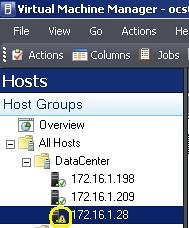
The password used by the VMMAgent Service Account has expired, or the Service Account itself has been disabled or deleted. This may more frequently in a workgroup environment where password expiration default is set to 48 days.
Check if the policy ‘User must change password at next logon’ is enforced there will be an initial successful connection between the Perimeter Host and the VMM Server, followed by subsequent communication failure
- On the Perimeter Host server, right-click My Computer and the click Manage.
- Open Local Users and Groups, and then open Users.
- In the right-hand pane, locate the service account for VMMAgent that begins with ‘SCVMM*****’.
- Right-click the service account and then select Properties.
- Click to clear the User must change password at next logon check box.

6. Click to select the Password never expires check box.
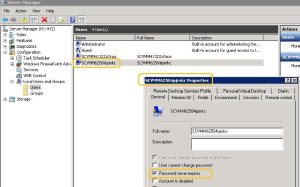
7. Click OK to close the ‘SCVMM***** Properties’ window.
8. Refresh the Perimeter Host in the SCVMM Admin console again.
Recommended Books


System Center 2012 R2 Virtual Machine

System Center Virtual Machine Manager 2012 Cookbook


 Cloudtidings.com